
xMatix Service runs the service operation around the assets you maintain. The service order is the working document, a job card holding parts and labour. Around it sit check-in and health checks, complaints, estimates and invoicing, labour time sheets, service recommendations, campaigns that generate the work, and the asset service contracts that decide who pays for it. This page maps the module: the apps you work in, the settings lists administrators maintain, who can see them, and the page that documents each topic.
Overview
A typical job moves through the module like this:
- A customer request arrives as a lead, an opportunity or an appointment, or a campaign reminder generates it.
- The advisor opens a service order for the asset, checks it in, records complaints and the health check, and adds part and labour lines.
- Technicians record their labour on time sheets, and parts move through fulfilment and inventory.
- Recommendations raised during the job are accepted or saved on the asset for a later visit.
- The order is invoiced to the customer, or routed to a warranty, free-service or contract claim when an asset service contract covers the work.
Service reuses the platform's commercial machinery. Prices come from price lists and discount groups, taxes come from tax groups, and service invoices are ordinary invoices.
Read the workspace
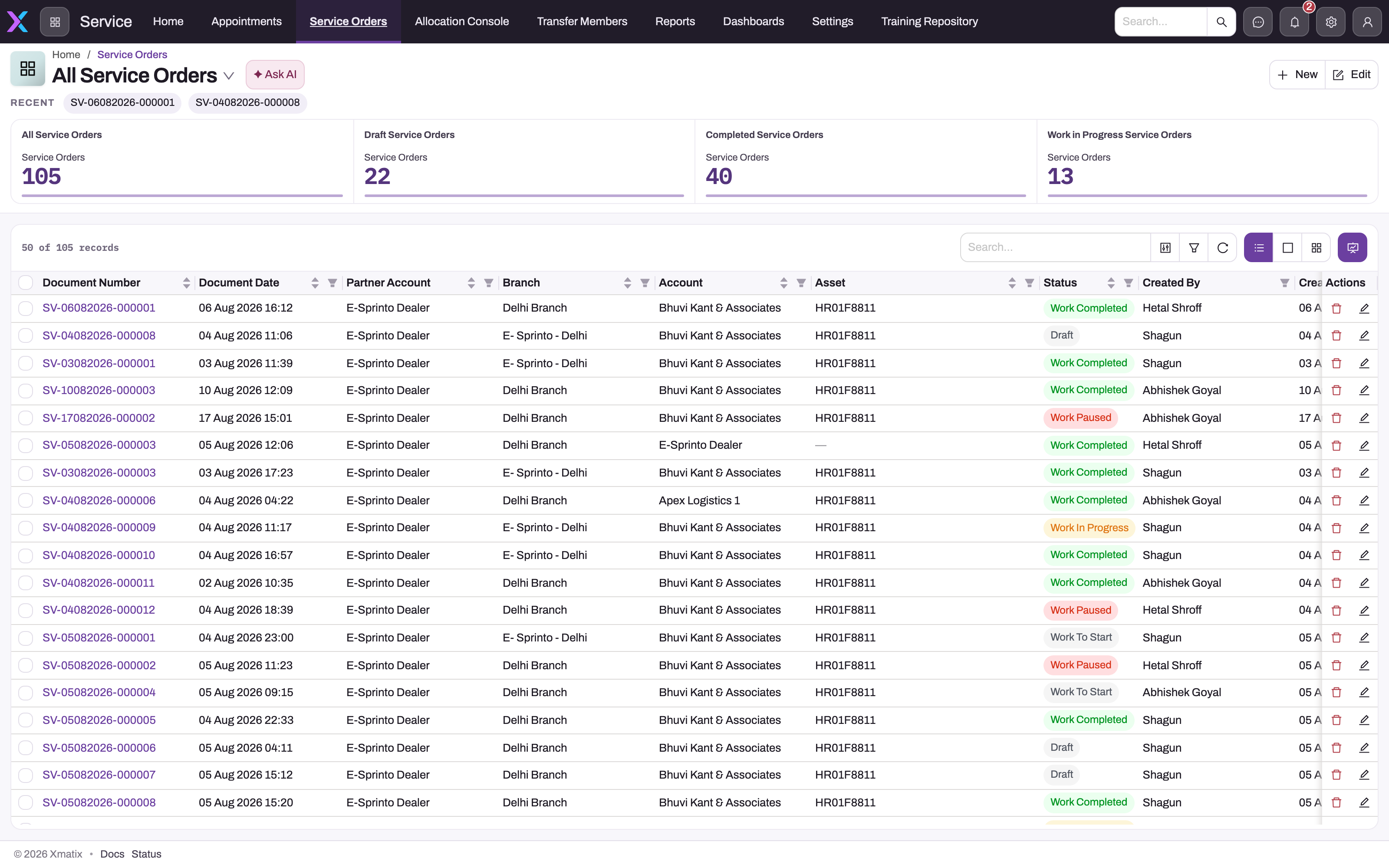
- 1
The Service app's navigation; administrators decide which entities and app pages appear here, so your tenant's bar may differ.
- 2
All Service Orders is the active view; the drop-down switches to other saved views and the recent chips reopen the last job cards.
- 3
Summary tiles count orders in each lifecycle stage — a quick read of workshop load before filtering.
- 4
Document Number, Document Date, Partner Account and Branch identify the job card and the workshop that owns it.
- 5
Account and Asset say whose unit is on the job; Status (Draft, Work To Start, Work In Progress, Work Paused, Work Completed) says where it sits.
- 6
Search, column filters and refresh narrow the register without changing any record.
Start in All Service Orders, the register of every job card. The summary tiles above the table count the orders in each lifecycle stage. The active view and the record count tell you which orders you are looking at. Search and column filters narrow the list by document, customer, asset, status or owner. Open the exact job card from this list before you change its work, allocation or billing.
An opened service order splits its record into tabs: Lines, Check In, Health Check, Complaints, Service Recommendation, Related (time sheets, estimates, invoices and other linked documents) and Details. The service order guide explains the fields and what to check on a populated record.
The Service app
The Service app appears in your app launcher when your security profile grants it. Its shipped navigation, in order:
| Entry | What it opens |
|---|---|
| Home | The Service home page, a dashboard |
| Lead | Leads, including the reminder leads that campaigns generate |
| Opportunity | Opportunities, the request stage before an order |
| Appointment | Booked customer visits, such as service appointments; see Product demos and appointments |
| Service Order | The job card: lines, actions and the full lifecycle |
| Allocation Console | A dispatch console page; see the dispatch console |
| Reports | The reports you can run |
| Dashboards | The dashboards you can open |
| Settings | The Service settings lists described below |
The Service app is also in the xMatix One mobile app, so field users reach the same entries on their phone when they have access.
Estimates (quotes) and invoices are not in the shipped Service navigation. You reach a service order's estimates and invoices from its Related tab, or from the Sales app. Administrators can add entities and pages to the Service app, so your tenant's navigation may differ from this list.
Service settings
Service → Settings opens the Service Settings App, a list of the records that configure the workshop, in three groups:
| Group | Entries |
|---|---|
| Service Catalog | Item, Item Maintenance Schedule, Campaign, Service Recommendation |
| Workshop Operations | Service Bay, Service Order Dispatch, Appointment, Check In Inspection |
| Customer Care | Call, Complaint |
Service Order Dispatch is a dispatch board for service orders, with a board view and a map built from each customer account's location. Its set-up is described in Field Service configuration.
Contracts
The Contracts app holds the contract records module: Contract, Contract Line, Term, SLA and PM Task, plus Reports, Dashboards and its own Settings page. Contract records are separate from the asset service contracts that cover service work on an asset. Those are reached from the asset or the service order, not from an app entry.
Section map
| Page | What it covers |
|---|---|
| Service orders | Where orders come from, the status flow, parts and labour, delivery |
| Service order lines | Adding, pricing and charging part and labour lines, rate bases, cancellations and repeat-repair flags |
| Check-in inspections | Checking an asset in: readings, walk-around findings and photos, test drives, checkout |
| Check-in templates | Setting up the walk-around checklist per model: sections, sub-sections and issue options |
| Complaints and fault codes | The complaint and fault-code catalogue, and how a diagnosed fault picks the parts a job is recommended |
| Checklists on service orders | Populating template-driven checklists and completing them |
| Recording labour with time sheets | Time sheets per order, work start, pause and end, roll-up to the order |
| Invoice a service order | Full and selective invoicing, pending quantities, document splitting and claim routing |
| Service claims | Warranty, free-service and accident jobs, and how their lines become claims |
| Service recommendations | Per-asset advisories: where they come from, accepting and posting them |
| Service recommendation rules | The rules that turn checklist and health-check answers into recommended parts and jobs |
| Running campaigns | Members, rules, and the processing actions that generate work |
| Item maintenance schedules | Service intervals per item and the per-asset due dates that campaign reminders read |
| Asset maintenance entries | The campaign work planned per asset: how it reaches documents and is recorded as done |
| Asset service contracts | Per-asset entitlements and how they gate and route service work |
| Service contract definitions | The contract product on its item: validity, usage limits, grace, enforcement and billing |
| Contract definition lines | The parts and labour a contract definition covers, and how they fence service order lines |
| Service bays | Workshop bays: type, branch, allocation mode, capacities, timing and capabilities |
| Contract records | The Contracts app: contracts, contract lines, terms, SLAs and PM tasks |
| Service configuration | The module switch, service bays, and the masters the module reads |
| Troubleshooting | The refusals service users actually hit, and what each one means |
Where the boundaries are
Three related areas are documented elsewhere:
- Dispatch, crew scheduling and skills-based routing belong to Field Service.
- Support cases and case SLAs, with their queues, entitlement checks and response timers, belong to Support.
- Pricing, invoices and claims are shared with Sales, because service orders reuse the commercial machinery.
Permissions
Two things decide what a user sees: the apps their security profile grants, and the entity permissions on that profile. A licence for the Service product is needed as well.
In the shipped configuration:
| App | Profiles that can view it |
|---|---|
| Service | System Admin, Standard User, Service, Sales Executive |
| Service Settings App (Service → Settings) | System Admin only |
| Contracts | System Admin, Standard User, Sales Manager, Sales Executive |
A user whose profile does not grant an app does not see it in the app launcher. Seeing an app is not enough to work in it: the user also needs read, create, edit or delete on each entity, and the server actions the job uses, on their profile. Without them, the user cannot open or change those records. To let service advisors maintain service bays, campaigns or complaints, grant the Service Settings App on their profile, or add those entities to an app they already have.
Configuration
- Module switch. Setup → Feature Hub → Service → Settings has the Enable Service switch, on by default. Turning it off removes the Service, Service Settings, Contracts and contract settings apps from every user's app launcher and navigation. It is a navigation switch: records stay in place, and a direct link to a record still opens.
- AI Mechanic. The AI Mechanic switch on the Sense AI settings adds an AI overview and guided check-in, complaint and health-check steps to the service job card. It is off by default, and users also need a Sense AI seat. See Sense AI.
- Navigation. Administrators can add or remove entities and pages in the Service app, the Service Settings App and the Contracts app in Setup → Design Studio → Apps.
- Masters. Service bays, item types, service contract definitions, check-in and checklist templates, and recommendation rules shape how the module behaves. Service configuration lists each one and where it is maintained.
Training
Practice exercise
In a sandbox, find your way around the module before you touch a job:
- Open the Service app and note each entry in its navigation.
- Open Service Order, pick any order and visit each tab, from Lines to Details.
- Go to Service → Settings and find Service Bay under Workshop Operations.
Expected result: you can name where orders, appointments, bays, campaigns and complaints live. If Settings shows nothing, your profile does not grant the Service Settings App. Ask your administrator.
Quick reference
- The service order is the job card. Everything else hangs off it.
- Appointments, leads and opportunities are where service requests start.
- Estimates and invoices are on the order's Related tab, not in the Service navigation.
- Service → Settings holds bays, campaigns, maintenance schedules, complaints and dispatch.
- Only System Admin opens Service Settings out of the box.
- Contract records live in the Contracts app. Asset service contracts live on the asset.
- Turning off Enable Service hides the apps but keeps the data.
Common questions
How does Service relate to Field Service?
Service is the document layer: orders, estimates, invoices, contracts and the workshop flow around an asset. Field Service is the execution layer for crews in the field, with dispatch boards, scheduling and skills-based routing, described in its own section. A field job and a workshop job can end in the same service order. What differs is how the work is assigned.
Where do support cases live?
In the Support section. Cases, queues and SLA timers are a separate flow from service orders. A case may lead to a service order when physical work is needed, but case handling itself is documented there.
Do service orders have their own pricing and invoicing rules?
No. They reuse the sales machinery. Prices come from price lists and discount groups, taxes from tax groups, and invoices land in the same invoice list as sales invoices. See Pricing, discounts and taxes and Invoicing and payments. What is specific to Service is claim routing: warranty, free-service and contract work goes to a claim instead of the customer's invoice. See Service claims and asset service contracts.
Why can't I see Service Settings?
In the shipped configuration only the System Admin profile can view the Service Settings App. Your administrator can grant the app on your security profile, or add the entities you maintain, such as Service Bay or Campaign, to an app you already use.