
Licensing records what your organization has commercially enabled (products, features and packages) and which users hold a seat on each one. It is a separate layer from security: a user needs an entitlement and a security profile grant before a licensed product or feature works for them, and a module's own Settings switch can still turn the module off for everyone. Your platform operator allocates licenses to your organization. You then enable them, assign seats to users and watch usage from Setup → Feature Hub → Administration.
Overview
| Kind | What it covers | Example |
|---|---|---|
| Product | A whole functional area of the platform, with the apps and entities it ships | CRM, Sales, Inventory, Finance & Accounting |
| Feature | An individual capability inside a product, licensed on its own or included with the product | An add-on that unlocks extra capabilities on an entity |
| Package | An installed add-on bundle with its own licensing mode | A vertical solution package |
Every feature has a licensing mode set in the platform catalogue:
- Licensed: the feature needs an enabled license row for your organization and, depending on seat enforcement (below), a user seat.
- Free: the feature is granted automatically to every user whose profiles hold its parent product. Free features need no license row and no seat.
- Disabled: the feature is off platform-wide. No tenant setting turns it on.
The Licenses screen offers Enable and Disable only on Licensed rows, so a Free or Disabled row with no actions is expected. It does not mean a permissions problem.
When to use it
- You bought a new product or add-on, and your operator has allocated it: enable it and seat the users who need it.
- Someone joins or leaves: assign or revoke their seats.
- A whole team suddenly cannot reach a module: check the license status, its term and the module's Settings switch.
- You are planning a renewal: read seat usage, the term dates and the License usage history.
- You want to know what is not covered yet: open the Coverage gaps tab.
How xMatix handles it
Three layers decide access
A user can use a licensed product or feature only when all of these are true:
- The tenant license is on. The row is enabled and today falls inside its term. A license whose Start date is still in the future, or whose Expiry date has passed, counts as disabled.
- The user's security profiles grant it. Profiles are the unit of app, entity, field and capability access, and visibility is allowlist-based.
- The user has a seat, where seats apply. See Seat enforcement.
A module's Settings switch is a separate fourth check. Turning a module off disables it for everyone, including users with licenses and seats. Turning it on never supplies a missing license or seat.
Seat enforcement
Whether a missing seat blocks a user depends on a platform-level seat-enforcement setting that your operator controls. It is off unless your operator has turned it on.
- Enforcement off (default). A user with no active product seats at all is treated as holding every enabled product their profiles grant. Once you assign that user one product seat, they are limited to the products they are seated on. Feature seats work the same way, counted separately.
- Enforcement on. A user with no seats gets no product or feature entitlements. Assigning a security profile to a user who lacks the seats that profile requires is refused (see Common problems).
Because of the first rule, giving a user their first seat can reduce what they see. Seat a user on every product they need in one sitting. Never assume a user is seated just because a feature works: check their License Allocations tab.
A seat ceiling is enforced in both modes. When a tenant license has a seat count, adding a seat beyond it is refused. A license with no seat count is unlimited.
What a disabled or expired product hides
When the platform's product gate is active, an app or entity owned by a product that is disabled or outside its term disappears from the launcher, navigation and metadata for every user in the organization, whatever their profiles grant. A user who opens a link to it sees a page titled with the product name followed by isn't licensed for this organisation, and is told to ask an administrator to enable it under Setup → Feature Hub → Administration → Licenses. Reports whose root or joined entities belong to that product become unavailable. A dashboard stays available while at least one of its tiles still reads licensed data; the unlicensed tiles fail on their own.
Background work follows the same rule. Depending on how the platform is configured, scheduled jobs, workflow schedules and integration triggers that belong to an unlicensed or lapsed product (or to a module whose switch is off) are skipped. Run now on such a job reports that its product isn't licensed for this organisation, with the reason in brackets — product not licensed, product expired or module disabled.
Product dependencies
Some products need another one enabled first:
| Product | Requires |
|---|---|
| India Compliance, UAE Compliance, KSA Compliance | Finance & Accounting |
| Field Sales | Sales |
| Warehouse Management | Inventory |
| Support | CRM |
| Telephony & Messaging | CRM |
Enabling a product before its prerequisite is refused, and the message names the missing products. Disabling a product while an enabled product still depends on it is refused too, and that message names the dependants to disable first. A feature can be enabled only while its parent product is enabled. A feature's seat count can never exceed its parent product's seat count.
Timing
Licenses, seats and profile changes reach signed-in users within about two minutes, when their cached entitlements refresh. The confirmations on screen say at their next sign-in or session refresh; in practice the change usually lands within that two-minute window.
Prerequisites
- The
setup.licensing.admincapability. It opens the whole Feature Hub area of Setup as well as the Licenses and License usage screens. See Permissions. - The license allocated to your organization by your platform operator. Seat counts, start and expiry dates and billing references come from that allocation.
Procedure
Step 1 — Open the Licenses screen
Go to Setup → Feature Hub → Administration → Licenses. The page title is Tenant licenses. The header shows seven tiles: Products, Features, Packages and AI credit grants (catalogue counts), then Product seats active, Feature seats active and Package seats active.
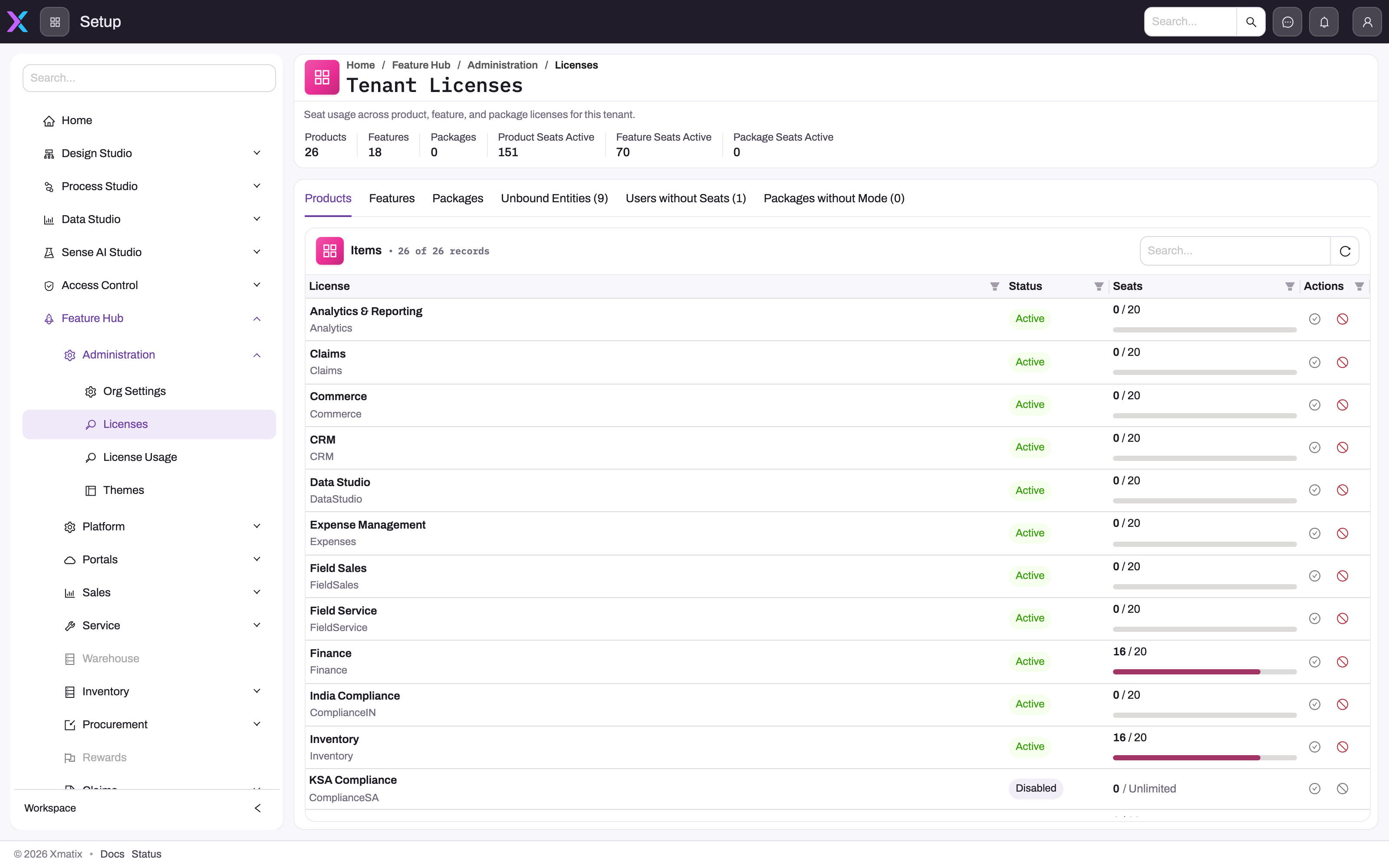
Six tabs follow: Products, Features, Packages, AI credits (n), Analytics capacity and Coverage gaps (n). Each table has search, filter and refresh in its header row.
On the Products, Features and Packages tabs, each row shows License, Status, Seats (active seats against the seat count with a usage bar, or active / Unlimited when no count is set), Assigned and Revoked (lifetime counters), Start, Expiry, Billing ref. and the row actions. The status pill is worked out in this order:
| Status | Meaning |
|---|---|
| Disabled platform-wide | The feature's licensing mode is Disabled |
| Free | The feature is Free mode: everyone with the parent product has it |
| Disabled | The license row is switched off |
| Expired | The Expiry date has passed |
| Seats full | Active seats have reached the seat count |
| Active | None of the above |
A license whose Start date is still ahead shows Active, but it grants nothing until that date arrives. Read the Start column as well as the pill.
Step 2 — Enable a license
Click Enable on the row. On the Products tab, a product your operator has not allocated keeps Enable greyed out, and its tooltip reads Not allocated — ask your platform operator to allocate this product.
- A success toast confirms the change.
- If the product's apps and entities are not yet in your organization, a message titled with the product name and enabled — setup in progress appears. They are added automatically, usually within a few minutes, and the product then appears in the launcher.
- If a prerequisite product is off, the request is refused with a message that lists it (see Product dependencies).
Step 3 — Assign seats
Open Setup → Access control → Users, open the user and choose the License Allocations tab. A summary shows Product seats, Feature seats and Package seats (active out of all ever assigned). Below it there are three cards: Products, Features and Packages.
- In the card's selector (Add a product…, Add a feature… or Add a package…), pick the license. Each option shows its seats in use, for example Sales — 12/25 seats.
- Click Add license. The toast says Seat assigned. and the license appears as a green tag.
The selector offers only licenses that are allocated, enabled and not already held by this user. Free features never appear because nobody needs a seat for them. When nothing is left to add, the selector reads No licenses available to assign.
Step 4 — See who holds a license and revoke seats
On the Licenses screen, click a license name (only allocated licenses are links). Its page shows Seats, Assigned, Active, Revoked, Status (Enabled or Disabled) and the term in the header, and an Assignments table with User, Status (Active or Revoked), Assigned, Assigned by, Revoked and Revoked by.
To free a seat, click Revoke on the row and confirm Revoke this seat?. You can also do this with the × on the user's tag in the License Allocations tab. The toast says Seat revoked. The seat is freed immediately, and the assignment stays in history with who revoked it and when. Revoked rows have no actions. To give the seat back, assign it again (Step 3).
Step 5 — Disable a license
Click Disable and confirm Disable this license?. Users lose access within the entitlement refresh window. Disabling deletes nothing: records, customizations and seat assignments stay, and Enable restores access. A product that an enabled product depends on cannot be disabled until you disable that product first.
Step 6 — Review AI credits and analytics capacity
The AI credits tab is read-only. It lists what the platform grants your organization per credit feature: Credit feature, Status, Granted / month, Pool used (this month) (consumed against this month's pool, or created on first use), Free tokens / user / day (platform default, Off or a number), Start, Expiry and Billing ref. Status reads Disabled, Outside window (outside the grant's term), Pool exhausted or Active. You hand credits out to users in Sense AI Studio, never above the monthly grant; see AI credits in Sense AI Studio.
The Analytics capacity tab is read-only too. It shows Parallel builds (marked platform default when your organization has no grant of its own), Queue limit (or Unlimited), Daily capacity allowance (capacity-unit hours per 24 hours, or Not limited), Used in the last 24 h, Remaining, Enabled and a link to Open Build queue. Not available on this host means the capacity gate is not in use.
Step 7 — Close coverage gaps
The Coverage gaps tab adds up three lists. Pick one in the second row of the table header. Each option shows its count:
- Unbound entities: entities with no owning product or feature. To bind one, open it from Setup → Design Studio → Entities, then on the Licensing card click Edit and set Owning product and, optionally, Additional features, then Save.
- Users without seats: active users who hold no product seat at all. Click a name to open the user, then assign seats (Step 3). Remember that with enforcement off, a user with no product seats sees every enabled product their profiles grant.
- Packages without mode: installed packages whose licensing mode has not been set. Ask your operator to set it.
Step 8 — Read license usage
Setup → Feature Hub → Administration → License usage shows when licensed functionality was actually exercised. Filter by User, Usage type (for example Product entitlement, Feature entitlement, Feature capability, Portal sign-up), Source and a date range (Last 24h, Last 7d, Last 30d or custom). Columns are Occurred, Usage type, Source, User, Email, Profile, Product, Feature and Capability. Usage is recorded when a user's entitlements are resolved, at most about once per user per two-minute window. So the table shows that a user used an entitlement, not how many times. It is usage telemetry, not the audit trail.
Business rules
- Tenant admins can enable and disable only products the operator has allocated. Seat counts, start and expiry dates and billing references are kept when you toggle a license; the tenant Setup cannot edit them.
- A seat beyond the seat count is refused with seats_exhausted: tenant product license is at its N-seat ceiling. (or the feature or package equivalent). An empty seat count means unlimited.
- A user can hold only one active seat per license. Adding a seat they already hold changes nothing.
- Revoking is a soft revoke. The assignment row keeps Revoked and Revoked by, and the license's Revoked counter goes up.
- Deactivating a user does not revoke their seats. Include seat cleanup when you offboard someone.
- A license counts only inside its term. Before Start and after Expiry it behaves exactly like a disabled license.
- Free features follow their parent product. Disabled features are never granted.
- Changes reach users within about two minutes.
Example
Your organization buys Field Sales for a 25-person field team, starting 1 April. Your operator allocates Field Sales with 25 seats, a start date of 1 April and an expiry a year later. On the Licenses screen, the Field Sales row shows 0 / 25. Enable is refused at first, with a message that Field Sales requires Sales, so you enable Sales first and then Field Sales. Until 1 April the row shows Active but grants nothing, which suits the plan.
On 1 April you open each field user under Setup → Access control → Users → License Allocations and add Field Sales and Sales seats in one sitting. The Field Sales row now reads 25 / 25 and its status shows Seats full. In June a field user leaves. You deactivate the account and revoke both seats, and the new joiner takes the freed seat. A week later, License usage filtered to Product entitlement shows the newcomer's first use.
Training
Practice exercise
In a sandbox, with setup.licensing.admin:
- Open Setup → Feature Hub → Administration → Licenses and note the status and seats of one enabled product with a seat count.
- Open a test user's License Allocations tab and add a seat on that product. Expected: toast Seat assigned., a green tag, and on the Licenses screen the Seats and Assigned figures each up by one.
- Click the product name on the Licenses screen. Expected: the test user is listed in Assignments with Status Active and you as Assigned by.
- Revoke the seat there. Expected: Seat revoked., the row shows Revoked, and the Revoked counter rises by one.
- Open Coverage gaps → Users without seats and confirm whether the test user is listed.
Quick reference
- Licenses: Setup → Feature Hub → Administration → Licenses. Usage: … → License usage.
- Seats: Setup → Access control → Users → user → License Allocations.
- Effective access = tenant license on and in term ∩ profile grants ∩ seats (where seats apply) — and the module switch on.
- First seat for a user narrows them to their seated products, even with enforcement off.
- Start in the future = Active pill but no access yet. Expired = no access.
- Seat count, term and billing ref. come from your operator; you can't edit them.
- Revoke frees the seat at once and keeps history; deactivating a user keeps their seats.
- Allow about two minutes for any change to reach users.
Permissions
| What | Needs |
|---|---|
| See the Feature Hub area of Setup, the Licenses and License usage screens, and license assignment pages | setup.licensing.admin |
| Enable or disable a license, assign or revoke a seat | setup.licensing.admin (checked again on the server) |
| See the License Allocations and Access Diagnostics tabs on a user | setup.licensing.admin, or the user is looking at their own account |
| Open a user's page at all | setup.security.users.manage, plus the Access control area gate described on the Administration hub |
Without setup.licensing.admin, the Licenses screen shows Permission required — Viewing tenant licenses requires the setup.licensing.admin capability. A user who opens their own License Allocations tab without the capability sees Permission denied. The tab is offered, but the server only returns allocations to license administrators.
Configuration
| Setting | Where | What it changes |
|---|---|---|
| License enabled / disabled | Licenses screen, row actions | Whether the product, feature or package counts for anyone in the organization |
| Seats | User → License Allocations, or the license's Assignments page | Which users hold the license |
| Owning product, Additional features | Setup → Design Studio → Entities → entity → Licensing card | Which product (and add-on features) an entity belongs to, for the product gate and the Coverage gaps list |
| Module master switch | The module's Settings item inside its Feature Hub group | Turns a module off for everyone, whatever the licenses say |
| AI credit allocation | Sense AI Studio → AI credits | How the platform's monthly grant is shared among users |
| Profile license requirements | Security profiles | Which seats a profile needs, used by Access Diagnostics and, with enforcement on, by profile assignment |
Set by your platform operator, not in tenant Setup: seat counts, term dates, billing references, allocation of products, AI credit and analytics capacity grants, package licensing modes, seat enforcement and the product gate.
Common problems
"Enable" is greyed out on a product
The product has not been allocated to your organization. The tooltip says Not allocated — ask your platform operator to allocate this product. Allocation is a commercial step only the operator can take.
Enabling a product says it requires other products
A prerequisite in the dependency table is off. Enable the named product first, then try again.
Disabling a product says other products depend on it
An enabled product needs this one. Disable the dependants named in the message first, or leave the product on.
Enabling a feature fails with "The tenant must have the parent product enabled"
Enable the feature's parent product first. Also, if the feature has a seat count, it cannot be larger than the product's (Feature seat count cannot exceed the parent product seat count.).
Adding a seat fails with "seats_exhausted"
The license has reached its seat count, and the row shows Seats full. Revoke a seat from someone who no longer needs it (deactivated users keep theirs), or ask your operator to raise the count.
The license I want is not in the user's selector
The selector only lists licenses that are allocated, enabled and not already held by the user. Free features are never listed. Enable the license first, or check the tags in the card: the user may already hold it.
A user lost a product right after I gave them their first seat
With enforcement off, a user with no product seats sees every enabled product their profiles grant. Their first seat limits them to seated products. Add seats for the other products they use.
Assigning a security profile says "User is missing required seats"
Seat enforcement is on, and the profile requires products or features the user is not seated on. The message lists them. Assign those seats first, then assign the profile.
A user sees "isn't licensed for this organisation"
The page belongs to a product that is disabled, not yet started or expired. Check the product's row on the Licenses screen, including Start and Expiry. If the term has lapsed, contact your operator.
A scheduled job stopped running, or Run now says the product isn't licensed
The job belongs to a product that is not licensed or has expired (the reason is in brackets), or to a module whose Settings switch is off. Enable the license or the module switch. If the term has lapsed, contact your operator.
A user has a seat but still can't use the feature
A seat unlocks nothing by itself. Check the module's Settings switch, the license's status and term, the parent product, and the user's profile grants. The user's Access Diagnostics tab lists the profiles, roles, teams and business units resolved for them, the licenses and capabilities they hold, and the licenses and capabilities their profiles require that they don't hold. Then follow Troubleshooting: a user can't see something. Allow two minutes after any change.
Common questions
What happens when a license runs out of seats?
The Licenses screen shows Seats full, and adding another seat on the License Allocations tab is refused until you revoke one or the operator raises the count. Users who already hold a seat keep working. Deactivated users keep their seats until you revoke them, so revoking seats belongs in your offboarding checklist. The Revoked counter and the license's Assignments page keep the history of who held each seat, which helps when you plan a renewal.
Does disabling a license delete anything?
No. Disabling removes access, not data or configuration: records, customizations and seat assignments stay, and enabling the license again restores access. Because the change reaches users within about two minutes, treat a disable as a user-facing change and announce it first. You cannot disable a product while another enabled product depends on it.
Can I change the seat count or expiry date myself?
No. In tenant Setup you can enable and disable licenses and assign and revoke seats. Seat counts, start and expiry dates and billing references are kept by the platform operator who allocated the license. The Licenses screen shows the current values, so you can see what to ask for. The same applies to AI credit grants and analytics capacity, which those tabs show read-only.
What happens when a license expires?
From the expiry moment the license counts as disabled. Its apps and entities stop working for users (where the product gate is active), and the product's background jobs are skipped. The row shows Expired. Seats and data are untouched. When the operator extends the term, access returns within about two minutes, with no re-assignment needed.