
When a user says they can't see an app, a list, some records, a field or a button, work through the access layers below in order and fix the first one that fails — every layer must allow the thing, so a change to a later layer does nothing while an earlier one still refuses. This page is the starting point for access complaints; each layer has its own page with the full set-up procedure.
Overview
xMatix decides what a person sees in layers, and each one can only hide things that the layers before it allowed:
| Layer | What it controls | Where you fix it |
|---|---|---|
| Account | Whether the person can work in xMatix at all | The user's page under Setup → Access control → Users |
| Licensing | Whether a product's apps and entities exist for your organization, and for this user | Setup → Feature Hub → Administration → Licenses, the user's License Allocations tab |
| Security profiles | Which apps, pages, entities, operations, fields, actions and Setup screens the user gets | Setup → Access control → Profiles |
| Organization shape and company access | Whether the Partner and Branch fields exist at all, and which companies' records the user reaches | Setup → Feature Hub → Administration → Org Settings |
| Record security | Which individual records the user may read, edit or delete | Setup → Access control → Policies |
| Restriction rules | Extra grants and filters on top of the policy | The entity's policy, Rules |
| The list itself | The view's filter, search text, column filters and the Live / Archived switch | The list, by the user |
How xMatix handles it
- Entity access is an allow-list. A user can read an entity only when at least one of their effective profiles grants Read on it. An entity with no grant is removed from the user's menus and metadata altogether, so a link to its list or to one of its records opens the "page not found" page rather than an access-denied message.
- Profiles only add up. A user's rights are the union of their effective profiles, with one exception: an explicit field permission on any profile overrides the field access the other profiles inherit. See Security profiles.
- An unlicensed product hides its entities from everyone. When your organization has not enabled a product — or its license term has not started or has ended — its apps and entities disappear for every user, whatever their profiles grant. Opening one of its pages shows "… isn't licensed for this organisation" with Go to Home and Go Back.
- Record security filters every read path. Lists, record pages, lookups, related lists, list summaries, reports and the mobile app's sync all apply the same record filter. A record outside the user's scope simply isn't there for them. See Record security.
- Changes take up to about two minutes to reach a user who is already signed in, because access is cached for that long. Access Diagnostics, by contrast, is computed fresh each time you open it, so it can show a fix before the user's session picks it up.
Prerequisites
- To open Setup → Access control you need the
setup.security.managecapability. - To see another user's License Allocations and Access Diagnostics tabs you need
setup.licensing.admin. Without it, those two tabs are not shown. - To reproduce the problem as the user, you need Log in as user (see Permissions).
Procedure
Step 1 — Write down the complaint precisely
Record the user, what they expected to see (an app, a list, a record, a field or a button), what they wanted to do with it (read, create, edit, delete, run an action), on web or mobile, and one specific record that is missing. Copy any message word for word: the wording tells you which layer refused (see Common problems).
Step 2 — Open the user's Access Diagnostics
Go to Setup → Access control → Users, open the user and select the Access Diagnostics tab.
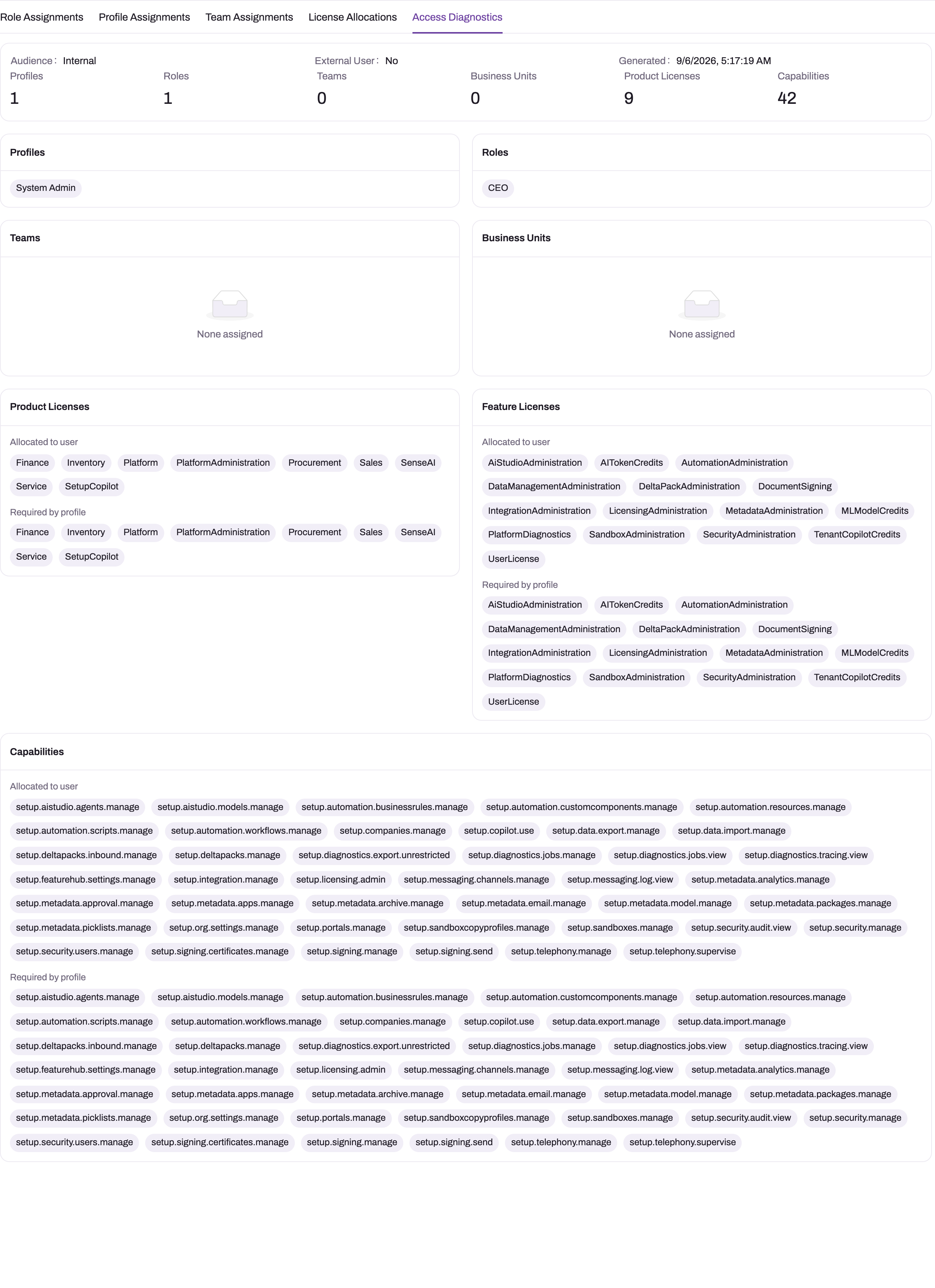
The tab shows what the server computes for that user right now:
- Audience, External User and Generated (when this picture was computed).
- Counts and cards for Profiles, Roles, Teams and Business Units. Only effective profiles are listed: the assignment and the profile are both active, and the profile's audience scope matches the user. Business Units are the units of the user's roles; an empty card is normal unless a share or rule depends on it.
- Product Licenses, Feature Licenses and Capabilities, each as two lists: Allocated to user and Required by profile. The screen does not mark differences for you — look for a name that appears under Required by profile but not under Allocated to user.
Step 3 — Check the account and its profiles
Fix these first; nothing else matters until they pass.
- Status on the user's page must be Active. An inactive account is refused on every request. See Deactivate a user.
- The Profiles count must be at least 1. If it is 0, open Profile Assignments: the assignment may be missing or inactive, the profile itself may be inactive, or its audience scope may not match the user (a staff user never picks up an External-only profile). A user with no effective profile sees an empty workspace.
Step 4 — Check licensing
If the missing thing belongs to a licensed product or feature:
- Open Setup → Feature Hub → Administration → Licenses. The product must be enabled and inside its term. Diagnostics lists enabled products without checking the start and expiry dates, so check the dates here.
- Compare Allocated to user with Required by profile on Access Diagnostics. A product or feature that the profile requires but the user doesn't hold is a seat gap: assign the seat on the user's License Allocations tab. How seats behave depends on seat enforcement — see Seat enforcement.
- A capability under Required by profile but not Allocated to user usually means the user is not entitled to that capability's feature.
Full detail: Licensing.
Step 5 — Check the profile grants
Open each profile listed on Access Diagnostics under Setup → Access control → Profiles and look at the tab that matches the complaint:
- An app or a menu item is missing — App Permissions: tick View for the app and for each app page that should appear. A profile with entity grants but no app gives an empty menu.
- A whole list is missing, or a link opens "page not found" — Entity Permissions: the entity needs Read.
- The user can read but not create, edit or delete — Entity Permissions: Create, Update or Delete. The New, Edit and Delete buttons follow these grants.
- A button, preview or print is missing — the Actions tab must allow the action.
- A field is missing or read-only — Field Permissions on every profile the user holds. One explicit restricting row on any profile wins over the others.
- A Setup screen is missing — the capability on the profile's entitlements, plus the area gate: the whole Access control area needs
setup.security.manage, and Feature Hub needssetup.licensing.admin. - The mobile app is missing — mobile app access is set per mobile app under Setup → Design Studio → Apps → Mobile apps, on the app's Profiles tab.
Add the specific grant to a profile the user already holds (or to a cloned profile) rather than handing out a broad administrator profile. See Security profiles.
Step 6 — Check the organization shape and company access
- A Branch or Partner field, list or column is missing for everyone. If your organization has switched off We operate from multiple locations or We run multiple companies under Setup → Feature Hub → Administration → Org Settings, xMatix hides the branch or partner dimension on every screen, list, report and dashboard. That is intended, not a permission problem. See Branches.
- Records of some companies are missing. In an organization with multi-company mode on, the user's Company Access (under Org Settings) can limit them to particular companies. See Tenants and companies.
Step 7 — Check record security
If the user can open the list but particular records are missing, entity access is fine and record security is filtering. Open the entity's policy under Setup → Access control → Policies and work out which path should give this user the record:
- the policy is Organization Owned, or its default access for the user's audience is Read Only or Read Write;
- the user owns the record, or Grant access using hierarchy is on and the owner holds a role below one of the user's roles;
- Allow manual share is on and the record is shared with the user, or with a role, team or business unit they belong to;
- an enabled Access Grant rule targets the user and matches the record;
- one of the user's profiles has View All on the entity.
An entity with no policy, or an inactive one, behaves as Private with every switch off — only owners and View All holders read it. Create its policy first. Worked examples: Worked security scenarios; full rules: Record security.
Step 8 — Check restriction rules
When everything above allows the record, look at the policy's Access Filter rules. Every enabled filter that applies to the user must match the record, or it stays hidden. Filters only narrow; they never grant. Typical culprits are a filter whose target is wider than intended, and the filters that ship on some entities — visits and visit plans are limited to the field resource they are assigned to, and several employee and payroll records to the reader's own employee resource. View All holders are not affected by filters, which is why an administrator often sees records a scoped user can't. See Restriction rules.
Step 9 — Check the list itself
Last, and surprisingly common: nothing is wrong with access. Have the user:
- switch to a view without a filter, or check the current view's filter;
- clear the search box and any column filters;
- check the Live / Archived switch — an archive rule moves old records out of every live list. See Archived records.
If the record appears, adjust the view. A shared view's filter affects everyone who uses it.
Step 10 — Confirm the fix
Re-open Access Diagnostics; the Generated time shows it was recomputed. Then have the user try again after about two minutes, or sign out and back in. If you can, check it yourself with Log in as user on the user's page: give a reason and a duration, and you see xMatix exactly as the user does for that time-boxed session.
Example
A sales executive is asked to follow up a lead that a colleague created, but can't find it in Leads, although their sales manager can.
- Access Diagnostics shows one effective profile and one role, and every product the profile requires is allocated — the account, licensing and profiles pass.
- The Leads list opens and shows the executive's own leads, so the profile grants Read: entity access is fine.
- Nothing is filtering the view: the executive switches to an unfiltered view and clears the search, and the lead is still missing.
- On Policies, the lead policy is Private for staff, with Allow manual share and team access off. The executive can read only the leads they own (or that users below them in the role tree own). The manager reads the lead through the role hierarchy, because the colleague's role sits below theirs.
- Because the follow-up is now the executive's job, the manager changes the lead's owner to the executive. Within about two minutes the lead appears in the executive's list.
Training
Practice exercise
In a sandbox, sign in as an administrator and pick a test user who holds one profile.
- On a clone of that profile, clear Read on an entity the user normally uses, and assign the clone in place of the original. Wait two minutes and have the test user open that entity's list. Expected: the menu item is gone and a saved link opens the "page not found" page.
- Restore Read. Then add a filter to the list view the test user uses so that it matches no records. Expected: the list is empty with no error. Clearing the view filter brings the records back.
- Open the test user's Access Diagnostics and name, for each of the two problems, the layer that caused it.
Quick reference
- Work top-down: account → licensing → profiles → org shape → record security → restriction rules → the list.
- Profiles: 0 on Access Diagnostics explains an empty workspace by itself.
- Required by profile but not Allocated to user = a licensing gap.
- No entity Read = no menu item, and links open "page not found".
- An app needs View on App Permissions, separately from entity grants.
- One explicit field restriction on any profile hides the field.
- Missing records with a working list = record security, restriction rules or the view.
- View All skips record security and filters — admins see more than scoped users.
- Allow about two minutes after any change.
Permissions
| Task | What you need |
|---|---|
| Open users, profiles, roles, teams, business units and policies | setup.security.manage (the Access control area) |
| Edit a user account | setup.security.users.manage |
| See another user's License Allocations and Access Diagnostics | setup.licensing.admin |
| Open Licenses and other Feature Hub screens | setup.licensing.admin (the Feature Hub area), plus the screen's own capability |
| Log in as user | setup.security.users.loginAs, with log-in-as switched on for your organization. It works only for an active user who signs in, other than yourself, and never for a user who holds security-administration capabilities |
Configuration
This page changes nothing by itself; every fix is made on the page that owns the layer:
- Accounts and assignments — User accounts.
- Product and feature licenses, seats and seat enforcement — Licensing.
- Entity, field, app, action and capability grants — Security profiles.
- Roles, teams and business units used by hierarchy and shares — Roles, teams and business units.
- Policies, shares and rules — Record security and Restriction rules.
- Organization shape and company access — Branches and Tenants and companies.
- Log in as user is on unless your organization's custom setting
security/loginAs.enabledisfalse(Org Settings → Custom Settings).
Common problems
The user sees an empty workspace
The user has no effective profile. Any request then fails with "The current user has no security profiles and is not allowed to perform '…' on entity '…'." Give the user an active assignment to an active profile whose audience scope matches them (Step 3).
"The current user is not allowed to perform 'Read' on entity '…'"
None of the user's effective profiles grants that operation on the entity. Add it on Entity Permissions (Step 5). The same message with 'Create', 'Update' or 'Delete' means the user can read but not write.
"Access '…' is not enabled for entity '…'"
The entity itself doesn't allow that operation, so no profile can grant it. This is a property of the entity, not of the user.
A page says "… isn't licensed for this organisation"
The page belongs to a product your organization has not enabled, or whose license is outside its term. Enable or renew it under Setup → Feature Hub → Administration → Licenses. The same cause gives the message "Entity '…' belongs to product '…', which is not enabled for this organization." Profile grants cannot override it.
A link to a list or record opens "page not found"
If the address is right, the user has no Read on the entity, so it is hidden from them entirely. Grant Read (Step 5). If they can read the entity but one record link fails, record security or a restriction rule keeps that record from them (Steps 7–8).
The Access Diagnostics tab is missing, or says "Permission denied"
Viewing another user's effective access requires the setup.licensing.admin capability. Ask an administrator who holds it to grant it to you, or to run the check.
"This user holds security-administration capabilities; administrators cannot be logged in as."
Log in as user never opens a session for a user who holds security-administration capabilities. Reproduce the problem with a test user who holds the same profile instead.
The fix is saved, but the user still can't see it
Signed-in users keep their cached access for up to about two minutes. Ask them to wait, or sign out and back in. If Access Diagnostics still shows the old picture after you re-open it, the change wasn't saved on the layer you think it was.
Common questions
Two users hold the same profile but see different records — why?
A profile sets the same entity operations for both, but record visibility is worked out per person. Ownership, roles and the hierarchy beneath them, team and business-unit membership, shares, linked resources, company access and restriction rules can all differ between two people with the same profile. Compare the two users' Roles, Teams and Business Units on Access Diagnostics, then walk Steps 7 and 8 for one record that only one of them can see.
Why can an administrator see records a user can't?
The shipped full-access profiles carry View All and Modify All. View All skips record security for reading, including every Access Filter rule, so administrators are the wrong people to test record visibility. Test with a user who holds only the profile you are checking, or use Log in as user on such a user.
The user can see the record, but one field is missing or read-only — why?
That is field-level control, not record security. An explicit field permission on any of the user's profiles can hide the field or make it read-only, even when another profile doesn't restrict it. The field may also simply not be on the layout the user's form uses, or it may be a Branch or Partner field hidden by your organization's shape. Check field permissions on every profile first, then the layout.
Can I check what a user sees without asking them to share their screen?
Yes. Log in as user on the user's page opens a time-boxed, audited session in which you see xMatix as that user does. You give a reason and a duration when you start it. It is available only for active users who sign in, never for administrators, and only when log-in-as is switched on for your organization.