
xMatix Sales is the order-to-cash module of xMatix: it takes a sales order from capture through stock allocation, picking and delivery to invoicing and payment, with pricing driven by price lists and discount groups, ordering gated by customer credit limits, promotions applied by the trade scheme engine, and partner payouts handled as trade claims. This page maps the module, shows what a sales user and an administrator each need to know first, and links every topic in this section.
Overview
A sale in xMatix usually starts as an order. Leads, opportunities and quotes in CRM come before it, and the order's invoice, delivery and payment come after it. Finance receives the invoice's journals and Inventory receives its stock movement. The Sales app is where your sales team captures orders, follows them to invoice and records what the customer paid. The Settings entry holds the masters that every one of those documents reads.
Read the workspace
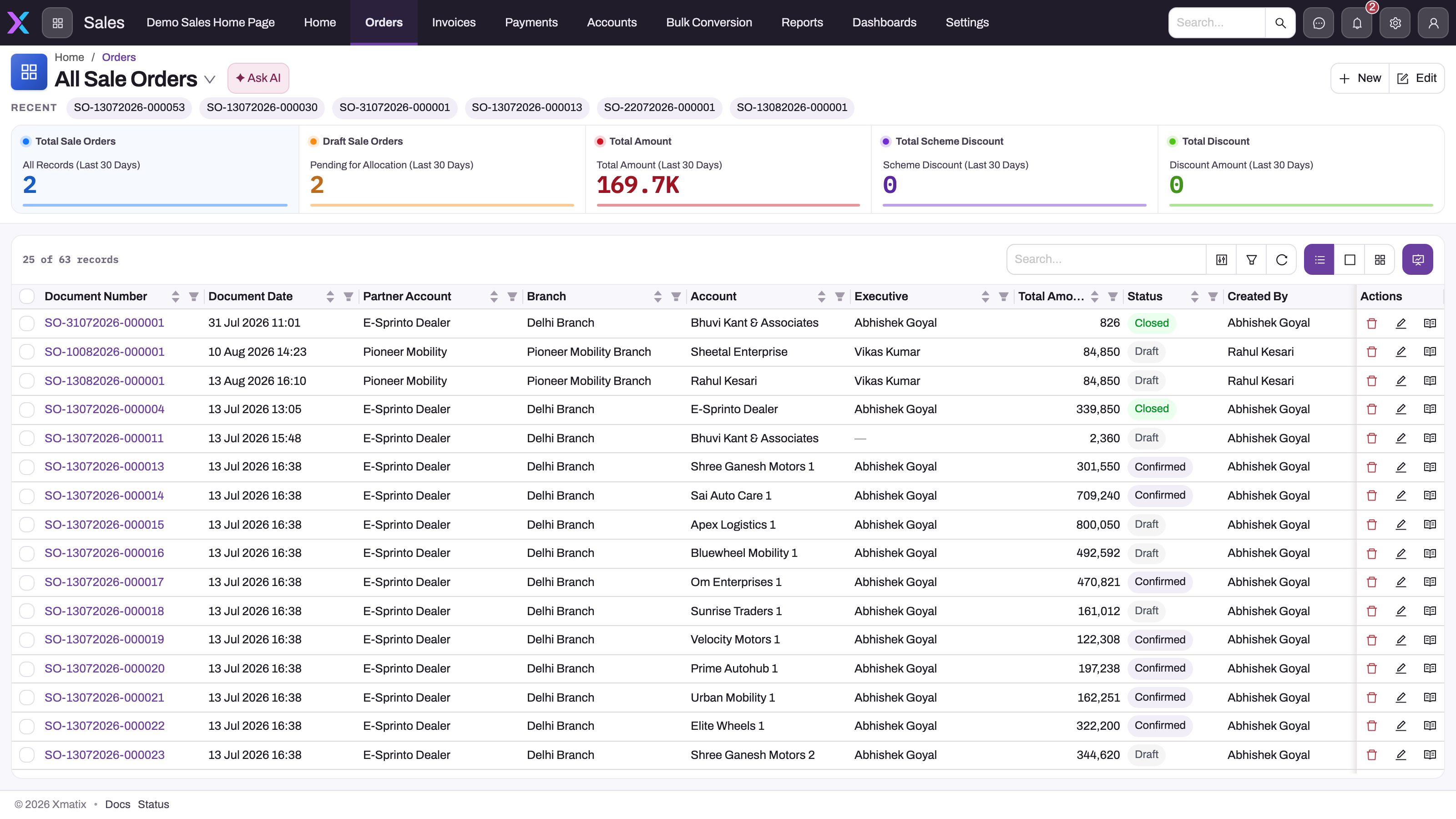
- 1
The view switcher changes which saved list you are looking at; All Sale Orders is the unfiltered register.
- 2
Total and Draft Sale Orders count captured demand against orders not yet allocated or confirmed (last 30 days).
- 3
Total Amount is the commercial control total for the same 30-day window.
- 4
Scheme Discount and Total Discount separate promotion cost from ordinary price concessions.
- 5
Document Date, Partner Account, Branch, Account and Executive establish who sold what, where and to whom.
- 6
Total Amount and Status connect each order's value to its position in the lifecycle.
The Orders entry of the Sales app is the module's working register. Summary cards across the top report the last 30 days: total and draft sales orders show captured versus uncommitted demand, total amount shows value, and scheme discount versus total discount separates promotion cost from all other price concessions. The rows are sample business data, so you can follow the same customer, branch, amount and status from a card into an order.
Use the register to explain those summaries. Document date, partner account (the selling company), branch, customer account and executive establish scope and ownership; total amount and status connect value to lifecycle. Filter a management question down to a concrete population, then open the source order to inspect lines, pricing, credit, tax, allocation and fulfilment evidence before intervening. The view switcher next to the list title changes which saved list you are looking at; All Sale Orders is the unfiltered register.
The Sales app
The Sales app appears in your app launcher when your security profile grants it. Apps and their entries are metadata, so your administrator can change them, but the shipped Sales app has these entries, in this order:
| Entry | Where it shows | What it holds |
|---|---|---|
| Home | Web and mobile | Landing page with summary cards |
| Orders | Web and mobile | Sales orders and their lifecycle actions |
| Sales Overview | Mobile only | A dashboard page for the field app |
| Invoices | Web and mobile | Sales invoices, printing, e-invoice and e-way bill actions |
| Payments | Web and mobile | Payments recorded against orders and invoices |
| Accounts | Web and mobile | Customer accounts |
| Bulk Conversion | Web and mobile | Queues a background conversion batch that turns many documents into invoices or other documents |
| Reports | Web and mobile | Sales reports |
| Dashboards | Web and mobile | Sales dashboards |
| Settings | Web and mobile | The module's setup list (below) |
The Order Processing screen, which invoices many orders while you wait, ships without an entry in the Sales navigation. Your administrator can add it to the app. See Bulk order processing.
The Settings entry opens the Sales setup list. It groups the masters the module runs on:
| Group | Entries |
|---|---|
| Masters | Account, Account Group, Item, Item Group, Branch |
| Pricing & Tax | Price List, Tax Group, Discount Group |
| Conversions | Conversion Definition |
| Tools | Recycle Bin (restore deleted records) |
Orders, invoices and payments reference these, so set them up first. Other Sales masters live in neighbouring apps: Credit Limits are under Field Sales → Settings (group Customers & Prospects), trade Scheme records are in the Rewards app, Claim records are in the Claims app, and quotes are in CRM.
How xMatix handles it
Nothing downstream is produced by changing an order's status. Every stage is an explicit server action on the order, gated on per-line pending-quantity counters:
- Fulfilment creates an inventory fulfilment document that reserves stock; Auto Allocation and Manual Allocation pick the lots.
- Delivery (or its allocation- and picking-based variants, Allocation Delivery and Picked Delivery) creates a delivery order.
- Invoice ( OTC ) creates an invoice straight from the order, drawing stock over the counter; Invoice invoices the allocated lines; Bulk Order does the same for many orders at once.
- Payment opens the payment form against the order so a receipt is recorded.
- Apply Scheme commits a qualifying promotion slab; Reset Scheme removes it; Reprice re-reads prices.
- Cancel Order cancels all pending quantities.
Most stages also have a Selective variant (for example Selective Fulfilment, Selective Invoice, Selective Delivery) that opens a dialog so you choose lines and quantities instead of processing everything pending.
Line prices come from price-list rule resolution against the order's price list, discount-group rules add contract discounts, the tax-group service stamps header tax, and the credit-limit check runs when the order is first saved. Each of these is documented on its own page below.
Prerequisites
Before your team takes its first order, an administrator sets up, in this order:
- Branches and the partner account (the selling company) that owns them. See Branches.
- Items, and Item Groups if schemes, discounts or taxes target groups of items. See Item groups.
- Accounts (customers), and Account Groups if price lists, discounts, taxes or schemes target groups of customers. See Account groups.
- Price lists, discount groups and tax groups, so lines price and tax themselves. See Pricing, discounts and taxes.
- Credit limits, if orders must be held when a customer owes too much. See Credit limits.
- Document numbering for orders, invoices and payments. See Document numbering.
- Security profiles for each kind of user (see Permissions below).
Section map
| Page | What it covers |
|---|---|
| The sales order lifecycle | The stages an order moves through and how partial processing works |
| Creating a sales order | Capturing an order: account, lines, pricing, schemes, submit |
| Sales order lines | Adding, changing, cancelling and deleting lines; each line's amounts and progress counters |
| Allocating stock to orders | Automatic and selective allocation, plus cancelling reservations |
| Picking and fulfilment | The fulfilment document: picking, confirmation, delivery release |
| Bulk order processing | Invoicing many orders at once from the Order Processing screen, while you wait |
| Bulk conversion and conversion batches | Converting many documents in a background batch from the Bulk Conversion screen, then following, retrying or cancelling the batch |
| Conversion definitions | Setting up the definitions that drive each bulk conversion: mapping, quantity pool, actions, criteria, screen, print and schedule |
| Invoices | Working with an invoice: post, deliver, print, e-invoice, cancel — fields, permissions and settings |
| Sales invoice lines | Adding, changing and deleting invoice lines; each line's amounts, delivery and return counters, and what reaches the ledgers |
| Invoicing and payments | Invoice release paths, payments, e-invoice and e-way bill (India) |
| Pricing, discounts and taxes | Price lists, discount groups, tax groups, repricing |
| Price lists | Setting up price lists and dated price rules, how a document's list is chosen, which rule prices a line |
| Discount groups | Setting up discount groups and dated discount rules, how a document's group is chosen, which rule gives a line its contract discount |
| Tax groups | Setting up tax groups, their taxes and the rules that give each line its taxes; why a line gets the tax it does |
| Account groups | Grouping accounts by hand or by rules so price lists, discounts, tax groups and schemes can target them |
| Item groups | Grouping items by hand or by rules so trade schemes, discount and tax rules, incentives, cycle counts and selling scope can target them |
| Credit limits | How customer credit limits gate orders and invoices |
| Trade schemes | Scheme conditions, benefits, slabs, budgets and applying them |
| Trade claims | Config-driven claim generation, approval, batching and settlement |
| Financers and financer schemes | The lenders and finance schemes that finance cases on a sale name |
| Finance cases | A customer's loan application against a sale: requested, approved and disbursed terms, and how the disbursed amount reaches the order and invoice |
| Partner onboarding applications | Taking a new dealer, distributor, service centre or spare-parts partner from application through review to a live partner account |
| Troubleshooting | The situations sales users actually hit, and what to check |
Example
A distributor sells to a grocery store. The sales manager has already set up the store as an account, given it a price list and a discount group, and set a credit limit of 200,000.
- A sales executive opens Sales → Orders, selects New, picks the store and saves the order. The credit check runs on this first save and passes, because the store's open balance is under 200,000.
- The executive adds a line for 50 cases of a soft drink. The unit price and contract discount fill in from the price list and discount group, and tax comes from the tax group.
- A scheme gives one free case for every ten. The executive runs Apply Scheme, and five free cases are added.
- The warehouse runs Fulfilment and Auto Allocate, and the stock is reserved.
- The order is invoiced with Invoice, which creates a Draft invoice with the allocated lines. When the invoice is posted, its stock movement and journals are recorded. See Invoices.
- The customer pays the next week. A user records the money with Payment on the order or from Sales → Payments.
Training
Practice exercise
In a sandbox, open Sales → Settings and check that your branch, one account, one item, and a price list with a rule for that item exist. Then create an order for 10 units of the item, save it, and run Invoice ( OTC ).
Expected result: the order line shows the price from the price list, the order's pending-invoice quantity drops to 0, and a new draft invoice appears under Sales → Invoices with the same account, item and amount.
Quick reference
- Changing an order's status never creates a document. Run an action.
- The Selective actions let you process only some lines or quantities.
- Masters live in Sales → Settings. Credit limits are in Field Sales → Settings, schemes in Rewards, claims in Claims.
- No price-list rule means you type the unit price.
- The credit check runs when an order is first saved, so it stops a customer who is already over the limit.
- A posted invoice can be cancelled only inside the cancellation window (24 hours by default). After that, raise a credit note.
- A missing action button means a missing action permission, not missing data.
Permissions
Access is granted in layers through the user's security profile: the app, each page, each entity (view, create, edit, delete) and each server action. The tenant also needs its Sales licence.
The shipped profiles grant this:
| Profile | Sales app | Sales setup list | Home page | Order Processing page | Bulk Conversion page |
|---|---|---|---|---|---|
| System Admin | Yes | Yes | Yes | Yes | Yes |
| Sales Manager | Yes | Yes | Yes | Yes | No |
| Standard User | Yes | Yes | Yes | Yes | No |
| Sales Executive | Yes | No | No | No | No |
| Sales | Yes | No | No | No | Yes |
A user without the app does not see it in the launcher. A user who can open the Orders list but cannot see an action such as Fulfilment or Invoice is missing that action's permission, not the data. Each topic page lists the permissions for its own actions.
Configuration
Administrators tailor the module in these places:
| What | Where | What changing it affects |
|---|---|---|
| App entries | Setup → Design Studio → Apps → the Sales app → Manage Items | Which entries users see, including whether Order Processing appears |
| Masters | Sales → Settings | Customers, items, branches, pricing, tax and conversion definitions that every document reads |
| Credit limits | Field Sales → Settings → Credit Limits | Whether orders and invoices are refused for a customer over their limit |
| Schemes | Rewards app | Which promotions Apply Scheme offers |
| Cancellation window | Setup → Feature Hub → Sales → Settings, group Invoicing, Cancel Invoice allowed within (hours, 0 = no limit) | Default 24, range 0 to 8760. How long after its document date a posted invoice may still be cancelled. 0 allows cancellation at any time. |
| Imported invoice tax rounding | Same page, group Invoicing, Round imported invoice tax by group | Off by default. For unposted imported invoices only, rounds each tax component across the tax group and spreads the remainder across lines. Native invoices keep line rounding. |
| Credit-limit approvals | Same page, group Credit limit, Route credit limit breaches to an approval process | Off by default: an order or invoice over the limit is blocked. On: the block is skipped so an approval process you configure can govern the override. |
| Free item stock | Same page, group Schemes, Check free item stock when adding an invoice line | Off by default: free-item stock is checked only when the invoice posts. On: a line whose earned free item is out of stock is refused. |
| Partner onboarding deposit | Same page, group Partner onboarding, Require security deposit before activation | Off by default. On: Activate Partner refuses until the deposit receipt date is recorded. |
| Document numbering | Document numbering | The number format for orders, invoices, payments and other documents |
| Security profiles | Security profiles | Who sees the app, pages, records and actions |
The same Setup → Feature Hub → Sales → Settings page also holds Field Sales groups (Schedulers, Territory Planning, Van Sales, Scheduling, Shelf Vision, Field Day, Outlet Transfer). Those are covered on the Field Sales and CRM pages.
Common problems
I can't see the Sales app
Your security profile does not grant it. Ask your administrator to add the Sales app to your profile.
I can see orders but not the Fulfilment or Invoice button
Your profile lacks that server action. Ask your administrator to grant it on the Order entity.
There is no Order Processing entry in the menu
It ships without a navigation entry. Your administrator can add the page to the Sales app and grant you the page.
The order won't save because of the credit limit
The customer's open balance is already over their limit with your company. On screen the lines are added after the first save, so the check normally stops a customer who already owes too much rather than sizing this order. See Credit limits for how the check works and how to route breaches to an approval.
The invoice can't be cancelled any more
The cancellation window has passed. Raise a credit note instead, or ask your administrator about the window setting.
For more situations, see Troubleshooting sales.
Common questions
Do I need every master before I can take an order?
You do not need every optional commercial master, but a valid order needs a customer account, a partner account (the selling company), a branch that belongs to that partner, and at least one item line. Without a matching price-list rule you must enter the unit price; without a discount-group rule no contract discount is added; without a matching tax rule no tax group is derived for the line. Configure pricing, discounts and taxes early so those defaults are predictable.
Where do orders come from besides manual entry?
Orders are created by hand in the Sales app. The Order action on a quote, opportunity or lead creates one from that record (a quote's lines are copied onto the order; a lead skips the opportunity and quote stages). Field-sales flows attach a captured order to its visit, and the dealer flow can pull a purchase order's lines into an order. The order lifecycle page describes what happens after capture, whatever the source.
Is xMatix Sales separate from field sales?
They are separate apps on the same data. Field Sales covers routes, beats and in-store visit execution; the orders a rep captures on a visit are ordinary sales orders that flow through the lifecycle documented in this section. See the Field Sales product page.
Can I use the Sales app on my phone?
Yes. The Sales app ships in the xMatix field app with the same entries as the web, plus a Sales Overview dashboard page that appears only on mobile. What you can do on each record still depends on your security profile.
Who can see and use the Sales app?
The app, each entity in it and each server action are granted through the user's security profile and the tenant's Sales licence. A user who can open the Orders list but cannot see an action such as Fulfilment or Invoice is missing the action permission, not the data.