xMatix
Sign in Request demo
xMatix
PRODUCTS
SalesField SalesCRMRewardsClaimsInventoryProcurementWarehouse ManagementField ServiceServiceSupportTelephony & MessagingFinance & AccountingPayrollExpense ManagementCommercePortalsAnalytics & ReportingData StudioMobile AppSee all products →
PLATFORM
Platform overviewApp BuilderAutomationIntegrationsSecurity & GovernanceChange ManagementDevelopers
SENSE AI
Sense AI overviewSense AssistSense ControlSense VisionAI StudioTrust & governanceIn Claude & ChatGPTUse cases
SOLUTIONS
FMCG & DistributionManufacturing & Dealer NetworksAutomotive & DealershipsPharma & HealthcareConsumer DurablesAgri-InputsBuilding MaterialsService NetworksWarehousing & 3PLFinancial AccountingERP SoftwareIndia GST ComplianceUAE VAT & e-InvoicingSaudi ZATCA & VATAll solutions →
RESOURCES
Knowledge CenterDeveloper & CLIBlogGuidesWhat is xMatix?Company facts
COMPANY
AboutCareersPartnersEventsContactAuthorsLegal
Sign in Request demo
Home/Docs/Sales/Pricing, discounts and taxes
REFERENCE · Last reviewed

Pricing, discounts and taxes

A sales order line gets its unit price from price list rules, its contract discount from discount group rules, and its tax group from tax group rules. All three masters live in the Sales setup list (the Sales app's Settings entry): Price List, Discount Group and Tax Group, alongside Item, Item Group, Account Group and Branch. Order entry only consumes them; adding rules and changing effective dates is an administrator task. A non-zero price typed while adding a new line is kept, so an automatically resolved value is not the only legitimate outcome.

Price lists

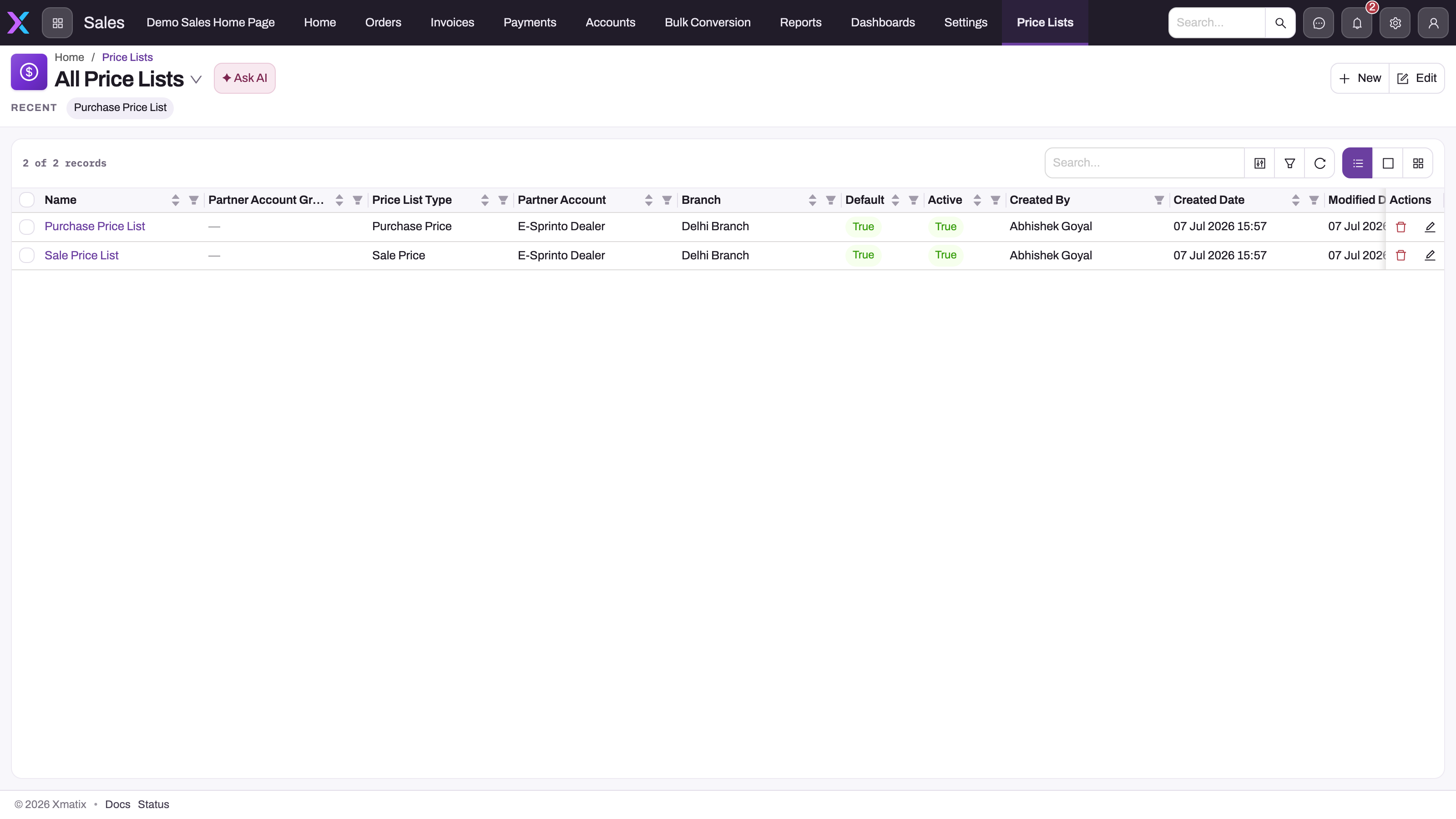
All Price Lists in the Sales app showing a Purchase Price List and a Sale Price List with Partner Account Group, Price List Type, Partner Account, Branch, Default and Active columns
The Price Lists register. Type, scope (partner account, branch, account groups), Default and Active decide whether a list can be stamped onto a new sales order; the rules inside it decide the price.UI captured
  1. 1

    The view switcher: the default view may show only one type, so pick All Price Lists to see sale and purchase lists together.

  2. 2

    Price List Type must be Sale Price for a list to be auto-selected onto a sales order; Cost Price lists are never chosen.

  3. 3

    Partner Account and Branch scope the list; empty means any, and a scoped list outranks an unscoped one.

  4. 4

    Default is the fallback a line is priced from when neither the line nor the order names a list; Active gates auto-selection only.

  5. 5

    Open a list to see its Rules tab, where the dated item prices live.

A price list is a named container whose actual amounts live in child Price List Rule rows. The register shows each list's Price List Type (Sale Price, Purchase Price or Cost Price), scope (Partner Account, Branch, Partner Account Group, Customer Account Group), Default and Active. The default view may show a single type; switch to All Price Lists to see everything.

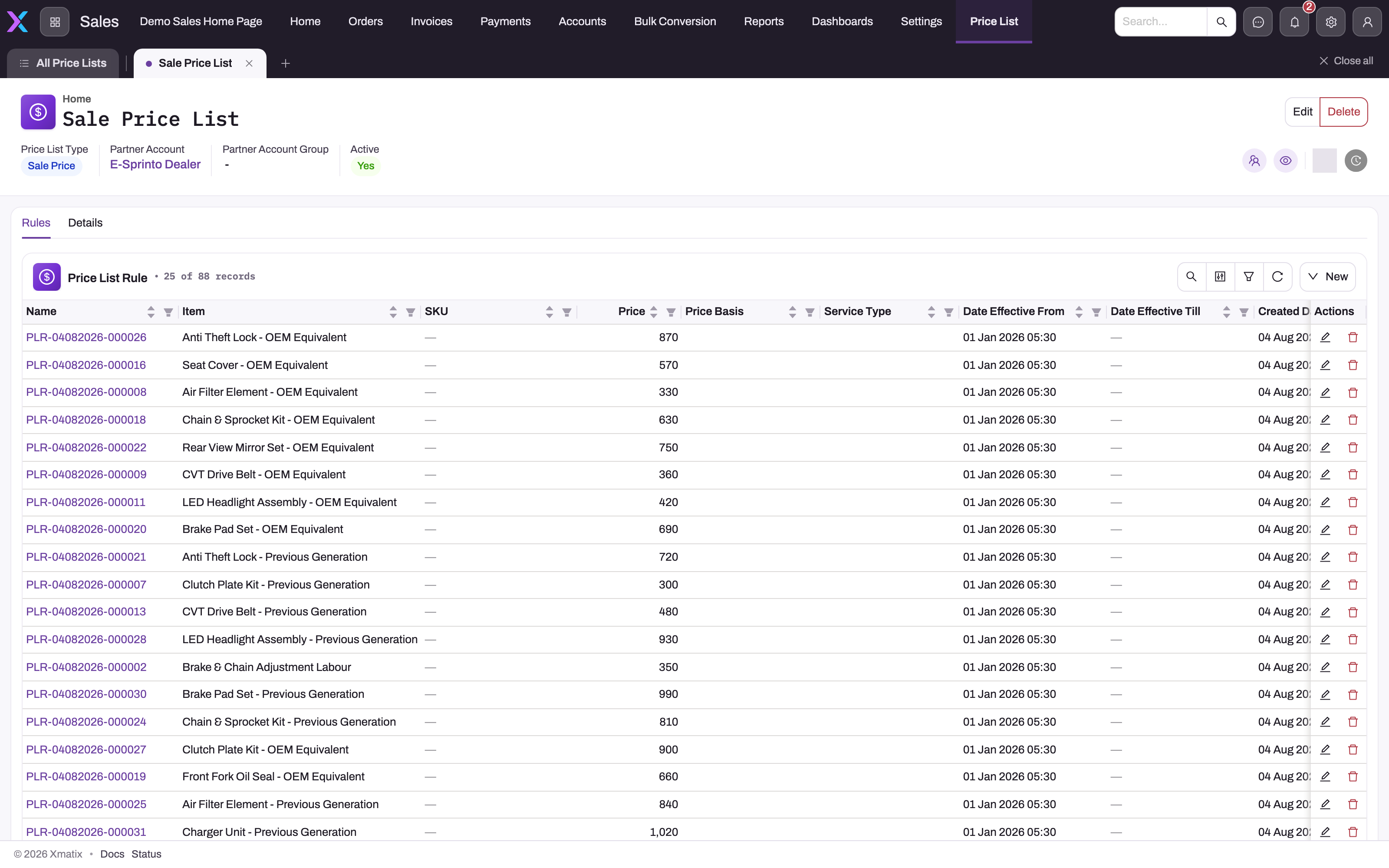
Sale Price List record with the Rules tab open: 88 price list rules with Item, SKU, Price, Price Basis, Service Type, Date Effective From and Date Effective Till columns
The Rules tab of a sale price list. Each row is one dated price for one item; blank SKU, Service Type and Date Effective Till mean any SKU, any service type and open-ended validity.UI captured
  1. 1

    Header stats: Price List Type, Partner Account, Partner Account Group and Active are the list's eligibility for documents.

  2. 2

    Item is required and matched exactly; there is no item-group or catch-all price rule.

  3. 3

    SKU narrows a rule to one variant; a SKU-specific rule outranks a blank one that starts on the same date.

  4. 4

    Price is copied to the line's Unit Price; Price Basis (Per Unit or Per Hour) is validated against the item so an hourly rate is not typed as a per-unit price.

  5. 5

    Date Effective From is the strongest tie-break (latest wins); an empty Date Effective Till keeps the rule alive indefinitely.

  6. 6

    New adds a rule inline; the rule's Service Type field scopes it to one kind of service job.

The Rules tab is the operational table. Each rule carries a required Item (matched exactly — there is no item-group or catch-all price rule), an optional SKU and Item Lot Type, the Price (and a secondary Price2), a Price Basis, an optional Service Type, a required Date Effective From and an optional Date Effective Till. Leaving Date Effective Till empty makes the rule open-ended, which is the usual reason an old rule keeps pricing lines. Saving a rule with a till date earlier than its from date is rejected.

Price Basis is Per Unit or Per Hour. It never selects a price: it defaults from the item's own rate basis when you leave it blank, and when you set it explicitly the save is refused if it contradicts the item — so an hourly labour rate cannot be typed as a per-unit price and silently under-bill by the hour count.

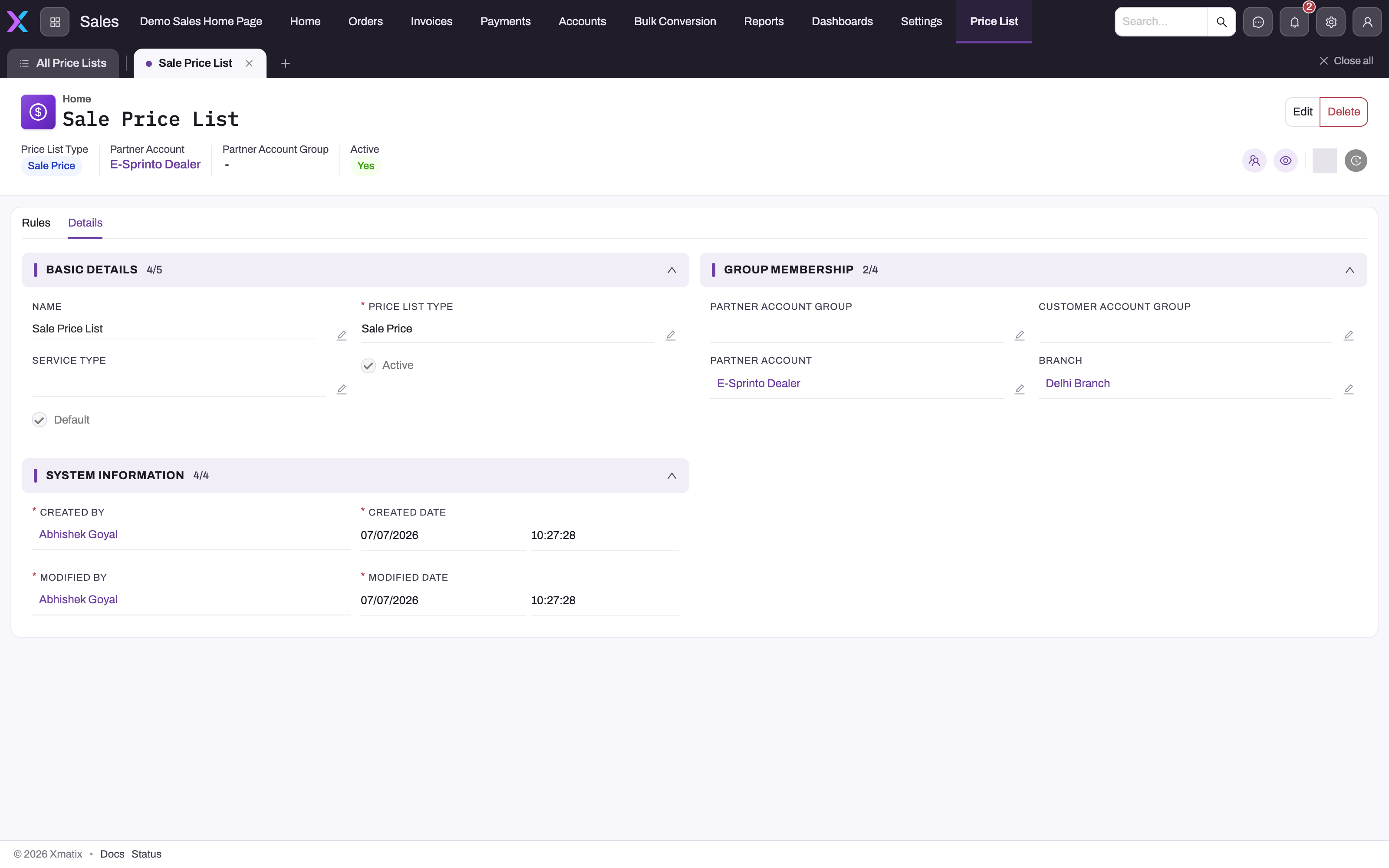
Sale Price List record with the Details tab open: Basic Details (name, price list type, service type, Active, Default), Group Membership (partner account group, customer account group, partner account, branch) and System Information
The Details tab is the list's selection envelope: type, Active and Default plus the four scope fields decide whether this list is stamped onto a new order; none of them changes which rule wins inside the list.UI captured
  1. 1

    Price List Type is required; only Sale Price lists are candidates for a sales order's default list.

  2. 2

    Active must be on for auto-selection; a list already stored on an order keeps pricing even after it is deactivated.

  3. 3

    Default marks the fallback list used when neither the line nor the order names one.

  4. 4

    Partner Account Group and Customer Account Group scope by membership in account groups of type Price.

  5. 5

    Partner Account and Branch confine the list to one selling company and branch; a scoped list is preferred over an open one.

Details is the list's selection envelope. It decides whether the list is stamped onto a new document; it never changes which rule wins inside the list.

Which list an order gets

When an order is created with no price list, the platform picks one: only Active lists of type Sale Price whose partner account, branch, partner account group and customer account group fit the order are candidates (group membership comes from active account-group members in account groups of type Price). Candidates are ordered by Sequence Number (higher first), then branch-specific before open, partner-specific before open, partner group, customer group, Default, and finally oldest created; the first match is used. A list typed Cost Price is never auto-selected even though the picklist offers it, and Active is not re-checked when a line is priced, so a deactivated list already on an order keeps supplying prices.

Which rule prices a line

StepRule
1. Which listThe line's own price list if set, else the order's, else any list flagged Default
2. Which dateThe line's Price As On Date, else the order's, else the document date, else today
3. Which ruleKeep the list's rules for the exact item whose effective window covers that date and whose SKU, lot type and service type are blank or equal to the line's. A rule whose service type matches the document outranks an unscoped one; then the latest Date Effective From wins; then a rule naming the exact SKU or lot type beats a blank one with the same start date.

The matched Price and Price2 land on the line as Unit Price and Unit Price 2. Three kinds of line are never overwritten: bundle-priced lines (priced by their package), lines whose rate a person owns (Rate Manual), and a genuinely new line on which you already typed a non-zero price. Everything else is overwritten whenever pricing runs.

Reprice on an order or invoice sends every existing line back through rule resolution (it refuses to run on a document with no lines), and so does changing the document's Price As On Date or a line's price list or pricing date.

Discount groups

A discount group holds dated Discount Group Rules and is stamped onto the order header when the header has none. Candidates must be Active with Discount Type exactly Sale Price, and must fit the order on partner account, branch, partner account group and customer account group (membership from account groups of type Discount). They are ordered branch-specific first, then partner account, partner account group and customer account group, and the first is taken. There is no default fallback: an order that matches no group gets no discount group and therefore no contract discount. The group's Default, Claimable and Claimable Percentage fields are not read by the platform.

Each rule targets an Item, a SKU or a Discount Item Group (membership from item groups of type Discount) and sets a Discount Percent; blank item, SKU and item group make it apply to every line. Matching is confined to the group already on the order header, uses the header's document date against the rule's effective window, and orders candidates item-specific first, then SKU-specific, then latest Date Effective From — so an item rule beats a group-wide rule even when the group-wide one is newer. The winner writes its percentage into the line's Contract Discount and its identifier into the line's Discount Group Rule. A rule's Price List and Item Lot Type fields are stored but ignored by matching.

Contract discounts are independent of trade schemes: schemes write their own scheme discounts and free lines on top, and both roll up separately on the order (Total Discount Amount versus Total Scheme Amount).

Tax groups

An item carries no tax group of its own; Tax Group Rules are the only mapping from a line to its taxes. Resolution keeps Active tax groups whose partner account, branch and partner account group fit the order (membership from account groups of type Tax), gathers their rules, and orders the candidates by the parent group's Sequence Number, highest first. The first rule whose Item, SKU and Item Lot Type are blank or equal to the line's, whose Tax Supply Type equals the order's exactly (blank included), and whose effective window contains the order's creation timestamp wins, and its tax group is written onto the line. Every tax component of that group is then applied.

Three consequences matter in practice. Sequence is the only precedence signal, so a blank-item catch-all rule in a high-sequence group beats a precisely scoped rule in a lower one — the usual cause of a surprising tax group. A rule that names a supply type never matches an order that leaves it blank, and vice versa. And because the window is tested against when the order was entered rather than its document date, a rule effective from today applies to a back-dated order keyed today. The rule's Item Group, Service Contract Item and Place Of Supply Type fields, and the group's Tax Applicability, Tax Group Type and Tax Custom Logic, are stored but not consulted.

Billing or shipping address text is not the selector for the tax rule; Tax Supply Type on the order is.

Common questions

Why did Reprice overwrite the price I typed?

The typed-price guard protects a line only while it is being inserted. Reprice evaluates existing lines again, so a typed value is replaced by the matching rule. Bundle-priced lines and lines marked Rate Manual are excluded, so mark a negotiated rate as manual — or model it as a price rule — if it must survive routine repricing.

Which rule wins when several cover the same item and date?

First discard every rule whose list, item, SKU, lot type, service type or effective window does not match the line and its pricing date. Among the rest, a matching service-type rule beats an unscoped one; then the latest Date Effective From wins; only when start dates tie does a SKU- or lot-type-specific rule beat a blank one. An expired rule is never eligible.

The price is right but the discount is missing — why?

Discounts resolve separately from prices. Check that the order actually carries a discount group (it is chosen at creation from active Sale Price groups in scope — an unexpected zero discount is usually a header pointing at the wrong group or at none) and that the group has a rule covering this item, SKU or discount item group with a window that includes the order's document date. No matching rule means no contract discount — expected, not an error.

Why did a line get the wrong tax group?

Look for a rule with a blank item in a tax group with a higher sequence number than the one you expected, then check that the rule's Tax Supply Type equals the order's and that its dates cover the day the order was entered.