
The dispatch console is the screen where a dispatcher or team lead hands out a day's work to resources: who does each job, when, and where they are. Work arrives as ordinary records, such as cases, leads, service orders, product demos or visit plans, created by people, the portal or integrations. The console decides only the owner and, where configured, the start time. The work itself is then done on the record or in the field app.
Overview
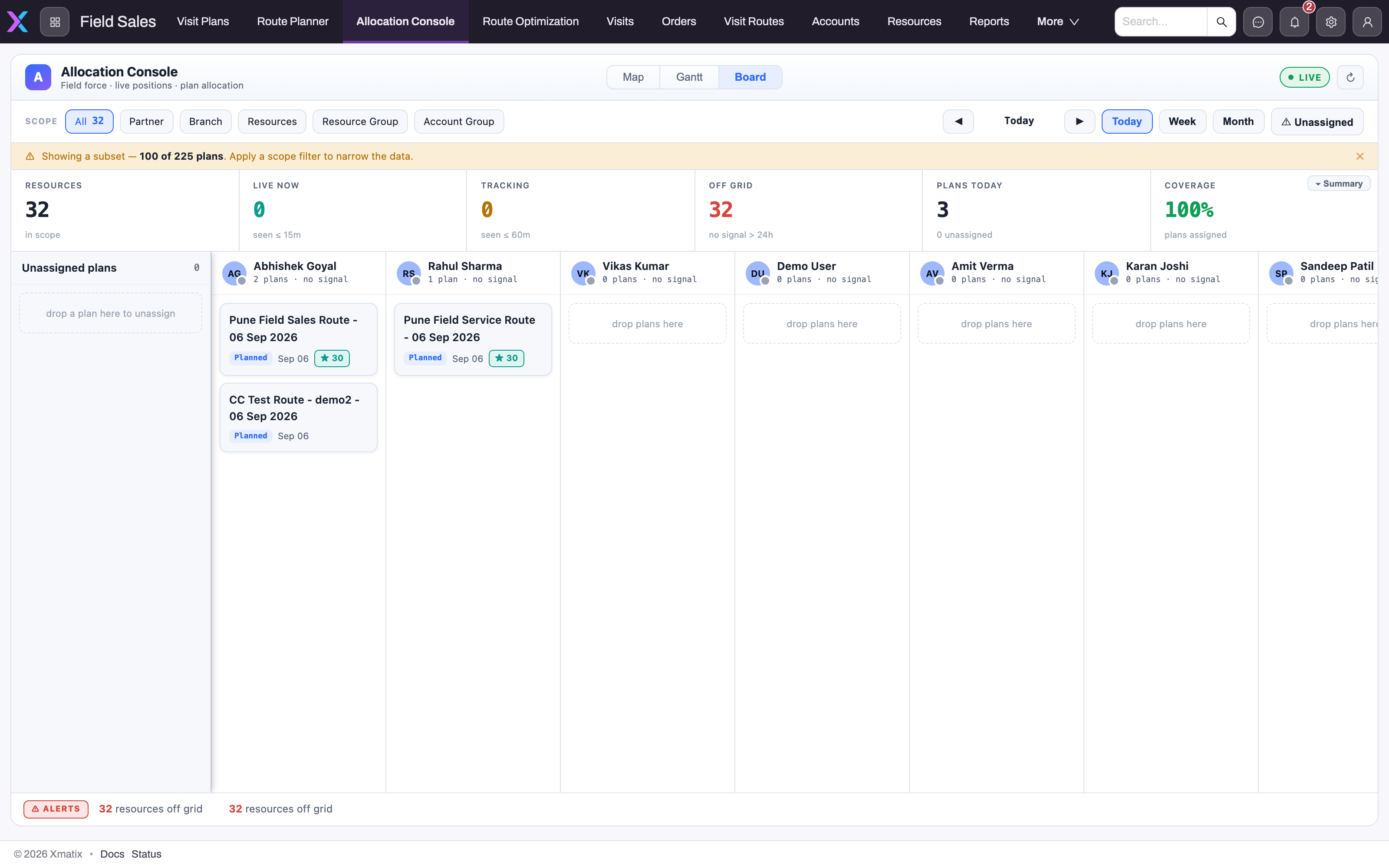
Each console page works over one kind of work record and offers up to three views of the same set of work:
| View | What it shows | What dragging does |
|---|---|---|
| Board | An Unassigned rail plus one column per resource, busiest resources first | Drag a card onto a resource to assign it; drag it back to the rail to unassign it |
| Gantt | An hourly timeline for one day, one lane per resource | Drop a card on a lane to assign it and set its date and time from the drop position |
| Map | Each resource's last known position, travelled paths and the stops of selected work | Nothing: the Map is for looking. Assign on the Board or Gantt, or from a card's detail panel |
Everything the console does is rule-based. A drag writes an assignment, a Gantt drop writes a start time, and Optimize day fills free slots by fixed rules. Nothing is decided by AI, and every placement can be dragged somewhere else.
When to use it
- At the start of the day, to give every open job an owner.
- During the day, when a job comes in late or a resource drops out and work has to move.
- When planning ahead, using the Week or Month period or the Gantt's day arrows.
- To check field coverage: who is reporting a position, who has gone quiet, and how much of today's work is assigned.
To change anything else about a job, such as its details, status or lines, open the record. The console writes only the owner and the start time.
How xMatix handles it
What loads. The console loads active resources and the open records of its work entity. Records whose status is one of the page's closed statuses are left out (see Configuration). On pages that have a schedule field, records are loaded for the period you are looking at, plus today's for the summary strip. Records with no date always appear, because there is no date to filter them by.
Scope. The Scope row narrows the resources, and with them the work, to a patch. The chips are All, Partner, Branch, Resources, Resource group and Account group, and only one is active at a time. With Partner or Branch, you see work assigned to those resources plus unassigned work that belongs to that partner or branch, or to none. Account group works differently: it filters the work by its own account group, assigned or not, and keeps every resource visible. The Partner chip is hidden when your organization runs a single company, and the Branch chip is hidden when it runs a single location. The Unassigned button next to the chips hides work that already has an owner.
Period. Day, Week and Month set the period for the Board and Map. The arrows step to the previous or next period, and the middle button (it reads Today on the current day) returns to the current period. The Gantt has its own day arrows, separate from this period.
Summary strip. For the resources in scope, the strip shows:
- resources: how many are in scope.
- live now: seen within 15 minutes.
- tracking: seen within 60 minutes.
- off grid: no position for more than 24 hours. The note under it counts stale resources, last seen between 1 and 24 hours ago.
- today's work, with the number still unassigned. On a page without a schedule field it shows open work instead.
- coverage: the share of today's work that has an owner. It shows green from 80%, amber from 50% and red below that.
Use ▾ to hide the strip and ▸ Summary to bring it back. Your choice is remembered per work entity.
Alerts. The Alerts button at the bottom opens a ticker with today's unassigned count, resources off grid, stale positions and how many resources are live in the field. When none of the first three applies, it reads "All clear · every item covered, every tracker reporting" (with the page's own word for the work in place of "item").
Subset warning. Each load is capped. When the scope holds more than the console loaded, a warning appears in the bottom bar: "Showing a subset: … of … resources and … of … items. Apply a scope filter to narrow the data." Narrow the scope rather than dispatch from part of the list.
Availability markers. Resource columns and lanes show a marker for the day: Present, Absent, On leave, Half day, Holiday or Week off. The Board uses today; the Gantt and Map use the day they show. The marker comes from attendance records and leave requests, and Availability, attendance and booking explains exactly how they are read. Two consequences matter when you dispatch:
- A leave request counts as leave unless its status is rejected or cancelled, so a pending request already takes the resource off the day.
- A resource with no attendance record is shown Absent only when someone else has attendance data that day. On a day with no data at all, no marker is shown.
Location. Positions and travelled paths come from the field app's location tracking, not from the work record. You see positions for your own resource and for the people below you in the role hierarchy, unless your security profile grants View All on Resource, in which case you see everyone's.
Refresh. Most shipped console pages refresh automatically every 60 seconds. Refresh in the header reloads at any time.
Prerequisites
- A console page in an app you can open. The shipped pages are listed under Configuration, and an administrator can add more.
- Your security profile must let you edit the work records. Every drag saves the record, and a refused save is undone on screen.
- Active resources. With none, the console shows "No active resources".
- For timeline drops and Optimize day: a schedule field configured on the page. Without one, Gantt drops only reassign.
- For the Map: a location configured on the page, and location tracking on in the field app (see Location and the travelled path).
Procedure
Step 1 — Open the console and set your scope
Open the console page from your app's menu, for example Support → Case Allocation or CRM → Lead Allocation. The page opens on its default view. Pick a scope chip, such as your branch, a resource group or a hand-picked set of resources, and choose the people or groups in its list. Check that the summary strip's resource count and today's work match the patch you mean to dispatch. Every drag writes a real assignment, so stop if a resource you don't expect appears.
Step 2 — Look at the backlog
Switch to Board. The Unassigned rail lists every open item without an owner in the chosen period. Each card shows the item's name, a status pill, its date, its city where configured, any extra card fields the page shows, and a ★ badge. The badge counts resources within 25 km of the item, measured from their current position or their branch location. It is a proximity hint, not an instruction: skills and availability still need your judgement.
Click a card without dragging it to open its detail panel. The panel shows Status, Start, Branch, Partner, City, the card fields, an Assign to picker (each resource with its current load) and Recommended reps: the six nearest resources with their distance and an Assign button. Open record → opens the full record.
Step 3 — Assign on the Board
Drag a card onto a resource's column. The card moves at once, and a message confirms the assignment (item → resource). If the save fails, for example because you can't edit that record or a rule rejects the change, the card goes back and "Update failed — reverted" appears. To undo an assignment, drag the card back onto the rail, which clears the owner. You can also assign from the panel: click a resource's column header to see that resource's work, Assign a … from the backlog, Show path on map → and Open resource record →.
Step 4 — Schedule on the Gantt
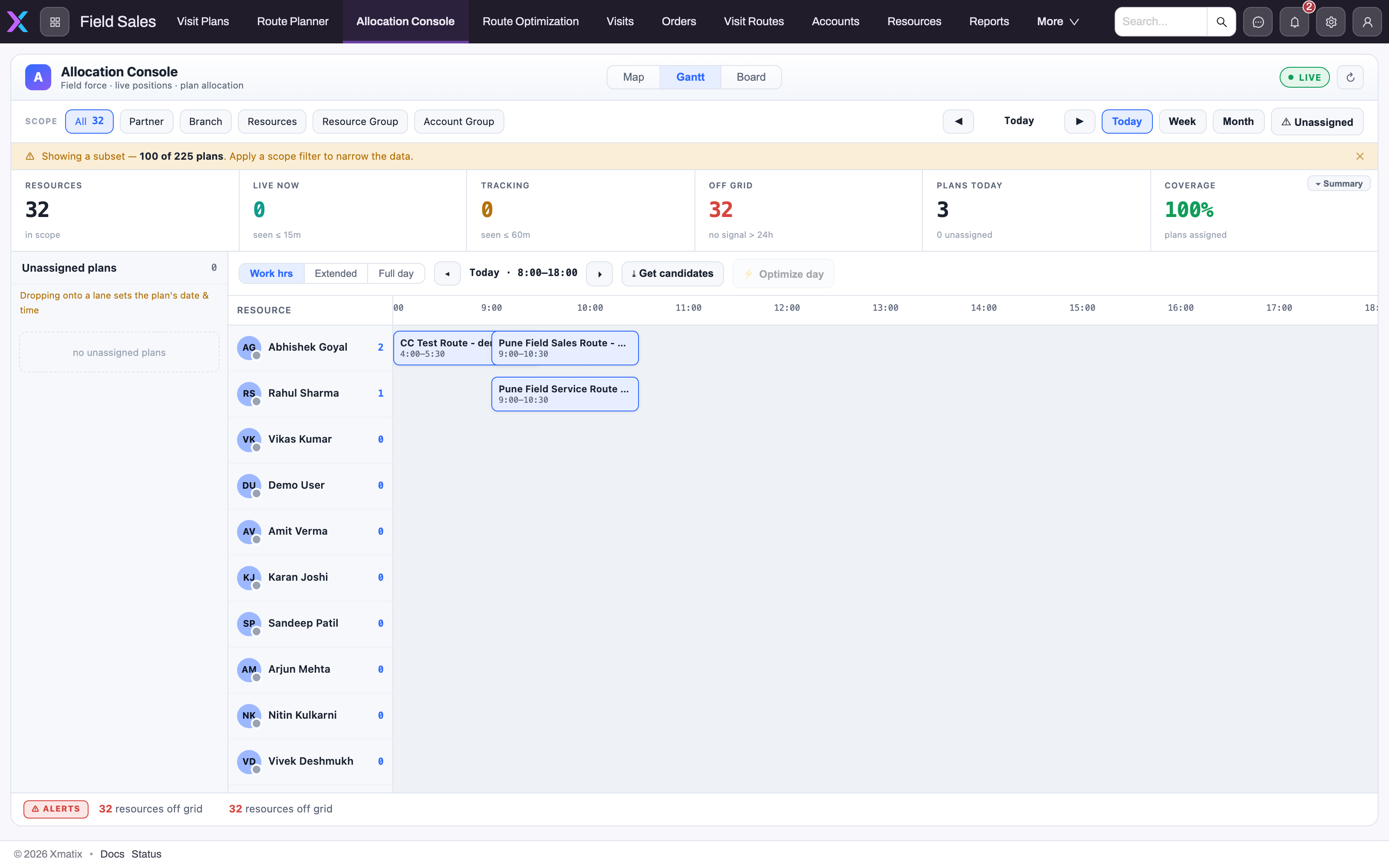
Switch to Gantt. Choose the visible window, Work hrs (8:00–18:00), Extended (6:00–22:00) or Full day, and use ◂ and ▸ to pick the day. Then drag a card from the rail, or a block from another lane, onto a lane at the time you want. The drop sets the owner and the start date and time, snapped to 15 minutes, and the message shows the new day and time ("Reschedule failed — reverted" if the save is refused). Dragging a block along its own lane moves its time.
A block's width is the item's duration, or 90 minutes when it has none. Items with a date but no time are stacked one after another from the start of the window and marked auto-placed. Their stored time isn't changed until you drop them. The rail on the Gantt lists all unassigned work, not only the day's, because a drop sets the day anyway. Dragging a block back to the rail unassigns it but leaves its date and time as they were.
Step 5 — Fill the rest with Optimize day
- 1
Gantt is selected; the scope chips, date window and summary strip above are shared with the Board.
- 2
Work hrs, Extended and Full day change the visible window (here 8:00–18:00); the arrows step the day. Optimize day only fills slots inside this window.
- 3
Get candidates suggests the least-loaded available resources; Optimize day places up to 20 backlog items back-to-back into the least-loaded lanes — disabled here because nothing is unassigned.
- 4
Each lane is one resource with its plan count; lanes marked leave, holiday or week off are skipped by Optimize day, Absent and Half Day are not.
- 5
A placed block shows the plan and its time window; its horizontal position is the scheduled start, its width the known duration (a standard block when none is set).
- 6
The rail reminds you that dropping onto a lane sets the plan's date and time — a drop anywhere else only reassigns.
These two buttons appear on the Gantt only when the page has a schedule field. Before you use them, check the window, the day and the scope, because they are the limits Optimize day works within.
- ⤓ Get candidates suggests up to five of the least-loaded resources in scope for the day, with their item counts. It assigns nothing.
- ⚡ Optimize day places up to 20 unassigned items in one run. It skips resources marked on leave, holiday or week off. Each item goes to the lane that becomes free earliest, right after that lane's last block, rounded to 15 minutes. It stops when no lane has room left in the window. The message reports "Placed n … · m left in backlog", or "No free slots in the visible window".
Optimize day does not skip Absent or Half day resources, and it doesn't look at skills, distance or travel time. Review the result lane by lane, drag anything unsuitable elsewhere, and run it again for the next batch.
Step 6 — Check the day on the Map
Switch to Map, if your page offers it. The bar over the map shows how many resources in scope have a position. In the left pane, the Resources tab lists the resources in scope; select one or more to draw each one's travelled path for the map's day, each in its own colour. The other tab lists the unassigned work; select items to draw their stops. Use the day arrows to look back at earlier days (not forward).
▶ Replay plays one selected resource's path for the day, with a scrubber, the time of each point and speeds of 1×, 2× and 4×. If that resource has no trail for the day, it shows "No GPS trail for … on …". The Map assigns nothing. Return to the Board or Gantt, or use a card's panel, to make changes.
Step 7 — Confirm the result
Turn on Unassigned to confirm the backlog is empty or holds only what you meant to leave, check coverage in the summary strip, and open a few cards to confirm the owner and start match what you placed.
Fields
The console has no form of its own. These are the values it reads from and writes to the work record. The field each one maps to is set per page (see Configuration).
| Field | What it means | Notes |
|---|---|---|
| Owner (the assign field) | The resource responsible for the item | Written by every Board drag, Gantt drop, Assign to, Assign and Optimize day placement. Cleared by dragging to the rail |
| Start (the schedule field) | When the item is scheduled to start | Written only by Gantt drops and Optimize day, as the selected day plus the drop time. Also decides which period the item belongs to |
| Start time | A separate time-of-day field, on pages that use one | Read to position the block. Drops write the start field only |
| Duration | Minutes the item takes | Read only. Without a value, the block is 90 minutes |
| Status | Shown on cards and in the panel | Read only. Items in a closed status are left out of the console |
| Branch, Partner, Account group | The item's own branch, partner and account group | Read only. Used by the scope chips to place unassigned work |
| City and card fields | Extra lines on the card and in the panel | Read only. A lookup shows the related record's name |
Business rules
- A drag saves the record through the normal save path, so your record permissions, field validations and business rules all apply. A refused save is undone on screen.
- The Board, Assign to and Assign write only the owner. A Gantt drop and Optimize day write the owner and the start together.
- Gantt times snap to 15 minutes. The date is the Gantt's selected day.
- Optimize day places at most 20 items per run, only inside the visible window, and only on lanes not marked on leave, holiday or week off.
- Closed items are hidden by an exact match on the whole status value, ignoring capitals. A status such as Work Completed is not "completed", so it stays visible unless it is added to the page's closed statuses.
- The console never creates or deletes work, and it never changes a record's status.
Example
A service coordinator at a regional appliance-service company starts the morning on Support → Case Allocation. They choose Branch and their east-side branch, and see 9 resources in scope, 7 live now, 14 cases today with 6 unassigned, and 57% coverage in amber.
On the Board, a "No cooling — split AC" case shows ★ 3. Clicking it lists the nearest technicians, the first only 2.4 km away, so the coordinator selects Assign on that row and the card moves to that technician's column. They drag two more cases onto the columns of technicians who know those products.
On the Gantt, under Work hrs, they drop a warranty inspection onto a technician's lane at 14:00, and the confirmation shows the technician, the day and 14:00. For the three cases left, they select ⚡ Optimize day. The message reads "Placed 3 cases · 0 left in backlog". One case landed on a lane marked Half day, so they drag it to another technician. Coverage now shows 100% in green.
Training
Practice exercise
In a sandbox, open Support → Case Allocation. Create two cases with no Executive, then refresh the console.
- Pick Resources and choose two resources.
- On the Board, drag the first case to one resource, then back to the rail. The case's Executive should be empty again.
- On the Gantt, drop the second case onto the other resource's lane at 11:00 today. Open the case: Executive should be that resource, and First Response Due should be today at 11:00.
- With the first case still on the rail, select ⚡ Optimize day. The message should report one case placed.
Expected result: both cases have an owner, coverage has gone up, and Unassigned shows an empty rail.
If an Executive is filled in as soon as you save a case, clear it with Edit before you start. New records can take the creator's resource automatically.
Quick reference
- One console page = one kind of work record. The page decides what a drag writes.
- Board assigns, Gantt assigns and sets the start, Map only shows.
- Drag to the rail to unassign. The start time is kept.
- Gantt drops snap to 15 minutes. Items with no duration get 90 minutes.
- Optimize day: at most 20 per run, inside the visible window, skips leave, holiday and week off but not absent or half day.
- ★ counts resources within 25 km: a hint, not a rule.
- live now = 15 minutes, tracking = 60 minutes, off grid = more than 24 hours with no position.
- A "Showing a subset" warning means: narrow the scope first.
- "Update failed — reverted" means the record refused the save. Open it to see why.
Permissions
- Seeing the page: console pages appear in navigation through App Page Permissions on the security profile (Setup → Access control → Profiles, App Permissions tab). In the shipped profiles, Case Allocation, Lead Allocation, Demo Allocation and Service Order Dispatch are granted to Sales Executive and System Admin. The Service app's Allocation Console is granted to Standard User, Service and System Admin.
- Seeing work: the console shows only records your profile and record access let you read.
- Assigning and scheduling: every write is an edit of the work record, so you need edit access to the record and its owner and schedule fields. Without it the save is refused and the card goes back.
- Positions and paths: your own and your role-hierarchy reports' by default, or every resource's with View All on Resource.
See Security profiles for how to grant these.
Configuration
A console is a widget on an app page, set up in the page designer. Its properties choose the work entity, the owner field, the schedule, time and duration fields, the closed statuses, the scope fields, the location source, the views offered, the scope chips, the card fields, the auto-refresh interval and the wording. The full property list and what each shipped page writes are in the configuration reference.
The shipped pages, in brief:
| Menu path | Work | A drop writes |
|---|---|---|
| Support → Case Allocation (also Support → Settings) | Cases | Executive and, on the Gantt, First Response Due |
| Service → Allocation Console | Cases | Executive only: no timeline schedule and no Optimize day |
| Service → Settings → Service Order Dispatch | Service orders | Service Advisor, not Technician. Board and Map only |
| CRM → Lead Allocation (also Support → Settings) | Leads | Executive and, on the Gantt, Lead Due Date. Cards also show the account name |
| Demo Allocation (no menu entry) | Product demos | Executive and Appointment Date Time |
Things an administrator commonly changes:
- Closed statuses. None of the shipped pages sets them, so only completed, cancelled, closed, expired and rejected are hidden. Service orders that are Work Completed, Invoiced or Delivered, and leads that are converted or lost, stay on their consoles until you add those statuses.
- Card fields. Pick extra fields to show on every card and in the panel.
- Views and scope chips. Limit the views to what the work needs. With no chips listed, all five appear.
- Location. Without a location setting, the Map view isn't offered.
- Availability. The markers and Optimize day read attendance records and leave requests, as described in Availability, attendance and booking.
Common problems
The Map view isn't there
The page has no location configured, or its views exclude the Map. This is a page setting for your administrator, not a data problem.
A Gantt drop changes the owner but not the time
The page has no schedule field. Get candidates and Optimize day are missing for the same reason.
"Update failed — reverted" or "Reschedule failed — reverted"
The record refused the save: you can't edit it, a field is read-only for you, or a validation or business rule rejected the change. Open the record with Open record → and try the same change there to see the message.
Finished jobs still appear
Their status isn't in the page's closed statuses, and the match is on the whole value. Ask your administrator to add the status, for example Work Completed.
"No free slots in the visible window"
Every available lane is full up to the end of the window. Switch to Extended or Full day, add resources to the scope, or move to another day.
"No available resources in scope"
Every resource in scope is marked on leave, holiday or week off for that day, or the scope is empty. Check pending leave requests: they count as leave.
Someone shows as Absent but is working
They have no attendance record for the day while others do. Attendance records are created by the field app's check-in, so the resource hasn't checked in yet.
Positions are missing or stale
The resource isn't tracked: location tracking is off for the field app, they aren't checked in, or the phone hasn't sent a position recently. Resources outside your role hierarchy aren't shown unless you have View All on Resource. See Location and the travelled path.
Work I expect isn't on the console
Check the period (Day, Week, Month), the scope chip, the Unassigned toggle and whether a "Showing a subset" warning is shown. Work assigned to a resource outside your scope is not shown.
Common questions
Is Optimize day AI-based dispatch?
No. It is rule-based slot-filling. It takes up to 20 unassigned items and places each one on the lane that becomes free earliest, back to back after that lane's last block, inside the visible window. Lanes marked on leave, holiday or week off are skipped; skills, travel and customer preferences are not considered. Every placement is an ordinary assignment and start time that you can review and move, and nothing is placed outside the window you are looking at. Treat the result as a first draft and check each lane before you call the day done.
Which kinds of work can the console allocate?
Any entity an administrator configures a console page for, one entity per page. The shipped pages cover cases (Support → Case Allocation and Service → Allocation Console), service orders (Service → Settings → Service Order Dispatch), leads (CRM → Lead Allocation) and product demos (a page with no menu entry). Each page decides which field a drop writes. On Service Order Dispatch, for example, a drop sets the order's Service Advisor, not its Technician. Check the page's settings before you rely on a drag to notify or route the right person.
Does the console hide finished work?
Only work whose status exactly matches one of the page's closed statuses, ignoring capitals. By default these are completed, cancelled, closed, expired and rejected, and your administrator can change the list for each page. Because the match is on the whole value, a service order that is Work Completed, Invoiced or Delivered stays on the shipped Service Order Dispatch page until those statuses are added. The console never changes a status itself.
Can I dispatch from the mobile app?
Not with this console. Its Board, Gantt, Optimize day and dispatch Map are part of the web app, so run it in a browser on a laptop or tablet. The field app still matters to the console: a resource's check-in creates the attendance record behind the availability marker, and location tracking during the working session supplies the positions, freshness counts and travelled paths you see on the summary strip and the Map.