
An entity is the definition of one kind of business object (an order, an account, an item), a record is one saved instance of it, and apps, views and layouts decide where and how those records appear on screen. Everything you see in xMatix comes from these definitions. Once you know how they fit together, you can tell where a field comes from and why two colleagues see a list differently. You will also know which setup screen changes a given part of the product.
Overview
xMatix is metadata-driven. Each entity's definition lives in your organization's metadata: its fields, relations, record types, views, layouts, validations and actions. The list you scroll, the form you fill in and the screen a technician taps on the mobile app are all drawn from that definition. Two organizations can run the same entity and see quite different screens. The difference is in their metadata, not in their software.
Metadata supplies the shared model. It does not generate every behaviour. Standard entities also come with built-in logic for their feature: an order reserving stock, or an invoice creating ledger entries. Custom entities get the shared list, form, view, relation and access framework, but none of that feature logic.
| Term | What it is | Who works with it |
|---|---|---|
| Entity | The definition of a type of record: fields, relations, rules, screens | Administrators |
| Record | One row of data that follows an entity's definition | Everyone |
| Field | One attribute every record of the entity carries | Administrators define, users fill |
| Record type | A named variant of one entity, with its own screens and rules | Administrators |
| View | A saved list definition: filter, sort, columns | Administrators (shared), users (personal) |
| Layout | The arrangement of one record's form or page | Administrators |
| App | A workspace that groups entities, pages and features into one menu | Administrators |
How xMatix handles it
Entities are definitions; records are the rows
An entity defines a type of record: which fields it has, how it relates to other entities and what users may do with it. A record is one instance of that type. The Order entity says what every order carries (customer, dates, status, amounts), and each order your team creates is one Order record.
Relations are what make navigation work. An order points to its account, and an invoice points to the order it bills, so related records are always one click apart. Document-style entities pair a header with lines: an order and its order lines are two entities joined by a relation. One business transaction is therefore stored as a header record plus its line records.
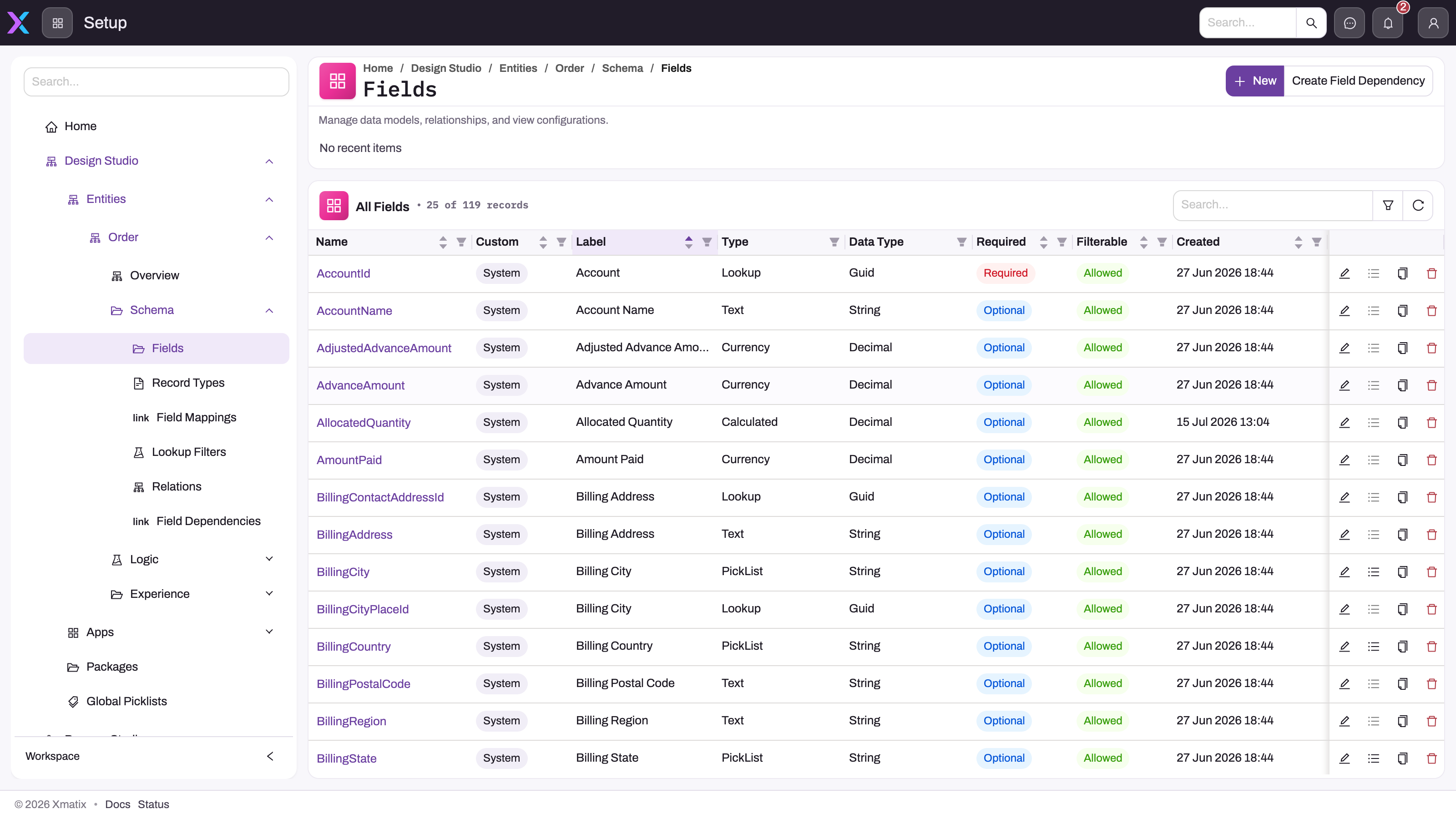
Where the definition lives: Design Studio → Entities
- 1
The breadcrumb places you inside one entity's definition (Order → Schema → Fields), not inside a list of order records.
- 2
Schema, Logic and Experience group the parts of an entity: fields, relations and record types; validations, actions and approvals; views, layouts and email templates.
- 3
System marks fields that shipped with the platform; fields your organization adds carry a Custom badge, so you can always tell which attributes are yours.
- 4
Type is what the user sees (Lookup, Text, Currency, Calculated, PickList); Data Type is how the value is stored.
- 5
Required and Filterable are field switches; together with sorting and grouping flags they decide how the field behaves in forms and lists everywhere.
- 6
New adds a custom field to this entity — every existing and future Order record gains it at once.
Administrators manage definitions in Setup → Design Studio → Entities. The registry lists every entity with its label, a System or Custom tag, and live counts of its fields, relations, views and record types. Opening an entity shows an Overview: the entity's basic information (collection label, icon, colour, search and audit flags) and its behaviour switches. The Core group holds Create, Edit, Delete and Merge; Collab & Tracking holds Notes, Activities, Dup Detect and Track MRU; Views & Forms holds List View, Form View, Form Edit View and Queries. Three groups of sub-pages sit in the left navigation:
- Schema: Fields, Record Types, Field Mappings, Lookup Filters, Relations and Field Dependencies.
- Logic: Validations, Actions, Approval Processes, Document Settings and the Execution Plan.
- Experience: Views, Layouts, Defaults and Email Templates.
New on the registry starts a new custom entity definition. It never creates a business record; records are created inside the business apps.
Fields
A field is one attribute of a record. Each field has a Field Type (for example Text, MultiLineText, Number, Decimal, Currency, Percent, Date, DateAndTime, PickList, MultiplePickList, Boolean or Calculated) and an underlying Data Type. Its Behavior switches include Required, Active, Audited, Masked, Unique, Filtering, Sorting, Grouping and Allow Update. The Fields list shows each field's Type, Data Type, Custom tag, Required, Hidden and Filterable at a glance.
Lookup fields, which point to a record of another entity, are not on the Field Type list. You create one by adding a relation. Fields carry the same System / Custom distinction as entities, so you can always tell which attributes your organization added.
Adding a field changes the definition for every existing and future record of that entity at once. There is no per-record schema.
Record types
A record type is a named variant of one entity. For example, a Service Order and a Sales Order can be two record types of Order, each with its own label and its own Active, Hidden and Default flags. Layouts, views, validations, actions, lookup filters and field mappings can each be scoped to a record type. So can an app's menu entry, which then lists only that variant.
A record keeps the record type it was created with, and that record type decides which scoped layout opens it. A record created from a list or menu entry that is scoped to a record type is saved with that record type. Metadata with no record-type scope keeps applying to every record type, so adding a record type never takes anything away.
Views
A view is a saved way of looking at a list. There are two kinds, and they serve different needs.
Shared views are metadata on the entity. Each has a label, a filter condition, a sort order, its columns and, optionally, summary cards and a mobile list card. A shared view also has a View Type:
- List is a plain list.
- Tree nests rows, either Grouped by one or more group fields or ParentChild under a parent field.
- All, Search and RelatedList are also available.
A shared view can be limited to a record type, or with Show in apps to certain apps. Views that are inactive or hidden stay out of the view picker. Shared views are the same for everyone who can see the entity. They are the right place for team-wide lists such as My Open Orders or Overdue Invoices.
Personal views are saved by a user from the list itself. They store the search text, sort, visible columns and column order on top of the shared view they were saved from. They are kept in that user's own preferences, so only their owner sees them and they never change what colleagues see. Each user can keep up to 20 per entity. Saving a 21st drops the oldest, and saving under an existing name replaces that view. Filter conditions set in the filter drawer are not saved in a personal view.
Layouts
A layout defines how a single record is arranged: which fields appear, in which sections and order, and which related lists and widgets go with them. Each layout has a Type and a Platform:
- Type is one of Create (the New and Edit form), View (the record page), Preview (the side-panel preview) or Action (the form an action opens).
- Platform is Web, Mobile or Both. A Both layout carries a web arrangement and a mobile arrangement side by side.
A layout can be scoped to a record type. Layouts are built in the layout designer; see Design a form layout.
Defaults: which layout and view open
Experience → Defaults binds each screen slot to a specific layout or view. The slots are New, Edit, Detail and Preview (each takes a layout) and List view (takes a view). A binding can be narrowed to one app, one platform and one record type. An app-scoped binding outranks a record-type one, which outranks a platform one. Any binding outranks the plain Default flag on a layout or view.
This is how one entity can open a different form in two apps without cloning anything. If a binding points to a layout or view that has since been deleted, the screen falls back to the automatic choice.
Apps group entities into workspaces
An app is a workspace for one area of the business. Its definition holds:
- Entities: which entities appear in the app's menu. Each entry has an optional display label, group title, description, icon, order and platform. An entry can be the default that opens first. It can also be pinned to one record type or one shared view, so the same entity can appear twice with different lists (payments received and payments made, for example).
- Navigation items: built-in feature routes (such as Reports, Dashboards, Analytics and Recycle Bin), custom App Pages designed for that app, and grouped entries backed by a list app.
- Web and Mobile support switches, an icon and colour, active and hidden flags and a display order.
- An optional owning product. Apps that ship with a module belong to that module's product.
The Apps menu in the top bar opens the App Launcher. Its search box, Search apps or entities, matches app names and the names of entities inside apps. You can pin favourite apps with the star. On the web it shows apps that support Web; on a mobile device, apps that support Mobile. Below the apps, All Entities lists every entity that allows list view and search and isn't hidden, so you can open its list directly.
Standard and custom entities
xMatix ships standard entities across its modules: accounts, orders, invoices and payments; items, stock and transfers; purchase orders and goods receipts; journals; leads, opportunities and cases; visits, service orders and assets. You are not limited to these:
- Extend a standard entity by adding custom fields, relations, record types, views, layouts, validations and actions.
- Define a custom entity for data the standard set does not cover. Its internal name ends in
_c. It takes part in apps, lists, views, layouts, relations, security profiles and record security just like a standard entity, and can hold records as soon as it is saved. It does not get the built-in logic or specialized widgets of a standard entity, so add validations, business rules or automation scripts for any behaviour you need.
Custom fields are stored in reserved storage slots, and each entity has a fixed number of slots per kind of value. The limits are listed under Configuration. Confirm the behaviour you need, not only the fields, before you replace a standard process with a custom entity. The step-by-step guide is Create a custom entity.
One definition drives web and mobile
Web and mobile read the same entity, field, view and access metadata, so a new field, a governed picklist or a custom entity is recognized by both. Their renderers are not identical. A layout targets Web, Mobile or Both, some widgets exist on one client only, and an app or menu entry can be limited to one platform. Check the layout and workflow on each client your users rely on before you announce a change.
How a screen is put together
When you open a list or a record, xMatix works out what to show in this order:
- App. The apps you see are those granted to your security profile, minus any whose product your organization has not enabled or whose module is switched off.
- Menu entry. Inside the app, an entity entry appears only if your profile can read that entity. Entries for organization axes your organization does not use (such as Branch on a single-location organization) are removed. See Tenants, companies and organizations.
- View. The list opens on the view named by the menu entry or link. Next comes the view you last picked on that list, then the List view default binding, then the view marked Default.
- Layout. Opening a record picks the Detail binding (or, for New and Edit, the New / Edit binding) for your app, platform and the record's type. Without a binding it uses the layout marked Default. If the web finds no Create layout at all, New and Edit show No form is set up for the entity.
- Fields and records. Your profile's field permissions hide or lock individual fields, and record security narrows which rows you see. See How the xMatix security model works.
Example
An equipment rental business wants its field team to log on-site inspections. The administrator works through the layers:
- In Design Studio → Entities, they choose New and create Site Inspection. It is stored as
SiteInspection_cand has a relation to Account. - On Schema → Fields, they add Inspection Date (Date), Result (PickList: Pass, Fail, Needs follow-up) and Notes (MultiLineText).
- On Schema → Record Types, they add Annual and Ad hoc, with Annual as the default.
- On Experience → Views, they add a shared view Failed inspections (filter Result = Fail, sorted by Inspection Date, newest first).
- On Experience → Layouts, they design a Create layout and a View layout with Platform Both, so the same forms work on web and mobile.
- In Design Studio → Apps → Apps, they open Manage Items on the app the field team already uses and add Site Inspection under a group titled Inspections.
- In Access Control → Profiles, they grant Site Inspection on Entity Permissions to the field team's profile. The app is already granted on App Permissions.
A field user now opens that app, finds Site Inspection in the menu and saves a record. A manager on the web saves a personal view of Failed inspections with two extra columns, and the shared view stays unchanged for everyone else.
Training
Practice exercise
In a sandbox, trace one screen back to its definition:
- Open any order from the Sales app and note three fields on its record page.
- Open Setup from the gear menu, then go to Design Studio → Entities and open Order.
- On Schema → Fields, find the three fields and note each one's Type and whether it is Custom.
- On Experience → Views, find the view your order list was using and note its View Type and filter.
- On Experience → Defaults, check whether a Detail binding exists; otherwise, on Experience → Layouts, find the View layout marked Default.
Expected result: you can name the entity, view and layout behind the screen, and say which of them a change would have to touch.
Quick reference
- Entity = definition; record = data. Changing an entity changes every record of it.
- Definitions live in Setup → Design Studio → Entities (Schema, Logic, Experience).
- Lookup fields come from relations, not from the Field Type list.
- Record types scope layouts, views, validations, actions and menu entries.
- Shared views are for the whole team; personal views are yours (up to 20 per entity, no filter-drawer conditions).
- Experience → Defaults decides which layout or view opens, per app, platform and record type.
- An app appears only when it is granted on your profile's App Permissions and its product is enabled.
- Custom entities get the framework, not the built-in feature logic.
Permissions
| Task | What is needed |
|---|---|
| See an app in the launcher | The app granted on the profile's App Permissions tab; its product enabled and its module switched on |
| See an entity's list and records | Read on the profile's Entity Permissions tab |
| Create, edit, delete records | Create, Update, Delete on Entity Permissions, and the entity's Create, Edit and Delete switches on |
| Manage entities, fields, views, layouts, defaults | The Manage metadata model capability (Metadata Administration feature) on the profile's Entitlements tab |
| Manage apps, app pages and mobile apps | The Manage apps & navigation capability (Metadata Administration feature) |
Without Manage metadata model, Entities does not appear under Design Studio. A user without Read on an entity doesn't see its menu entry at all. A changed grant can take up to two minutes to reach a signed-in user. See Security profiles.
Configuration
| What to change | Where |
|---|---|
| Entity label, icon, behaviour switches | Setup → Design Studio → Entities → entity → Edit |
| Fields, record types, relations, lookup filters, field mappings, field dependencies | Entity → Schema |
| Validations, actions, approval processes, document settings | Entity → Logic |
| Shared views, layouts, default bindings, email templates | Entity → Experience |
| Global picklists shared by several fields | Setup → Design Studio → Global picklists |
| Apps and their menus | Setup → Design Studio → Apps → Apps → app → Manage Items |
| Custom pages inside an app | Setup → Design Studio → Apps → App pages |
| Mobile app shells | Setup → Design Studio → Apps → Mobile apps |
| Which profiles see an app | Setup → Access Control → Profiles → profile → App Permissions |
Custom field limits. Each entity has a fixed number of storage slots for custom fields, counted per kind of value:
| Slot kind | Field types that use it | Standard entity | Custom entity |
|---|---|---|---|
| Text | Text, PickList, MultiplePickList, Cron | 200 | 50 |
| Number | Number, Decimal, Currency, Percent | 60 | 60 |
| Date and time | Date, DateAndTime, TimeOnly | 15 | 15 |
| Lookup | Lookup fields created through relations | 40 | 40 |
| Checkbox | Boolean | 25 | 25 |
| Long text | MultiLineText, LongMultiLineText, GeoLocation and other long or binary values | 5 | 5 |
A Calculated field uses the slot kind of its return type. Deleting a custom field or changing its type frees a slot.
Common problems
"An entity I created doesn't show in any app"
A new entity is not added to any app automatically. Add it in Design Studio → Apps → Apps → app → Manage Items, and grant Read on the profile's Entity Permissions. To find it in the launcher's All Entities list, its Search and List View switches must be on and it must not be hidden.
"An app my colleague has is missing from my launcher"
The app isn't granted on your profile's App Permissions, or it is limited to Web or Mobile and you're on the other client. Otherwise, its product isn't enabled for your organization or its module has been switched off. Ask your administrator which of these applies.
"I can't save another custom field"
The entity has used every slot for that kind of value. The message reads Maximum number of Text custom fields (…) reached for a standard entity, or … has used all 50 Text field slots for a custom entity. Delete or retype an unused field of that kind, or choose a field type that uses a different slot kind.
"New opens a message instead of a form"
No form is set up for the entity means the web found no Create layout for it. Add a Create layout on Experience → Layouts, or bind one to the New slot on Experience → Defaults.
"I switched views and my saved filter disappeared"
Personal views keep search, sort and columns, but not conditions from the filter drawer. Ask an administrator to build the filter into a shared view instead.
Common questions
What is the difference between an entity and a record?
An entity is the definition; a record is the data. The Order entity says what an order is: its fields, relations and behaviour. Each actual order in your organization is one Order record. Users spend their day with records, and administrators spend theirs with entities. When someone says "we added a field to Orders", they changed the entity, and every existing and future order record now has that field.
Can we add our own entities and fields?
Yes. Administrators can add fields to standard entities and define new custom entities in Design Studio → Entities without code. Custom entities get the shared list, view, layout, relation and access framework. They do not get the feature logic built into standard entities, so add and test any automation you need. Custom fields count against per-entity slot limits, which are listed under Configuration above.
Why does a list look different for me than for a colleague?
Several layers can differ. You may be on a different shared view (check the view picker), or have a personal view or column arrangement on top of it. Your app may open a different default view, and your security profile may grant you fewer fields or a narrower set of records. Shared views, defaults and field permissions are administrator settings. Personal views and column order are yours to change from the list toolbar; see Personalizing lists and views.
Why does the same record open a different form in two apps?
An administrator has bound different layouts to the same slot for each app on the entity's Experience → Defaults page. App-scoped bindings outrank every other default. This lets one entity serve two teams without cloning it or its layouts.
Why do web and mobile show the same field?
Web and mobile share the same entity, field and access model. Presentation can still differ, because a layout targets Web, Mobile or Both and some widgets exist on one client only. Treat the shared metadata as the common contract, then test the list, form and actions on each client your users rely on.