
A contract record is the register entry for one service or maintenance agreement with a customer: who it is with, what it covers, when it runs, who signed it and where it stands. It sits in the Contracts app next to contract lines, terms, SLAs and PM tasks. The Contracts module is a register, not an engine: you keep each record true by hand, and the enforced service cover that service orders check comes from asset service contracts.
Overview
Each contract gets an automatic number in the Name field (for example CN26102026000001) and carries a business title in Contract Name. The record also holds the account and the asset, the start and end dates, the line of business, the addresses, special terms, the signature facts and a Status. The record page has five tabs: Scope, Terms & SLAs, PM Tasks, Checklists and Details.
No server logic acts on a contract. Saving it, changing its status or passing its end date does not bill, renew, dispatch or create anything.
When to use it
- An agreement is being negotiated or has been signed, and you need it on record with its dates, parties and signatures.
- You need a list of agreements by status, end date or line of business, for example for renewals. The shipped Renewal Exposure and Contracts & SLA dashboards count contracts this way.
- You want one place to point to from the agreement's lines, terms, SLAs and planned visits.
If service work needs to be refused or billed according to cover, you also need an asset service contract. The contract record does not do that.
How xMatix handles it
- Numbering. On first save, the Contract Name Setting fills Name with the series
CN, the day, month and four-digit year, and a six-digit counter, with no separator. As shipped, the counter restarts every day. See Document numbering. - Default status. A new contract is saved with Status = Draft. The New/Edit form does not show Status.
- Manual lifecycle. Status moves only when someone changes it. The shipped values are Draft, Pending Approval, Verified and Active. There is no shipped expired or cancelled value, and no approval process ships for contracts.
- No links into the contract. Nothing points back at a contract record. A contract line has no Contract field, and terms, SLAs and PM tasks are separate registers. So the lists on the record's tabs are not filtered to the open contract (see Step 4).
- Contract Terms (Months) is not saved. The field is on the form and in the page header, but it has no storage behind it. A typed value is accepted and then lost, so it always reads back blank. Record the term through the start and end dates.
Prerequisites
- Your security profile gives you access to the Contracts app and the Contract record type (see Permissions).
- The customer account exists, and the asset too if the agreement covers one.
- For lines: the items sold under the agreement exist as items.
Procedure
Step 1 — Open the contract register
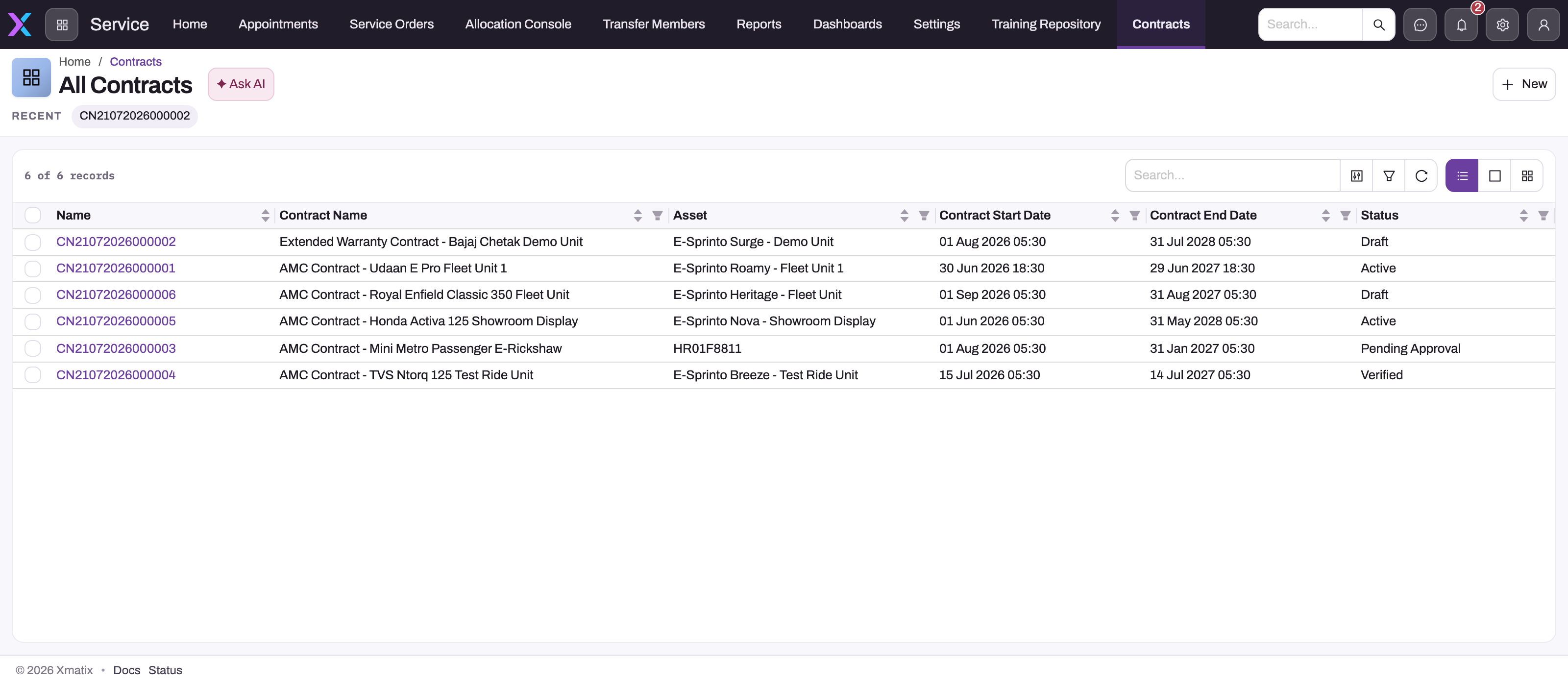
Open the Contracts app from the App Launcher. Its first page is All Contracts, with the columns Name, Contract Name, Asset, Contract Start Date, Contract End Date, Status, Created By, Created Date, Modified By and Modified Date. Use the search box, filters and column headings to find an agreement, then select its number to open it.
Step 2 — Create the contract
- On All Contracts, select New.
- Above the tabs, choose the Asset if the agreement covers one, and enter the Activated Date if the agreement is already live.
- On the Details tab, choose the LOB and the Account, and enter the Contract Name, Contract Start Date and Contract End Date. Leave Contract Terms (Months) empty, because it is not saved.
- On the address tab, enter the Billing Address and the Shipping Address as text, and any Description. Nothing is copied from the account.
- On the Signature tab, fill in the signature facts once the agreement is signed: Customer Signed Date, Customer Signed Title and Company Signed Date. Use Special Terms for anything that differs from your standard terms.
- Select Save.
None of these fields is required, so the form saves even with nothing filled in. The record opens with its new CN… number as the title and Draft as its status.
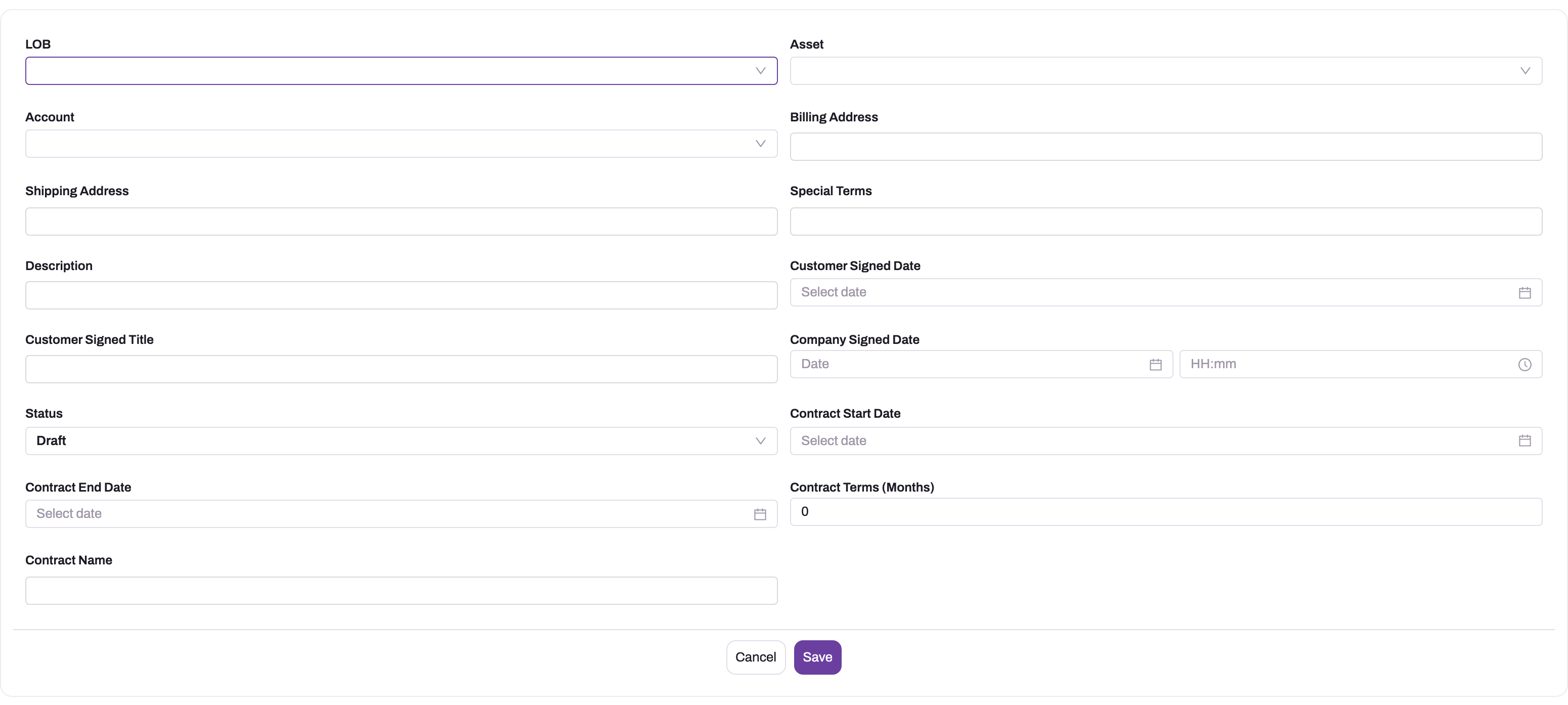
The screenshot shows an earlier single-page form. The shipped form groups the same fields into tabs and leaves out Status.
Step 3 — Read the record page
The header shows the number, the status, and the statistics Contract Name, Contract Start Date, Contract End Date, Contract Terms (Months) (always blank), Asset and Status. The Edit and Delete buttons are at the right of the header, next to the collaborator, follower and history controls.
The Details tab holds the saved fields in four panels:
- Information: LOB, Account, Contract Name, Contract Start Date, Contract End Date, Contract Terms (Months) and Status.
- Address Information: Billing Address, Shipping Address and Description.
- Signature Information: Customer Signed Date, Company Signed Date, Customer Signed Title and Special Terms.
- System Information: who created and last changed the record, and when.
Activated Date is not shown on the record page. Open Edit to see it.
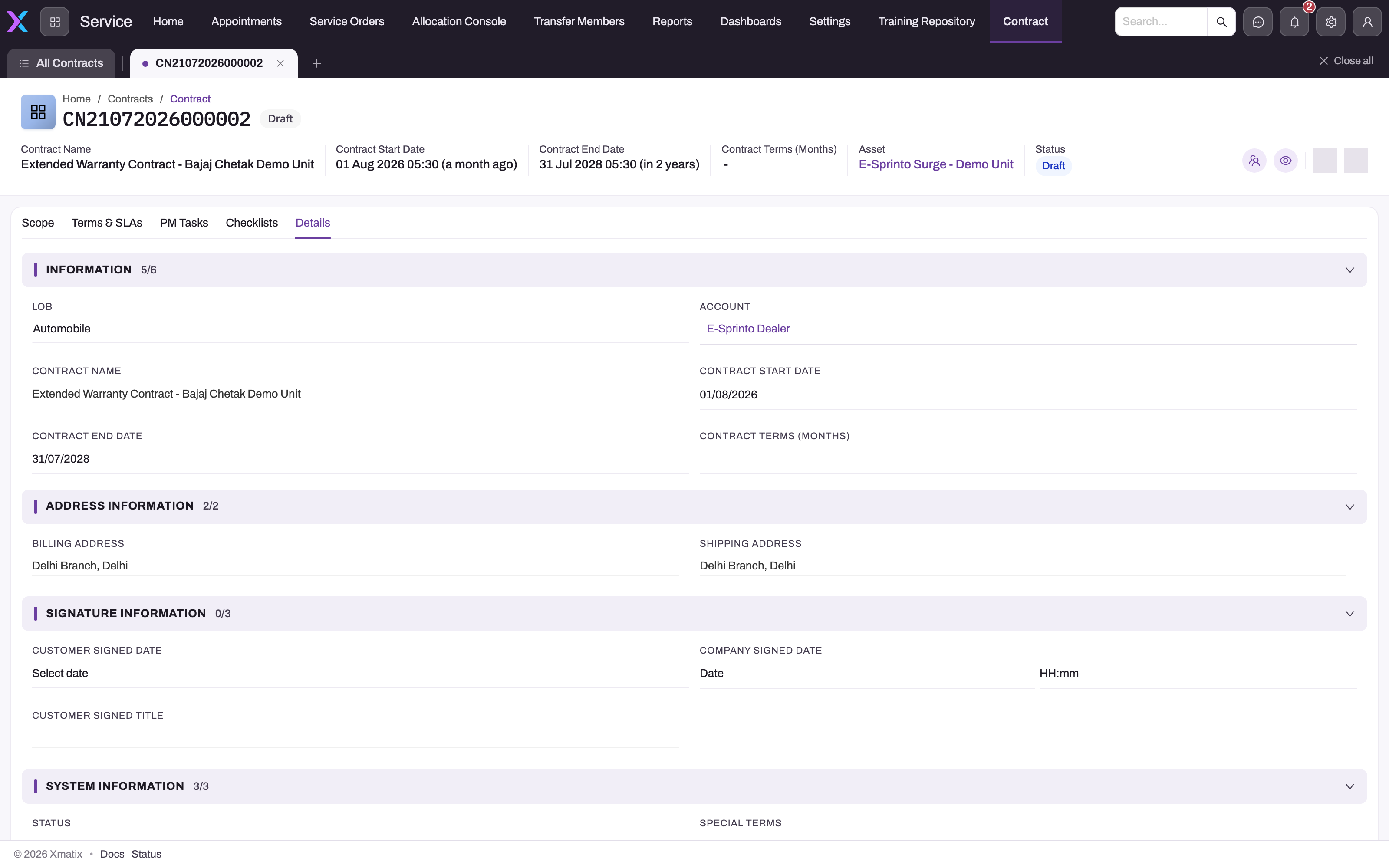
The screenshot was taken with an earlier layout, in which System Information also held Status and Special Terms. In the shipped layout, Status is under Information and Special Terms is under Signature Information.
Step 4 — Record lines, terms, SLAs and planned visits
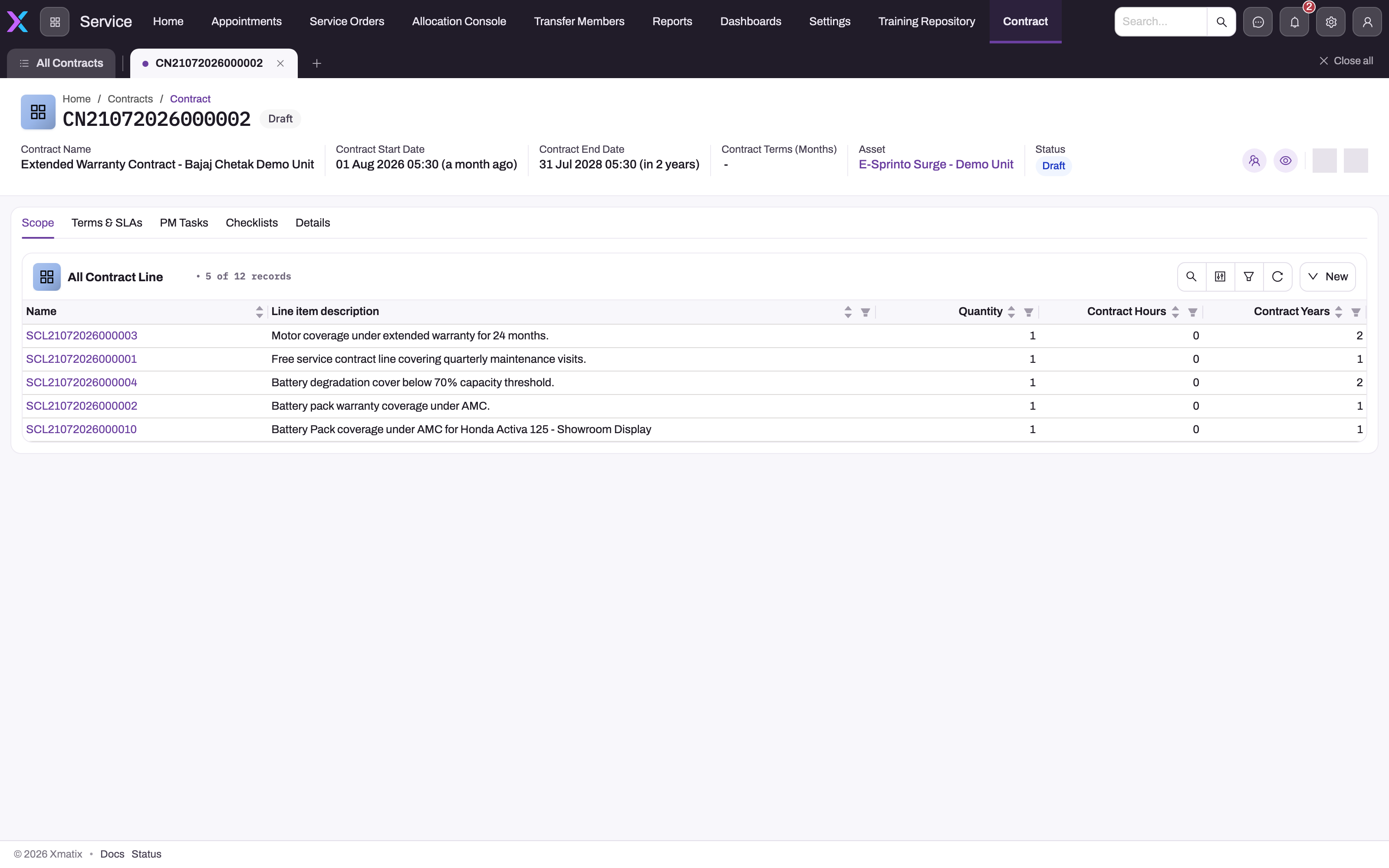
The Scope, Terms & SLAs and PM Tasks tabs each host a list with a New button. Each list shows the whole register for your organization, not just this contract's rows. A row you add there is not tied to this contract.
- Scope lists contract lines with name, line item description, quantity, contract years and discount. Add one line per commercial position. Because a line has no Contract field, put the contract number in the line's Description and use the contract's Account, so you can find the agreement's lines later. See Contract lines.
- Terms & SLAs lists term records and SLA records. Terms hold reusable terms text with a terms type, contract duration, line of business, sequence number, display switches and an Is Template flag; copy the text you need into the agreement — see Terms records. SLAs hold a type, priority, severity level, response time and resolution time. These SLA records describe commitments only; the timers on support cases are set up in Support. See SLA records.
- PM Tasks lists planned preventive-maintenance visits. A PM task can point to a contract line through its Contract Line field, so filter the list by contract line. Carrying out the visit happens in Field Service and the service order flow.
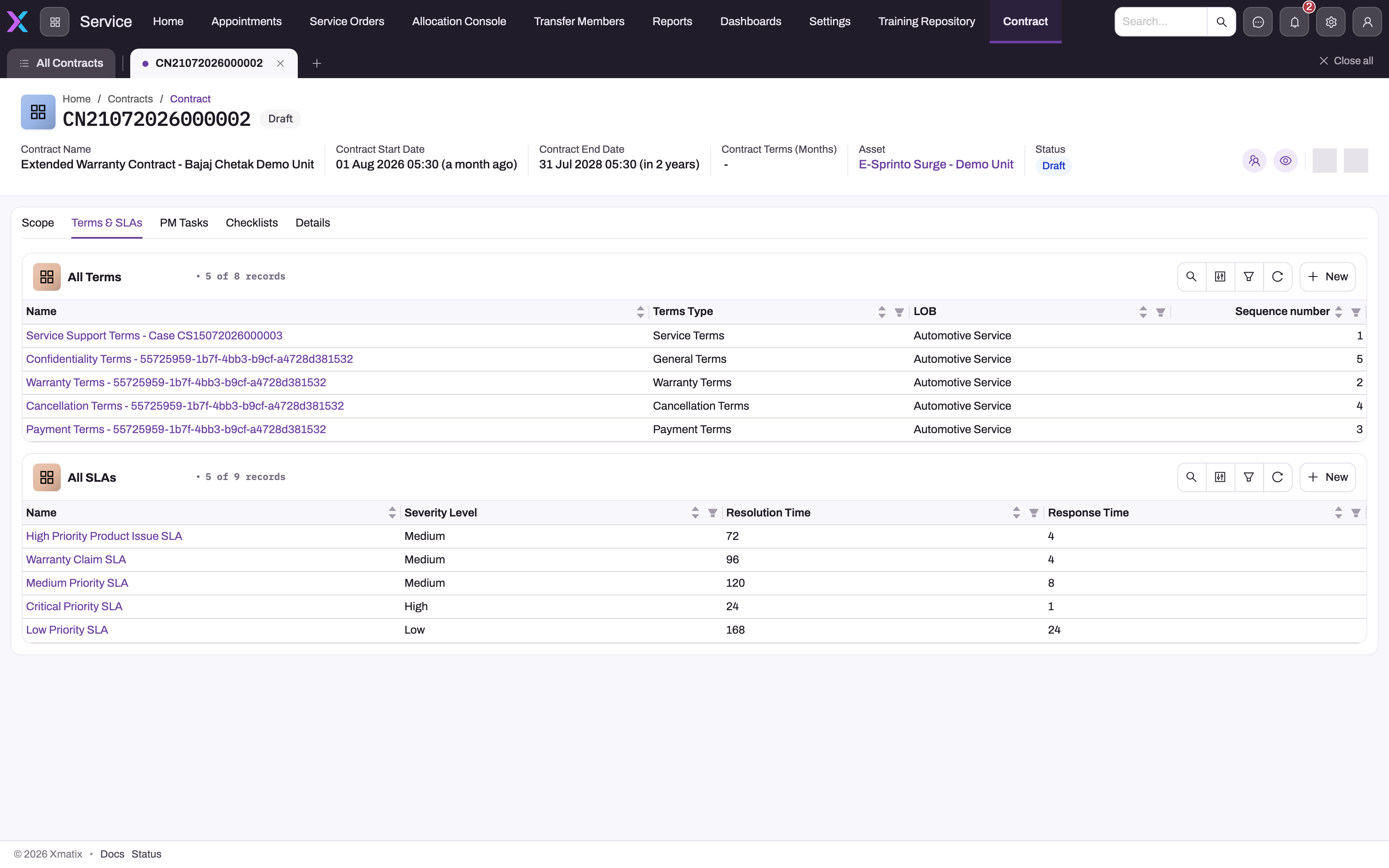
- 1
All Terms: reusable terms text; the count (8 in the tenant) confirms the list is not filtered to this contract.
- 2
Terms Type, LOB and Sequence number classify each term and fix its printed order; a term raised for a support case appears here too.
- 3
New creates a Term; mark the standard ones Is Template so they can be reused contract to contract.
- 4
All SLAs: documented commitments, not the operational SLA policies that time support cases.
- 5
Severity Level, Resolution Time and Response Time (hours) are the commitment you quote in the agreement.
Step 5 — Use the checklist as a review prompt
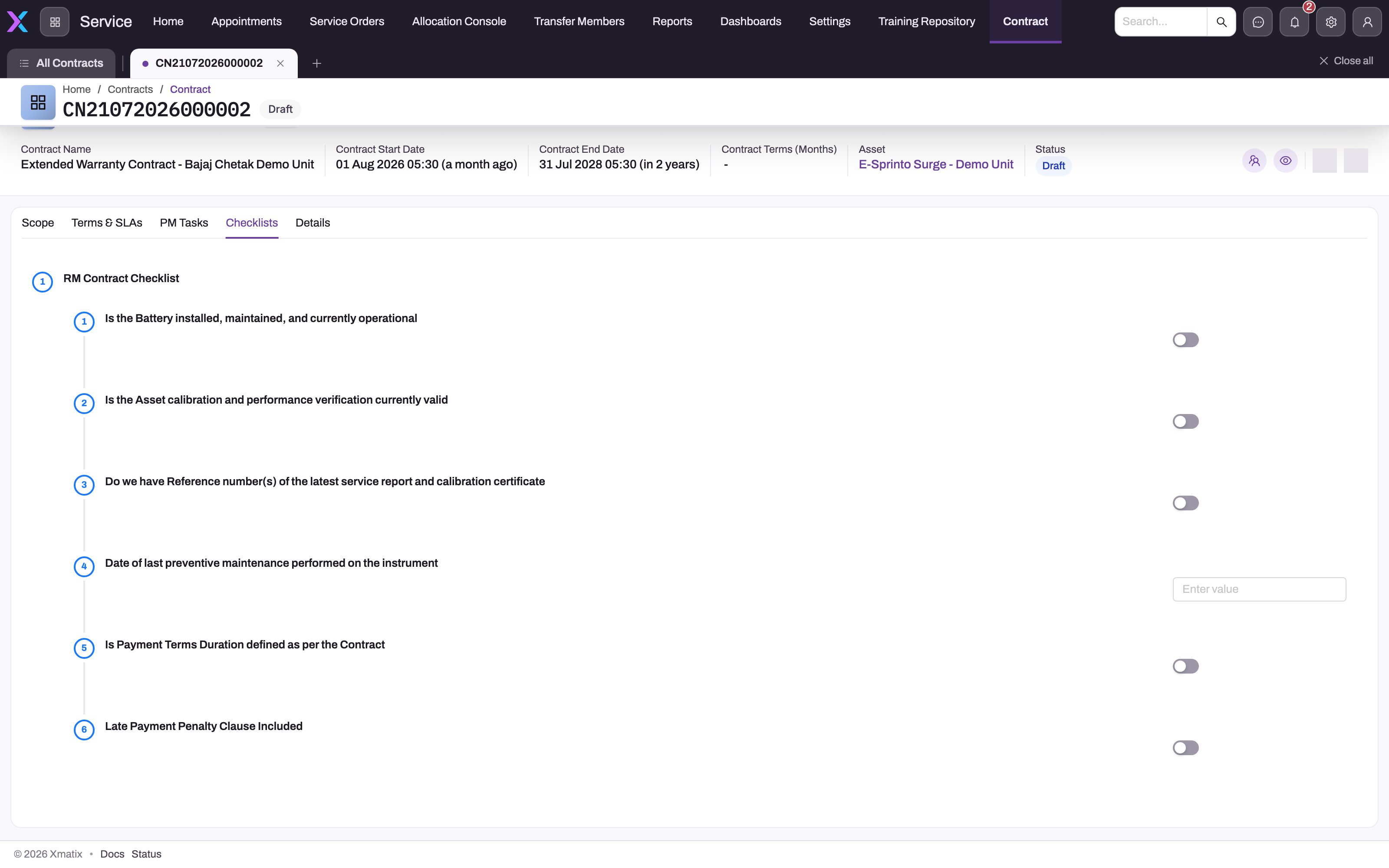
- 1
RM Contract Checklist is the review group; the six numbered steps beneath are its prompts.
- 2
Steps 1 to 3 ask about the asset: battery operational, calibration valid, service-report references on file.
- 3
The step 4 text box takes the last preventive-maintenance date — but it is not persisted; put the date on a PM Task or in Description.
- 4
Toggles record nothing on save; use them while reviewing, then capture the outcome in Status, Special Terms or a Term record.
- 5
Steps 5 and 6 cover commercial terms: payment-terms duration defined and a late-payment penalty clause included.
The Checklists tab shows a contract review checklist: five yes/no toggles (battery operational, calibration valid, service-report references on file, payment-terms duration defined, late-payment clause included) and one text input for the last preventive-maintenance date. These controls are not bound to any field, so nothing you toggle or type there is saved. Use the tab as an on-screen prompt, and record the answers in fields, child records or attachments.
Step 6 — Change the contract and its status
- To change the header fields, select Edit. The same tabbed form as in Step 2 opens; change the fields and select Save.
- To change the status, open the Details tab and click the Status value under Information. The field becomes editable in place; choose the new value and save it. Status is not on the Edit form.
Move the status as the agreement moves: Draft while it is being negotiated, Pending Approval while it waits for sign-off, Verified once checked, Active once in force. Fill in the signature dates and, if you use it, the Activated Date at the same time, because nothing sets them for you.
Step 7 — Handle the end of the term, a renewal or a mistake
- End of term. Reaching the Contract End Date changes nothing. Keep the record as history. A view of contracts whose end date has passed while their status is still Active works as a renewal list.
- Renewal. Create a new contract for the new term (Step 2), with new dates. Clone is not on the shipped record page (see Configuration).
- Entered in error. Select Delete in the record header and confirm. The contract leaves lists, lookups and reports and goes to the Recycle Bin, where it can be restored until its purge date. See Delete, recycle bin, archive and restore. Lines, terms, SLAs and PM tasks are not linked to the contract, so they stay as they are; delete them separately if they were part of the mistake.
Mobile
The Contracts app is not part of any shipped mobile app, so contracts are maintained on the web.
Fields
The New/Edit form, in order. Fields marked "record page" can also be changed in place on the Details tab.
| Field | What it means | Notes |
|---|---|---|
| Asset | The single asset the agreement covers | Optional. Shown in the list and the page header. For several assets, record the asset count on the lines and the asset on each PM task. |
| Activated Date | The date the agreement went live | Optional and typed. Not set by changing the status, and not shown on the record page. |
| LOB | Line of business | Picklist. Shipped value: Automobile. Your administrator maintains the list. Used by the shipped dashboards. |
| Account | The customer the agreement is with | Optional. Nothing is copied from it. |
| Contract Name | The business title of the agreement | Free text, not unique. Shown next to the number in lists. |
| Contract Start Date | When cover begins | Not checked against the end date. |
| Contract End Date | When the agreement ends | Reaching it changes nothing. |
| Contract Terms (Months) | Intended term length | Not saved: always reads back blank. Use the dates instead. |
| Billing Address | Where invoices go | Free text. |
| Shipping Address | Service or delivery address | Free text. |
| Description | Notes about the agreement | Free text. A good place for scope notes and references. |
| Customer Signed Date | When the customer signed | Date. |
| Customer Signed Title | Job title of the customer's signatory | Free text. |
| Special Terms | Terms that differ from your standard ones | Short free text. |
| Company Signed Date | When your organization signed | Date and time. |
Fields that are not on the New/Edit form:
| Field | What it means | Notes |
|---|---|---|
| Name | The contract number | Filled on first save from the Contract Name Setting, for example CN26102026000001. |
| Status | Lifecycle stage | Draft (default), Pending Approval, Verified, Active. Change it on the record page. |
| Contract Number | A numeric field | Not filled by any shipped form or process. The shipped preview card shows it, so it appears blank there. Use Name as the number. |
The full field list, including fields that no shipped form shows, is in the Contract entity reference.
Business rules
- Numbering. Name is set on insert from the active Contract Name Setting:
CN+{DD}{MM}{YYYYFY}+ six digits, no separator. The{YYYYFY}token prints the calendar year. Because the date part is part of the counter key, the counter restarts at 000001 each day. - Default status. A new contract is saved as Draft.
- No validations. No shipped field on a contract is required and no field rules ship: the dates are not checked against each other, and no field is marked unique.
- No automation. No shipped business rule, approval process or server action reacts to a contract. Status, Activated Date and signature dates change only when someone edits them.
- No downstream effect. Quotes, orders, service orders, invoices and claims do not read contract records. Asset service contracts are created from invoices, not from contracts.
- Delete is a soft delete and touches only the contract. Nothing else refers to a contract, so nothing blocks the delete and nothing else is removed.
- Clone, where an administrator adds it, copies the header only. It gets a new number but keeps the original Status.
Example
A service team signs a two-year annual maintenance agreement for a demonstration vehicle with a dealer, Riverbend Motors.
- In Contracts → All Contracts, the coordinator selects New, chooses the asset Demo Unit 7, sets LOB to Automobile, Account to Riverbend Motors, Contract Name to AMC — Riverbend Motors — Demo Unit 7, the start date to 1 November 2026 and the end date to 31 October 2028. They type the billing and shipping addresses and add the description Two-year AMC, quarterly preventive maintenance. They save on 26 October 2026, and the record opens as
CN26102026000001, Draft. - On Scope, they add a line for the maintenance item with Description CN26102026000001 — AMC year 1–2 and the same account.
- On PM Tasks, they add eight quarterly tasks pointing to that contract line.
- When the dealer signs on 30 October, the coordinator opens Edit, fills in Customer Signed Date, Customer Signed Title (Service Manager) and Company Signed Date, and sets Activated Date to 1 November. On the Details tab they click Status and change it to Active.
- In October 2028, their Ending this quarter view lists the contract. They create a new contract for the renewal term.
Training
Practice exercise
In a sandbox, create a contract for any account with a start date today and an end date one year from today. Type 12 in Contract Terms (Months), then save.
Expected result: the record opens with a CN number made of today's date and a six-digit counter, status Draft, and Contract Terms (Months) blank in the header and on Details. Then change the status to Verified from the Details tab and confirm that the header shows Verified. Finally, delete the contract and find it in the Recycle Bin.
Quick reference
- The contract number is in Name and is assigned on first save; Contract Number stays blank.
- New contracts start in Draft; change Status on the Details tab, not in Edit.
- Contract Terms (Months) is not saved; use the start and end dates.
- Reaching the end date changes nothing; build a view for renewals.
- The Scope, Terms & SLAs and PM Tasks lists show every record in your organization, not just this contract's.
- Put the contract number in each line's Description so you can find its lines later.
- Delete sends the contract to the Recycle Bin; its lines and tasks stay.
- Enforced cover and billing come from asset service contracts and service orders, not from this record.
Permissions
Access is set per security profile in Setup → Access Control → Profiles (see Security profiles):
| To… | The user needs |
|---|---|
| See the Contracts app | The Contracts app enabled on their profile. As shipped: Sales Executive, Sales Manager, Standard User and System Admin. |
| View, create, edit and delete contracts | Access to the Contract entity on the profile. As shipped, Sales, Sales Executive, Sales Manager, Service, Standard User and System Admin have full access. New, Edit and Delete follow these entity rights. |
| Clone a contract | The Clone action granted on the profile's Actions tab (shipped for Sales Executive, Standard User and System Admin), and the action placed on the page (see Configuration). |
A user without access to the Contract entity does not see contracts in lists or lookups. A user without the app does not see it in the App Launcher. Because the status is an ordinary field, restricting who can edit contracts is also what protects the status. To limit which contracts a user sees, use record security.
Configuration
| What | Where | Effect |
|---|---|---|
| Contract numbering | Setup → Feature Hub → Platform → Document settings → Contract Name Setting, or Setup → Design Studio → Entities → Contract → Document settings | Series CN, date format {DD}{MM}{YYYYFY}, length 6, no separator. Changing the series affects new contracts only. Keep the setting active: Name is not on the shipped form. See Document numbering. |
| LOB and Status values | Setup → Design Studio → Entities → Contract, field row → Manage PickList Values | Add your lines of business, or add statuses such as an expired or cancelled value. Never change the stored value of an option that records already use. See The data model. |
| Forms and record page | Setup → Design Studio → Entities → Contract → Experience → Layouts | Add Status to the New/Edit form, remove Contract Terms (Months), show Activated Date on the record page, or add Clone to the page header's actions. See Design a form layout. |
| Tab lists | The Contract record layout, list properties on Scope, Terms & SLAs and PM Tasks | The shipped lists are unfiltered. PM Tasks can be filtered by contract line; Scope needs a Contract lookup on the contract line first (Contract lines). |
| Views | All Contracts → view controls | Build working lists, for example status Active with end date in the past, or end date in the next 90 days. |
| Approval | Approval processes | None ships for contracts. Configure one if Pending Approval should route to an approver. |
| Rules and reminders | Business rules | None ship. Add rules for checks you want, such as an end date after the start date. |
| Dashboards | Renewal Exposure and Contracts & SLA | Count contracts by end month, status and LOB. See Dashboards. |
Common problems
The contract term I typed is blank
Contract Terms (Months) has no storage behind it, so the value is dropped on save. Record the term through Contract Start Date and Contract End Date, and ask your administrator to remove the field from the form and header.
I can't find Status on the Edit form
The shipped New/Edit form does not include Status. Change it on the record's Details tab by clicking the value under Information.
The name I gave the contract was replaced by a CN number
Name is the automatic number. Put the title in Contract Name.
Contract Number is empty
Nothing fills Contract Number. Use the CN… value in Name as the contract's number.
The contract reached Active, or passed its end date, and nothing happened
That is expected: a contract record has no automation. Billing runs through service orders and invoices, and enforced cover runs through asset service contracts. Use a view to catch contracts past their end date.
The Scope, Terms & SLAs or PM Tasks tab shows rows from other agreements
The shipped lists are not filtered to the open contract. On PM Tasks, filter by contract line. On Scope, search for the contract number you put in the line's description, or filter by account.
There is no Clone button
Clone is not on the shipped record page. Ask your administrator to add it to the page header, or create the renewal as a new contract.
A deleted contract has to come back
Restore it from the Recycle Bin before its Purge After date.
Common questions
Should every service agreement get a contract record?
Record what you need to look up later: parties, dates, terms, signatures and commercial positions. Where the real substance of the agreement is enforceable service cover, the asset service contract created by invoicing the contract item may be all you need. Many teams run entitlements without maintaining the contract register. If you do keep both, use the contract for the signed document and the asset service contract for the cover that service orders check.
Can I report across contracts, lines and tasks?
Partly. PM tasks link to their contract line, so reports can show visits owed per line or per technician, and contracts can be reported by end date, status and line of business. Contract lines have no link to the contract header, so a report cannot join a contract to its lines. Lines can be grouped by Account instead. If you need contract-to-line reporting, ask your administrator to add a Contract lookup to the contract line.
Can I delete a contract?
Yes. Delete is in the record header for users whose profile allows deleting contracts. The contract goes to the Recycle Bin, from which it can be restored until its purge date. Lines, terms, SLAs and PM tasks are separate records and are not deleted with it. If you need to keep a record of a void agreement, consider a status and description that say so instead of deleting it.
Can Pending Approval trigger a real approval?
Not as shipped. The status is an ordinary field, and no approval process ships for contracts. An administrator can configure an approval process on the Contract entity, like on any other record. Without one, setting Pending Approval is a manual bookkeeping step that tells colleagues the agreement is waiting for sign-off.