
A sales order records what a customer has agreed to buy from you: the customer, the selling company and branch, and one line per item with its quantity, price, discounts and tax. Every later step — releasing stock to the warehouse, allocating, delivering, invoicing and taking payment — is an action run on the order. It usually follows a quote, an opportunity or a field visit, and leads to invoices and payments. This page covers creating and looking after the order itself. The stages that follow are explained in the sales order lifecycle.
Overview
Sales orders live in the Sales app under Orders. They are also listed in the Commerce app and open in the mobile app. The default list view is All Orders. A saved order has:
- a header showing Document Date, Partner Account, Branch, Account and Executive, with the order's action buttons;
- a Status stepper;
- three tabs — Lines, Related (allocation lines, invoices and delivery orders) and Details;
- an Amount Summary, Scheme Recommendations and Sense AI insights panel beside the tabs.
When to use it
Create a sales order when a customer commits to a purchase and you want the platform to reserve, deliver, invoice and track it. Typical cases:
- a customer accepts a quote — create the order from the quote so it keeps the offered prices;
- a deal is won on an opportunity — raise the order from the opportunity;
- a field representative takes an order on a visit, often on the mobile app;
- an order arrives by phone or at the counter and you capture it directly.
If you only want to make a price offer, use a quote instead. To buy goods from a supplier, use a purchase order.
How xMatix handles it
Where orders come from
| Source | How | What is copied |
|---|---|---|
| Created directly | New on the Orders list | Nothing — you enter the header, then add lines |
| Quote | Order on the quote | The account, partner account and branch, and every quote line with its item, quantity, prices, discounts, tax group, SKU and lot type. A quote gives one order only. |
| Opportunity | Order on the opportunity | The account, partner account, branch and executive, and each line's pending quantity. It can be run again for quantity added later. |
| Visit | Take Order on the mobile app | The order is linked to the visit. Opening Take Order again on the same visit opens that order. |
| Purchase order from another organization on the platform | Dealer Order on their purchase order | A sale order at your branch for the pending quantity, with the purchase order linked |
Lines drive everything
Each line keeps running counters of what has been released to fulfilment, allocated, picked, delivered, invoiced, cancelled and returned. Each action draws only on the matching pending quantity, so you can process an order in parts. The order header adds the counters up. The formulas are on the sales order lifecycle page.
Status and Document State
Status is the stage shown on the stepper and in the list. The shipped values are Draft, Fulfilment, Invoicing, Delivery and Cancelled; your administrator can add more. A new order starts at Draft. Shipped business rules move Status whenever the order is saved, based on the pending quantities (see Business rules). Running an action never sets Status directly.
Document State is a separate read-only field that records the last lifecycle action that succeeded. Its values are Fulfilment Released, Fulfilment Partially Released, Allocated, Partially Allocated, Picked, Invoiced, Partially Invoiced, Delivered, Partially Delivered, Inventory Posted and Cancelled. It is not on the shipped screens; add it to a list view if you want to see it.
Pricing, discounts and tax
When the order is created, the platform fills in:
- the Price List (only if you left it empty), matched on the selling company, branch and the customer's account groups;
- a matching Discount Group;
- the account's default contact;
- the account's default billing and shipping addresses.
Each new line is then priced from the price list in force on the pricing date, discounted from the discount group, and taxed from the tax rules for its Tax Supply Type. If you type a non-zero unit price yourself, it is kept. Trade schemes set to apply automatically are evaluated as lines change. See Pricing, discounts and taxes and Trade schemes.
Prerequisites
- Your security profile gives you access to Order and Order Line, and to the actions you will run — see Permissions.
- The customer is an active account marked as a customer. Only those can be picked in Account.
- The selling company is an active partner account. If it has branches, you need one of its active branches.
- The Executive is an active resource who is allowed to sell for that partner account and branch.
- The items are active. Price-list rules exist for them, or you will type the unit prices.
Procedure
Step 1 — Find an order
Open Sales → Orders. The cards at the top cover the last 30 days:
- Total Sale Orders — the number of orders;
- Draft Sale Orders — orders still at Draft;
- Total Amount, Total Scheme Discount and Total Discount — sums for those orders.
Switch views to see Closed Orders, High-Value Order (orders over 50,000) or Pending Orders. Search, filter and sort the columns, then open an order from its number. A row's menu also offers Edit, Delete, Preview (the printable order document) and Attachments.
Step 2 — Create the order header
Choose New. The form opens with Account, Contact, Contact Number and Mobile at the top, and four tabs:
- Order Configuration — Executive, Price List and Tax Supply Type (Within State or Outside State), plus Discount Group where your organization's form includes it.
- Billing Address — pick one of the account's addresses or type one.
- Shipping Address — the same for the delivery destination.
- System Details — Partner Account (the selling company) and Branch (the location it sells from).
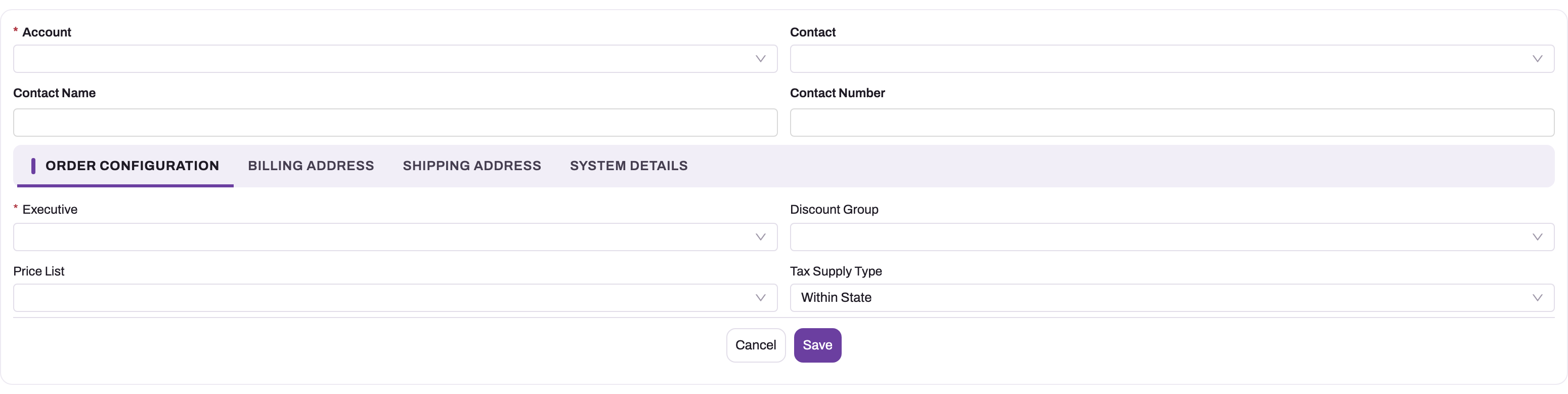
- 1
Account is the customer. It is locked after the first save and pairs with the partner account for the credit-limit check.
- 2
Contact, Contact Name and Contact Number are copied from the account's default contact and can be overridden here.
- 3
Executive is the sales resource who owns the order; the resource service validates it on every save.
- 4
Discount Group and Price List default from the selling company, branch and account groups when active rules exist; blank means no rule matched.
- 5
Tax Supply Type (Within State or Outside State) takes part in matching the tax-group rule for each new line.
- 6
Save creates the Draft header with today's document date; lines are added on the saved order.
Account and Executive are marked as required. Fill Partner Account and Branch too: saving without a partner account is refused. Contact lists only the chosen account's contacts, and Branch lists only the partner account's branches.
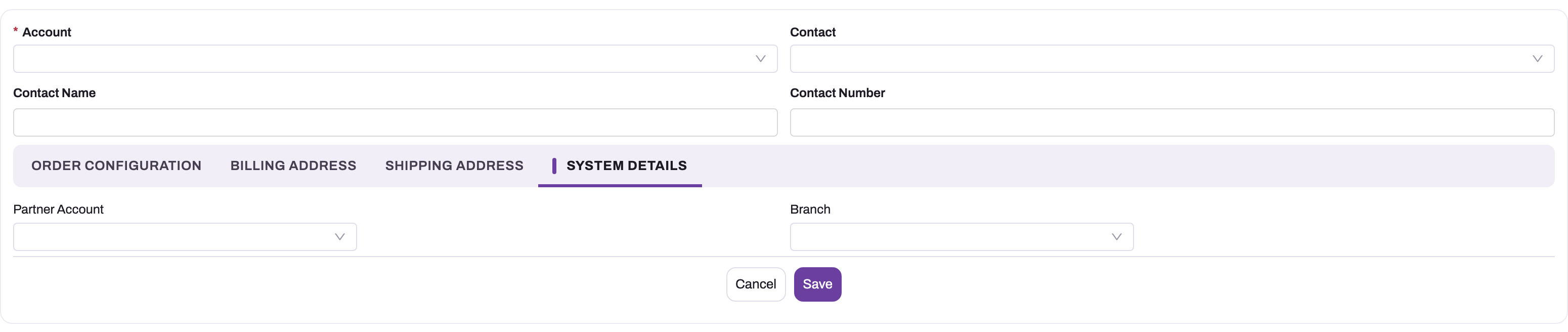
- 1
System Details is the last tab of the create layout; open it before saving, because the values it holds cannot be changed later.
- 2
Partner Account is the selling company. A blank value is rejected with 'Invalid Partner Account', and it scopes stock, credit and document numbering.
- 3
Branch must belong to the partner account; it fixes inventory, tax, naming and reporting scope for the order.
- 4
Save only when account, commercial context, addresses and selling scope all agree.
Step 3 — Check the addresses and commercial context
Leave Price List empty to let the platform choose one when you save. The billing and shipping addresses are filled from the account's default addresses. Check them for customers with depots or job sites: the shipping address goes onto delivery documents, but stock is always drawn from the order's own partner account and branch.
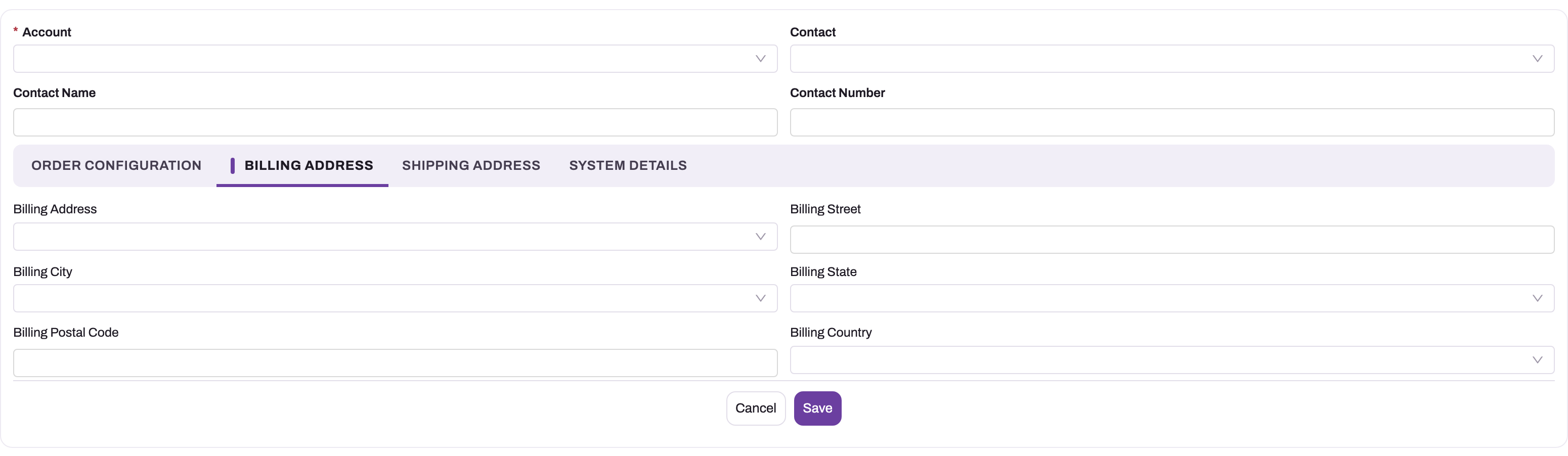
- 1
Billing Address and Shipping Address are separate tabs; review both, because depots and job sites often differ from the invoicing address.
- 2
Billing Address picks one of the account's saved contact addresses and fills the structured fields from it.
- 3
Billing Street is free text; the remaining fields are structured values that travel onto the invoice.
- 4
Billing City and Billing State are picklists; State matters for the tax supply type chosen on Order Configuration.
- 5
Postal Code and Country complete the destination copied into downstream commercial and regulatory documents.
Step 4 — Save
Choose Save. The order gets a number such as SO-10102026-000001, today's Document Date and Status Draft.
The credit check runs at this point. If the customer's open receivables with this partner account are already over their credit limit, the save is refused with a message naming the customer, the open amount and the limit. See Credit limits.
Account, Branch and Document Date cannot be changed after this save.
Step 5 — Add lines
On the Lines tab, add items with:
- the quick-add form;
- Product Catalogue, a browsable item picker;
- Import;
- barcode scanning.
The quick-add form asks for Item, SKU, Item Lot Type, Quantity, Unit Price, Tax Group and Description. It shows an Item 360 panel with stock, schemes and alternates for the item. A line needs an item, or a description for a charge with no item.
When you save a line, it is priced, discounted and taxed, and the Amount Summary updates. A package item with configurable components can be set up with Product Configurator. Changing, cancelling and deleting lines, and reading each line's progress, are covered in Sales order lines.
Step 6 — Review discounts and schemes
If your administrator has added the header Discount field to the order page, a percentage entered there is copied to every line as Order Discount. It is not on the shipped forms.
Schemes marked to apply automatically write their discounts or free items as lines change. Tick Skip Scheme (on Details → Additional Details) to turn them off for this order. Use Apply Scheme to apply a scheme you choose, and read the Scheme Recommendations panel for offers the order nearly qualifies for.
To re-price every line from the price list, choose Reprice. Changing Price As On Date does the same for the price list in force on the new date.
Step 7 — Get approval, if your organization uses it
No approval process is shipped for sales orders. If your administrator has configured one, submit the order from the approval panel or the Submit for Approval button they added to the page.
Step 8 — Process the order
The buttons in the header change with the order's quantities. Each button appears only when there is something for it to do:
| Button | Shown when |
|---|---|
| Auto Allocation, Manual Allocation | Lines are still to be allocated and nothing has been invoiced over the counter |
| Invoice ( OTC ), Selective Invoice OTC | Something is still to be invoiced and nothing is allocated |
| Invoice, Selective Invoice | Something is still to be invoiced and stock is allocated |
| Delivery, Selective Delivery | Something is still to be delivered and nothing is waiting for allocation |
| Cancel Allocation | Stock is allocated and Status is Fulfilment |
| Reprice, Product Configurator | Status is Draft and lines are still to be allocated |
| Apply Scheme | Status is Draft and something is still to be invoiced |
| Cancel Order | Status is Draft |
What each path creates is explained in the sales order lifecycle, Allocating stock to orders, Picking and fulfilment and Bulk order processing. The documents an action creates appear on the Related tab.
Step 9 — Record a payment
When Outstanding Amount is above zero, the Amount Summary shows Payment. Choose it to open a payment form for the order, enter the receipt and save. See Invoicing and payments.
Step 10 — Change, cancel, clone or delete
- Change a line. Edit on a line changes its item, SKU, lot type, quantity, unit price, tax group or description. Discounts can be changed in place on the line's record page. You cannot lower a quantity below what has already been released to fulfilment, cancelled or returned. See Sales order lines.
- Cancel the rest of an order. Use Cancel Order while Status is Draft. It cancels every line's quantity not yet released to fulfilment, and sets Document State to Cancelled. Quantity already released stays as it is.
- Copy an order. A Clone action is shipped for orders, but it is not on the shipped order page. Your administrator can add it to the page header in Design Studio.
- Delete. Delete removes the order after you confirm. It cannot be undone. A line that has been released to fulfilment cannot be deleted. For an order that has already produced documents, use Cancel Order instead.
Step 11 — Work on mobile
On the mobile app, orders are usually taken during a visit with Take Order. You browse the catalogue (or scan barcodes), fill a cart and review the order summary. This works offline: prices, taxes and contract discounts are worked out on the device, and the order is sent when the device reconnects. It is saved at Status Draft. While it is still Draft, opening Take Order again on the same visit lets you edit it; at any other status it opens read-only.
A saved order also opens on mobile with its Lines, Related and Details tabs, the same processing actions, and the Amount Summary with Payment. See Complete a visit.
Fields
Header
| Field | What it means | Notes |
|---|---|---|
| Document Number | The order's number | Generated on save; shipped format SO- + date as DDMMYYYY + six digits |
| Document Date | The order's business date | Set to the current date and time on save; a future date is pulled back to now. Locked after save |
| Account | The customer | Required. Active customer accounts only. Locked after save |
| Contact, Contact Name, Contact Number, Mobile | The person you deal with at the customer | Contact lists the account's contacts. The default contact is filled in when you leave it empty |
| Executive | Your sales person responsible for the order | Required on the form. Must be an active resource allowed to sell for the partner account and branch |
| Partner Account | Your selling company | Required by the server. Active partner accounts only. May be hidden if your organization runs a single company |
| Branch | The location you sell from | Must belong to the partner account and be active; required when the partner account has branches. Locked after save |
| Price List | The price rules the lines are priced from | Filled on save when empty |
| Discount Group | The discount rules for the lines | Filled on save when a matching group exists. Shown on Details → Additional Details |
| Price As On Date | The date prices are taken from | Changing it re-prices every line |
| Tax Supply Type | Within State or Outside State | Used to pick each line's tax group |
| Tax Group | Header-level tax | Shown on Details → Tax Details |
| Billing Address, Shipping Address | Where to invoice and where to deliver | A saved address of the account, plus Street, City, State, Postal Code and Country. Filled from the account's defaults |
| Discount | A percentage applied to every line | Copied to each line as Order Discount. Not on the shipped forms |
| Skip Scheme | Turns off automatic scheme evaluation for this order | On Details → Additional Details |
| Remark | Free-text note | |
| Status | The order's stage | Draft by default; moved by business rules — see below |
| Advance Amount, Adjusted Advance Amount | Advance taken against the order, and how much of it has been used | Open Amount is Total Amount − Advance Amount |
Amounts (read-only)
| Field | What it means |
|---|---|
| Total Line Base Amount | Quantity × unit price over all lines, before discounts |
| Total Scheme Amount | Discounts from trade schemes |
| Total Discount Amount | Line discounts other than schemes |
| Additional Discount | Discount given through discounted-item lines |
| Total Line Tax Amount | Tax over all lines |
| Total Line Amount | Sum of line amounts after discounts, before tax |
| Total Amount | The order total including tax |
| Outstanding Amount | Total Line Amount + tax − amount paid − financed amount. Payment appears while it is above zero |
| Total Credit Amount | Amount paid less the financed amount |
Lines
| Field | What it means | Notes |
|---|---|---|
| Item | What is sold | Required unless a Description is given. Must be active |
| SKU | The variant of the item | Required for items that need one; must belong to the item |
| Item Lot Type | The lot type to sell from | Takes part in price and tax matching |
| Quantity | Quantity ordered | Required, above zero. Cannot drop below what is already released, cancelled or returned |
| Unit Price | Price per unit | Filled from the price list; a non-zero price you type is kept. Bundled package components cannot be priced |
| Tax Group | The line's taxes | Filled from tax rules |
| Description | Free text, or the charge itself on a line without an item | |
| Discount, Order Discount, Net Discount | Line discount, the header discount, and the resolved discount value | Percentages must be between 0 and 100 |
| Net Scheme Discount | Discount from schemes on this line | |
| Cancelled Quantity | Quantity cancelled | Cannot exceed the quantity |
Every field, including system and calculated ones, is listed in the Order entity reference.
Business rules
- Numbering. Orders are numbered from the Order Document Name Setting: series
SO, separator-, the document date as DDMMYYYY, and a six-digit counter. - Partner, branch and customer. The partner account must be given and active. The branch must belong to it and be active, and is required when the partner account has branches. The customer must be active.
- Executive. Must be allowed to sell for the order's partner account and branch.
- Locked fields. Account, Branch and Document Date cannot change once saved.
- Credit check. Runs only when the order is first saved. It is skipped when the Sales setting routes credit-limit breaches to an approval process.
- Header changes reach the lines. Changing Discount updates every line's Order Discount. Changing Price As On Date re-prices every line. Changing Skip Scheme re-evaluates schemes.
- Line quantities. A line's quantity cannot be reduced below its released, cancelled and returned quantity, and cannot be cancelled beyond what is still pending. A line with quantity released to fulfilment cannot be deleted.
- Status rules. Four shipped rules run before every save of the order (a rule only fires when the order has lines):
| Rule | Sets Status to | When |
|---|---|---|
| Set Sale Order Status To Closed | Closed | Nothing left to deliver and nothing left to invoice |
| Set Sale Order Status To Delivery | Delivery | Nothing left to deliver |
| Set Sales Order Status To Invoicing | Invoicing | Nothing left to invoice |
| Set Sale Order Status To Fulfilment | Fulfilment | Nothing left to allocate |
When more than one applies, the first one in the table wins.
- Manual status changes. The rule Order Status Not Editable refuses a hand-made change to Fulfilment, Invoicing, Delivery or Closed while the matching quantity is still pending.
- Downstream links. Lines created from an opportunity or a dealer purchase order count against the source line, so the same quantity is not ordered twice.
Example
A building-materials distributor takes a phone order from a contractor for 200 bags of cement and 40 lengths of steel bar.
The sales coordinator opens Sales → Orders, chooses New and picks the contractor as Account and themself as Executive. On System Details they choose the distributor's company and its north depot, then save. The order opens as SO-10102026-000007 at Draft, and the sale price list has been filled in.
They add two lines. Cement is priced at 380 per bag and steel bar at 610 per length from the price list, and an automatic volume scheme adds a 2% scheme discount on the cement. The Amount Summary shows the total with tax.
The contractor needs the cement first, so the coordinator runs Selective Invoice OTC for the 200 bags of cement only. A draft invoice appears on the Related tab, and the cement line has nothing left to invoice; the steel bar is still pending, so Status stays Draft. The following week the coordinator runs Invoice ( OTC ), which invoices just the 40 lengths of steel bar. With nothing left to invoice on any line, the next save of the order sets Status to Invoicing. Delivery then follows the path described in the sales order lifecycle.
Training
Practice exercise
In a sandbox, as a user with the Sales Executive or System Admin profile:
- Create an order for a test customer, partner account and branch. Expected: an
SO-number, today's document date and Status Draft. - Try to change Branch with Edit. Expected: the save is refused with Key fields are not editable once the related objects are added., naming the field.
- Add a line for a stock item, quantity 10, and leave Unit Price empty. Expected: the price is filled from the price list and the Amount Summary updates.
- Run Selective Invoice OTC for 4 of the 10. Expected: a draft invoice on Related, 6 still pending to invoice, and Status still Draft.
- Run Invoice ( OTC ). Expected: a second draft invoice for the remaining 6, and Status Invoicing after the order is next saved.
- Create a second order with one line and choose Cancel Order. Expected: the line's quantity moves to Cancelled Quantity and Document State becomes Cancelled; Status does not change.
- Choose Cancel Order again. Expected: No eligible order lines found to cancel.
Quick reference
- Account, Branch and Document Date lock on the first save — check them first.
- Leave Price List empty to get the default; a typed unit price is kept.
- Buttons appear only when their quantity is pending.
- Invoice ( OTC ) invoices without allocation; Invoice bills allocated stock.
- Status follows the quantities through business rules; Document State records the last action.
- Cancel Order cancels the unreleased remainder; it works only at Draft.
- Skip Scheme stops automatic schemes on one order.
- Orders taken on a visit on mobile work offline and stay at Draft.
Permissions
Access is set on security profiles in Setup → Access Control → Profiles.
- Entity access. The shipped System Admin, Standard User, Sales Manager and Sales Executive profiles have full access to Order — read, create, edit, delete, share, assign, View All and Modify All. Users who add or change lines also need access to Order Line.
- Actions. Each action button — Auto Allocation, Invoice ( OTC ), Delivery, Reprice, Apply Scheme, Cancel Order and the others — is granted separately on the profile's Actions tab. A user without the grant does not see the button. If the action is run another way, it is refused with The current user is not allowed to execute server action '…' on entity 'Order'.
- Record sharing. Orders are owned by a user; which colleagues' orders you see follows your organization's sharing settings — see record security.
- Approvals. Submitting for approval needs edit access to the order.
Configuration
- Document numbering. Setup → Feature Hub → Platform → Document Settings, Order Document Name Setting: series
SO, separator-, date format DDMMYYYY, six digits. Because the date includes the day, the counter starts again at 000001 each day. Order lines have their own setting. See Email templates and document numbering. - Sales settings. Setup → Feature Hub → Sales → Settings, group Credit Limit: Route credit limit breaches to an approval process (off by default). Off: an order for a customer over the limit is refused when it is saved. On: the check is skipped, so that an approval process you configure can govern it. The limits themselves are set per partner account and customer — see Credit limits.
- Approval. No approval process is shipped for orders. Create one in Setup → Process Studio → Approvals (or in the Order entity's Approval Processes). Add the approval panel or a Submit for Approval button to the order page so users can submit. See Approval processes.
- Status rules. The four Set … Status To … rules and Order Status Not Editable are in Setup → Process Studio → Business Rules. Deactivate or change them there if your organization tracks status differently — for example, from Document State. The Closed rule writes a value that is not in the shipped Status picklist. Add Closed to the picklist if you want it on the stepper; the Closed Orders and Pending Orders views filter on it. See Business rules.
- Status picklist. Add values such as an approval stage in the Order entity's field settings. If you add values, keep the list views and business rules in step.
- Shipped validations. Booking Amount Validation and DMS Credit Check Validation take effect only when Status is Booked or Credit Verified. Those values are not in the shipped picklist, so the validations do nothing unless you add them.
- Layouts, views and buttons. The create form, record page, header buttons and the conditions that show them, and the list views and cards, are metadata you change in Design Studio. Some actions are shipped but not on the record page — for example Fulfilment, Selective Fulfilment, Fulfilment and Auto Allocate, Allocation Delivery, Selective Cancel Allocation, Reset Scheme, Post Inventory and Clone. Add them where your process needs them. The picking actions on the order are shipped switched off; picking runs on the fulfilment document.
- Lookup filters. The shipped filters limit Account to active customer accounts, Partner Account to active partner accounts, Branch to the partner account's branches, Contact to the account's contacts, Executive to active resources and Discount Group to active groups.
- Pricing. Price lists, discount groups and tax rules are kept in the Sales app's Settings → Pricing & Tax. See Pricing, discounts and taxes. Trade schemes are set up in the Rewards app — see Trade schemes.
- Print. The row Preview on the list uses the shipped Sales order print template. See Document prints.
- Mobile. The Take Order screen on visits, suggested quantities and frequently ordered items are configured for field sales — see Field sales.
Common problems
"Invalid Partner Account." or "Branch is required for this Partner Account."
Partner Account on System Details is empty, or the partner account has branches and none was chosen. Fill both. Invalid Branch for Partner Account. means the branch belongs to another company.
"Resource is not authorized for Partner Account '…'." or "… for branch '…'."
The Executive is not set up to sell for this company or branch. Choose another executive, or ask your administrator to extend the resource's partner and branch assignments.
"Credit limit exceeded for …"
The customer's open receivables with this selling company are already over their credit limit. Collect payment or ask for the limit to be raised — see Credit limits.
"Key fields are not editable once the related objects are added. Field Name : …"
You changed Account, Branch or Document Date on a saved order. These cannot change. Cancel the order with Cancel Order and create a new one.
"Transacted quantity (…) cannot be reduced. Attempted quantity: …"
Part of the line has already been released to fulfilment, cancelled or returned. Enter a quantity at least that high. To stop the rest, use Cancel Order.
"Cannot cancel quantity beyond pending invoice and fulfillment order quantities."
The cancelled quantity you entered is more than is still pending on the line. Lower it.
"There are downstream transactions. The record cannot be deleted."
The line has quantity released to fulfilment. Leave the line and cancel its remaining quantity instead.
"Select an Item or enter a Description."
A line needs either an item or, for a charge with no item, a description.
"SKU is required for this item." or "Invalid SKU selected for this item."
The item is sold by SKU. Pick one of that item's SKUs.
"This is a bundled item. You can not specify price for it"
The line is a component of a package priced as a bundle. Its price comes from the package, so leave Unit Price alone.
"Order Status Not Editable"
You set Status by hand to a stage the quantities do not support yet. Run the action instead; Status follows on save.
"No Order Line found for Repricing."
Reprice needs at least one line. Add lines first.
"No eligible order lines found to cancel."
Every line's quantity has already been released to fulfilment or cancelled, so Cancel Order has nothing left to cancel.
A button I need is missing
Buttons show only when their condition is met (see Step 8), and only if your profile grants the action. For example, Invoice ( OTC ) disappears once stock is allocated — use Invoice then. Cancel Order and Reprice show only at Draft.
The unit price stays empty
No price-list rule is in force for the item on the order's pricing date. Check the rule's dates and the order's Price List, or type the price.
Common questions
Can I raise more than one order from the same quote or opportunity?
From a quote, no: Order works once and a second run is refused with Order has already been generated for this quote. From an opportunity, yes. Each run of Order creates a new order for whatever quantity the opportunity lines still have pending. So you can add lines or raise quantities on the opportunity and order again. The opportunity's Order field keeps pointing at the first order; every order raised from it is linked back to it. If nothing is pending, the action tells you there is nothing left to put on an order.
Why did the status not change after I invoiced?
Status is set by business rules when the order is saved, and it moves only when a whole stage is complete. For example, Invoicing means nothing is left to invoice on any line, so a partly invoiced order stays where it was. To see what happened last, read Document State, which records Partially Invoiced, Invoiced and the other action results, or open the Related tab.
Is an order approved before it can be processed?
Only if your organization has configured an approval process for orders — none is shipped. The processing buttons do not check approval, so if approval must come first, your administrator needs to add that to the button conditions or business rules.
What happens to a cancelled order?
Cancel Order moves each line's unreleased quantity into Cancelled Quantity and sets Document State to Cancelled. Documents already created — fulfilments, invoices, deliveries — stay as they are and are handled on their own records. Status is not changed by the cancel. Your administrator can add a business rule that sets Cancelled from Document State if you want it on the stepper.
Why is the document date not on the create form?
It is stamped with the current date and time when the order is saved, and locked. Imports and integrations may supply an earlier date, but a future date is set back to now.