
A sales order in xMatix is a header (customer, selling company, branch, executive, document date, addresses, commercial masters) plus one line per item sold. Nothing downstream happens by editing the order: every stage — releasing a fulfilment document, allocating stock, picking, delivering, invoicing — is an explicit action on the order or on the document it created, and each action is gated on a per-line pending counter. This page explains those stages, the counters, and the order Status, which is a roll-up written by business rules rather than a control you drive.
Read a saved order
- 1
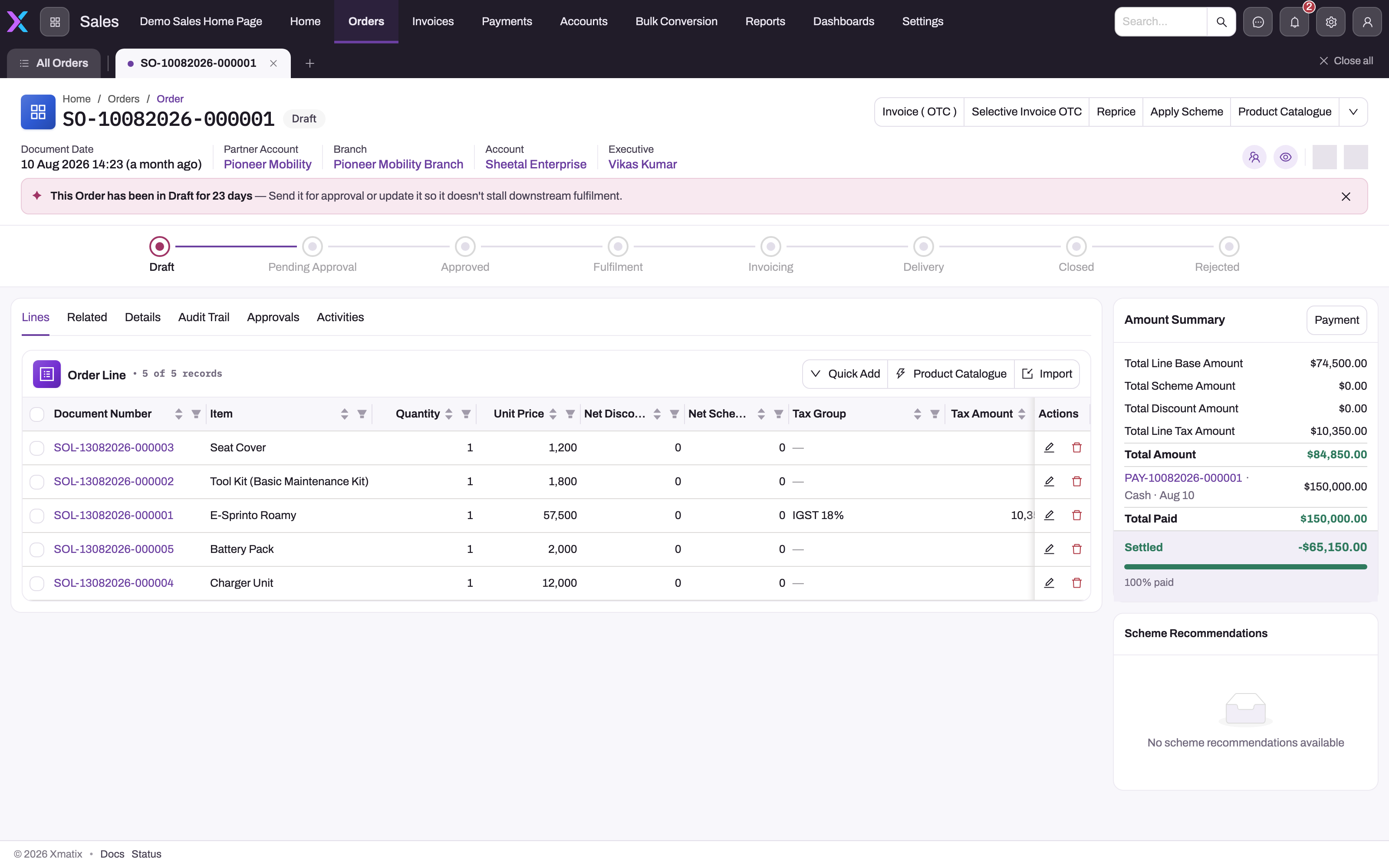
Lifecycle actions: Invoice ( OTC ), Selective Invoice OTC, Reprice, Apply Scheme and Product Catalogue are visible; Fulfilment, Allocate, Delivery and the other release actions are behind the arrow.
- 2
The status stepper is the Status picklist — Draft, Pending Approval, Approved, Fulfilment, Invoicing, Delivery, Closed, Rejected. Business rules move it as pending counters reach zero; it does not drive anything itself.
- 3
Lines is the commercial source; Related, Details, Audit Trail, Approvals and Activities answer where the downstream documents, header values, change history and approvals are.
- 4
Each line carries item, quantity, unit price, discounts and tax; its fulfilled, allocated, picked, delivered, invoiced and pending quantities sit on the line record itself.
- 5
Amount Summary totals the lines and lists payments already applied; Payment opens the payment form rather than running a server action.
Open an order from Sales → Orders (the default list view is All Orders). The header shows the document number, the status badge, document date, partner account (selling company), branch, account and executive; the lifecycle actions sit at the top right, with the first few shown as buttons and the rest behind the arrow. Each button shows only while the order has quantity for it to act on — see Creating and managing sales orders. Below the header the status stepper walks through the Status picklist — shipped as Draft, Fulfilment, Invoicing, Delivery, Cancelled, and extendable by your administrator — and highlights the current value. Start on Lines: the grid shows each line's item, quantity, unit price, net discount, net scheme discount, tax group and tax amount. The lifecycle counters (fulfilled, allocated, picked, delivered, invoiced, cancelled and the derived pending quantities) live on the line record itself — open a line to read them, or add the columns to the grid. See Sales order lines. Amount Summary on the right totals the lines and lists payments already recorded against the order.
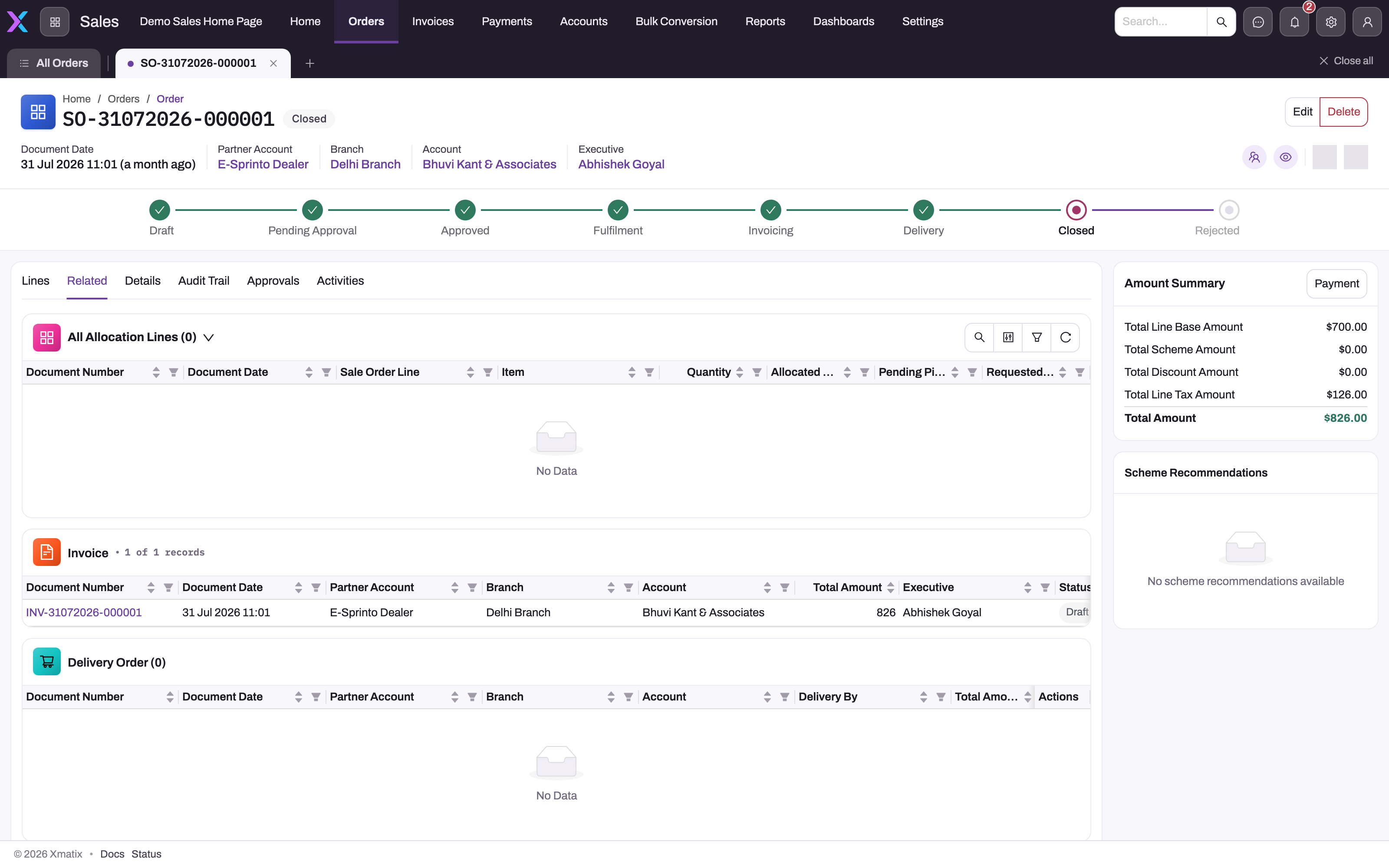
Use Related to see what the actions have produced: the tab lists the order's allocation lines, invoices and delivery orders (and other related records configured in the layout), each with its own document number and status. This is the evidence trail — an action that ran successfully leaves a record here, and a record here is the only proof that a stage completed. Details shows the saved header fields, Audit Trail the field-level change history, and Approvals and Activities the approval requests and timeline for the record.
The stages
| Stage | Action on the order | What it creates | Counter it consumes |
|---|---|---|---|
| Capture | New — or generated from a quote, opportunity or field visit | The order; lines are copied from the quote or opportunity | — |
| Approve | Submit to the approval process, where your administrator has configured one for Order (none is shipped) | An approval request | — |
| Release fulfilment | Fulfilment / Selective Fulfilment / Fulfilment and Auto Allocate / Selective Fulfilment and Auto Allocate | A fulfilment document for the warehouse (with allocation lines when auto-allocating) | Pending fulfilment order quantity |
| Allocate | Allocate (also labelled Auto Allocation), Manual Allocation, Selective Allocation | Allocation lines reserving specific lots or stock | Pending fulfilment allocation quantity |
| Pick | Perform Picking / Confirm Picking — on the fulfilment document | Picking lines, then their confirmation | Pending picking quantity |
| Deliver | Delivery / Selective Delivery, Allocation Delivery, Picked Delivery | A delivery order | Pending delivery quantity |
| Invoice | Invoice ( OTC ) / Selective Invoice OTC, or Invoice for allocated lines | An invoice in Draft | Pending invoice quantity |
| Collect | Payment | A payment applied to the order (opens the payment form; it is not a server action) | — |
The order's own picking actions are switched off in the first-party metadata: picking, confirmation and picked delivery are run on the fulfilment document, as described in Picking and fulfilment.
Two shapes of the flow are common:
- Over the counter — skip the warehouse documents: Invoice ( OTC ) invoices the order's pending quantities directly, drawing lots (oldest first) or stock on hand as it goes, and Delivery can then release a delivery order from the invoice lines. Bulk order processing is this same path run across many orders at once.
- Full fulfilment — release a fulfilment document, allocate stock, pick and confirm, release the delivery order, then run Invoice to bill the allocated lines.
Pending counters and partial processing
Each order line carries running counters — fulfilment order quantity, fulfilment allocated quantity, picked quantity, delivery quantity, invoice quantity (split into allocated-invoiced and OTC-invoiced), cancelled quantity and returned quantity — and derives its pending quantities from them:
| Pending counter | Formula |
|---|---|
| Pending fulfilment order quantity | quantity − fulfilment order quantity − cancelled quantity |
| Pending fulfilment allocation quantity | quantity − fulfilment allocated quantity − cancelled quantity |
| Pending invoice quantity | quantity − cancelled quantity − invoice quantity |
| Pending delivery quantity | quantity − delivery quantity − cancelled quantity |
| Pending picking quantity | allocated − picking requested + picking cancelled + picking returned − delivered |
Each action consumes from its own counter and skips lines with nothing pending, so you can invoice part of an order today and the rest later, and one line can be fully invoiced while another still awaits allocation. The order header sums the line counters, which is what the header buttons and the status rules read. Stock drawn by allocation or OTC invoicing is always scoped to the order's partner account and branch — availability at another branch is never used. A returned quantity (credit note) does not reopen any pending counter.
Where a Selective action is exposed you choose lines and enter a Requested Quantity per line. A request above the line's pending counter is rejected with Requested quantity (n) cannot exceed the pending quantity (m). Whether an empty quantity is accepted depends on the action: Selective Fulfilment, Selective Fulfilment and Auto Allocate, Selective Invoice OTC, Selective Invoice, Selective Delivery, Selective Allocation Delivery and Selective Picked Delivery reject a zero or empty request (Requested quantity must be greater than zero), while Selective Allocation, Selective Picking, Selective Cancel Allocation and Selective Cancel Picking treat an empty request as the line's full pending quantity.
What the status means
The Status field is written by four shipped business rules that run before every save of an order that has lines, and read the summed line counters. When more than one applies, the first in this table wins:
| Status | Set when |
|---|---|
| Draft | Default on creation |
| Closed | Nothing is left to deliver and nothing is left to invoice |
| Delivery | Nothing is left to deliver |
| Invoicing | Nothing is left to invoice |
| Fulfilment | Nothing is left to allocate |
Closed is written by its rule even though the shipped Status picklist has no Closed value; the Closed Orders and Pending Orders views filter on it. A fifth rule, Order Status Not Editable, refuses a hand-made change to Fulfilment, Invoicing, Delivery or Closed while the matching quantity is still pending. No shipped rule or action sets Cancelled, or any approval stage your administrator adds. Because the status is derived, changing it never creates a document, reserves stock or bills anything — run the action instead.
Each action also writes the read-only Document State field: Fulfilment Released or Fulfilment Partially Released, Allocated or Partially Allocated, Picked, Invoiced or Partially Invoiced, Delivered or Partially Delivered, Inventory Posted and Cancelled. It records the last action that succeeded, including partial ones, so it answers "what happened last" when Status has not moved yet. It is not on the shipped screens; add it to a list view to see it.
Cancelling and guard rails
Cancel Order (shown while Status is Draft) adds every line's pending fulfilment order quantity to its cancelled quantity, which zeroes the pending counters for the untransacted remainder, and sets Document State to Cancelled. It does not change Status; your administrator can add a business rule that sets the Cancelled status from Document State. Two validations protect consistency and are reported as explicit errors rather than silently adjusted: a line's quantity cannot be reduced below what has already been transacted (fulfilled, cancelled or returned) — Transacted quantity (n) cannot be reduced — and a cancellation cannot exceed what is still pending — Cannot cancel quantity beyond pending invoice and fulfillment order quantities.
The order's Account, Branch and Document Date are key fields fixed at creation (Key fields are not editable once the related objects are added); to correct them, cancel the order and recapture it. The credit-limit check runs when the header is first saved and blocks the save when the customer's open receivables with this partner account already exceed the limit — see Creating a sales order.
Common questions
What is the difference between Invoice ( OTC ) and Invoice?
Invoice ( OTC ) invoices the order's pending invoice quantities directly, drawing lots (oldest first) for lot-tracked items and stock on hand for other inventory items, and invoicing services and description-only lines as they are — no allocation is needed. Invoice builds one invoice line per allocation line, carrying the allocated lot, storage location and unit cost, and refuses an order line that has no allocation (No inventory allocation lines found for order line …). The two roll into separate counters (OTC-invoiced and allocated-invoiced) so the order knows which path each quantity took. Both produce a Draft invoice that you post from Invoicing and payments.
Does an order have to be approved before it can be processed?
Only if your administrator has configured an approval process for Order — none is shipped. Nothing in the lifecycle actions checks approval, so an unapproved order is processable as soon as it is saved unless your organization has added a business rule or button condition that blocks it.
Where do the fulfilment, allocation and picking documents live?
In the Warehouse app under Fulfilment Orders (default view All Fulfillments). Each fulfilment document lists its order lines, allocation lines, picking lines and delivery orders, and hosts the warehouse actions — see Picking and fulfilment.
Can an order be created from a quote or an opportunity?
Yes. Quotes (Order action) and opportunities (Order button) create an order and copy their lines to it. A quote that already has an order will not create a second one; an opportunity releases only the quantity its lines still have pending, so it can raise further orders as lines are added or increased. Orders captured on field-sales visits are ordinary sales orders linked back to the visit.