
A document print is the PDF of one record — a tax invoice, a sales order, a delivery challan, a payslip — drawn from a print template that says which parts of the record go on the page. You print it from the record with a Print or Preview button. Administrators manage the templates in Setup, on the entity's Layouts tab, as rows of Type Print.
Overview
Every record document in xMatix prints from a print template. The template decides what prints: the letterhead company, the title and document number, a strip of header facts, the Bill to and Ship to parties, the line table and its columns, charges, totals, the GST summary, notes and terms, and sign-off blocks. xMatix decides how it looks. Fonts, spacing, page numbering and number formatting are the same on every tenant, and a template can choose only from a fixed set of looks. There is no free-form designer and no pixel positioning.
The older banded print formats were removed, along with their report designer and the separate Document Prints list. Every tenant's Print and Preview buttons were moved to templates automatically. A tenant's own banded designs became tenant templates named after the old print with a _c ending. Old links to the Document Prints list now open Reports.
Two similar names mean different things:
- A print template (this page) prints one record.
- A report print template (Setup → Feature Hub → Platform → Report print templates) only changes how a whole report or financial statement looks when it is exported to PDF.
When to use it
- Users: to print, preview, download, email or share a record as a document — for a customer, a transporter, an employee or your own files.
- Administrators: to change what an invoice or order shows, to add a second format (such as a half-page invoice), to give one record type a different document, or to choose which format a button prints.
How xMatix handles it
Which template prints a record. When a button doesn't name its own template, xMatix works through these checks in order:
- An assignment that matches the record. An assignment ties a template to a record type, a company and/or a branch. The most specific match wins: record type outranks company, and company outranks branch. If two matches are equally specific, the lower priority number wins, and after that your own template wins over a shipped one.
- The record type's default template.
- The entity's default template (the one with no record type). Your own default outranks a shipped default.
If none of these applies, the entity has nothing to print.
Buttons can name a template. A Print or Preview action has a Print layout that names one of the entity's print templates. That button prints that template.
Choosing at print time. When more than one template can print a record, the record's Print or Preview button becomes a split button. The main half prints the default, or the template you picked last time on that button. The arrow lists the other templates, each with its paper size (for example "A4" or "Half page"). A template is in that list only if:
- it is active and set to be offered when printing, and
- it fits the record: it has no record type or the record's type, and no assignment scopes it to a different company or branch.
Your last choice is remembered per button. If you choose the default again, xMatix forgets your choice, so a later change of default reaches you.
What the data looks like. A print reads the record the same way the record page does. Your record access, field-level read restrictions and custom fields all apply. A tenant that runs one company or one branch doesn't see Partner or Branch facts and columns (the letterhead still shows the company). A line column that is empty on every line of the document is left out.
Output. Documents are PDF only. Copies come out as one rendered copy per copy label, for example "Original for recipient" and "Duplicate for transporter". Each copy restarts at page 1. If no line on an invoice is taxed, a template that sets a "title when no line is taxed" prints that title instead, such as "Bill of supply".
Prerequisites
- To print: your security profile must grant the Print or Preview action (Setup → Access control → the profile → Actions tab), and you need read access to the record.
- To manage templates: the Manage document templates capability. Your profile also needs the setup access that opens the entity's Layouts tab.
- The entity must have at least one active print template. See Shipped templates.
Procedure
Step 1 — Print a record
- Open the record, for example a posted invoice.
- In the page header, choose the print button. Its label depends on the entity — for example Print Invoice (or Print Service Invoice for a repair-order invoice), Print DO on a delivery order, or Print payslip on a payslip. The table in Shipped templates lists the shipped buttons.
- If the button has an arrow (▾), you can pick another template from it. Otherwise it prints the default.
xMatix renders the PDF on the server ("Preparing document print...") and opens your browser's print dialog. Printing doesn't change the record or its status.
Step 2 — Preview, then print, download, email or share
- Choose Preview on the record. The preview opens as its own tab beside the record, named "Preview ·" followed by the record's number. It shows the whole page, with page and zoom controls.
- Use Print settings on the right. These change this print only; the template itself stays the same:
- Template — any template on offer for this record. The default is marked "(default)".
- Copies — the template's own copy labels plus "Original for recipient", "Duplicate for transporter" and "Triplicate for supplier". Pick at least one.
- Show on page — Letterhead, plus Bank details, GST summary by rate and Signature block when the template prints them. If you hide the letterhead, its space is left blank so you can print on pre-printed stationery.
- Choose what to do with the document:
- Print sends it to the browser's print dialog.
- Download PDF saves it.
- Email to (followed by the Bill to party's name) opens Email document with the PDF attached and the recipient filled in. You need a connected mailbox. Without one, the dialog says "No mailbox to send from".
- The share-by-chat button creates a link that works for 24 hours and opens your business chat app with it. The button is disabled until an administrator enables a chat channel under Setup → Messaging channels.
Step 3 — Print several records as one PDF
- On a list that has a Print or Preview action in its header, select the records.
- Choose the action. xMatix shows "Preparing N documents..." and then "Rendering documents: x of N...".
- Print opens the browser's print dialog. Preview shows the combined PDF in a dialog.
Each record starts on a new page. One run takes at most 500 records. Records you can't read are left out before the job starts. An action that requires a selection answers "Please select at least one record." if nothing is ticked.
Step 4 — Print on the mobile app
On a mobile document screen that has the PDF bar, Download PDF prints the record with its default template. When more than one template is on offer, Template next to it opens a list so you can pick another.
Step 5 — Create a print template (administrator)
- Go to Setup → Entities, open the entity (for example Invoice) and select the Layouts tab.
- Choose New → Print template. New is a menu only if you hold Manage document templates.
- In New print template, fill in:
- Name, for example "Half-page invoice".
- Record type (optional; leave it empty for all record types).
- Start from: Generate from the View layout (xMatix drafts a template from the record page) or Duplicate an existing template. If you duplicate, also pick the Template to duplicate.
- Look and Accent colour.
- Choose Create and design. The template editor opens, titled "Print template:" followed by the template's name.
A template you create is not the default. Your own template names get a _c ending.
Step 6 — Design the template and check it on a real record
- On the left, work through the sections. Each is described in Fields.
- On the right, Preview renders your unsaved draft against a record you pick. It re-renders a moment after each change.
- Choose Save in the page header. You'll see "Print template saved". Every save that changes the template is recorded as a new version.
Field pickers offer the entity's fields, plus one lookup hop (for example the order's name on an invoice). For line columns they offer the line entity's fields. In notes, type @ to insert a field. If a field the template uses no longer exists on the entity, it shows a warning mark and prints empty.
Step 7 — Customise a shipped template
A shipped (standard) template opens read-only, with the note "Shipped template". To change it:
- Choose Duplicate in the editor, or Duplicate Print Template on the Layouts row.
- Edit and save the copy.
- On the Layouts tab, choose Set as default Layout on the copy. The old default for the same entity and record type is demoted automatically.
Step 8 — Make a button print a particular template
- Go to Setup → Entities → the entity → Actions and edit the Print or Preview action.
- In Print layout, pick one of the entity's Print templates. The default is listed first.
- Save. That button now always prints the chosen template.
Each button can print its own format. For example, the shipped invoice actions are Full Page Invoice Print (the A4 Tax invoice) and Half Print (the Half page invoice).
Step 9 — Choose which templates are offered when printing
On the Layouts tab, use the template row's Stop offering when printing or Offer when printing. This works on shipped templates too. A button's own template, or the record's default, is always the main choice, whether or not it is offered. If only one template is on offer, the button has no arrow.
Step 10 — Restore an earlier version
- Open the template (Design Print Template) and choose Versions.
- Choose View to see a version read-only in the form and preview ("Viewing version N"). Choose Restore to make it current.
A restore saves that version again as a new version ("Version N restored — Saved as a new version."). History is never rewritten. Shipped templates have no editor history.
Fields
New print template dialog
| Field | What it means | Notes |
|---|---|---|
| Name | The template's label, shown in Layouts, the Print menu and Print settings | Required |
| Record type | Limits the template to one record type of the entity | Empty = "All record types" |
| Start from | Generate from the View layout or Duplicate an existing template | Duplicating is the only way to customise a shipped template |
| Template to duplicate | The template to copy | Shown when duplicating; shipped ones are marked "(standard)" |
| Look | Standard, Classic (ruled grid), Compact or Minimal | When duplicating, "Same as the template duplicated" |
| Accent colour | Terracotta, Indigo, Forest, Violet, Teal or Black (mono) | As above |
Editor sections
| Section | What you set | Notes |
|---|---|---|
| Paper and copies | Paper size (A4, A5, Letter, Half page), Orientation (Portrait, Landscape), Copies (one label per copy) | Half page uses the top half of an A4 sheet |
| Style | Look, Accent colour, Text size (Small, Normal, Large), Logo position (Left, Right) | Standard: accent bar, shaded column head and totals. Classic: every cell boxed, the traditional GST invoice. Compact: tighter spacing, more lines per page. Minimal: no accent bar or shading, for mono laser printers. No custom colours, fonts or sizes |
| Letterhead | Issuing company (lookup), Logo resource | If the record's company field is empty, the tenant's own company is used. With no logo resource, a monogram tile is printed |
| Title | Title, Title when no line is taxed, Document number, Subtitle, Chip beside the title | Subtitle can include fields |
| Header facts | Label and value pairs under the title | A field of the record, or one lookup hop. Formats include date, money, quantity and percent |
| Parties | Bill to and Ship to blocks from a lookup to an account, with billing or shipping address | Address fields on the record can override the account's address |
| Lines | Line items (the child relation), Order lines by, then columns: field, label, format, width, Total, second line | A column that is empty on every line is left out of the print |
| Charges | Charges relation | Charges are itemised above the closing total |
| Totals and tax summary | Total rows from header fields, Amount in words field, GST summary | Totals print the header fields as stored. The GST summary is built from the lines |
| Notes and terms | One numbered note per paragraph | Type @ to insert a field. A note whose fields are all empty is dropped |
| Sign-off | Sign-off blocks: a title (for example "Authorised signatory") and a line under it | The line can include fields such as the company name |
Layouts row (Type Print)
| Column or action | What it means |
|---|---|
| Default, Active | Whether it is the default for its entity and record type, and whether it can print |
| Design Print Template / View Print Template | Opens the editor. View is shown for shipped templates (read-only) |
| Duplicate Print Template | Opens New print template with this template as the source |
| Offer when printing / Stop offering when printing | Whether the template appears in the Print menu and Print settings |
| Set as default Layout | Makes it the default for its entity and record type |
| Activate Layout / Deactivate Layout | Switches it on or off; works on shipped templates too |
| Delete Layout | Deletes your own template (not shipped ones) after confirmation |
Business rules
- Each entity and record type has only one active default template.
- Shipped templates are locked. You can only deactivate them, remove their default flag, or stop offering them. Platform updates keep them current.
- Each save that changes a template creates a version. Changing only the name or a switch does not. A restore creates a new version.
- A printed document is cached. Saving the template or the record produces a fresh print.
- Print settings in Preview (template, copies, parts shown) never change the template.
- Bulk print renders up to 500 records per run, each starting on a new page, and only records the person can read.
- Deleting a template does not repoint the actions that name it. Before deleting, set those actions' Print layout to another template (Step 8). Otherwise their buttons fail with "No such document print."
- There is no Setup screen for assignments (a template for one company, branch or record type that is not its default). The Setup Copilot can create and check them. For a record type alone, give the template that Record type and set it as default.
- Document prints can't be subscribed to by email. Subscriptions deliver reports and dashboards.
Shipped templates
| Entity | Template | Default | Shipped button that prints it |
|---|---|---|---|
| Invoice | Tax invoice | Yes | Print Invoice, Full Page Invoice Print, the list-header Preview |
| Invoice | Half page invoice | Half Print | |
| Invoice | Tax invoice with bank details | Preview (record) | |
| Invoice | Service invoice | Print Service Invoice | |
| Order | Sales order | Yes | Preview, list-row Print and Preview |
| Quote | Quotation | Yes | Print Quote (sales) |
| Quote | Service estimate | Print Quote (service) | |
| DeliveryOrder | Delivery challan | Yes | Print DO |
| PurchaseOrder | Purchase order | Yes | — (add a Print action) |
| Payslip | Payslip | Yes | Print payslip |
| Payslip | Form 12BB (tax declaration) | Print tax declaration | |
| PayrollRun | Payroll register | Yes | Print register |
| TdsCertificate | Form 16 Part B | Print Form 16 | |
| TdsChallan | Challan ITNS 281 | Print Challan | |
| Account | Account profile | Yes | — |
| PartnerOnboarding | Partner onboarding | Yes | — |
| Award | Certificate | Yes | — |
Whether a button appears on a record also depends on the record layout and on the grants in your security profile.
Example
A distributor wants a smaller invoice for counter sales, while keeping the A4 tax invoice as the default.
- The administrator opens Setup → Entities → Invoice → Layouts and chooses New → Print template. They name it "Counter invoice" and choose Duplicate an existing template → Half page invoice (standard), with Look Compact and Accent Teal. Then they choose Create and design.
- In Notes and terms, they add "Goods once sold are taken back within 7 days with this bill." In the preview, they pick invoice INV-2026-0412 and check the half page. Then they choose Save.
- The template is not the default, and it is offered when printing. So on INV-2026-0412, Print Invoice now has an arrow, and its menu lists "Counter invoice · Half page".
- A counter clerk picks Counter invoice once. From then on, Print Invoice prints it for that clerk, while colleagues still get the Tax invoice.
Training
Practice exercise
In a sandbox, duplicate the shipped Sales order template and name it "Sales order — classic". Set Look to Classic and add a header fact for the order date. Save it, then open Versions: version 1 is listed. Change the accent colour and save again. Now there are two versions. Restore version 1: a third version is created. Open any order, choose Preview, and pick "Sales order — classic" under Template. Expected result: the order prints with boxed cells and your date fact, and the shipped Sales order is still the default.
Quick reference
- Templates live at Setup → Entities → the entity → Layouts, Type Print.
- Shipped templates are read-only: duplicate, edit, then Set as default Layout.
- A Print or Preview action's Print layout decides what that button prints.
- More than one template on offer → the button gets an arrow menu, and your choice is remembered.
- Preview's Print settings change one print only.
- Documents are PDF only; bulk print allows up to 500 records, one per page.
- Before deleting a template, repoint the buttons that name it.
Permissions
| Task | What you need |
|---|---|
| Use a Print or Preview button | The action granted on your security profile's Actions tab. Without it, the button isn't shown |
| See a record's data on the print | Read access to the record. Fields you can't read print empty. Bulk print skips records you can't read |
| Create, design, duplicate, offer, set default, activate or delete templates | Manage document templates. Without it, the editor is read-only and New offers no Print template |
| Change which template an action prints | Rights to edit the entity's actions in Setup |
| Email from Preview | A connected mailbox |
Some shipped actions have no shipped grant. For example, Full Page Invoice Print and Half Print must be added to the profiles that should use them. See Security profiles.
Configuration
| Setting | Where | Effect |
|---|---|---|
| Print templates | Setup → Entities → the entity → Layouts (Type Print) | What each record prints |
| Default per record type | Record type on the template + Set as default Layout | Records of that type print their own default |
| Print menu | Offer when printing / Stop offering when printing | Which templates people can pick |
| Button's template | Setup → Entities → the entity → Actions → Print layout | What one button prints |
| Logo | Logo resource in Letterhead (a tenant image resource) | The logo on the letterhead |
| Company bank details | The letterhead company's active bank account | Printed by templates that show bank details |
| Chat sharing | Setup → Messaging channels | Enables the share-by-chat button in Preview |
| Company or branch assignment | Setup Copilot | A different template for one company or branch |
Common problems
"No document report is configured for this action."
The Print or Preview action has no Print layout. Edit the action (Step 8) and pick a template.
"No such document print."
The action's Print layout names something that isn't a print template — for example a template that was deleted, or a leftover from the old banded prints. Pick a current template in Print layout.
"The record does not exist, cannot be read, or has no print template."
You can't read the record, or no template applies to it. Check that the entity has an active default for the record's type, or one with no record type.
"Nothing to print: the entity has no print template."
A bulk print was started for an entity with no active template. Create one (Step 5) or reactivate one.
"A bulk print takes at most 500 records"
Select fewer records and print in batches.
The print still shows the old layout
The record is printing a different template than you edited. That can be the button's own Print layout, a record-type default, or an assignment. Check the action first, then the defaults on the Layouts tab. The Setup Copilot can tell you which template a given record prints.
The share-by-chat button is greyed out
No chat channel is enabled. An administrator sets one up under Setup → Messaging channels.
A column I added is missing from the print
A column that is empty on every line of a document is left out of that document. Check that the field has values. If the editor shows a warning mark on the field, it no longer exists on the entity.
Common questions
Where did Document Prints and the report designer go?
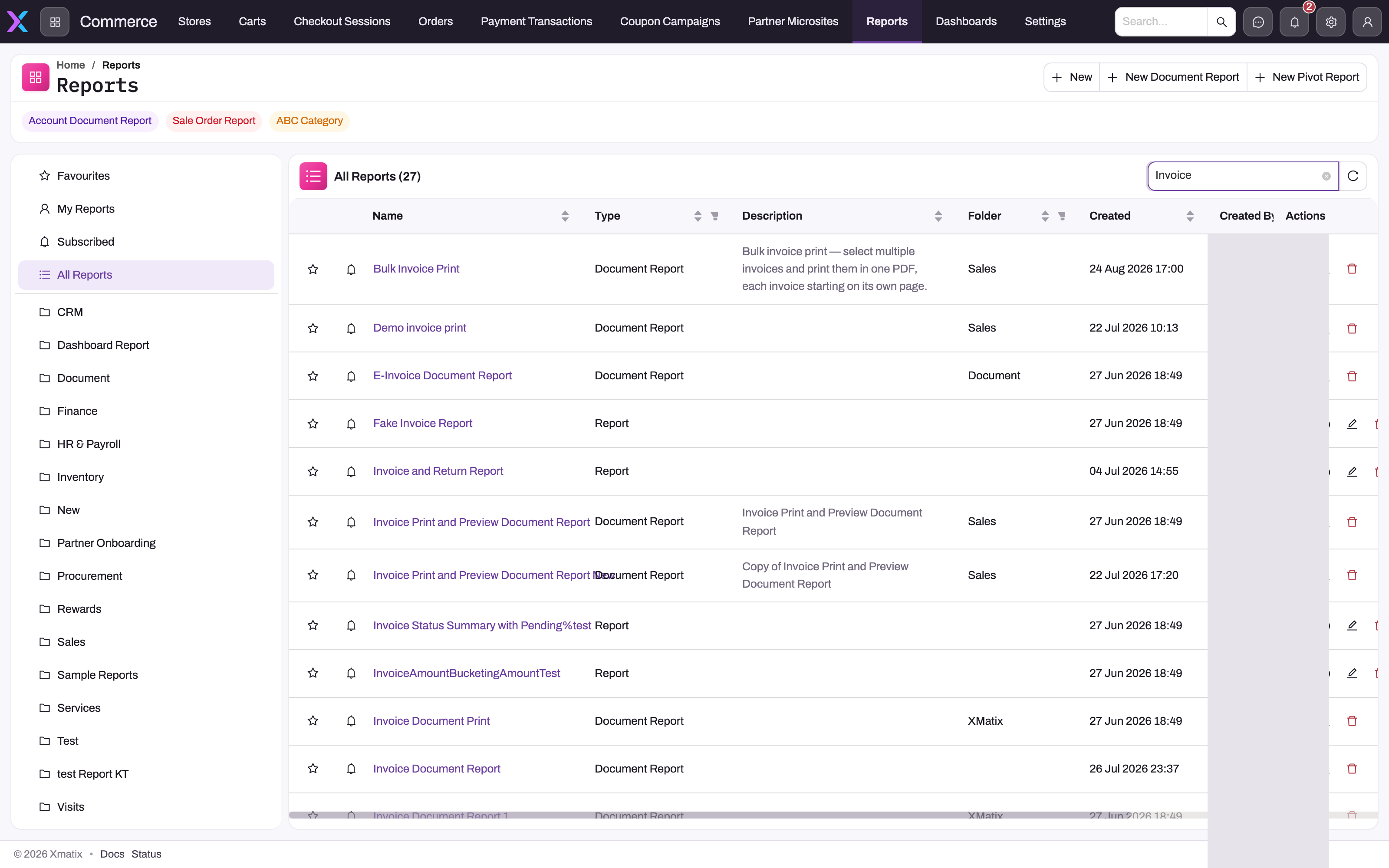
They were removed. Banded print formats were replaced by print templates, and every tenant's Print and Preview buttons were moved to them automatically. If you had designed your own print, it became a template whose name ends in _c. You'll find it under Setup → Entities → the entity → Layouts, Type Print. Links to the old Document Prints list now open Reports. Grid reports and dashboards were not affected. To change how a record prints, edit or duplicate its template. To change what a button prints, set the action's Print layout.
Can I get the print as Excel or Word?
No. Document prints are PDF only. If you need the data in a spreadsheet, use a list export or a report. Report exports and print templates are separate: a report export gives you rows and columns to work with, while a print template produces the formatted page you send to a customer or file away. Within Preview you can still choose the copies and hide the letterhead, bank details, GST summary or signature block for one print.
Can I move fields anywhere on the page or use my own font?
No. A template chooses which parts and fields print, in a fixed anatomy, and one of four looks with six accent colours, three text sizes and two logo positions. Layout rules such as running headers on later pages, "Page x of y", Indian digit grouping and two decimals are applied by xMatix the same way for everyone. This keeps every document readable on any printer.
How do I give export invoices a different print?
If export invoices are a record type, create the template with that Record type and set it as default. Records of that type then print it, and other invoices keep the general default. For a different print per company or branch, ask the Setup Copilot to create an assignment.
Why does the order print show no Branch column?
Your organisation runs one branch (or one company), so xMatix hides that axis everywhere, including on prints.
Related topics
- Design a form layout — the Layouts tab that lists print templates
- Entity behaviour — Print and Preview actions
- Invoices
- Payslips
- Security profiles
- Setup Copilot
- Reports in xMatix