
A trade scheme is a promotional offer, such as "buy 10, get 1 free" or "5% off orders over 50,000". You define it once, and xMatix applies it to documents automatically or on request. A Scheme carries Scheme Slabs. Each slab has Scheme Conditions (what the document must contain) and Scheme Benefits (what the customer gets). The scheme engine evaluates slabs against sale orders, invoices, credit notes, purchase orders, bills and service orders. It applies the slabs that qualify and recommends near-misses ("so much more to qualify"). Every application is recorded in the Scheme Ledger, and budgets and apply-count caps are enforced against that ledger.
Overview
Schemes sit between pricing and claims. The price list sets the line price first. The scheme engine then adds scheme discounts, free items or reward points while the document is saved. Later, a claim generation setup can turn the scheme discounts on posted invoices into trade claims against a principal.
Schemes are records of the Scheme entity, listed in the Rewards app on web and mobile. Building and approving schemes is an administrator or sales-operations task. Order and invoice entry only uses them.
When to use it
- Volume or value offers. For example, a discount once the order reaches a value, or a free unit for every ten bought.
- Product pushes. For example, a discount or free item tied to one item, SKU, lot type or item group.
- Tiered offers. Several slabs on one scheme, such as 10–49 units and 50+ units.
- Partner-funded promotions. A capped budget per partner, with the consumption claimable later.
- Loyalty. Reward points instead of money.
- Period targets. Offers that qualify on what an account bought over a period rather than on one document (the Per Period scheme types).
For people's performance pay, use an incentive plan instead. Schemes reward the buyer on a document; incentives reward a person for accumulated performance.
How xMatix handles it
The engine runs each time a covered document is saved. It also runs when someone asks for qualified slabs or recommendations on a document. It looks at every scheme that passes all of these tests:
- Status is Approved.
- Scheme Type covers the document. Application is Auto Apply for the automatic run; Apply On Selection schemes are only offered for manual application.
- The document date falls inside Val From to Val To, both days included. An empty date is open-ended.
- Account and Partner Account, when set, equal the document's account and partner.
- Account Group and Partner Account Group, when set, are groups the account or partner is an active member of. Only groups whose Account Group Type is Scheme are recognised.
- Applicable Transaction Type, when set, equals the document's transaction type. This field is not on the shipped forms.
Schemes are loaded in Sequence Number order, lowest first. The slabs of all those schemes are then tested in slab Sequence Number order, lowest first; slabs with the same number keep their scheme's order. Each slab is tested against its conditions (see Slabs). Multiple Fulfilment Treatment decides what happens when several slabs of one scheme qualify. Val Count and the budgets can still hold a qualifying benefit back.
Which document each scheme type evaluates:
| Scheme Type | Evaluated on |
|---|---|
| Per Sale Order | Sale orders and carts |
| Per Sale Invoice | Invoices and credit notes |
| Per Sale Order And Invoice | Sale orders and invoices |
| Per Purchase Order / Per Bill | Purchase orders / bills |
| Per Purchase Order And Bill | Purchase orders and bills |
| Per Repair Order | Service orders |
| Per Repair Order And Invoice | Service orders and invoices |
| Per Period Sale Order, Per Period Sale Invoice, Per Period Purchase Order, Per Period Bill, Per Period Repair Order | The same documents, but qualifying on performance accumulated over the scheme's periods |
The picklist also contains Sales Order Per Period. The engine does not recognise that value, so a scheme of that type never applies. Use Per Period Sale Order.
Prerequisites
- Access to the Rewards app and to the Scheme, Scheme Slab, Scheme Condition, Scheme Benefit and Scheme Account Budget entities. See Permissions.
- The items, item groups, accounts, partner accounts and account groups that the scheme refers to must already exist.
- To scope by account group, you need an account group whose Account Group Type is Scheme. The shipped type list contains Discount, Exclude Scheme, Incentive, Item Feature, Price and Tax, but not Scheme, so an administrator adds that value first. See Configuration.
- To carry a currency benefit onto invoices, you need budget rows, unless Ignore Budget is ticked. See The ledger and budget enforcement.
Procedure
Step 1 — Find existing schemes
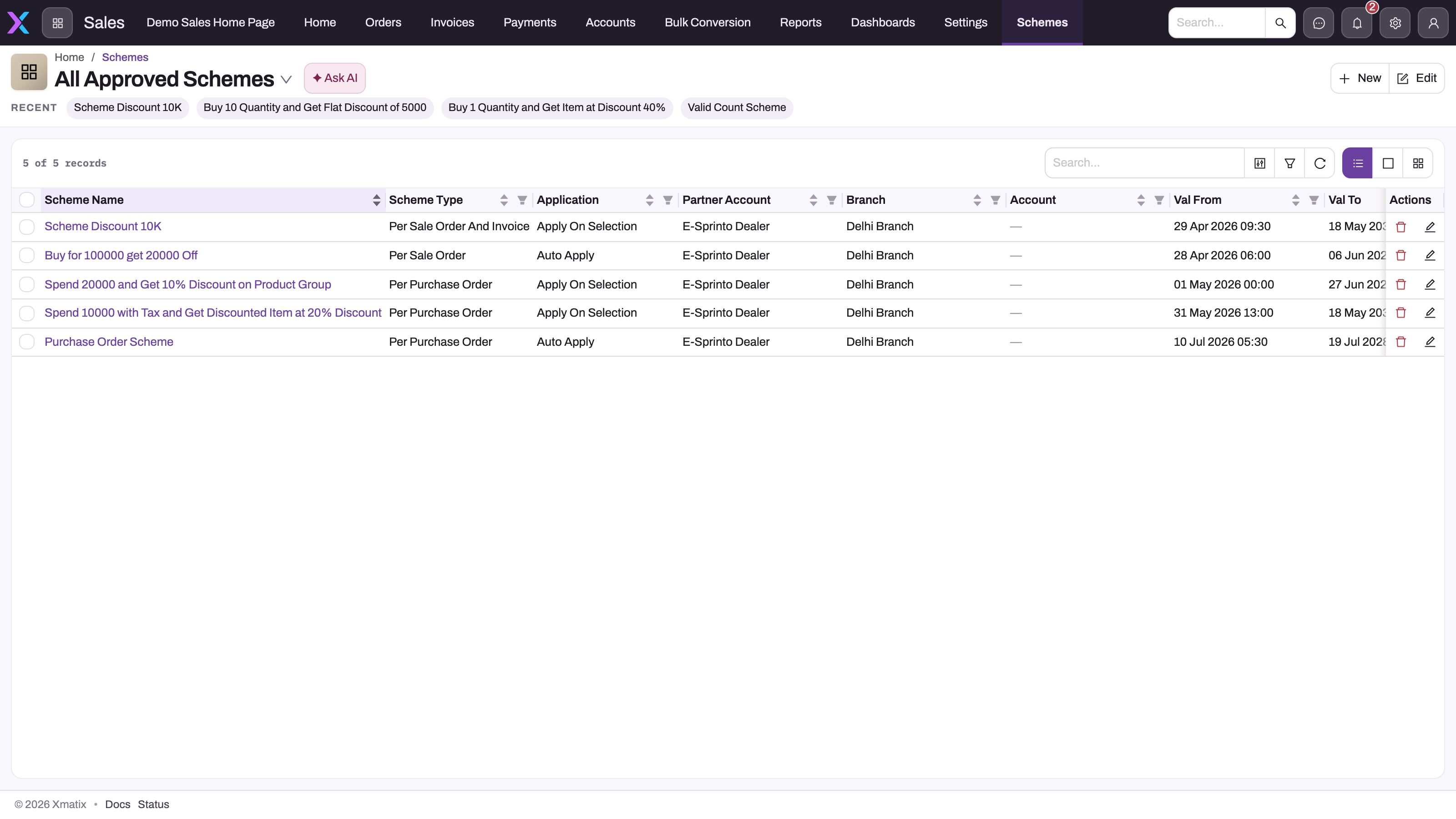
Open the Scheme list in the Rewards app. It has two views:
- All Schemes
- All Approved Schemes, which shows only Status Approved
Both views show Scheme Name, Scheme Type, Application, Partner Account, Branch, Account, Val From, Val To, Status and audit columns. Only Approved schemes inside their validity are ever evaluated. Checking this list first tells you whether a problem is in the scheme setup or in the document.
Step 2 — Create the scheme header
Select New. The create form shows Scheme Name (required), Application and Status at the top, then four tabs:
- Applicability: Partner Account and Branch. The Branch list only offers branches of the selected Partner Account.
- Type: Scheme Type, Period Type and Multiple Fulfilment Treatment. Scheme Type and Period Type are required.
- Validity: Val From and Val To.
- Claim & Budget: Claimable Percentage, Is Claimable and Ignore Budget.
Set Status to Draft while you build. A new scheme has no status until you choose one, and nothing fills it in for you. Save. The scheme opens on its record page.
Step 3 — Complete the details
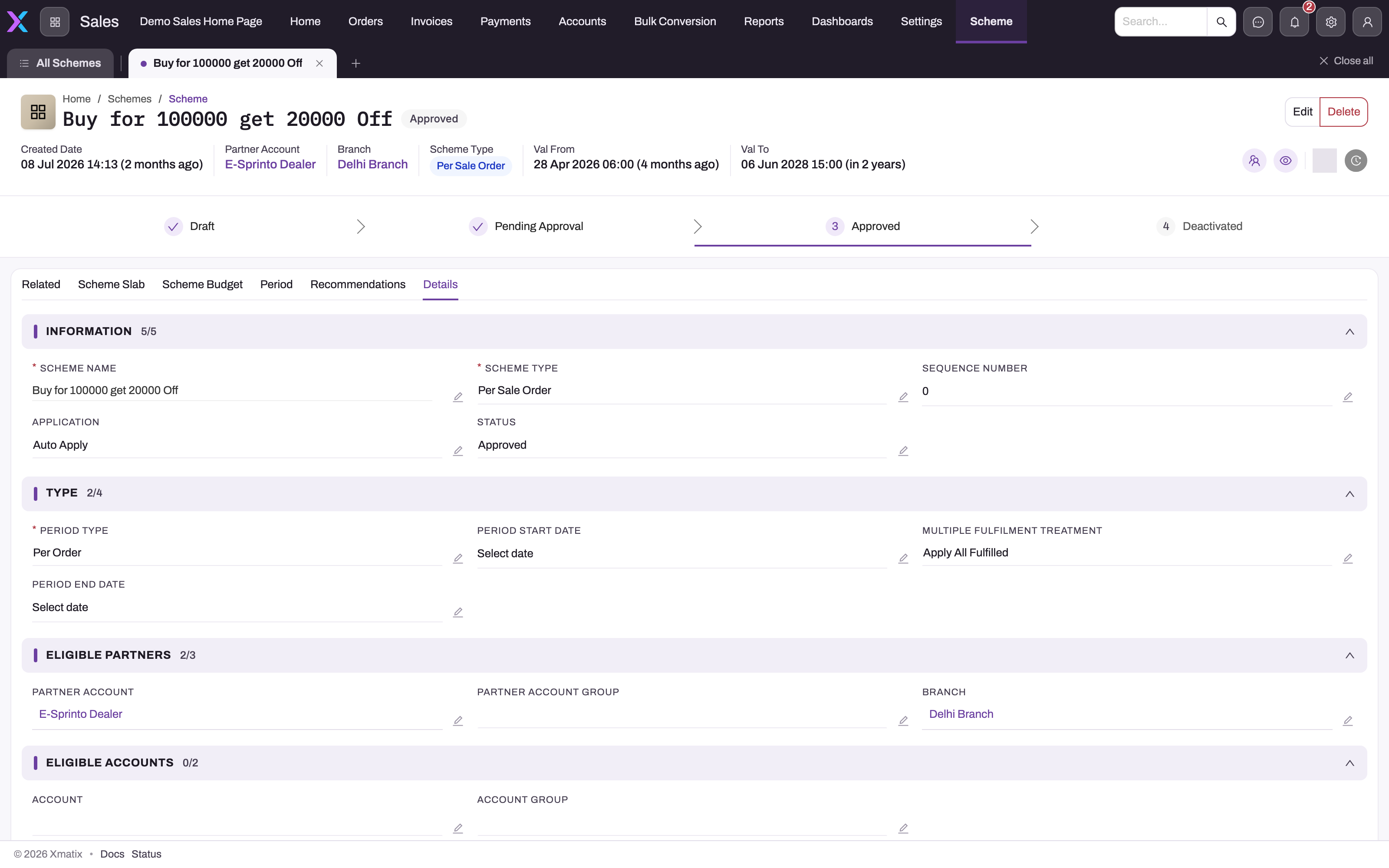
Open the Details tab. It has six sections:
- Information: Scheme Name, Scheme Type, Sequence Number, Application, Status
- Type: Period Type, Period Start Date, Multiple Fulfilment Treatment, Period End Date
- Eligible Partners: Partner Account, Partner Account Group, Branch
- Eligible Accounts: Account, Account Group
- Features: Claimable Percentage, Claim Generation Frequency, Is Claimable, Ignore Budget
- Validity: Val From, Val To, Val Count
Select Edit in the header to change values, then save. The Fields table explains each one.
Step 4 — Add a slab
Open the Related tab. At the bottom is an add-slab card. Fill it in:
- Sequence Number: required, defaults to 1.
- Title: optional.
- Definition Filter Criteria: required. How the slab's conditions combine: All Conditions Are Met, Any Condition Is Met, Always (No Criteria) or Custom Logic Is Met. Custom logic is written in Definition Custom Logic, for example
{1} AND ({2} OR {3}), where the numbers are condition ordinals. - Reward Applicability: required. Which qualifying benefits are granted: All Rewards, Any One With Lowest Value, Any One With Highest Value or Custom Logic. Custom logic is written in Reward Custom Logic, using benefit ordinals.
Select Save. The slab appears above as an expandable card. You do not type a slab name: each slab is numbered automatically from the SLN series and shown as Slab Name.
You can also add a slab with New on the Scheme Slab tab. That form has three sections: Information (Scheme, Reward Account Group, Sequence Number), Eligibility Settings (Definition Filter Criteria, Definition Custom Logic) and Rewards Settings (Reward Applicability, Reward Custom Logic). It has no Title, and Sequence Number starts at 0 there, so enter the number yourself.
Give every slab of a scheme its own Sequence Number. The order decides which slab wins under Multiple Fulfilment Treatment (see Slabs).
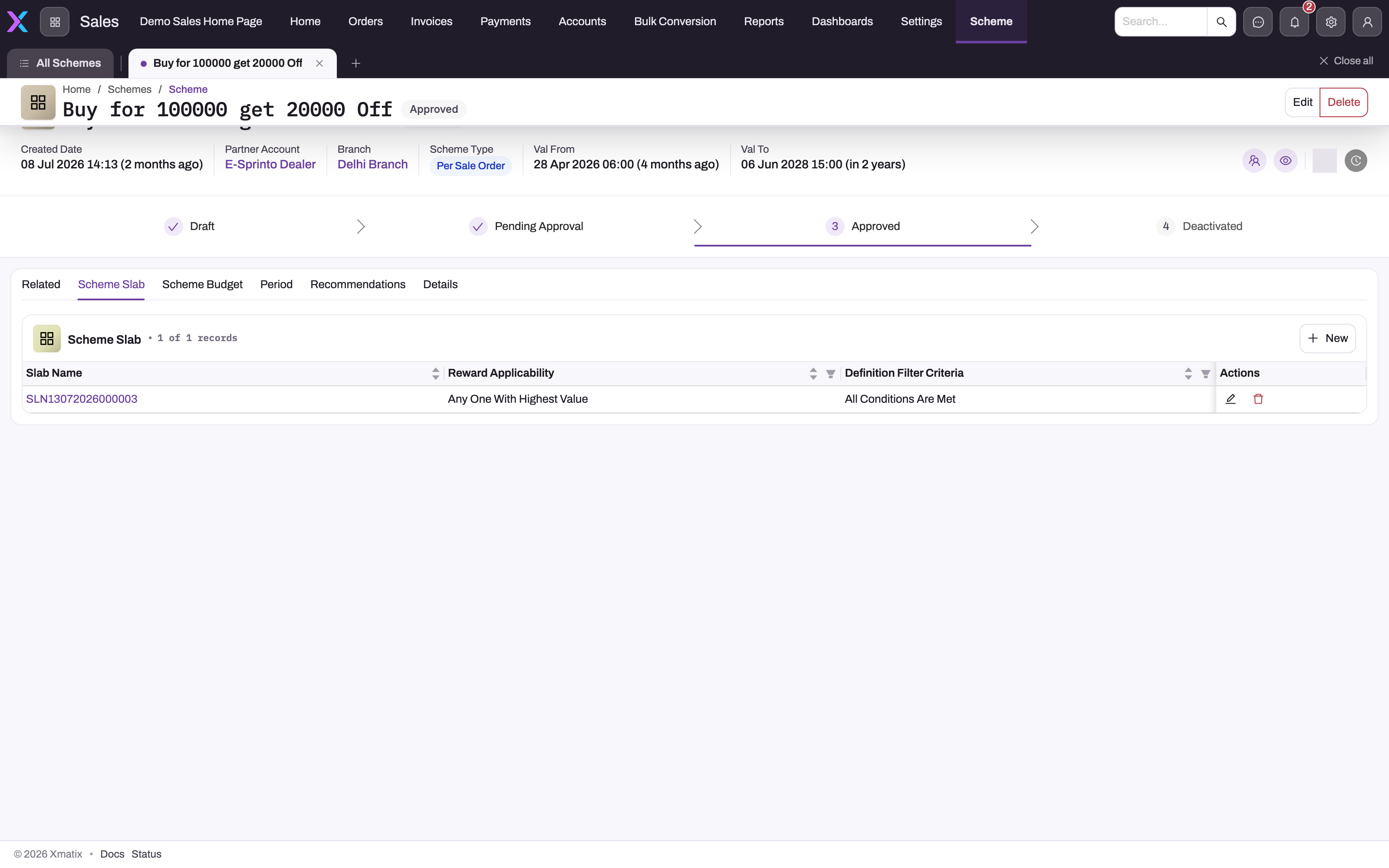
- 1
Scheme Slab tab: one row per tier of the offer.
- 2
Slab Name is generated; click it to open the slab with its Scheme Condition and Scheme Benefit lists.
- 3
Reward Applicability: All Rewards, Any One With Lowest Value, Any One With Highest Value or Custom Logic.
- 4
Definition Filter Criteria: All Conditions Are Met, Any Condition Is Met, Always (No Criteria) or Custom Logic Is Met.
- 5
New adds another slab; slabs are evaluated in sequence order.
Step 5 — Add conditions and rewards to the slab
On the slab's card, select Condition to add a condition row. Choose a Condition Type and an operator, then the threshold:
- Quantity and Unique Item Count read a quantity.
- Value and Value With Tax read a value.
- The Item types also ask for an item.
- The Item Group types also ask for an item group.
Save the row. A "Condition saved" message confirms it. If Condition Type or the operator is missing, the row stays open and the missing boxes are marked.
The card does not save the threshold of a Unique Item Count condition: the row is stored with a Condition Quantity of 0, and the condition then never qualifies with Greater Than or Greater Than Or Equal. After saving such a row, open the condition from the slab's Related tab, select Edit and enter Condition Quantity there.
The card covers type, operator, threshold, item and item group only. Validity dates, account scoping, exclusions, SKU, lot type, units of measure and the ratio switches are set on the condition record (see Conditions).
Select Reward to add a benefit. Choose a Reward Type:
- Line Level Discount Percentage asks for a percentage.
- Line Level Discount Amount asks for an amount.
- Discounted Item and Discounted Item Group ask for the item or item group, a quantity and a percentage. Enter 100 for a free item: only a 100% Discounted Item adds a free line.
- Reward Points asks for the points.
Options such as Repeat Reward, the SKU and the validity dates are on the benefit record, not on the card (see Benefits).
Save the row; "Reward saved" confirms it. Repeat for each slab. Rows are numbered in the order you add them on the card; those numbers are the {1}, {2} … that custom logic refers to.
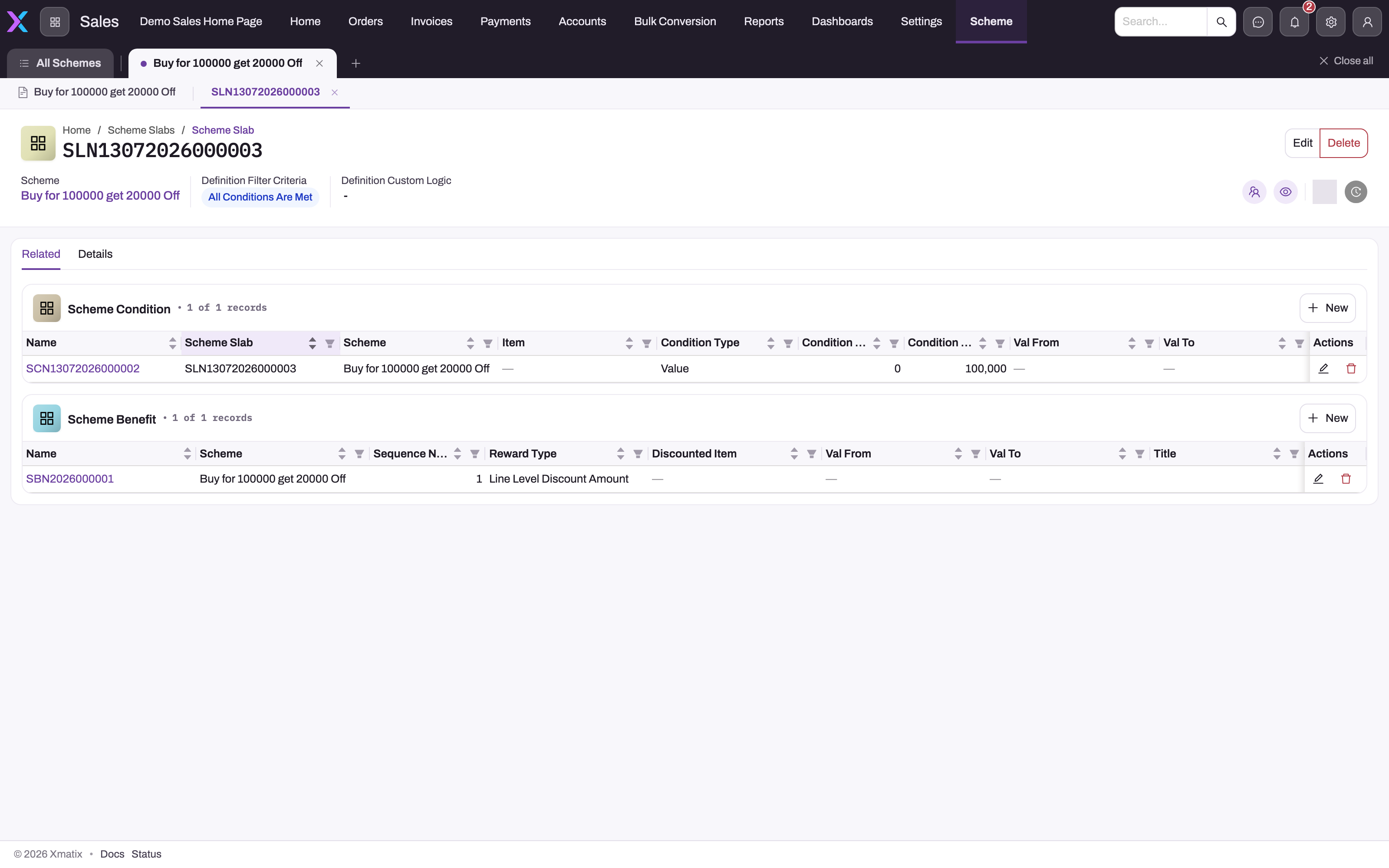
To open a slab as a record, select its name on the Scheme Slab tab. The slab's Related tab lists its Scheme Condition and Scheme Benefit rows, each with New, Edit and Delete. Its Details tab shows Scheme, Title, Sequence Number, Reward Account Group, and the eligibility and reward settings. Fields on the slab record edit in place. The Conditions and Benefits sections explain each option.
Step 6 — Add budgets (if the scheme spends money)
A budget row caps how much currency benefit (discounts and discounted items) the scheme may give out. Each row is a Scheme Account Budget. Its reach depends on which partner fields you fill:
- A row with neither Partner Account nor Partner Account Group is the scheme-wide budget. It caps the scheme across every document.
- A row with a Partner Account caps the scheme's spend on documents of that partner (the selling company on the document).
- A row with a Partner Account Group caps the combined spend of the group's partners. The group must be of type Scheme.
To add a row:
- On the scheme's record page, open the Scheme Budget tab. The list shows Name, Scheme, Partner Account, Budget Amount and Budget Available for each row. Group rows show an empty Partner Account.
- Select New. The dialog shows Partner Account, Partner Account Group, Scheme and Budget Amount. Check that Scheme shows this scheme.
- Fill Partner Account or Partner Account Group, not both, or leave both empty for the scheme-wide row.
- Enter the Budget Amount. Always enter an amount: an empty amount counts as zero, and a row with no room blocks the benefit.
- Save. The row gets a name from the SAB series and appears on the tab.
Repeat for each partner or group you want to cap. For a scheme that must carry a currency benefit onto invoices, add both a scheme-wide row and a partner or group row, or tick Ignore Budget on the scheme.
To review or change a row later:
- Select the row's Edit on the Scheme Budget tab to change its amount or scope, or Delete to remove it. Deleting a row only removes the cap. The scheme's consumption stays in the ledger.
- Select the row's name to open its record page. The header shows Partner Account, Partner Account Group, Scheme, Budget Amount, Utilized Amount and Budget Available. The Related tab lists the invoice draws on the budget (see The ledger and budget enforcement). The Details tab shows the amounts, and its fields edit in place.
To raise a budget, increase Budget Amount on the existing row. A second row with the same reach does not add to the first (see Scheme Budget fields).
Step 7 — Add periods (Per Period schemes only)
The Period tab lists the Scheme Period rows (Scheme Period Name, Date From, Date To, Status). The seeded Period Type values, Validity Period and Per Order, do not generate period rows. With no rows, a Per Period scheme accumulates across its whole life. To accumulate per month, quarter or another interval, add one row per interval. Per-document schemes need no periods.
- On the scheme's Period tab, select New.
- In the dialog, check that Scheme shows this scheme, and enter a Scheme Period Name, for example April 2026. The name is required.
- Under Dates, enter Date From and Date To. Both days are included. A blank date leaves that end of the period open.
- Leave Status empty, or pick a value for your own tracking (see Scheme Period fields). Save.
- Repeat for each interval. Make the periods follow on from each other with no gaps and no overlaps, and cover the scheme's whole validity.
The row appears on the Period tab. Use the row's Edit to change it, and Delete to remove it. Selecting a row's name opens the period record, whose header shows the scheme, status and dates, a status bar and an Activities panel.
Add the periods before the scheme's first documents are counted. Performance that was already recorded keeps the period it was recorded against (see Business rules).
Step 8 — Approve the scheme
Move Status to Approved. Either edit the field, or click the steps on the status bar at the top of the record:
- A click on the next step saves at once.
- You cannot skip a step, so go Draft → Pending Approval → Approved.
- Moving back is allowed.
From that moment the scheme applies to qualifying documents dated inside its validity.
No approval workflow ships for schemes. The Submit for Approval action is a plain save, and nothing moves a scheme to Approved except a user with edit rights.
Step 9 — Check it on a document
Create or open a covered document, such as a sale order, and add qualifying lines. When you save:
- An Auto Apply scheme puts its discount on the lines, or adds scheme-generated free-item lines.
- For an Apply On Selection scheme, use Get Qualified Scheme Slabs and then Apply Scheme.
See Working with schemes on an order.
Step 10 — Change, retire or copy a scheme
- Change. Edits take effect on the next save of each document; documents already saved keep what they got. Changing Period Type or the dates later does not regenerate periods.
- Retire. Set Status to Deactivated, or back to Draft. The scheme stops applying at once, and its history stays in the ledger. Use Delete (in the header) only for a scheme that was never used.
- Copy. The Clone action copies the scheme header only, named "name (Copy)". It does not copy the slabs, conditions, benefits or budgets, even though its confirmation mentions line items. It also copies Status, so a clone of an Approved scheme is live straight away. Set the clone to Draft before rebuilding its slabs. Clone is not on the shipped record header; an administrator can add it.
Working with schemes on an order
- Saving the order runs every Auto Apply scheme. That includes inserting, changing or deleting a line. Qualifying discounts land on the lines, and free-item benefits add scheme-generated lines. These are refreshed or removed as the order changes. Skip Scheme on the order suppresses evaluation.
- Get Qualified Scheme Slabs lists the slabs the document currently qualifies for. Get Qualified Benefits lists the benefits available for a set of item groups.
- Apply Scheme commits a chosen slab. For slabs with alternative benefits, it also commits the chosen benefit or custom-logic group. Apply On Selection schemes only ever apply this way.
- Get Scheme Recommendations returns the schemes within reach, per item or for the whole document, with how much more is needed — for example "5 more value required!". A rep can use it to nudge the basket to the next slab.
- Reset Scheme removes applied schemes from the document. It clears scheme discounts, deletes scheme-generated lines and removes the document's ledger rows, which releases its budget consumption.
The same actions exist on invoices and on the purchase and service documents covered by the scheme types.
Conditions
A condition is a type, an operator and a threshold:
| Condition type | Measures |
|---|---|
| Quantity / Value / Value With Tax | The whole document |
| Item Quantity / Item Value / Item Value With Tax | The item in Item (optionally one SKU or lot type) |
| Item Group Quantity / Value / Value With Tax | Items belonging to Item Group |
| Unique Item Count | Distinct items on the document |
The operators are Equal, Does Not Equal, Greater Than, Greater Than Or Equal, Less Than and Less Than Or Equal. Quantity types and Unique Item Count read Condition Quantity; value types read Condition Value. The Value types count line amounts without tax; the With Tax types add the tax. If the scheme has a Round Off Type, a measured value is rounded up or down before it is compared.
Per Period schemes measure the same types over the document plus the performance already recorded for the period (see Step 7).
When a condition is met
Each condition produces a qualification count. A count above zero means the condition is met.
| Operator | Count |
|---|---|
| Greater Than Or Equal | The whole number of times the threshold was reached, for example 25 against 10 gives 2. 0 below the threshold |
| Greater Than | The same, but the measure must be strictly above the threshold |
| Equal, Does Not Equal, Less Than, Less Than Or Equal | 1 when the comparison is true, otherwise 0 |
- With either Greater Than operator, a threshold of 0 never qualifies. Enter at least 1, or 0.01 for a value.
- Only the Greater Than operators can count a condition more than once, so only they drive Repeat Reward beyond one repetition.
- An Item condition with no Item, or an Item Group condition with no Item Group, measures 0.
What each condition type looks at
- Quantity, Value, Value With Tax and Unique Item Count measure the whole document. Item, Item Group, SKU, Item Lot Type and Exclude Item Group are ignored for them.
- Item types measure the lines of the chosen Item. SKU and Item Lot Type narrow them further to one SKU or one lot type.
- Item Group types measure lines whose item is a member of the Item Group. Exclude Item Group removes the items that are also in a second group, for example "all detergents except the trial packs". Exclude Item Group has no effect on any other type.
Which documents a condition applies to
A condition can be narrowed to some documents. The fields work in two different ways.
In force or not. Val From and Val To, Account and Account Group decide whether the condition is in force for the document. A condition that is not in force is left out of the slab entirely, as if it did not exist:
- Under All Conditions Are Met, the slab qualifies on the remaining conditions. A slab whose only conditions are all out of force never qualifies.
- Under Custom Logic Is Met, the
{N}numbers of the later conditions shift (see How a slab qualifies). - Account Group must be a group of type Scheme, with the account as an active member.
- Nothing stops you saving a Val To earlier than Val From. Such a condition is never in force.
Measured as zero. Partner Account and Exclude Account Group keep the condition in force, but a document outside their scope measures 0 on it:
- With Greater Than, Greater Than Or Equal and Equal (to a non-zero threshold), the condition fails. This is the usual "keep these customers out" behaviour.
- With Less Than, Less Than Or Equal or Does Not Equal, a measure of 0 can pass the test. An excluded customer then meets the condition. Don't combine an exclusion with these operators.
- Exclude Account Group reads groups of type Exclude Scheme, of which the account is an active member.
Units of measure on an Item condition
On the condition record you can enter the threshold of an Item condition in the item's units instead of the base unit. Choose a UOM and enter UOM Quantity, and optionally a second unit in UOM 1 and UOM Quantity 1, for example 2 cases plus 6 units. When you save, xMatix converts them with the item's conversion ratios and writes the total to Condition Quantity in the base unit. If you choose a unit but enter Condition Quantity instead, the unit quantities are filled from it. Without an Item no conversion happens. The UOM and UOM 1 lists offer Each and Pack, and the unit chosen must be one of the item's own units.
Ratio options
- Use In Ratio Calculation applies under All Conditions Are Met only. It makes this condition's count and target-to-achievement ratio the ones the slab uses for repeat rewards, instead of the highest. If several conditions are marked, the first one in sequence wins. The slab's Use Lower Ratio for Rewards overrides it.
- Round Off Condition Quantity rounds the measured figure down to a whole number before the target-to-achievement ratio is worked out. It changes only that ratio, which feeds Repeat Rewards In Ratio on the benefit. It does not change whether the condition is met, and it applies to value conditions too.
Opening a condition record
Open the slab (select its name on the scheme's Scheme Slab tab), then the Related tab, and select a condition. The record shows four sections:
- Information: Scheme, Scheme Slab, Sequence Number, Round Off Condition Quantity, Use In Ratio Calculation.
- Condition Logic: Condition Type, Condition Quantity, Condition Operator, Condition Value.
- Item Info: Item, Item Group, SKU, Item Lot Type, UOM, UOM Quantity, UOM 1, UOM Quantity 1, Exclude Item Group.
- Account Info: Partner Account, Account Group, Account, Exclude Account Group, Val From, Val To.
The record header offers Edit and Delete. New on the slab's Related tab opens the same fields: Scheme, Scheme Slab, Sequence Number and the two switches at the top, and the rest on three tabs (Condition Logic, Item Info, Account Info).
A condition is named automatically from the SCN numbering series. Changes take effect the next time a document is saved or schemes are re-applied. Documents already saved keep what they have (see Common questions).
Scheme Condition fields
| Field | What it means | Notes |
|---|---|---|
| Scheme | The scheme the condition belongs to | Filled by the slab card. Per Period schemes record item-level performance only for items named by conditions whose Scheme is set, so fill it on conditions you create with New |
| Scheme Slab | The slab the condition belongs to | A condition with no slab is never evaluated |
| Sequence Number | The condition's order within the slab | Required. Custom logic {N} numbers follow this order. The card sets it to the row's position |
| Round Off Condition Quantity | Round the measured figure down before the ratio is worked out | Off unless switched on. Affects only Repeat Rewards In Ratio |
| Use In Ratio Calculation | Use this condition's count and ratio for repeats | Off unless switched on. All Conditions Are Met only |
| Condition Type | What is measured | Required. Quantity, Value, Value With Tax, Item Quantity, Item Value, Item Value With Tax, Item Group Quantity, Item Group Value, Item Group Value With Tax, Unique Item Count |
| Condition Quantity | Threshold for the quantity types and Unique Item Count | Default 0. Can be derived from the UOM quantities |
| Condition Operator | How the measure is compared with the threshold | Required. Equal, Does Not Equal, Greater Than, Greater Than Or Equal, Less Than, Less Than Or Equal |
| Condition Value | Threshold for the value types | Default 0 |
| Item | The item an Item condition measures | Needed for the Item types; ignored by the others |
| Item Group | The group an Item Group condition measures | Needed for the Item Group types; ignored by the others |
| SKU | Narrows an Item condition to one SKU | Optional |
| Item Lot Type | Narrows an Item condition to one lot type | Optional |
| UOM / UOM Quantity | First unit and quantity for the threshold | Item conditions only. The unit must be one of the item's units |
| UOM 1 / UOM Quantity 1 | Second unit and quantity for the threshold | As UOM |
| Exclude Item Group | Items left out of an Item Group condition | No effect on other types |
| Partner Account | Only this partner's documents are measured | Others measure 0 |
| Account Group | Only accounts in this Scheme group | Others: condition not in force |
| Account | Only this account | Others: condition not in force |
| Exclude Account Group | Accounts in this Exclude Scheme group measure 0 | Mind the Less Than operators |
| Val From / Val To | The dates the condition is in force | Optional. Compared with the document date. Not checked against each other |
Benefits
A benefit (a Scheme Benefit record, shown as a Reward on the slab card) is what a qualifying slab gives. A slab can carry several benefits; the slab's Reward Applicability decides which of them are granted (see Which benefits a slab grants). Benefits are numbered automatically from the SBN series.
| Reward type | Gives | Fields it uses |
|---|---|---|
| Line Level Discount Percentage | A percentage off the document's lines | Discount Percent |
| Line Level Discount Amount | A fixed amount off, spread over the document's lines | Discount Amount |
| Discounted Item | Free or discounted units of one item | Discounted Item, Discounted Item Quantity, Discount Percent (or Discount Amount) |
| Discounted Item Group | Free or discounted units of items in a group | Discounted Item Group, Discounted Item Quantity, Discount Percent (or Discount Amount) |
| Reward Points | Loyalty points on the document lines | Reward Points |
A benefit with no Reward Type, or one that names a value not in this list, gives nothing.
Which lines a discount lands on
The two Line Level types do not look at which lines met the conditions. They apply to every open line of the document: every line that is not scheme-generated and that does not already carry a slab from an earlier benefit. A slab whose condition is "Item Quantity of item A at least 10" with a 5% Line Level Discount Percentage therefore gives 5% off item A and every other line on the order. Lines with Skip Scheme ticked are left out.
- Discount Percent is entered as a percentage (5 means 5%). It is applied once, whatever the qualification count.
- Discount Amount is multiplied by the qualification count when a repeat option is on (see below). It is split across the open lines in proportion to each line's base amount, or in proportion to quantity when Reward Multiplier is Quantity. The shares are rounded so that they add up to the full amount. The seeded Reward Multiplier picklist offers only Amount, which is the same as leaving it blank.
Once a line carries a slab, later benefits pass it by. With All Rewards and two line-level benefits on one slab, the first one (by Sequence Number) takes every open line and the second finds none. Give each slab one line-level benefit.
Free and discounted items
For Discounted Item and Discounted Item Group, the quantity to reward is Discounted Item Quantity (0 counts as 1), multiplied by the qualification count when a repeat option is on. xMatix works through it in two stages:
- Existing lines first. It looks for open lines of the discounted item (or of an item in the group) that also match the benefit's Discounted SKU and Discounted Item Lot Type, if set. Discounted Item Ranking decides the order: High To Low starts with the most expensive line; Low To High, or a blank value, starts with the cheapest. Unit price is used on sales and service documents, unit cost on purchase orders and bills.
- A line whose quantity fits inside the reward quantity is discounted as it stands.
- A larger line is split: its quantity is reduced, and a scheme-generated copy carries the rewarded units with the discount.
- With Exclude Qualifying Items on, lines of items named in the slab's conditions are skipped, and matching lines are always split rather than discounted whole.
- Lines of items in Exclude Discounted Item Group are never chosen.
- New lines for the rest. If reward quantity is left over:
- Discounted Item adds a scheme-generated line for the item, but only when Discount Percent is 100. The line is priced from the price list and then fully discounted. With a lower percentage the benefit only discounts existing lines and never adds one.
- Discounted Item Group adds lines only through Apply Scheme, for the group items the user picks in the dialog. Automatic application only discounts group lines already on the document.
- No line is added when an earlier scheme (lower scheme Sequence Number) whose conditions share an item or item group with this slab has already been applied to the document.
The split matters when the reward item is the item that qualified. Take a "buy 10, get 1 free" slab on item A with Discounted Item A, quantity 1, 100%: a 10-unit line becomes 9 paid units plus 1 free scheme-generated unit. The customer receives 10 units, not 11. Conditions measure only the paid lines, so the next time schemes are evaluated on that order (for example when a line changes) it sees 9 units. The slab no longer qualifies, the free line is removed, and the line stays at 9. To give units on top of the order, make the free item a different item, or a different SKU of it through Discounted SKU so that the paid line does not match.
On an invoice, when Check free item stock when adding an invoice line is on (Setup → Feature Hub → Administration → Module Settings → Sales, group Schemes; off by default), xMatix also reserves a lot for the free line. Limit Expiry Days steers that lot choice. If no lot can cover the free units, the invoice line save is refused.
Repeating a benefit
| Option | Effect |
|---|---|
| Neither ticked | The benefit is granted once per document |
| Repeat Reward | Granted once per qualification count, the whole number of times the threshold was reached. 24 units against "at least 10" gives 2 |
| Repeat Rewards In Ratio | Scaled by the achievement-to-target ratio instead, which can be fractional (24 against 10 gives 2.4). Takes precedence over Repeat Reward. Free-item quantities are not rounded, so a ratio can produce a fractional free quantity |
Repeats apply to Discount Amount and to free-item quantities. They do not change Discount Percent or Reward Points. Repeat Reward For Every Qualification, the switch on the benefit form, is not read by the scheme engine; use Repeat Reward on the benefit record instead.
Reward points
A Reward Points benefit writes its points onto every line of the document that is not scheme-generated, including lines another benefit has already discounted. It also moves those lines' slab reference to itself. Each line becomes a Scheme Ledger row carrying the points, so the ledger total is the points multiplied by the number of lines. Points are not repeated and do not consume budget.
Benefit validity and budget
- Val From / Val To on a benefit limit it to documents dated inside those dates, both days included. Empty dates mean the benefit follows the scheme's own validity.
- Before applying any benefit other than Reward Points, xMatix estimates its cost (the amount, or the percentage of the lines it would touch) and checks the scheme's budgets. A benefit that does not fit is skipped. See The ledger and budget enforcement.
- The engine finds a benefit through its Scheme Slab only. A benefit with no slab never applies. The benefit's own Scheme field is for lists and filters; if it names a different scheme from the slab's, the slab's scheme wins.
Opening a benefit record
The slab card's Reward row offers only Reward Type and the fields that type needs. Open the slab (its name on the Scheme Slab tab), then the benefit's name on the slab's Related tab, to see the full record. It has four sections: Information, Reward Details, Discounted Item Details and Restrict Reward Details. Edit opens the same fields in a dialog, without the unit-of-measure fields and Repeat Reward; those edit in place on the record page.
On the record page you can also enter the free quantity in units: pick a UOM (and optionally UOM 1) and its quantity, and xMatix works out Discounted Item Quantity from the item's unit conversions. This needs a Discounted Item; the unit must be one defined on that item.
Benefit fields
| Field | What it means | Notes |
|---|---|---|
| Name | The benefit's reference | Numbered from the SBN series. Not on the forms |
| Scheme | The scheme the benefit belongs to | Filled in by the slab card. Not read by the engine |
| Scheme Slab | The slab that grants it | The list offers slabs of the chosen Scheme. Required in practice: a benefit without a slab never applies |
| Sequence Number | Order of the benefit within the slab | The slab card numbers rewards 1, 2, 3 in the order you add them. These are the numbers Reward Custom Logic uses. Also breaks ties for Lowest/Highest |
| Title | A short label, such as "1 free" | Shown on scheme recommendation cards when there is no Recommendation Text |
| Reward Multiplier | Splits a Discount Amount by Amount or by Quantity | Only Quantity changes anything; the picklist ships with Amount only |
| Reward Points | Points per line for Reward Points | Whole number |
| Reward Type | The mechanics of the grant | Required. Values in the table above |
| Discounted Item | The free or discounted item | Discounted Item benefits only. If empty, every open line counts as a match |
| Discounted Item Group | The group the rewarded items come from | Discounted Item Group benefits only |
| Discounted Item Quantity | Units rewarded per grant | 0 counts as 1. Multiplied by the repeat count |
| Discounted SKU | Only lines of this SKU are rewarded; new free lines get this SKU | For a group, every added line gets this one SKU |
| Discounted Item Lot Type | Only lines of this lot type are rewarded; new free lines get it | |
| Discount Amount | Amount off | Line Level Discount Amount; on item benefits it takes priority over Discount Percent when above 0 |
| Discount Percent | Percentage off | Enter 0–100. A new free line is added only at 100 |
| Val From / Val To | Dates the benefit is valid | Tested against the document date, both inclusive |
| UOM, UOM 1, UOM Quantity, UOM Quantity 1 | Free quantity in units of measure | Record page only. Sets Discounted Item Quantity |
| Exclude Qualifying Items | Reward lines other than the ones that met the conditions | Off unless switched on |
| Repeat Reward For Every Qualification | A switch on the forms | Not read by the scheme engine |
| Repeat Reward | Grant once per qualification count | Record page only. Off by default |
Fields not on the shipped forms: Repeat Rewards In Ratio, Discounted Item Ranking, Exclude Discounted Item Group, Limit Expiry Days (copied onto rewarded lines, and used to choose the lot for a free invoice line) and Recommendation Text (the wording shown on scheme recommendation cards in the catalogue and the item panel, ahead of Title). An administrator adds them to the Scheme Benefit layouts before anyone can set them. Apply Discount On MRP and the conversion ratio fields are stored but not used by the scheme engine. The full list is in the Scheme Benefit reference.
Slabs
A slab is one tier of a scheme: a set of conditions that must be met, and the benefits granted when they are. A scheme with one offer has one slab. A tiered offer has one slab per tier.
How a slab qualifies
Only the slab's conditions that are in force for the document count. A condition outside its own validity dates, or scoped to another account or account group, is left out. Each counted condition produces a qualification count, the number of whole times its threshold is reached. Definition Filter Criteria combines them:
| Definition Filter Criteria | The slab qualifies when | Qualification count |
|---|---|---|
| Always (No Criteria) | Always, even with no conditions | 1 |
| All Conditions Are Met | Every counted condition is met. A slab with no conditions never qualifies | The highest count of its conditions, or the count of the condition marked Use In Ratio Calculation |
| Any Condition Is Met | At least one counted condition is met | The highest count among the conditions that are met |
| Custom Logic Is Met | The expression in Definition Custom Logic gives a count above zero | See below |
A slab whose criteria field is empty never qualifies.
Definition Custom Logic uses {1}, {2} and so on for the slab's conditions, numbered by their sequence, with AND, OR and brackets, for example {1} AND ({2} OR {3}):
- The numbers count only the conditions in force for the document. If condition 1 has expired, the old
{2}becomes{1}. - A number with no matching condition is ignored. An empty or unreadable expression means the slab never qualifies.
NOTis not supported. A negated condition is treated as ifNOTwere not there.- The expression is evaluated as counts, not as strict true/false. Without Use Lower Ratio for Rewards, the slab takes the highest count found in any condition of any group. So
{1} AND {2}qualifies when only one of the two is met. With the option on, it takes the lowest count across all groups, so every condition in the expression must be met, including both sides of anOR.
Use Lower Ratio for Rewards (labelled User Lower Ratio for Rewards in the field list) switches the slab from the highest to the lowest count and ratio across its conditions. The count drives Repeat Reward, and the ratio drives Repeat Rewards In Ratio. Use it for conservative repeats: with conditions met 3 times and once, the reward repeats once instead of three times. It has no effect on Always (No Criteria). This field is not on the shipped slab forms, so an administrator adds it to the Scheme Slab layouts before anyone can tick it.
Which benefits a slab grants
Reward Applicability decides which of a qualifying slab's benefits are applied:
| Reward Applicability | On automatic application | On Apply Scheme |
|---|---|---|
| All Rewards | Every benefit, each subject to the budget check | The same |
| Any One With Lowest Value | The benefit with the lowest figure | The benefit the user chose |
| Any One With Highest Value | The benefit with the highest figure | The benefit the user chose |
| Custom Logic | Nothing | One group of benefits from the expression in Reward Custom Logic |
The "value" compared is the benefit's own figure: the amount for Line Level Discount Amount, the percentage for Line Level Discount Percentage, the points for Reward Points, and the quantity for Discounted Item and Discounted Item Group. Figures of different reward types are compared as plain numbers, so 5 (percent) beats 4 (units). Keep the alternatives of one slab to one reward type. On a tie, Lowest picks the earlier benefit and Highest the later one.
A slab with Custom Logic never applies on its own, even in an Auto Apply scheme. It only applies through Apply Scheme.
A slab with no benefits, or with an empty Reward Applicability, still appears in Get Qualified Scheme Slabs but applies nothing.
When several slabs qualify
Multiple Fulfilment Treatment on the scheme walks the qualifying slabs in Sequence Number order:
- Apply All Fulfilled keeps every qualifying slab. So does an empty value.
- Apply First Fulfilled keeps the lowest-numbered qualifying slab.
- Apply Last Fulfilled keeps the highest-numbered qualifying slab. This is the usual choice for tiers numbered from small to large.
A qualifying slab with no benefits still counts here. Under Apply First Fulfilled it can win and leave the document with nothing. Apply Scheme works on the one slab you choose, so this setting does not affect it.
Changing or removing a slab
- Changes take effect the next time each document is saved. Documents already saved keep what they got.
- Delete removes the slab from evaluation. Its conditions and benefits are not deleted with it. They stay as orphan rows, so delete them first if you want them gone. Document lines and ledger rows that applied the slab keep their link to it.
- The slab Clone action copies the slab alone, without its conditions and benefits. It is not on the shipped slab header.
- Reward Account Group and Parent Scheme Line are stored but not used by the scheme engine. A reward account group does not limit who receives the slab's benefits; use the scheme's Account Group or a condition's Exclude Account Group for that.
Slab fields
| Field | What it means | Notes |
|---|---|---|
| Slab Name | The slab's reference | Numbered automatically from the SLN series. Shown in the Apply Schemes dialog |
| Scheme | The scheme the slab belongs to | Required. Filled in for you from the Related tab or the Scheme Slab tab |
| Title | A friendly name for the tier, such as "10+1" | Optional. Shown in the Apply Schemes dialog, on catalogue scheme cards and in partner progress figures |
| Sequence Number | Order in which slabs are tested | Required. The add-slab card starts at 1 and refuses less; the Scheme Slab form starts at 0 |
| Reward Account Group | An account group recorded on the slab | Not used by the engine |
| Definition Filter Criteria | How the conditions combine | Required. All Conditions Are Met, Any Condition Is Met, Always (No Criteria), Custom Logic Is Met |
| Definition Custom Logic | The condition expression | Read only with Custom Logic Is Met |
| Reward Applicability | Which benefits are granted | Required. All Rewards, Any One With Lowest Value, Any One With Highest Value, Custom Logic |
| Reward Custom Logic | The benefit expression, in benefit numbers | Read only with Custom Logic, and only on Apply Scheme |
| Use Lower Ratio for Rewards | Use the lowest instead of the highest count across conditions | Not on the shipped forms. Off unless ticked |
The full field list is in the Scheme Slab reference.
Fields
The scheme header, in the order the Details tab shows it:
| Field | What it means | Notes |
|---|---|---|
| Scheme Name | The offer's name, shown in lists, recommendations and on documents | Required |
| Scheme Type | Which document the scheme evaluates (see the table above) | Required. Avoid Sales Order Per Period, which never applies |
| Sequence Number | Order in which schemes are evaluated, lowest first | Optional |
| Application | Auto Apply runs inside the document save; Apply On Selection only applies through Apply Scheme | A scheme with no Application is never evaluated |
| Status | Draft, Pending Approval, Approved, Deactivated | Only Approved is evaluated. No default |
| Period Type | Validity Period or Per Order | Required. Neither value generates period rows (see Step 7) |
| Period Start Date / Period End Date | Reference dates for the period | Not used for qualification. Validity comes from Val From / Val To |
| Multiple Fulfilment Treatment | When several slabs qualify: Apply All Fulfilled, Apply First Fulfilled or Apply Last Fulfilled | |
| Partner Account | Only documents of this partner (selling or buying company) qualify | Empty means any partner |
| Partner Account Group | Only partners in this group qualify | The group's type must be Scheme |
| Branch | A branch recorded with the scheme; the list offers branches of the Partner Account | Not used by the engine — it does not limit the scheme to that branch |
| Account | Only documents for this customer account qualify | Empty means any account |
| Account Group | Only accounts that are active members of this group qualify | The group's type must be Scheme, otherwise no account matches |
| Claimable Percentage | Share of unclaimed ledger value that counts as claimable rebate in partner performance figures | 0 or empty counts the full value |
| Claim Generation Frequency | Daily, Weekly or Monthly | Recorded only; claim runs are scheduled on the claim generation setup |
| Is Claimable | Marks the scheme's payouts as claimable | Feeds partner rebate figures. A claim generation setup can filter on it |
| Ignore Budget | Skips every budget check for this scheme | Required tick box; off by default |
| Val From / Val To | Validity window tested against the document date, both days included | Val To may not be earlier than Val From |
| Val Count | Maximum number of distinct documents per customer account the scheme may apply to | Counted live from the ledger; 0 or empty means unlimited |
Fields that exist on the entity but not on the shipped forms are listed in the Scheme reference. They include Applicable Transaction Type, Round Off Type (Floor or Ceil for computed values such as free-item quantities), Include Child Account Transactions and Include Related Account Transactions (Per Period schemes), the legacy header Scheme Budget, and Utilized Amount. Supplier Account, Business Hour, Scheme Quota, Scheme Code, Reference Scheme and Original Scheme are recorded but not used by the engine.
Scheme Period fields
The New and Edit dialog on the scheme's Period tab shows these fields.
| Field | What it means | Notes |
|---|---|---|
| Scheme | The scheme the period belongs to | Required. Filled in when you add the period from the scheme's Period tab |
| Scheme Period Name | Your name for the interval, such as April 2026 | Required. Shown on the Period tab and in the record header |
| Status | Not Run, Calculated, Approved or Posted | Optional, for your own tracking. Nothing in xMatix sets or reads it, so it does not switch a period on or off |
| Date From | First day of the period | Both days are included. Blank means the period has no start limit |
| Date To | Last day of the period | Blank means the period has no end limit. Nothing checks that Date To is after Date From |
Scheme periods are not in any app menu. You reach them only from the scheme's Period tab.
Scheme Budget fields
The New and Edit dialog on the scheme's Scheme Budget tab shows Partner Account, Partner Account Group, Scheme and Budget Amount. The budget's record page adds the figures.
| Field | What it means | Notes |
|---|---|---|
| Partner Account | The partner whose documents this row caps | Optional. Counts only consumption on documents with this Partner Account. Leave it and Partner Account Group empty for the scheme-wide row |
| Partner Account Group | The group of partners whose combined spend this row caps | Optional. The list is not filtered by type, but the row only applies to a document when its partner is an active member of the group and the group's type is Scheme. Fill this or Partner Account, not both |
| Scheme | The scheme the budget belongs to | Filled in when you add the row from the scheme's tab. A row with no scheme is ignored |
| Budget Amount | The most currency benefit the row allows | An empty amount counts as zero, which blocks the benefit. Lowering it below Utilized Amount is refused (see Business rules) |
| Utilized Amount | Consumption recorded against the row | Display only. Written by the system; see The ledger and budget enforcement for how it can differ from live consumption |
| Budget Available | Budget Amount minus Utilized Amount | Display only. Budget checks never read it |
| Utilised Amount | A second consumption box on the Details tab | Not stored. It always shows empty; use Utilized Amount |
| Name | Document number from the SAB series | Generated on save |
Several rows can have the same reach, for example two rows for one partner. They do not add up: each is checked on its own against the same consumption, so in effect the largest one decides. Keep one row per reach.
Business rules
- Validity rule. Saving a scheme whose Val To is earlier than Val From fails with "Valid to should be greater than the valid from". The same date for both is accepted.
- Only Approved counts. Draft, Pending Approval and Deactivated schemes are invisible to documents. A blank Status is too.
- Status bar. The status bar saves on click, refuses forward jumps of more than one step, and allows moving back.
- Periods on insert only. Period rows are generated only when a scheme is first saved, and only for period types the generator understands (Yearly, Quarterly, Monthly, Weekly, Bi-Weekly, Daily). The shipped values generate none. Later edits never regenerate periods.
- Per Period accumulation. If the scheme has a period covering the document date, only performance recorded in that period counts. If it has no periods, all of the scheme's recorded performance counts. Include Child / Related Account Transactions widen the accounts counted.
- How performance is recorded. A sale order or invoice adds to a Per Period scheme's totals when the Perform KPI Calculation action runs on it. The action is not on the shipped record headers, so an administrator adds it to the order or invoice View layout. Each document is counted once, and only for schemes that are Approved, inside their validity and whose account, partner and account-group filters match the document, at that moment.
- Which period a document is counted in. When the scheme has periods, a document is recorded against the period that covers its date. A document dated outside every period is not recorded for that scheme at all. If periods overlap, the document goes into one of them, and you cannot choose which.
- Gaps fall back to everything. When a document is evaluated, a date that falls in no period is treated like a scheme with no periods: all of the scheme's recorded performance counts. Cover the whole validity with periods to avoid this.
- Periods added late. Performance recorded before a period existed carries no period. Once a period covers a document date, that older performance no longer counts for it, and documents are never recounted.
- Period Status is informational. Nothing reads or writes a period's Status.
- Ledger mirroring. Every applied benefit becomes a Scheme Ledger row, one per document line. Rows are refreshed on every save, and rows for lines that no longer carry a scheme are deleted.
- Val Count. The engine counts the distinct documents of the same type the scheme already applied to for the account, excluding the one being saved. It stops applying the scheme once that count reaches Val Count.
- Budget row check. Saving a Scheme Account Budget whose Budget Available would be negative fails with "Scheme Budget Exceeded!", unless the scheme ignores budget. In practice this happens when you lower Budget Amount below the row's Utilized Amount. Document saves are not blocked by this check. The engine simply stops applying a benefit that no longer fits.
- Budget rows are numbered from the SAB series when saved.
- Deleting a budget row removes the cap only. The scheme's ledger rows and Val Count use are unaffected.
- Clone copies the header with its Status, and no children. It is generated as a new scheme, so period rows are generated for recognised period types.
- No automation ships. Nothing approves, deactivates or expires a scheme automatically. A scheme whose Val To has passed simply stops matching documents, but its Status stays Approved.
The ledger and budget enforcement
Every applied benefit is a Scheme Ledger row — one per document line — mirrored from the line state on every save. The ledger is the source of record. Val Count limits, scheme-wide and partner budgets and the utilisation figures are all computed from it.
- Net Scheme Discount is the normalized currency value of the benefit: the discount amount, or the line amount times the discount percent.
- Claimed marks rows a claim has already consumed.
How ledger rows are written
You never create ledger rows yourself. The scheme engine writes them as part of the same save that applies the scheme:
- Which documents. Sale orders, sale invoices, credit notes, purchase orders, bills and service orders. A storefront cart evaluates schemes the same way as an order but writes no rows, so abandoned baskets never use up a budget or a Val Count. Quotes, opportunities and sale returns have link fields on the ledger, but no scheme run fills them.
- Which lines. Every line that carries a scheme slab after evaluation gets one row, including the free or discounted lines the scheme added. The engine matches each line to its existing row and updates it, adds a row for a newly schemed line, and deletes the rows of lines that no longer carry a scheme, together with their utilisation rows.
- What is copied. The scheme, the slab and the benefit; the document's Account (the customer, or the supplier on purchase orders and bills), Partner Account and Branch; the line's scheme discount percent, scheme discount amount, base amount and reward points. Net Scheme Discount is worked out from those: the discount amount when it is above zero, otherwise the base amount multiplied by the discount percent, rounded to two decimals.
- Numbering. Each new row gets a Document Number from the SCL series.
- Reset Scheme clears the document's schemes and deletes all of its ledger rows in the same save, which gives back the budget and the Val Count use.
How each figure is used:
- Val Count counts the distinct documents of the same type that have rows for the scheme and the same Account, not counting the document being saved. Orders are counted against orders and invoices against invoices.
- Budgets add up Net Scheme Discount over the scheme's rows on other documents. A partner budget counts only rows whose Partner Account is that partner, and a partner-group budget counts rows whose partner belongs to the group. A row with no partner draws only on the scheme-wide budget.
- No double count across order and invoice. For budgets, an order row stops counting once the invoice line made from that order line has its own row. The invoice is the consumption of record.
- Rows with no document are ignored. If a document is removed in a way that leaves its rows without any document link, those rows no longer count against budgets.
- Partner performance. The rebate figures shown to partners read the same rows: accrued is the sum of Net Scheme Discount, claimed is the part on rows marked Claimed, and claimable is the rest on schemes marked Is Claimable, scaled by the scheme's Claimable Percentage when one is set.
- Claims. A claim generation setup can use Scheme Ledger as its source entity, with Claimed as its processed flag, so each row is claimed once. The shipped Scheme Claim (Invoice) setup reads invoice lines instead, not the ledger. A claim line's Scheme Ledger field links back to the row it came from.
Finding a ledger row
No shipped app menu lists Scheme Ledgers, and the scheme, order and invoice pages do not show them in a tab. You can reach rows in these ways:
- Select the Scheme Ledger link on a claim line.
- Ask an administrator to add the Scheme Ledger entity to an app under Setup → Design Studio → Apps → Manage Items (see Create a custom entity). The list opens on the All Scheme Ledger view, with columns Name, Scheme Slab, Partner Account, Branch, Account, Invoice, Scheme Benefit, Net Scheme Discount and the audit columns. Filter by Scheme Slab, Account or Partner Account to see one scheme's or one customer's consumption.
The record page shows Partner Account, Branch and Account in the header. It has two tabs:
- Details holds the Information panel (the fields below) and the System Information panel (Owner, Modified By, Created By).
- Related lists the row's Scheme Account Budget Utilisations. These exist only for invoice rows.
The header offers Edit and Delete. Neither is a correction tool. The engine rewrites a document's rows from its lines every time it re-evaluates schemes, so a hand edit is overwritten and a deleted row comes back. To change what a document consumed, change the document and save it, or run Reset Scheme on it.
Ledger row fields
The Information panel shows these fields in this order. All of them are filled by the scheme engine.
| Field | What it means | Notes |
|---|---|---|
| Partner Account | The document's partner | Partner budgets and partner-group budgets count the row only through this field |
| Branch | The document's branch | Not used by scheme matching or budgets |
| Account | The customer on sale documents and service orders; the supplier on purchase orders and bills | Val Count is counted per Account |
| Scheme Slab | The slab that was applied to the line | The scheme itself is stored too, but it is not on the shipped form |
| Purchase Order, Purchase Order Line | Set on rows written for a purchase order | Empty otherwise |
| Bill, Bill Line | Set on rows written for a bill | Empty otherwise |
| Order, Order Line | Set on rows written for a sale order | Empty otherwise |
| Invoice, Invoice Line | Set on rows written for a sale invoice | Empty otherwise |
| Sale Return, Return Line | Not filled by the scheme engine | Credit-note rows store their credit note and line in links that are not on the form, so those rows show no document here |
| Service Order, Service Order Line | Set on rows written for a service order | Empty otherwise |
| Discount | The line's scheme discount percent | Shown as a percentage |
| Discount Amount | The line's scheme discount amount | |
| Line Amount | The line's base amount when the row was last written | |
| Scheme Benefit | The benefit recorded on the line | Copied from the line |
Net Scheme Discount, Reward Points, Claimed and Document Number are stored on every row but are not on the shipped form. Net Scheme Discount and Document Number (as Name) are columns of the All Scheme Ledger view. An administrator can add the others to the layout.
The Utilized Amount and Budget Available shown on budget rows are display figures. The system rewrites them when a document that uses the scheme is saved, and Utilized Amount is also recalculated as the total of the row's invoice draws (listed on its Related tab) whenever the row is saved. They can therefore lag behind, or leave out order-stage consumption that has not been invoiced yet. Enforcement never reads them: it sums live ledger consumption at the moment of the check.
When a sale invoice records scheme consumption, xMatix also writes a Scheme Account Budget Utilisation row for each budget row the invoice line draws on. Open a budget row from the Scheme Budget tab to see them on its Related tab. Each row shows the invoice, the scheme, the ledger row and the line's net scheme discount as Amount:
- A row draws only on budgets of the scheme it applied. It can draw on the scheme-wide row, on a partner row with the same Partner Account, or on a group row whose group (of type Scheme) contains that partner.
- A line that falls under both a scheme-wide and a partner budget gets one row on each, and each row carries the full amount.
- Saving the invoice again updates the rows. They are removed when the scheme stops applying to the line, for example after Reset Scheme.
- Orders, credit notes, purchase documents and service orders write ledger rows but no utilisation rows.
Utilisation rows are an audit trail. Budget checks read the ledger, so adding, editing or deleting a utilisation row by hand never gives budget back or blocks a scheme. It can only change the displayed Utilized Amount.
Budget gating works like this:
- A positive legacy header Scheme Budget counts as a scheme-wide cap. The engine compares against the greater of the stored utilised amount and the live ledger sum, so a stale figure cannot wrongly admit a scheme.
- On a sale order, a currency benefit can apply even when no budget rows exist. Any applicable cap that is configured must still have room.
- Which rows apply to a document. The scheme's scheme-wide rows always apply. A partner row applies when its Partner Account is the document's partner. A group row applies when the document's partner is an active member of the group and the group is of type Scheme. Rows for other partners are ignored.
- Room. A row has room when its Budget Amount, minus the live consumption in its reach, covers the benefit's estimated cost. A group row's consumption counts the ledger rows of every partner listed in the group.
- Both tiers must have room. When scheme-wide rows exist, at least one of them must have room. When partner or group rows apply, at least one of them must have room. So a partner row with room lets the benefit through even if an applicable group row is used up.
- On a sale invoice, unless Ignore Budget is on, the scheme needs both a scheme-wide budget row and an applicable partner or partner-group row. If either tier is missing, the scheme is suppressed on the invoice, and a discount copied from the order is removed rather than passed unbudgeted.
- Reward Points do not consume a currency budget.
- Carts evaluate schemes without writing consumption; committed documents write ledger rows.
The Recommendations tab of the scheme record shows fixed illustrative cards that do not depend on the open scheme. Do not read them as qualification evidence. Run Get Scheme Recommendations on the order or invoice instead, which works out the live gap from the document's own lines.
Example
A distributor runs a monsoon promotion on its 1-litre floor cleaner for retail customers of one selling company.
- Sales operations creates Monsoon Clean 2026:
- Application Auto Apply, Status Draft
- Partner Account Sunrise Distribution
- Scheme Type Per Sale Order And Invoice, Period Type Validity Period, Multiple Fulfilment Treatment Apply Last Fulfilled
- Val From 1 November, Val To 30 November
- On Related, they add two slabs:
- Slab 1, All Conditions Are Met / All Rewards: condition Item Quantity of the floor cleaner Greater Than Or Equal 10; benefit Discounted Item, the 200 ml trial pack of the same cleaner (a separate item), quantity 1, 100%. On the benefit record they switch on Repeat Reward.
- Slab 2, sequence 2: condition Item Quantity Greater Than Or Equal 50; benefit Line Level Discount Percentage 5.
- On Scheme Budget, they add a scheme-wide row of 2,00,000 and a row of 50,000 for Sunrise Distribution, so the discount also survives invoicing.
- They set Val Count to 3, so each retailer gets the offer on at most three orders.
- They click Pending Approval, then Approved, on the status bar.
- A rep books 24 units for a retailer on 5 November and saves:
- Slab 1 qualifies twice, and Repeat Reward is on, so a scheme-generated line for two trial packs is added at 100% discount. The 24 cleaners stay as ordered.
- Get Scheme Recommendations shows that 26 more units reach slab 2.
- The rep raises the quantity to 50 and saves. Both slabs now qualify. Apply Last Fulfilled keeps only slab 2, so the 5% discount replaces the free units.
- The order is invoiced. Both budget tiers exist and have room, so the discount carries over, and the ledger records the consumption against the 50,000 partner budget.
Training
Practice exercise
In a sandbox, create a scheme Practice 10+1:
- Application Auto Apply, Status Draft
- Scheme Type Per Sale Order, Period Type Validity Period
- Val From today, Val To one month ahead
- One slab (All Conditions Are Met / All Rewards) with the condition Item Quantity of any stocked item A Greater Than Or Equal 10, and the benefit Discounted Item for a different priced item B, quantity 1, Discount Percent 100
Approve it, then create a sale order with 10 units of item A and save.
Expected result: the order gains one scheme-generated line of 1 unit of item B, fully discounted, and item A stays at 10. Reset Scheme removes the free line. Setting the scheme back to Draft and re-saving the order no longer adds it. For a second try, change the benefit's Discount Percent to 50 and save the order again: no line is added, because only a 100% Discounted Item adds lines.
Quick reference
- Only Approved schemes inside Val From–Val To (both inclusive) apply.
- Scheme Type decides the document; Application decides automatic vs manual.
- Header Account Group and Partner Account Group must be Scheme-type groups. Exclusion lives on the condition (Exclude Scheme groups).
- The scheme's Branch does not restrict where it applies.
- Slabs: Definition Filter Criteria combines conditions; Reward Applicability picks the rewards.
- Number slabs from small to large tier and use Apply Last Fulfilled for tiered offers.
- A Custom Logic Reward Applicability only applies through Apply Scheme.
- Invoices need a scheme-wide and a partner budget row, unless Ignore Budget is ticked.
- One budget row per reach (scheme-wide, a partner, or a Scheme-type group), always with a Budget Amount; an empty amount blocks the scheme.
- Val Count caps documents per customer; 0 means unlimited.
- Clone copies the header only, including its Status.
- Per Period schemes: add back-to-back periods covering the whole validity before the first document is counted; Perform KPI Calculation records each document once.
- Reset Scheme undoes a document's schemes and releases its budget.
- Line-level discounts hit every open line, not just the lines that qualified.
- A free line is added only for a Discounted Item at Discount Percent 100. Make the free item different from the qualifying item.
- Use Repeat Reward (record page), not Repeat Reward For Every Qualification.
- A Greater Than condition with threshold 0 never qualifies. Set the Unique Item Count threshold on the condition record, because the card does not save it.
- Exclusions make a condition measure 0, so pair them with Greater Than operators, never Less Than.
- Never edit or delete Scheme Ledger rows by hand. Fix the document and save it, or use Reset Scheme.
Permissions
Access is controlled by ordinary entity permissions in security profiles. No dedicated capability exists for schemes.
In the shipped profiles, Sales Executive, Sales Manager, Standard User and System Admin all have:
- full access to Scheme, Scheme Slab, Scheme Condition, Scheme Benefit, Scheme Account Budget, Scheme Period and Scheme Ledger
- access to the Rewards app
The Clone action is granted to Sales Executive, Standard User and System Admin, but not to Sales Manager.
- Without read access to Scheme, the user does not see the Scheme list or the Scheme records.
- Approving a scheme needs edit rights. Anyone who can edit a scheme can approve it, so restrict edit access on Scheme to the people who sign off promotions.
Configuration
| What | Where | Effect |
|---|---|---|
| Scheme, slab, condition, benefit, budget and period records | Rewards app → Scheme | The offer itself (see Procedure) |
| Account groups of type Scheme | The Account Group type picklist is part of the data model; groups are maintained on the Account Group entity | The header Account Group and Partner Account Group only match groups of this type. Add the value to the picklist before scoping by group |
| Account groups of type Exclude Scheme | Account Group records | Referenced from a condition's Exclude Account Group to keep members out |
| Forms and actions | Setup → Design Studio → Entities → Scheme → Experience → Layouts (design a form layout) | The shipped record header offers only Edit and Delete. Add Clone, or fields such as Applicable Transaction Type and Round Off Type, to the Scheme layouts if you use them |
| Slab forms | Setup → Design Studio → Entities → Scheme Slab → Experience → Layouts | The shipped slab forms have no Use Lower Ratio for Rewards, and the create form has no Title. Add them if you use them. The slab record header offers Edit and Delete |
| Slab numbering | Setup → Design Studio → Entities → Scheme Slab → Logic → Document Settings | Slab names come from the SLN series |
| Condition forms | Setup → Design Studio → Entities → Scheme Condition → Experience → Layouts | The shipped forms carry every field in Scheme Condition fields except Title and Reward Group, which the scheme engine does not read. The record header offers Edit and Delete |
| Condition numbering | Setup → Design Studio → Entities → Scheme Condition → Logic → Document Settings | Condition names come from the SCN series |
| Benefit forms | Setup → Design Studio → Entities → Scheme Benefit → Experience → Layouts | The shipped forms lack Repeat Rewards In Ratio, Discounted Item Ranking, Exclude Discounted Item Group, Limit Expiry Days and Recommendation Text. Repeat Reward and the UOM fields are on the record page only. The record header offers Edit and Delete |
| Benefit numbering | Setup → Design Studio → Entities → Scheme Benefit → Logic → Document Settings | Benefit names come from the SBN series |
| Budget forms | Setup → Design Studio → Entities → Scheme Account Budget → Experience → Layouts | The budget record's Details tab carries an unstored Utilised Amount box next to Utilized Amount; remove it if it confuses users. The record header offers Edit and Delete |
| Budget numbering | Setup → Design Studio → Entities → Scheme Account Budget → Logic → Document Settings | Budget row names come from the SAB series |
| Scheme Ledger on a menu | Setup → Design Studio → Apps → Manage Items | No shipped app lists ledger rows. Add the Scheme Ledger entity to an app, such as Rewards, so the people who audit scheme spend can open the All Scheme Ledger list |
| Ledger forms | Setup → Design Studio → Entities → Scheme Ledger → Experience → Layouts | The shipped forms omit Net Scheme Discount, Reward Points, Claimed and the scheme. Add them to the record page if auditors need them |
| Ledger numbering | Setup → Design Studio → Entities → Scheme Ledger → Logic → Document Settings | Ledger row numbers come from the SCL series |
| Free item stock on invoices | Setup → Feature Hub → Administration → Module Settings → Sales, group Schemes | Check free item stock when adding an invoice line. Off by default |
| Who can create, edit and approve | Security profiles | See Permissions |
| Claims from scheme discounts | Claims app → Claim Generation Setup (generation setups) | The shipped Scheme Claim (Invoice) setup picks posted invoice lines with a scheme discount. It ships inactive and in simulate mode |
| Skipping schemes on a document | Skip Scheme on the document | Suppresses evaluation for that document |
No numbering applies to schemes: Scheme Code is optional free text. No approval process, business rule or scheduled job for schemes ships with the platform.
Common problems
"Valid to should be greater than the valid from"
Val To is earlier than Val From. Correct either date. The same date for both is allowed.
The scheme is approved but never applies to anyone
Work through these checks:
- Account Group or Partner Account Group. If either is set, the group must be of type Scheme and the account or partner must be an active member. A group of another type matches no one.
- Scheme Type. A Sales Order Per Period scheme never applies; switch to Per Period Sale Order.
- Application. A blank Application means the scheme is never evaluated.
The scheme applies outside the branch I chose
The scheme's Branch is not a filter. To limit an offer to one company, use Partner Account or Partner Account Group.
"Cannot skip statuses"
You clicked a step more than one ahead on the status bar. Click the next step first, for example Pending Approval before Approved.
The discount was on the order but disappeared on the invoice
The invoice needs both a scheme-wide budget row and a partner or partner-group budget row with room, unless Ignore Budget is ticked. Add the missing tier.
"Scheme Budget Exceeded!"
You saved a budget row whose Budget Available would go below zero, usually because the new Budget Amount is less than the row's Utilized Amount. Enter an amount at least as high as Utilized Amount, or tick Ignore Budget on the scheme.
The clone has no slabs
Clone copies the header only. Rebuild the slabs on the copy, or keep one scheme and change its dates.
The Period tab is empty on a Per Period scheme
The shipped Period Type values do not generate periods. Without periods the scheme accumulates over its whole life. Add period rows with New if you need monthly or quarterly totals (see Step 7).
A Per Period scheme never builds up any total
Performance is recorded only when Perform KPI Calculation runs on each order or invoice, and that action is not on the shipped headers. Ask an administrator to add it to the View layout. Also check that the document date falls inside one of the scheme's periods: a document outside every period is not recorded.
Last month's sales count towards this month's target
A document dated in a gap between periods is evaluated against all of the scheme's recorded performance. Add a period that covers the gap, so each date falls in exactly one period.
Sales recorded before I added the periods no longer count
Performance recorded before a period existed carries no period, and documents are not recounted. Add periods before the scheme starts counting documents.
"Cannot save: parent record context is not available."
The add-slab card lost its link to the scheme. Reload the scheme record and add the slab again.
A slab qualifies but gives nothing
Check the slab's Reward Applicability. A Custom Logic slab never applies automatically; apply it with Apply Scheme, or switch to Any One With Lowest Value or Any One With Highest Value. Also check that the slab has at least one benefit, and that the scheme's budgets have room.
A Custom Logic slab qualifies when only one condition is met
The expression is evaluated as counts. Without Use Lower Ratio for Rewards, {1} AND {2} qualifies when either condition is met. Tick Use Lower Ratio for Rewards on the slab (an administrator may need to add it to the slab form), or use All Conditions Are Met when every condition must hold.
My custom logic points at the wrong condition
{N} counts only the conditions in force for the document. A condition that has expired or is scoped to another account shifts the numbers of the ones after it. Keep condition validity on the scheme rather than on single conditions, or rewrite the expression.
A slab with conditions never qualifies
Check that Definition Filter Criteria is set, and that the slab has at least one condition. All Conditions Are Met and Any Condition Is Met never qualify a slab with no conditions; use Always (No Criteria) for an unconditional tier. For Custom Logic Is Met, check that the expression uses numbers that exist.
The cleared custom logic comes back
Clearing Definition Custom Logic or Reward Custom Logic on the slab card keeps the stored text. It does no harm while the criteria is not a Custom Logic value, because the expression is only read then. To change it, type the new expression instead of clearing it.
Conditions are still there after I deleted the slab
Deleting a slab does not delete its conditions and benefits. Delete them from the slab's Related tab first, then delete the slab.
The discount landed on lines that did not qualify
Line Level Discount Percentage and Line Level Discount Amount apply to every open line of the document, not only to the lines of the condition's item or group. To discount only certain items, use a Discounted Item or Discounted Item Group benefit with a percentage below 100. It discounts existing lines of that item or group only, and only up to Discounted Item Quantity units: a larger line is split into a discounted part and a full-price part. Set the quantity at least as high as the largest quantity you expect on one document.
The free item reduced the quantity I ordered
The reward item is the same item that qualified, so xMatix split the ordered line into paid and free units. Later evaluations count only the paid units, and the free line can disappear. Make the free item a different item or SKU, as described in Free and discounted items.
A Discounted Item benefit discounts lines but never adds the free line
A new line is added only when Discount Percent is 100. With any lower percentage, the benefit only discounts lines of that item already on the document. For a Discounted Item Group, free lines are added only through Apply Scheme, where the user picks the items.
The second reward on a slab does nothing
Once a benefit has stamped a line, later benefits skip it. Two line-level benefits on one All Rewards slab means only the first applies. Use one line-level benefit per slab, or separate slabs.
Repeat Reward For Every Qualification has no effect
That switch is not read by the scheme engine. Switch on Repeat Reward on the benefit's record page instead.
A Unique Item Count condition never qualifies
The slab card does not save the threshold for this type, so the condition is stored with Condition Quantity 0, and a Greater Than or Greater Than Or Equal test against 0 never qualifies. Open the condition from the slab's Related tab, select Edit and enter Condition Quantity. The same applies to any Greater Than condition left at 0.
An excluded customer still gets the scheme
Exclude Account Group and Partner Account do not remove the condition; they make it measure 0 for the customers they keep out. A condition with Less Than, Less Than Or Equal or Does Not Equal can still pass at 0. Put the exclusion on a condition that uses Greater Than or Greater Than Or Equal, and check that the group is of type Exclude Scheme and that the account is an active member.
Exclude Item Group has no effect
It is read only by the three Item Group condition types. For an Item or whole-document condition it is ignored. Use an Item Group condition, or a separate condition per item.
A condition I added never counts
Check its Val From and Val To against the document date (an inverted range is accepted on save but never in force), its Account and Account Group, and that Scheme Slab is filled. An Item condition needs an Item, and an Item Group condition an Item Group.
"UOM is not defined for this Item"
The UOM or UOM 1 you chose on the benefit (or on an Item condition) is not one of the item's units of measure. Pick a unit defined on the item, or add the unit to the item first.
"Conversion Ratio is not configured for UOM '…' on this Item."
The item has that unit, but its conversion ratio is 0. Set the ratio on the item's unit of measure, or enter the free quantity in Discounted Item Quantity instead.
For document-side checks (conditions not met, Val Count used up, excluded customer), see A scheme didn't apply.
I can't find the Scheme Ledger list
No shipped app menu lists ledger rows, and no scheme or document page shows them in a tab. Open a row from a claim line's Scheme Ledger link, or ask an administrator to add the Scheme Ledger entity to an app under Setup → Design Studio → Apps → Manage Items.
I changed a ledger row and it changed back
The scheme engine rewrites a document's ledger rows from the document's lines whenever it re-evaluates schemes. A hand edit is overwritten, and a deleted row is written again. Change the document's lines instead, or run Reset Scheme on the document to remove its rows.
A credit note's ledger row shows no document
Rows for credit notes keep their credit note and line in links that are not on the shipped form. The Sale Return and Return Line fields stay empty. Use the Account, Scheme Slab and amounts to identify the row.
A partner budget did not go down although the scheme applied
A partner budget counts only ledger rows whose Partner Account is that partner, or a member of the budget's partner group. The row copies the partner from the document. If the document had no Partner Account, its consumption counts only against the scheme-wide budget. Set the partner on the document and save it again.
Also remember that the displayed Utilized Amount is a display figure that can lag behind. The budget checks use live consumption, whatever the row shows.
A scheme with a budget row never applies, even on orders
Check each applicable row's Budget Amount. Before testing any slab, the engine checks that every tier with rows has at least one row with room left. An empty or zero amount leaves no room, so the scheme's slabs are held back on every document, including slabs that only give reward points. For example, a scheme-wide row with an empty amount blocks the scheme for everyone. Enter the amount, or delete the row.
A partner group budget is ignored
The group row applies only when the document's partner is an active member of the group and the group's Account Group Type is Scheme. The group picker on the budget dialog lists groups of every type, so check the group record. On invoices this also means the partner tier is missing, and the scheme is suppressed.
I added a second budget row, but the cap did not grow
Rows with the same reach do not add up. Each one is checked on its own against the same consumption. Delete the extra row and raise Budget Amount on the original one.
Utilised Amount is always empty
The Details tab of a budget row shows two consumption boxes. Utilised Amount is not stored and always stays empty. Read Utilized Amount instead.
Common questions
Does an order and its invoice use the budget twice?
No. When an invoice line made from an order line gets its own ledger row, budget checks and the budget figures stop counting the order line's row. The invoice is treated as the consumption of record. Val Count is separate: orders are counted against orders and invoices against invoices, so a scheme that covers both orders and invoices, with a Val Count of 3, can be used on three orders and also on the three invoices made from them. Until the order is invoiced, its row counts against the budget checks, even though the budget's displayed Utilized Amount may not show it yet.
Why didn't a scheme apply to my order?
Work down this list:
- Status must be Approved, and the document date must fall inside Val From and Val To.
- The Scheme Type must cover this document. A Per Sale Invoice scheme never fires on an order.
- An Apply On Selection scheme must be applied by hand.
- The slab's conditions must actually be met. Get Qualified Scheme Slabs shows what qualifies, and Get Scheme Recommendations shows how far away you are.
- The account and partner must match, and any account groups must be Scheme-type groups they belong to.
- Val Count must not be used up for this customer, and every applicable budget must have headroom.
For an invoice, also confirm that both budget tiers exist, unless Ignore Budget is on.
What happens when a scheme's budget runs out?
The engine skips a pending currency benefit when an applicable budget has no headroom left. Benefits already on other documents are not taken back. Resetting the scheme on a document removes that document's effects and releases its ledger consumption.
Don't confuse exhaustion with incomplete invoice configuration. A missing scheme-wide or partner tier suppresses an invoice scheme even though no displayed budget looks exhausted.
Why don't the utilisation rows on a budget add up to its Utilized Amount?
Both are display figures written at different moments. Saving a document that uses the scheme sets Utilized Amount from the Scheme Ledger for the budget's reach, including order-stage consumption. Saving the budget row recalculates it as the total of its utilisation rows, which exist only for sale invoice lines. Between those moments the two can differ. Treat the utilisation list as a record of which invoices drew on a budget. Neither figure is used by the budget checks, which always sum live ledger consumption, so the surest test of headroom is whether the scheme still applies. Deleting a utilisation row does not give budget back. Only removing the consumption from the document does that, for example with Reset Scheme.
Why is the Scheme Consumption dashboard empty?
xMatix does not fill the table that the dashboard reads. The standard Scheme Consumption dashboard and the Scheme Utilisation analytics dataset are built from Scheme Consumption records. Nothing in the platform creates those records: the scheme engine records what a document consumed only in the Scheme Ledger. The entity also has no menu entry in any app, and sync profiles refuse to include it. Records added another way do appear in the dashboard, but they never change a scheme's budgets, Val Count or Utilized Amount. Those figures always come from the ledger. The form's Scheme Name box is not stored, so a record can't be tied to a scheme. For real consumption figures, report on the Scheme Ledger.
Can a user choose which benefit to take?
Yes, when applying manually. Apply Scheme accepts the chosen slab and, for slabs whose Reward Applicability offers alternatives, the chosen benefit or benefit group. Auto-applied schemes follow the slab's configured applicability instead.
Should a tiered offer be one scheme with several slabs, or several schemes?
One scheme with several slabs, in most cases. The slabs share the scheme's validity, scope, budgets and Val Count, and Multiple Fulfilment Treatment makes sure a document gets only the best tier. Number the slabs from the smallest tier to the largest and choose Apply Last Fulfilled. Separate schemes are evaluated independently, so a document that reaches the top tier would also collect every lower tier's benefit. Use separate schemes only when the tiers need different dates, customers or budgets.
Does resetting a scheme remove the free items?
Yes. Scheme-generated lines are created by the engine and marked as such. Reset Scheme deletes them and clears the scheme discounts from the remaining lines, and releases their budget consumption at the same time.
Can one condition test both quantity and value?
No. Each condition has one Condition Type and one threshold, so it measures either a quantity, a value or a count of distinct items. To require, say, at least 20 units of a brand and an order of at least 50,000, add two conditions to the slab: an Item Group Quantity condition and a Value condition, both with Greater Than Or Equal. Then set the slab's Definition Filter Criteria to All Conditions Are Met. For "either one" use Any Condition Is Met, and for mixed rules use custom logic. Remember that the conditions are numbered in Sequence Number order, which is what custom logic refers to.
Does a scheme expire by itself?
It stops applying once the document date passes Val To, but its Status stays Approved. To take it out of the approved list, set it to Deactivated.
Do changes to a scheme update orders already saved?
No. A document picks up scheme changes the next time it is saved, or when you run Reset Scheme and re-apply. Untouched documents keep the benefits they already carry.