
An approval process makes a record wait for one or more people to sign it off before it moves on — a high-value order, a credit release, a price override. The process picks the approvers for each step, emails them, can lock the record while it waits, writes the outcome back onto the record and keeps a history of who decided what and when. You build processes in Setup; users submit records and approvers decide on them from the record page, the Pending Approvals page or the mobile app.
Overview
An approval process belongs to one entity (Order, Quote, Payroll Run, a custom entity and so on). It has:
- Behaviour — the entry condition that decides which records qualify, who may submit, whether the record locks, and whether saving a record submits it automatically.
- Approval steps — one or more steps, each with its own approver and routing.
- Lifecycle actions, field updates and task actions — what happens to the record at submission, at each step's decision, and on recall or revert.
- Notifications — which events send an email, with optional email templates.
Each time a record is submitted, xMatix creates an approval request for it. The request is Pending while it waits, and ends as Approved, Rejected, Recalled or Reverted. A record has at most one pending request at a time.
xMatix ships no approval processes. A new organization has none until an administrator creates them, so check Setup → Process Studio → Approvals to see what your organization already has.
When to use it
Use an approval process when a decision must be made by someone other than the person doing the work, and you need proof of who made it. An "Approved" checkbox records none of that: anyone with edit rights can tick it, nobody is asked, and nothing waits.
Use a business rule instead when the check is mechanical (a value must be in range), and a workflow when the approval is one step in a longer sequence that has to continue afterwards.
How xMatix handles it
Which process applies. When a record is submitted, xMatix looks at the entity's active processes in ascending Process order (ties break by label). It skips any process that has no steps, and uses the first one whose Entry Condition the record meets — an empty entry condition matches every record. Only that one process runs.
How a request moves through the steps. The request starts at the lowest-numbered step. If the step has Entry Criteria that the record doesn't meet, the step's If criteria not met setting decides what happens: skip to the next step, approve the record, or reject the record. If every remaining step is skipped, the request is approved. A step completes when one of its approvers approves it, or — with Require Unanimous — when every approver has. After the step with the highest order number, the request is Approved. Step numbers can have gaps (1, 2, 5); the request still walks through every step.
What a rejection does. Reject the whole request ends the request as Rejected. Send back to previous step returns the request to the last earlier step that actually approved it, and that step's approvers decide again. If there is no such step (the rejection is at the first step that was acted on), it is a final rejection.
Who can act on a step. The step's resolved approvers, the delegate any of them has nominated, the user the step was reassigned to (once a step is reassigned, only that user can act on it until it moves on), and any approval administrator — a user whose security profile has the Manage approval processes capability.
Record lock. With Lock Record on Submission on, nobody can edit or delete the record through its forms or the data API while the request is pending — this includes approval administrators. The one exception is the current step's approver when Allow Approver to Edit While Locked is on. The lock doesn't stop the record's own action buttons, and it never blocks the approval process's own field updates and business rules. It ends when the request is decided or recalled.
Field updates are part of the decision. Submission and step field updates are written before the decision is saved. If a validation or a business rule refuses the change, the whole decision is refused, the request stays where it was, and the user sees the validation message. Tasks, step business rules and notifications run after the decision has been saved.
Prerequisites
- To build processes: the Manage approval processes capability on your security profile (see Security profiles). The same capability makes you an approval administrator, who can approve, reject, reassign or recall any pending request.
- The stored values of any field you plan to update — field updates write stored values, not display labels.
- The approvers: users with a login. For a Manager Field step, a lookup field on the record that leads to a user. For a Submitter's Reporting Manager step, a Manager on each submitter's Resource record, and a user login on the manager's Resource record.
Procedure
Step 1 — Create the process
- Go to Setup → Process Studio → Approvals and click New. You can also start from the entity: Setup → Design Studio → Entities → (entity) → Logic → Approval processes, where the entity is filled in for you.
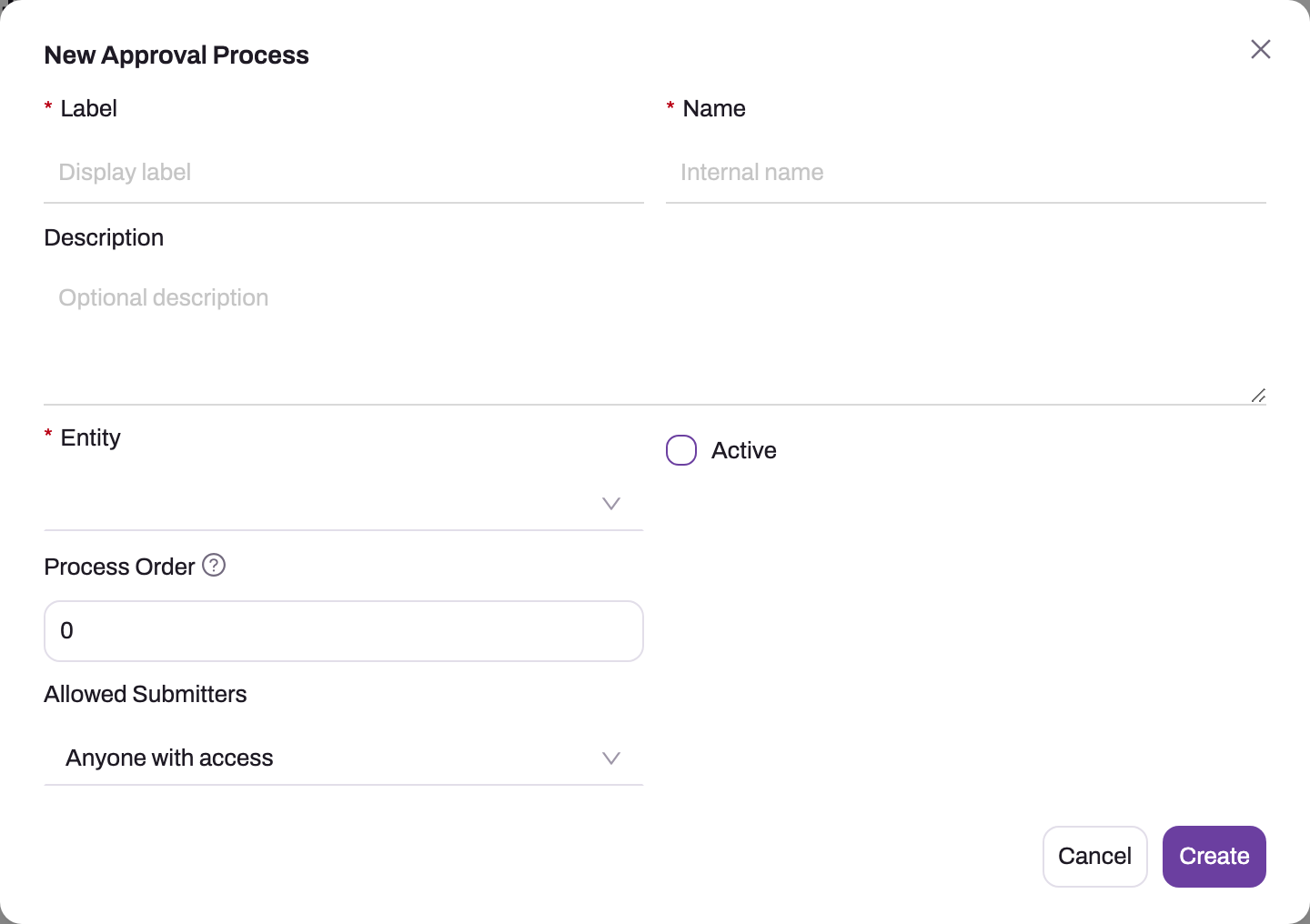
- In New approval process, enter a Label (what people see) and a Name (the internal name; it can't be changed later). Optionally add a Description.
- Choose the Entity. It can't be changed after the process is created.
- Turn Active off. It is on by default, and an active process is live as soon as it has a step.
- Set Process order if the entity will have more than one process (lower numbers are checked first).
- Set Allowed submitters: Anyone with access, Record owner only, Members of a role (then pick the Submitter role) or Members of a team (then pick the Submitter team).
- Click Create. Open the process from the list to see its page, with the tabs Behaviour, Lifecycle Actions, Approval Steps and Task Actions.
Step 2 — Set the behaviour
On the Behaviour tab, click Edit on the Behaviour card:
- Entry Condition — an expression the record must meet to use this process, for example
GrandTotal > 50000. Leave it empty to accept every record. See Expressions. - Allow Submitter Recall — whether the submitter can withdraw a pending request. On by default.
- Lock Record on Submission and Allow Approver to Edit While Locked — see How xMatix handles it.
- Enable Auto-Submit and Event Type (On Create, On Update, On Create or Update) — submit the record automatically when it is saved.
- Auto-Submit Condition — this field has no effect. Put any condition in the Entry Condition instead.
Click Save.
Step 3 — Add the approval steps
On the Approval Steps tab, add a step for each sign-off. For each step set:
- Order and Label.
- Approver Type and the approver:
- Specific User — one named user.
- Manager Field — a lookup field on the record. A field that points to a User is used as is; a Resource or Employee is followed to its user login.
- Security Role — any active member of the role.
- Team — any active member of the team.
- Submitter Chooses — the submitter picks the approver when submitting.
- Submitter's Reporting Manager — the Manager on the submitter's Resource record. It is worked out again at each decision, so a change of manager reroutes a pending request.
- Require Unanimous — every resolved approver must approve. Otherwise the first approval completes the step.
- Entry Criteria and If criteria not met (Skip to next step, Approve the record, Reject the record) — for a step that applies only to some records, such as a finance review above a second threshold.
- On rejection — Reject the whole request or Send back to previous step.
- Timeout (hours) and Timeout Action (None, Auto-Approve, Auto-Reject, Escalate) — see Business rules.
- On Step Approval — Field Updates / Business Rule and On Step Rejection — Field Updates / Business Rule — fields to set (pick a field, enter a value, Add Row for more) and an optional business rule of the same entity to run afterwards.
- On Step Approval — Create Task and On Step Rejection — Create Task — a follow-up task.
Use the arrows in the steps table to reorder steps.
Step 4 — Write the outcome onto the record
Decide what the record should show at each stage — for example Status PendingApproval while waiting, Approved after sign-off, Draft after a rejection.
- On submission, recall and revert: on the Lifecycle Actions tab, add actions with Event On Initial Submission, On Recall or On Revert, Type Field Update (a Field and a Value) or Business Rule. Actions for one event run in sequence order.
- On the final approval: add the field update to the last step's On Step Approval — Field Updates. Step field updates also run when the last step approves.
- On rejection: add the field update to On Step Rejection — Field Updates on every step where a rejection is possible. It also runs when the step sends the request back, so don't use it for "rejected" stamps on a send-back step.
The setup screen has no separate final-approval or final-rejection field updates. Records that are approved or rejected because a step's If criteria not met sends them straight to a decision don't run any step's field updates, so avoid that routing when the record must be stamped.
For anything more complex, use the step's business rule, or a business rule triggered on the approval decision (see Business rules).
Step 5 — Add tasks and notifications
- Task Actions tab: for On Initial Submission, On Final Approval, On Final Rejection, On Recall and On Revert, enter a task subject (leave it blank for no task), priority, Assign to (Submitter, Current Approver, Record Owner or Specific User), due-in days and an optional description. The task is created as an activity on the record.
- Behaviour tab → Notifications card → Edit: tick Notify for On Submit, On Approve, On Reject, On Recall and On Revert, and optionally pick an email template for each. By default all are on except On Recall. Templates are listed from your email templates for the entity (or all active templates when the entity has none).
Step 6 — Give users a way to submit
A record can enter the process in five ways. Pick what suits the entity:
- Approval Panel — add the Approval Panel widget to the entity's record layout in the layout designer. It shows New request when the record is eligible, the pending request with its approvers' buttons, and the history.
- Submit for Approval button — in the layout designer, add Submit for Approval to the record page header's actions, or to a list's header actions (it submits the selected rows) or row actions. You don't create this action: it is offered for every entity that has an active approval process, and it is hidden on records that can't be submitted.
- Auto-submit — Enable Auto-Submit (Step 2).
- Business rule — a Request Approval action on a rule that runs after the save.
- Workflow — the Submit for Approval step, which also waits for the decision.
Step 7 — Activate and test
- Click Edit in the page header, turn Active on and click Save.
- Create a test record that meets the entry condition and submit it.
- Sign in as each approver in turn and approve. Check the record's status, the lock and the history after each step.
- Test the negative cases: a record outside the entry condition can't be submitted, a user outside Allowed submitters is refused, and a rejection writes what you expect.
There is no draft version of a process: changes to an active process apply to the next submission or decision straight away.
Step 8 — Submit a record (user)
- Open the record. Click New request on the Approval Panel, or Submit for Approval in the page header.
- If the process has a Submitter Chooses step, pick the approver. Add a remark if you want, then click Submit.
- The request is now Pending. The record shows any status your administrator configured, and may be locked.
To submit several records at once, tick them in a list that has Submit for Approval in its header. Each record is checked on its own; records that can't be submitted are reported and the rest go through. A process with a Submitter Chooses step can't be bulk-submitted.
Step 9 — Approve or reject (approver)
- Pending Approvals page — lists every request waiting for you, with Entity, Record ID, Status, Step and Submitted. Click Approve or Reject on a row, or tick several and click Approve Selected or Reject Selected. Requests you are not allowed to act on are skipped. The Setup home page shows a count of pending approvals that opens this page; the notification email links straight to the record.
- Approval Panel on the record — Approve, Reject or Re-assign, each with an optional remark. Re-assign hands the current step to another user and emails them when On Submit notifications are on.
- Mobile — see Approvals on mobile.
When your approval completes the step, the request moves to the next step (whose approvers are emailed) or, after the last step, becomes Approved and the submitter is emailed.
Step 10 — Recall a request (submitter)
While the request is pending, click Recall on the Approval Panel and confirm. The request becomes Recalled, the lock ends, and the On Recall actions run. The submitter can recall only when Allow Submitter Recall is on; an approval administrator can always recall. Recall is the way to free a record that is stuck in approval.
Fields
New approval process (dialog)
| Field | What it means | Notes |
|---|---|---|
| Label | The name shown to users | Required |
| Name | Internal name | Required, unique; filled from the label; can't be changed later |
| Description | Free text | Optional |
| Entity | The entity whose records use this process | Required; can't be changed later |
| Active | Whether the process is used | On by default |
| Process order | Evaluation order among the entity's active processes | Lowest first; default 0 |
| Allowed submitters | Anyone with access, Record owner only, Members of a role, Members of a team | Default Anyone with access |
| Submitter role / Submitter team | The role or team for the last two options | A restriction with no role or team chosen lets everyone submit |
Behaviour tab
| Field | What it means | Notes |
|---|---|---|
| Entry Condition | Expression the record must meet | Up to 2,000 characters; empty matches every record |
| Auto-Submit Condition | Not used | Has no effect; use Entry Condition |
| Allow Submitter Recall | Submitter may recall a pending request | Default on |
| Lock Record on Submission | Blocks edits and deletes while pending | Default off |
| Allow Approver to Edit While Locked | The current approver may still edit | Default off |
| Enable Auto-Submit | Saving the record submits it | Default off |
| Event Type | On Create, On Update, On Create or Update | Used only with auto-submit |
| Notify / email template (per event) | Email on submit, approve, reject, recall, revert | All on except On Recall |
Approval step
| Field | What it means | Notes |
|---|---|---|
| Order | Position in the chain | The highest order is the final step |
| Label | Step name shown in history and messages | |
| Approver Type | Specific User, Manager Field, Security Role, Team, Submitter Chooses, Submitter's Reporting Manager | Plus the matching approver field |
| Require Unanimous | All resolved approvers must approve | A delegate's approval counts for the approver they act for |
| Timeout (hours) / Timeout Action | What happens if nobody decides in time | None, Auto-Approve, Auto-Reject, Escalate |
| Entry Criteria / If criteria not met | When the step applies | Skip to next step, Approve the record, Reject the record |
| On rejection | Reject the whole request, Send back to previous step | |
| On Step Approval / Rejection — Field Updates, Business Rule, Create Task | What the decision does to the record | Field updates run before the decision is saved |
Business rules
- One pending request per record, whatever the process. Submitting again while one is pending is refused.
- Entry conditions. A process entry condition that can't be evaluated (a syntax error, or comparing a number with text) matches nothing: the record can't be submitted and the reason says the condition could not be evaluated. A step's entry criteria that can't be evaluated count as met, so the step is not skipped.
- Conditions read the whole record. Entry conditions and criteria are evaluated against the record itself, including fields the submitter can't see.
- First approver must exist. If the first step is a Manager Field step and the field is empty or points to someone without a login, the submission is refused with a message naming the field. If it is a Submitter's Reporting Manager step and the submitter has no manager with a login, the submission is refused.
- Submission field updates. If an On Initial Submission field update fails for any reason, nothing is submitted and the submitter sees "The (entity) was not submitted for approval: moving it to its submitted state failed …".
- Auto-submit submits every save that matches the Event Type, as long as the record meets an active process's entry condition and has no pending request. It is skipped for processes that need a submitter-chosen approver, and when the saving user isn't an allowed submitter.
- Maker-checker. A process can require that the submitter can't approve their own request ("Maker-checker: the submitter cannot approve their own request; a separate approver is required."). This option is not on the setup screen; an administrator sets it through the Setup Copilot or the metadata API.
- No double approval. An approver can approve a step only once per visit ("You have already approved this step.").
- Timeouts. A background job checks pending requests. The clock starts when the request enters the step. Auto-Approve completes the step even if it is unanimous; Auto-Reject is always a final rejection, never a send-back; Escalate moves the request to the next step, checks that step's criteria, restarts the clock, notifies the new approvers and leaves an "Escalated: …" remark. Escalating from the last step approves the request. Timeout decisions are recorded as made by the system.
- Revert. An approved request can be reverted by its submitter or an approval administrator, which runs the On Revert actions. No screen currently offers Revert — the Approval Panel shows it only on an approved request, but the panel only loads pending ones.
- Notifications are email only. Submit emails the approvers of the step the request lands on; an approval that moves the request on emails the next step's approvers; final approval, rejection and revert email the submitter (a send-back also emails the approvers who must decide again); recall emails the submitter and the pending approvers. The email links to the record.
- Approval-decision business rules. Business rules with the approval-decision trigger run on every final decision, after the request has been saved.
Example
A distributor wants orders above 2,00,000 to be approved by the sales rep's manager, and orders above 10,00,000 by the finance team as well. The administrator builds two processes on Order and lets Process order pick between them, so every process ends on a step that writes the stamp. (A single process with a conditional finance step would approve mid-sized orders by skipping that step, and the skip writes no field update.)
- "Very large order approval": Process order 10, Entry Condition
GrandTotal > 1000000, Lock Record on Submission on. Step 1 "Manager" is Submitter's Reporting Manager; step 2 "Finance" is Team Finance with On Step Approval — Field Updates Status =Approved. - "Large order approval": Process order 20, Entry Condition
GrandTotal > 200000, Lock Record on Submission on. One step "Manager", Submitter's Reporting Manager, with On Step Approval — Field Updates Status =Approved. - In both processes, every step has On Step Rejection — Field Updates Status =
Draft. On Lifecycle Actions, On Initial Submission sets Status toPendingApprovaland On Recall sets it back toDraft. - A rep submits an order for 4,50,000. The first process doesn't match, so "Large order approval" is used. The rep's manager approves from the Pending Approvals page, the order becomes
Approved, and the rep gets an email. - Another order for 12,00,000 matches the first process. The manager approves, the Finance team is emailed, and a finance user rejects it with the remark "Discount above policy". The order goes back to
Draft, the lock ends, and the rep is emailed with the remark.
Training
Practice exercise
In a sandbox, create a process on an entity you can edit, with no entry condition, Lock Record on Submission on, one Specific User step with yourself as approver, and On Step Approval — Field Updates setting a text field to Approved. Add the Approval Panel to the record layout and activate the process. Submit a record, try to edit it, then approve it.
Expected result: after submitting, saving an edit is refused because the record is locked. After approving, the request is Approved, the field shows Approved, editing works again, and the panel's history shows the submission and the approval.
Quick reference
- Build processes at Setup → Process Studio → Approvals.
- The first active process by Process order whose entry condition matches wins; a process with no steps never runs.
- One pending request per record.
- Auto-Submit Condition does nothing — use Entry Condition.
- The final approval stamp goes on the last step's On Step Approval — Field Updates.
- A refused field update refuses the decision.
- The lock applies to administrators too; recall to free a stuck record.
- Notifications are emails.
- Approvers act from Pending Approvals, the Approval Panel or the mobile app.
Permissions
| Task | Who can do it |
|---|---|
| Create, edit, delete approval processes | Users with Manage approval processes |
| Submit a record | Users allowed by Allowed submitters |
| Approve, reject | The step's approvers, their delegates, the reassignee, approval administrators |
| Re-assign a step | The same people as approve |
| Recall | The submitter (when Allow Submitter Recall is on), approval administrators |
| Revert | The submitter, approval administrators (no screen offers it) |
| Edit a locked record | The current approver, only with Allow Approver to Edit While Locked |
A user who can't act on a request doesn't see its buttons. If they call the action anyway, they get "The current user is not an authorised approver for this step."
Configuration
- Approval processes — Setup → Process Studio → Approvals, or Setup → Design Studio → Entities → (entity) → Logic → Approval processes. The list shows Name, Label, Entity, Active, Auto submit, Created and Modified, with Edit and Delete on each row. The process page has How approval processes work (an in-app summary), Edit and Delete in its header.
- Delegated approver — Setup → Access Control → Users → the user → Approvals tab → Delegated approver. The delegate can act on every step this user is an approver for, and receives the same emails.
- Reporting managers — the Manager field on each Resource record, used by Submitter's Reporting Manager steps.
- Email templates — Templates; choose one per event on the Notifications card. Without a template, xMatix sends a standard email.
- Layouts — the Approval Panel widget and the Submit for Approval action are added per layout. On a parent record (for example an order), the Approval Panel's Related Collections setting can list the pending approvals of child records (such as order lines), with Approve and Reject on the rows the viewer can decide.
- Mobile — the mobile record layout's Approval Panel and the Approvals inbox widget on a mobile app page; see Approvals on mobile.
- Business rules and workflows — the Request Approval rule action, the approval-decision rule trigger, and the Submit for Approval and Wait for Approval Decision workflow steps.
Common problems
"No active approval process found for entity"
No process on the entity is active, or the only active ones have no steps. Activate a process that has at least one step.
"Record does not meet the entry condition for any active approval process"
The record doesn't match any active process's Entry Condition. Check the values on the record against the condition. Also check Process order: if another process matches first, that one is used.
"An approval process entry condition could not be evaluated for this record"
The condition has a syntax error or compares values of the wrong type. Fix the Entry Condition; until then, no record can enter that process. The server log names the expression.
"You are not permitted to submit this record for approval"
You are not an allowed submitter: you aren't the record owner, or not an active member of the submitter role or team.
"A pending approval request already exists for this record"
The record is already waiting for a decision. Open it to see the pending request; recall it first if you need to resubmit.
"This approval process requires you to choose an approver"
The process has a Submitter Chooses step. Submit from the web Approval Panel or Submit for Approval button on a single record, and pick an approver. Bulk submit, auto-submit and the mobile app can't supply one.
The submission is refused because a manager or field is empty
The first step takes its approver from a record field, or from your reporting manager, and nobody with a login was found. Fill in the field (or link the person to a user), or ask your administrator to set the Manager on your Resource record.
"Record … is locked by a pending approval request"
The process locks records while they wait. Wait for the decision, or ask the submitter or an approval administrator to recall the request.
The decision is refused with a validation message
A step's field update, or a submission field update, broke a validation or business rule on the record. The request is unchanged. Fix the record or the field update, then decide again.
The request was approved but the record's status didn't change
No field update ran on the final outcome. Usually the stamp is on a step that was skipped, or the request was approved by an If criteria not met setting. Put the stamp on every step that can be the last one to approve.
Auto-submit submits records I didn't want
Auto-Submit Condition is ignored. Move the condition into the Entry Condition.
Common questions
Can approval administrators edit a locked record?
No. The lock applies to everyone except the current approver, and to them only when Allow Approver to Edit While Locked is on. An approval administrator can, however, recall the request, which ends the lock. The approval process's own field updates and business rules are never blocked by the lock, and neither are the record's action buttons, so make sure those buttons are safe to run on a record that is waiting for approval.
What happens if two processes match the same record?
Only one runs: the active process with the lowest Process order whose entry condition matches (ties go by label). The record can't enter a second process while it has a pending request. If you have overlapping processes, write their entry conditions so they divide records cleanly — by amount band or record type — and use Process order only as a tie-breaker.
Does approving a record do anything beyond the field updates?
Only what you configure: the step's business rule, tasks, emails, approval-decision business rules and workflows waiting on the decision. Some modules add their own effect — an approved payroll run is posted, for example (see Payroll run approval). Otherwise approval doesn't release, post or convert a record; build that with a business rule or workflow.
Can a pending request be changed after I edit the process?
Edits are live straight away. A pending request follows the process's current steps at its next decision, and approvers are worked out again at each decision, so a changed team or manager takes effect immediately.