
A business rule is declarative save-time automation: when a record of one entity is saved and a condition holds, the rule's actions run — defaulting or deriving values, making fields required or read-only, locking records, blocking the save with a message, guarding status transitions, or firing post-save follow-ups like notifications. Rules are configured, not coded, and they run server-side inside the save pipeline for every write path — forms, API, imports, integrations alike. This page builds a rule end-to-end with the discipline that keeps live enforcement trustworthy: draft it inactive, activate, verify immediately in the Test Runner, and deactivate anything you cannot prove.
Prerequisites
- The business-rules capability (
setup.automation.businessrules.manage). - The stored values of any picklist the rule will reference — conditions compare against stored values, not display labels, and a condition comparing against a value outside the field's domain can never fire.
- Confirmation that a rule is the right rung: field-level asks belong on the field, human sign-off belongs in an approval process, and cross-record writes or external calls belong in an automation script. See the customization ladder.
Procedure
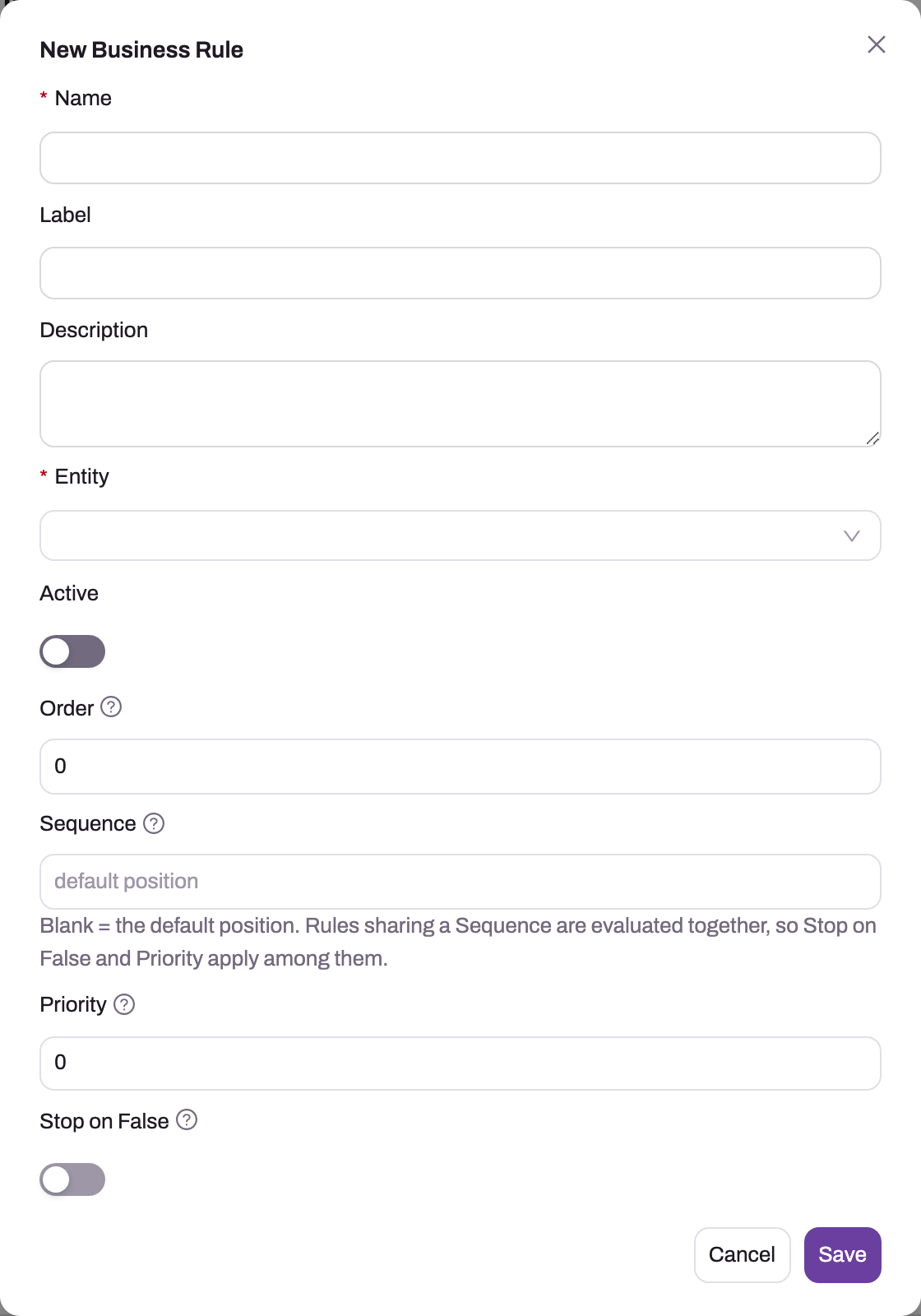
- 1
Name is the rule's stable identifier; Label and Description below explain its business intent.
- 2
Entity fixes the record type whose saves the condition and actions operate on.
- 3
Active is off for a new rule — an unfinished active rule is live enforcement immediately.
- 4
Sequence places the rule among handlers, scripts and other rules in the phase; blank keeps the default position. Order breaks ties inside one Sequence.
- 5
Priority decides which Set Value wins when two rules write the same field — lower wins.
- 6
Stop on False skips the remaining rules for the trigger when this rule's condition is false.
Step 1 — Create the rule, inactive
Go to Setup → Process Studio → Business Rules and choose New. The dialog holds the rule's identity and its place in the save:
| Field | What it does |
|---|---|
| Name (required), Label, Description | A stable name, a clear label and an intent-focused description — write the description for the administrator who finds this rule in a year. |
| Entity (required) | The one record type whose saves the rule evaluates. |
| Active | Off for a new rule. Keep it off until the condition and actions exist. |
| Sequence | Where the rule runs relative to everything else in the same phase — platform handlers, domain code and automation scripts included. Blank keeps the default: immediately after the platform's validation and ahead of every domain handler. Suggested range for your own steps: 10,000–999,999. Rules sharing a Sequence are evaluated together, so Stop on False and Priority apply among them. |
| Order | Lower numbers run first among rules that share the same Sequence. It cannot move a rule past a handler or a script — use Sequence for that. |
| Priority | Lower numbers win when two Set Value actions target the same field. |
| Stop on False | If this rule's condition evaluates to false, the remaining rules for the trigger are skipped. |
Save the shell, then open the rule. The detail page shows a statistics bar (Entity, Status, Actions, Order, Priority) and three tabs — Condition, Actions and Test Runner. The trigger is chosen on the Condition tab under Triggers (one or more): OnSave (every insert and update), OnInsert, OnUpdate, OnDelete (only Block Save and Show Message have effect), OnFieldChange (combine with OnSave or OnUpdate and list the Tracked Fields; empty means any field), OnPhaseTransition (a status field moving between specific values, written as a Phase Transition Directive such as Status;from=Draft;to=Submitted — an empty side is a wildcard, and inserts never fire it), OnSavedChanges (after commit — required for the bridge actions below), OnApprovalDecision (after an approval step is approved, rejected, recalled or reverted; the condition can read approvalDecision, approvalStepOrder and approvalComments) and OnSchedule (evaluated hourly against a candidate filter; only meaningful with a Raise Nudge action). Compare its Sequence and Order with every active rule on the entity and verify the new row remains inactive: an unfinished active rule becomes live enforcement immediately.
Step 2 — Write the condition
On the rule's Condition tab, write the Condition Expression that must hold for the actions to run — for example Status == "Cancelled" or DiscountPercent > 20 && CustomerTier != "Manager". An empty condition is always true. Conditions read the incoming record's fields by name, can navigate lookups (Account.Region, up to five hops), can aggregate over the record's own child collections (SUM(OrderLines, Amount) > 10000, also AVG, MIN, MAX, COUNT and the lambda form OrderLines.Any(l => …)), and can read the value a field had before the save with PRIORVALUE(Field) — for example PRIORVALUE(Status) == "Closed" && Status != "Closed". Switch on Only when the condition becomes true to fire a rule only on the save where its condition turns from false to true. Quotes matter: an unquoted word is read as a field reference, not a text value. The full grammar is on the expressions page.
Step 3 — Add the actions
On the Actions tab, add what the rule does, ordered within the rule:
| Action family | What it does | Runs |
|---|---|---|
| Block Save / Show Message | Rejects the save with your message (a literal or an expression); severity Error blocks, Warning and Info display without blocking | During the save |
| Set Value / Copy From Field / Format Value / Lookup Value | Writes a field on the record being saved — computed (static, formula or from a child), copied from a related record, reformatted, or fetched by key; Overwrite Existing decides whether a filled field is replaced | During the save |
| Set Required / Set Read-Only / Lock Record / Enforce Unique | Makes fields conditionally mandatory or uneditable, locks the whole record except the listed Editable Exceptions, or rejects a save whose Unique Key Fields collide with another record | During the save |
| RunAssignment / ApplyFieldMappings | Assigns the record by an assignment rule, or re-copies the entity's field mappings from its lookups | During the save |
| TriggerEntityAction / PushFieldMappings / Route to queue | Runs a server action configured on the entity exactly as pressing its button would, copies this record's values into its lookups and child records, or hands the record to an Omni-Channel queue or agent | After the save commits |
| Send Message / Create Activity / Create Record / Enqueue Job / Request Approval / Invoke Automation Script / Raise Event / Raise Nudge | Follow-ups: notify by email or in-app, open a task, create a related record of any entity, queue background work (with a delay and an idempotency key), submit into an approval process, dispatch a server-action-bound automation script (legacy), publish a named event, or raise a Sense AI nudge | After the save commits |
The split in the last column is structural: follow-up actions run only after a successful commit, so the rule's trigger must include OnSavedChanges for them to fire — on a save-phase-only rule they are skipped, and the Invoke Automation Script and Raise Event editors say so. And because after-save rules run on every matching commit, tick Only when the condition becomes true (or scope the condition tightly) or a notification re-sends each time the record is edited. To act later rather than at the save, set the rule's Delay on the Condition tab to Wait after the save or Count from a date on the record (up to 7 days); the run is listed as "Delayed business rule" under Jobs, and blocking actions cannot be delayed.
Step 4 — Activate, then verify immediately in the Test Runner
Activate the rule, then open its Test Runner tab straight away — the engine evaluates the entity's active rules, so testing and activation travel together, and the discipline is to verify in the same sitting. Pick an existing record or paste sample JSON, run, and read the result panels: Block Reasons, Entity Messages, Field States (required and read-only hints) and the Diagnostics list. Run two probes: a record that should match (expect the block, the derived value, or the required flag) and one that should not (expect nothing). Read the diagnostics on every run. Saving the rule refuses a plain condition that does not compile, but a condition that uses lookups, aggregates, custom fields or User. tokens is only evaluated per record — if it fails there it silently disables the rule, and the diagnostics are the only place that failure is visible. Note the runner's limits: it exercises the whole active rule set for the entity, transition-triggered rules never match in it (they need real before-and-after values), and read-only and lock actions show as field-state hints rather than hard blocks.
Step 5 — Verify transition and lock rules with a throwaway record
For anything the Test Runner cannot exercise — status-transition guards, record locks, field-change gating — prove it live: create a disposable record, drive it into the guarded state, attempt the forbidden edit (expect your message), then attempt an allowed one (expect success), and delete the record. If you cannot verify a rule's behavior, deactivate it and say so — never leave unverified enforcement live.
Step 6 — Batch future edits
Every edit to an active rule is a live change. Before rework, preserve the last known condition, actions and test inputs; then deactivate where the business permits, batch the edits and run the same matching and non-matching probes. For high-impact validation, also repeat the live throwaway-record test. Finish by confirming Active, sequence, priority and Stop on False in the list so an otherwise-correct rule is not left in the wrong evaluation position.
Expected result
The active rule parses without diagnostics, matches only the intended records and applies ordered actions exactly once in the correct save phase. Matching and non-matching Test Runner probes behave differently as designed, and transition, lock or field-change rules also pass a disposable-record test through the real save pipeline.
Common problems
The rule never fires. Check in order: it is active; the diagnostics show no parse failure (a broken condition is silent); every picklist value in the condition is a stored value inside the field's actual domain; the trigger matches the event you tested (a field-change rule needs the field to actually change — saving the same value does not count); and any record-type scoping matches the test record.
A notification sends repeatedly. After-save rules fire on every commit where the condition holds. Tick Only when the condition becomes true, tighten the condition to the transition moment, or move the send behind a queued job with an idempotency key so repeats collapse.
A status still escapes its terminal state. The lock was approximated with a read-only action under a condition like Status == "Closed" — but the condition evaluates the new record, so an edit changing Closed to Draft sails through. Terminal states are the transition trigger's job: block leaving the state, and optionally pair a record lock (exempting the status field) for the other fields.
Two rules fight over one field. Value-setting actions run in order within a rule and by rule order across rules; when two rules write the same field, the ordering decides the survivor. Consolidate the logic into one rule where possible. And remember rules are not the last word: scripts run later in the pipeline and can overwrite what a rule set.
Common questions
When should this be a validation instead of a rule?
When the whole requirement is "check this record and show a message" — a format, a range, a mandatory combination — the lighter entity validation does the same server-side blocking with less machinery. Reach for a rule when you need what validations lack: triggers (insert-only, field-change, transitions), child-record aggregates, conditionally required or read-only fields, derived values, or post-save follow-ups. See entity behavior.
Can a business rule call another system?
Not directly — rules are deliberately self-contained: they evaluate and act on the record being saved and cannot make external calls. That boundary is what makes them safe inside every save. When a save must reach another system, hand off after the commit: an Invoke Automation Script action on an OnSavedChanges trigger dispatches a server-action-bound automation script by action name, or use an integration flow when you need connector-grade retry and monitoring.
Can a rule hide a field?
No — there is no hide action, on purpose. Rules control values, requiredness, editability and blocking; visibility is a layout concern, handled in the form designer. Keeping the two apart means a hidden field is still enforced correctly: a rule that requires it keeps requiring it on every write path, whether or not any form shows it.
The unblock condition is "unless a manager allows it" — checkbox or approval?
Approval. An editable override checkbox records no approver, no timestamp and no reason, and anyone with edit rights can tick it. Model the sign-off as an approval process whose final approval stamps a field, and add "and not yet approved" to the rule's block condition — you get a resolved approver, notifications, record locking while pending and an audit trail for one extra step.