
The fulfilment document (entity Inventory Fulfilment, listed as Fulfilment Orders in the Warehouse app) is the warehouse's copy of a sales order. Released from the order, it carries one Inventory Fulfillment Order Line per item to fulfil and hosts the warehouse actions in sequence: Allocation reserves stock, Picking turns allocations into picking lines that say what to take from where, Confirm Picking records that the pick physically happened, and Picked Delivery creates the delivery order from what was picked. Each step has a selective variant and each line carries its own pending counters, so partial progress is normal. This page is the order-side view of that document; Fulfilment picking covers the same screen from the warehouse operator's seat.
Prerequisites
- A saved order whose lines have pending fulfilment order quantity (quantity − fulfilment order quantity − cancelled quantity).
- Stock at the order's branch and partner account — allocation reserves real lots or stock on hand, as described in Allocating stock to orders.
- Permission on the Order and Inventory Fulfilment actions through your security profile. Typically sales users release from the order and warehouse users work the fulfilment document.
Procedure
Step 1 — Release the fulfilment document
On the order, run Fulfilment to create a fulfilment document for every line's pending fulfilment order quantity, or Selective Fulfilment for chosen lines and quantities (a zero or empty requested quantity is rejected here — Requested quantity must be greater than zero). Fulfilment and Auto Allocate and its selective variant release and allocate in one step. Only lines whose item tracks inventory are released; with nothing eligible the action stops with No pending fulfilment quantities found in order lines to create inventory fulfilment. The new document copies the order's partner account, branch, account and order reference; those header fields are then fixed for its life, and the Fulfilment Released flag on the order turns on.
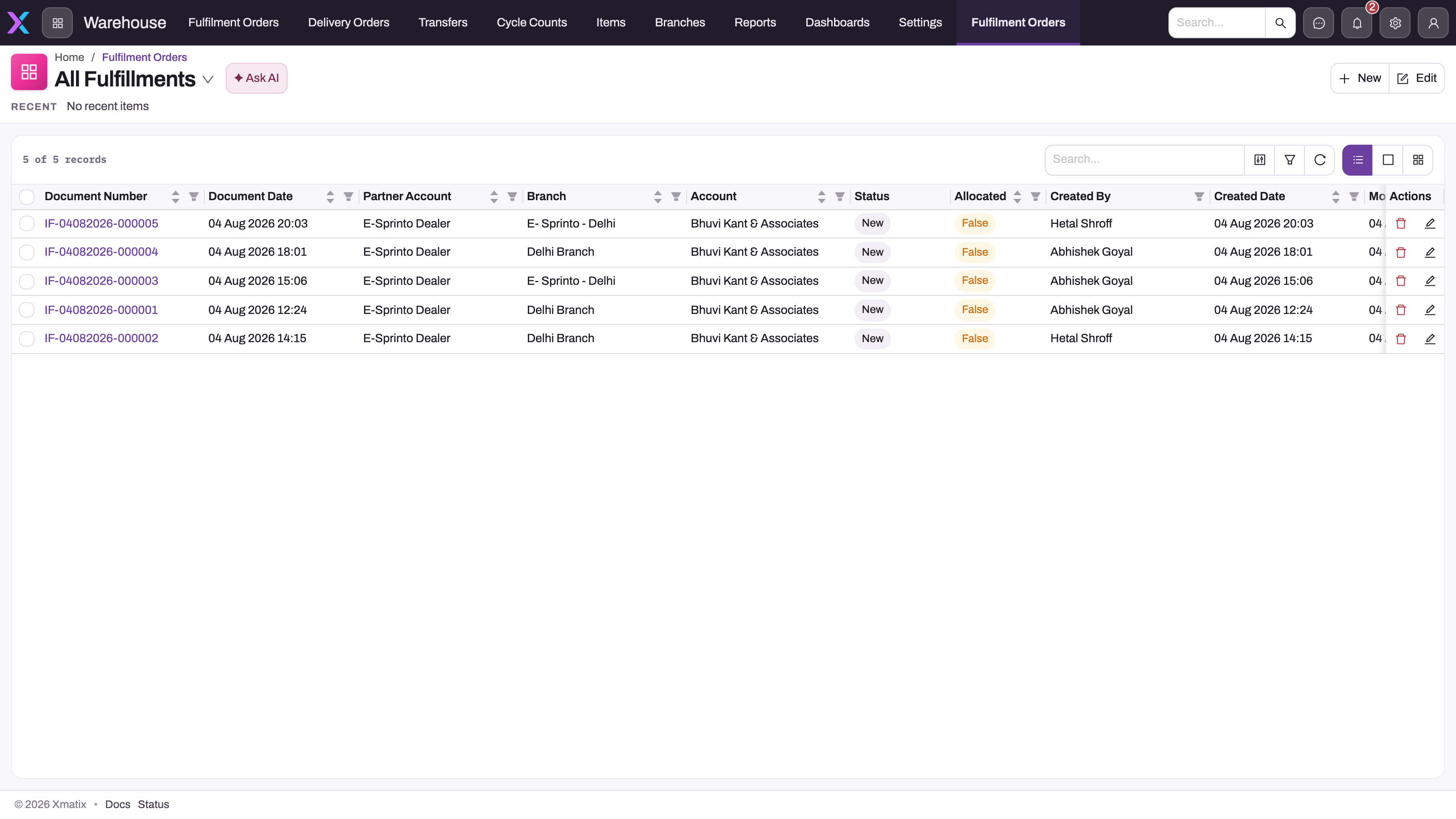
- 1
All Fulfillments is the default view of Fulfilment Orders in the Warehouse app; the view menu also offers Allocated and Partially Allocated Fulfilments.
- 2
Search, filters and refresh narrow the queue without changing any document.
- 3
Partner Account, Branch and Account identify the order the document was released from and the scope allocation will search.
- 4
Status and Allocated are not written by allocation, picking or delivery — open the document and read its Allocated Quantity, Picked Quantity and pending columns instead.
- 5
Open the document number to reach the order-line, allocation, picking and delivery grids and the warehouse actions.
Step 2 — Open the document
Switch to the Warehouse app and open Fulfilment Orders (default view All Fulfillments). Match the document to the order by Partner Account, Branch, Account and the order reference; the list's Status and Allocated columns are not maintained by the warehouse actions, so do not use them to judge progress. Open the document and read its read-only Document State (Draft, Partially Allocated, Allocated, Partially Picked, Picked, Partially Delivered, Delivered) and its grids. The detail page shows four grids: Inventory Fulfillment Order Line (the demand, with Quantity, Pending Allocation Quantity and Allocated Quantity), Allocation Line, Inventory Fulfillment Picking Line and Delivery Order. The header actions show the steps that currently apply: Allocation and Picking with their selective variants as buttons, and the remaining actions (delivery release, confirmation and cancellations) behind the arrow as they become relevant.
Step 3 — Allocate on the fulfilment document
If you did not auto-allocate, run Allocation (or Selective Allocation). Allocation lines reserve lots or stock at the document's partner account and branch and post to the inventory ledger immediately. Note the difference from the order-side action: for a lot-tracked item the fulfilment-side allocation reserves what eligible lots exist and quietly leaves the rest pending, whereas Allocate on the order fails outright. Read the Allocation Line grid and the remaining Pending Allocation Quantity before moving on. With nothing to do the action reports No pending allocated quantities found in fulfillment order lines to create allocation.
Step 4 — Perform picking
Run Picking (or Selective Picking, which takes chosen allocation lines and a requested quantity per line, greater than zero and no more than the line's pending picking quantity). One picking line is created per allocation line, naming the item, SKU, lot, storage location and stock record to take from, with Requested Quantity, Picked Quantity, Cancel Quantity and Pending Delivery Quantity columns. Picking requires allocation: with nothing allocated the action stops with No pending picking quantities found in fulfillment allocation lines to create picking. Creating a picking line moves the quantity from the ledger's Allocation bucket to Picked.
Step 5 — Confirm the pick
After the goods are physically taken, run Confirm Picking. It confirms every remaining unconfirmed picking line on the document at its requested quantity. There is no selective confirmation on the standard screens, so confirm when the whole pick is done. Lines already confirmed are skipped; if none remain the action reports No picking lines available to confirm. A short pick is not captured by confirmation. Deliver what was found with Selective Picked Delivery, then cancel the missing quantity with Selective Cancel Picking, in that order, as described in Fulfilment picking.
Step 6 — Release the delivery order
Run Picked Delivery (or Selective Picked Delivery) to create the delivery order from the confirmed picking lines; a single unconfirmed picking line anywhere on the document blocks it with Cannot create delivery for Picking Lines that are not confirmed. Warehouses that skip the recorded pick run Allocation Delivery (or its selective variant) straight from allocation lines — but only while those lines have not been picked; once picking lines exist the engine refuses with Perform Picked Delivery as Picking lines are present. A delivery order can also be released from the order itself (Delivery, which needs invoice lines or allocation lines pending delivery) or from a posted invoice (Perform Delivery), and the delivery order offers Create Invoice for lines not yet billed.
The delivery order's E Way Bill button is present in the first-party metadata but has no server implementation; generate the e-way bill from the invoice, where it is implemented.
Step 7 — Undo if needed
Work backwards through the dependency chain. Cancel Picking (or Selective Cancel Picking) writes a negative picking line for confirmed picked quantity and returns it from Picked to Allocation in the ledger; an unconfirmed picking line cannot be cancelled — Cannot cancel picking for lines that are not confirmed. — so confirm it first. Cancel Allocation (or its selective variant) then writes a negative allocation line and hands the quantity back to free stock; it is capped by the line's Eligible Return Quantity, the allocation net of anything picked, delivered or invoiced.
Expected result
Released fulfilment lines keep their order-line links; allocation lines identify the exact lot or stock reserved; confirmed picking lines carry the picked quantity, with any shortfall cancelled after delivery; and the delivery order contains exactly the confirmed pick. On the order, the line counters reconcile — fulfilled, allocated, picked and delivered quantities add up with the pending remainder at each stage — and re-running a release, allocation or pick consumes only what is still pending. Any mismatch between order, allocation, pick and delivery totals is a stop condition before dispatch.
Common problems
- No pending fulfilment quantities found in order lines … — every line is released or cancelled, or no line's item tracks inventory.
- No pending picking quantities found … — nothing is allocated yet (or everything allocated is already picked). Allocate first.
- No picking lines available to confirm. — nothing has been picked, or every picking line is already confirmed.
- Cannot create delivery for Picking Lines that are not confirmed. — run Confirm Picking before Picked Delivery. If Confirm Picking finds nothing to confirm, the document holds a cancelled pick, which is never confirmed; use Selective Picked Delivery.
- Perform Picked Delivery as Picking lines are present. — this document's allocations have moved into picking; deliver through the picked path.
- A warehouse-side allocation that "succeeded" but left quantity pending — no eligible lot existed for the remainder; replenish and run Allocation again.
Common questions
Do I have to pick before delivering?
No. Allocation Delivery builds the delivery order straight from allocated lines, and counter operations can skip the fulfilment document entirely — invoice over the counter and deliver from the invoice. Once a line's allocation has been turned into picking lines, though, that stock must deliver through Picked Delivery.
Can I pick or confirm part of a fulfilment?
You can pick a subset with Selective Picking and deliver a subset with Selective Picked Delivery. Confirmation is whole-document: Confirm Picking confirms every remaining unconfirmed picking line at its requested quantity. A short pick is handled afterwards: deliver what was found with Selective Picked Delivery, then cancel the missing quantity with Selective Cancel Picking.
Why does the fulfilment header still say Draft after allocation?
The header's Status and Allocated flag are not written by the allocation, picking or delivery actions. Progress is recorded in Document State, a read-only field that each action sets: Allocated or Partially Allocated, then Picked or Partially Picked, then Delivered or Partially Delivered. Read it together with the Allocated Quantity, Picked Quantity and pending columns. An administrator can add a business rule that copies Document State into Status. The details are in Fulfilment picking.
Who does this — the sales user or the warehouse?
The actions live on documents, not roles: sales users typically work the order (capture, release, invoice) and warehouse users the fulfilment document (allocate, pick, confirm, deliver). Access to each entity and action is granted through security profiles, so your administrator decides who sees what.