
This section is for the people who run xMatix for their organization: inviting users, deciding who may see and do what, keeping licenses and templates in order, moving data in and out, and testing changes in a sandbox before they reach production. Every page names the Setup screen it describes, lists the settings that matter, and states honestly what a control does — and does not — do.
Overview
Almost all administrative work happens in Setup, which you open from the gear menu in the top bar (it opens in a new tab). A few everyday records that administrators also maintain — branches, resources, postal codes, holidays — are business records, so they are kept in the apps rather than in Setup. Each page linked below says which applies.
What you see in Setup depends on who you are. Every Setup screen is tied to a capability on your security profile, some screens belong to a licensed product, and a few depend on whether your organization uses sandboxes. The section How Setup decides what you see explains these filters, because they answer most "where has that screen gone?" questions.
The Setup home page
When you open Setup you land on its home page, which has up to four parts, top to bottom:
- Setup Copilot — an ask box with suggested questions and a History button. It appears only when your organization is licensed for the copilot and your profile allows you to use it. The card notes that it "Asks before it changes anything". See Setup Copilot.
- Needs attention — failed integration runs from the last 24 hours, approvals waiting on you, and (in a sandbox that uses DeltaPacks) DeltaPacks ready to deploy. Each row has a Review, Open or Deploy link. Only rows with something in them are shown. When nothing is waiting, the card says so.
- Recently opened — up to eight entities and two users you opened in Setup, as one-click chips.
- All setup areas — one card for each area of the left sidebar, with a one-line description and a link to each group inside it. A link that stands for a group of screens opens that group's first screen. A link shown greyed out has no screen you can open.
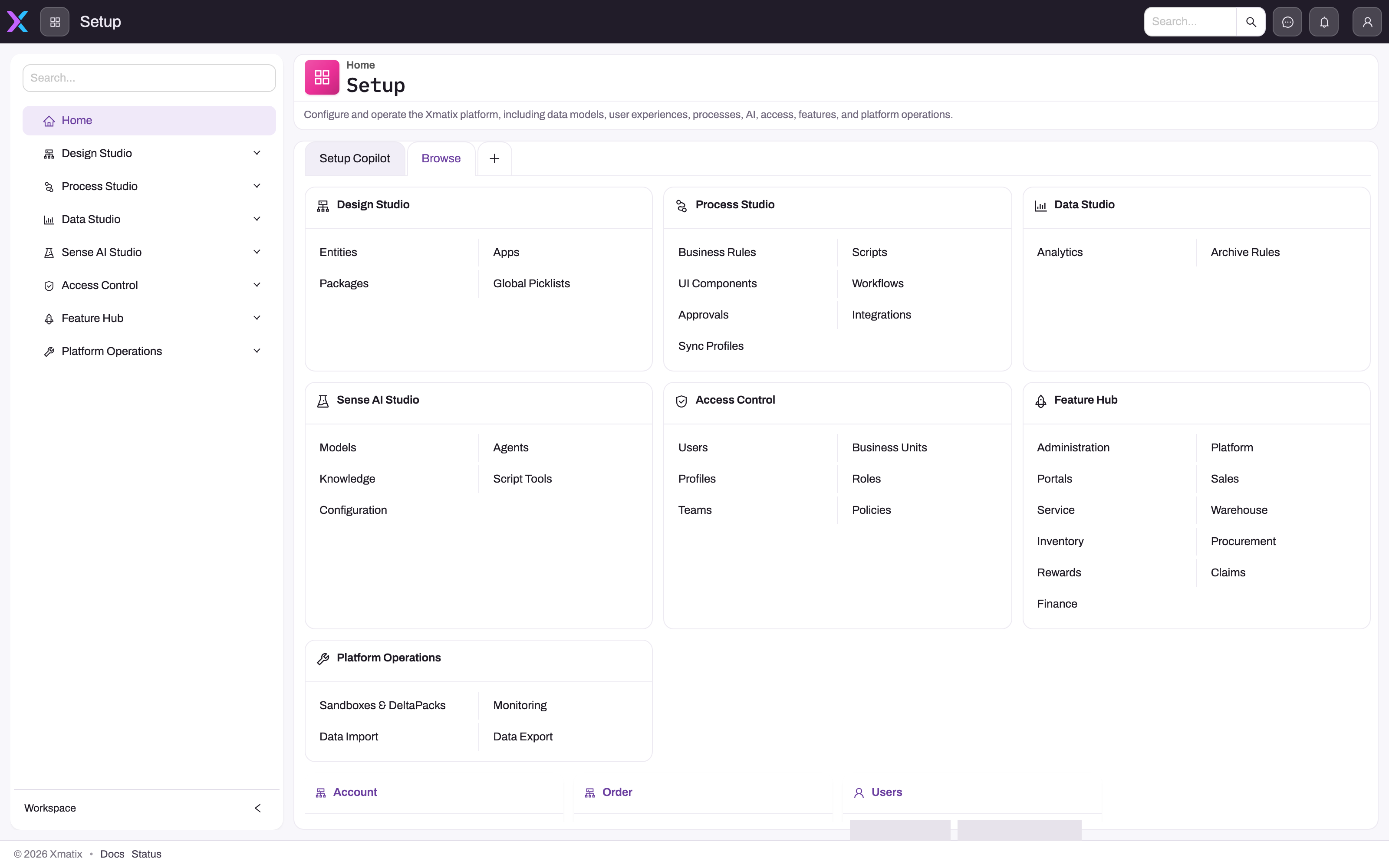
Where administration lives in Setup
The left sidebar has six areas, in this order: Design Studio, Process Studio, Platform, Sense AI Studio, Access control and Feature Hub. Administration is spread over the last two and Platform:
| Setup area and group | Screens | Documented in |
|---|---|---|
| Access control | Users, Business units, Profiles, Roles, Teams, Policies, Security assignment | User accounts, Invite a user, Offboard a user, Security profiles, Roles, teams and business units, Record security, Restriction rules; security assignment is covered on Resources |
| Feature Hub → Administration | Org settings, Licenses, License usage, Themes, Branding | Licensing |
| Feature Hub → Platform | Document settings, Deduplication rules, Localization resources, Messaging templates, Report print templates, Resources, Guided journeys, Domains, Messaging channels, Mailboxes | Email templates and document numbering, Document numbering, Deduplication rules, Messaging channels and the message log, Publishing, hostnames and custom domains |
| Feature Hub → module groups | One group per licensed module (Portals, Sales, Service, Warehouse, Inventory, Procurement, Rewards, Claims, Finance), each with its own Settings where the module has settings | The module's own section of these docs |
| Platform → Sandboxes & DeltaPacks | Sandboxes, Sandbox Copy Profiles, Sandbox Copy Profile Sets, DeltaPacks, Inbound DeltaPacks | Sandboxes and promoting changes |
| Platform → Monitoring | Tracing, Jobs, Audit Trail, Message Log, Sync Monitor, Field Dependencies | Background work, Sync health, conflicts and failed runs |
| Platform (single screens) | Integrations, Sync profiles, Testing | Integrating xMatix with other systems |
| Platform → Data | Import, Export, Archive rules | Import data, Export data, Archive rules |
| Platform → KPI | Scorecards | — |
Design Studio (entities, apps, packages, picklists) and Process Studio (business rules, assignment rules, scripts, UI components, workflows, approvals) are where the data model and automation are built. They are covered in Customizing xMatix. Sense AI Studio is covered in Sense AI.
How Setup decides what you see
Setup hides a screen or a whole group when any of these is true:
- You lack the capability. Each screen is mapped to a capability, and your security profiles must grant it. A group disappears when none of its screens are left. Two whole areas have their own gate: the Access control area needs
setup.security.manage, and the Feature Hub area needssetup.licensing.admin. A screen inside an area stays hidden without its area's gate, even when you hold the screen's own capability. - Your organization is not licensed for the product. The Feature Hub module groups (Sales, Service, Portals, Warehouse, Inventory, Procurement, Rewards, Claims, Finance), Telephony, Sense AI settings, Archive rules and Scorecards appear only when the matching product licence is enabled.
- The feature is not switched on. Sandboxes and their copy profiles appear only when sandboxes are enabled for your organization. DeltaPacks and Inbound DeltaPacks appear only when DeltaPacks are enabled.
- You are working in a sandbox. Sandboxes and their copy profiles are hidden there, because you cannot create sandboxes from inside a sandbox. DeltaPacks stay available.
Hiding a screen in the sidebar is a convenience, not the security boundary. Whether the server itself refuses a request for an ungranted capability depends on how capability enforcement is configured for your environment.
The access model in one paragraph
Every action a user attempts passes two independent gates. A security profile must grant the operation — the app, the entity, the field, the action or the setup capability — and record security (the entity's policy, ownership, the role hierarchy, shares and rules) must expose the specific record. Roles, teams and business units never grant operations. Licenses and seats are a third, commercial layer that must also be satisfied for licensed products and features. When a user "can't see something", work through the layers in order rather than widening one profile: Troubleshooting: a user can't see something is the ordered checklist, and Worked security scenarios shows the building blocks combined into configurations you can copy.
Capabilities you will need
Capabilities are granted on a security profile's Entitlements tab. The built-in SystemAdmin profile receives the full set when your organization is created. Four of them can never be removed from it, so you can always recover from over-pruning: setup.security.manage, setup.security.users.manage, setup.security.audit.view and setup.security.users.loginAs. Any other capability can be revoked from SystemAdmin, and the revocation sticks. A delegated administrator needs only the capabilities for their tasks — plus the area gate described above:
| Task | Capability |
|---|---|
| Users (create, edit, deactivate) | setup.security.users.manage (and setup.security.manage to see the Access control area) |
| Profiles, roles, teams, business units, policies, security assignment | setup.security.manage |
| Sign in as another user | setup.security.users.loginAs |
| Audit Trail | setup.security.audit.view |
| Licenses, license usage, per-user seats; seeing the Feature Hub area at all | setup.licensing.admin |
| Org settings, themes, branding | setup.org.settings.manage |
| A module's Settings in Feature Hub | setup.featurehub.settings.manage |
| Messaging templates | setup.metadata.email.manage |
| Resources, guided journeys | setup.automation.resources.manage |
| Messaging channels / mailboxes / message log | setup.messaging.channels.manage / setup.mail.mailboxes.manage / setup.messaging.log.view |
| Integrations and sync profiles | setup.integration.manage |
| Data import / data export / archive rules | setup.data.import.manage / setup.data.export.manage / setup.metadata.archive.manage |
| Jobs monitoring | setup.diagnostics.jobs.view (actions: setup.diagnostics.jobs.manage) |
| Tracing | setup.diagnostics.tracing.view |
| Testing | setup.quality.tests.manage |
| Sandboxes, copy profiles, DeltaPacks, inbound DeltaPacks | setup.sandboxes.manage, setup.sandboxcopyprofiles.manage, setup.deltapacks.manage, setup.deltapacks.inbound.manage |
| Setup Copilot | setup.copilot.use (and the copilot licence) |
A capability also takes effect only when your organization's licence includes the feature it belongs to.
Reading order
- Invite a user — the account, provisioning and the first profile; User accounts covers every field and edit after that, and Offboard or suspend a user covers the end.
- Security profiles and the grant matrix — the operation gate.
- Roles, teams and business units, Record-level security and sharing and Restriction rules — the record gate.
- Licensing — the commercial layer and per-user seats.
- Branches — the operating locations your companies transact from, kept in the Platform app rather than Setup.
- Branch time slots — the bookable windows and weekday capacities a branch offers for demos, service appointments and deliveries, kept on the branch.
- Postal codes — the postal code list that fills city, state and country on leads, opportunities and quotes, and the branch postal codes that route new leads to a branch.
- Resources — the person record behind each user: default company and branch, reporting line, pay and identity details, also in the Platform app.
- Partner resources — dated assignments of a person to a company and branch, used to fill and check documents and as assignment-rule candidates.
- Resource groups — named lists of people used as queue agent pools, assignment-rule candidates, incentive-plan populations and console filters.
- Business hours — working calendars (time zone, working days, daily window) for SLAs, attendance, appointments and fiscal days, linked to policies, branches and resources.
- Holidays — the non-working dates that mobile check-in, appointment slots, fiscal days, SLAs and training sessions skip, each scoped its own way.
- KYC documents — identity, address, income and business documents kept on resources, opportunities and partner onboarding applications, with a verified flag.
- Email templates and document numbering — outbound messages and generated document numbers.
- Document numbering — the number pattern of each entity, the running counters behind each series, and how to continue numbering from another system.
- Import data and Export data — bulk data in and out.
- Deduplication rules — which records the Duplicates panel offers as likely duplicates of each other.
- Sandboxes and promoting changes — test in isolation, promote with DeltaPacks.
- Background work — watching and re-running jobs from Platform → Monitoring → Jobs.
For a shorter, role-based path through the same material, see the tenant administrator role guide.
Training
Practice exercise
In a sandbox, create a delegated "user administrator" profile and check what its holder sees:
- In Setup → Access control → Profiles, create a profile and, on its Entitlements tab, grant only
setup.security.users.manage. - Assign it to a test user who has no other administrative profile, and sign in as that user.
- Open Setup. Expected result: the Access control area is missing, because its area gate
setup.security.manageis not granted. - Grant
setup.security.manageas well and reload. Expected result: Access control appears with all its screens, and Feature Hub is still missing, because it needssetup.licensing.admin.
Quick reference
- Setup opens from the gear menu in the top bar. Its home page lists Needs attention, Recently opened and every setup area.
- Administration lives in Access control, Feature Hub and Platform.
- Missing screen? Check the capability first, then the area gate, then the product licence, then the sandbox switches.
- Access control needs
setup.security.manage. Feature Hub needssetup.licensing.admin. - SystemAdmin always keeps the four security capabilities. Every other capability can be revoked from it.
- Branches, resources, postal codes and holidays are kept in the apps, not in Setup.
- Profiles grant operations. Record security decides which records. Licences decide which products.
Common problems
"Feature Hub isn't in my Setup sidebar"
The whole Feature Hub area is gated on setup.licensing.admin, even for screens such as Org settings or a module's Settings that have their own capability. Grant setup.licensing.admin on one of the user's profiles, or ask someone who holds it to make the change.
"I was given user management but can't find Users"
Users sits in the Access control area, and that area is shown only to holders of setup.security.manage. Grant both capabilities, or keep user administration with a full security administrator.
"A module's group (for example Sales or Finance) is missing from Feature Hub"
Module groups appear only when your organization's licence for that product is enabled. Check Feature Hub → Administration → Licenses. See Licensing.
"Sandboxes isn't under Platform"
Either sandboxes are not enabled for your organization, or you are signed in to a sandbox — sandboxes cannot be created from inside one. DeltaPacks have their own switch and remain available in a sandbox.
Common questions
Is hiding a Setup screen the same as denying access to it?
No. The sidebar and home-page cards hide what your profile does not grant, but that is a convenience. Real protection comes from the capability and licence checks on the server, and from security profiles and record security for business data. Use profiles to control access, and treat a hidden menu entry only as a sign that the profile is doing its job.
Can I lock myself out by removing capabilities from SystemAdmin?
Not completely. Managing profiles, managing users, viewing the audit trail and signing in as another user can never be removed from the built-in SystemAdmin profile, and the SystemAdmin and StandardUser profiles cannot be renamed or deleted. Any other capability you revoke stays revoked until you grant it again, so a SystemAdmin holder can always restore what was pruned.
Why does the Setup home page show items I didn't change?
Needs attention is not about your own changes. It lists failed integration runs from the last day, approvals waiting on you, and, in a sandbox, DeltaPacks ready to deploy. Recently opened lists only entities and users you opened yourself in Setup.