
Roles, teams and business units are the groups xMatix uses to decide whose records a person can reach. They never decide what a person may do: that always comes from their security profiles. A role places a person in the management tree, so managers can reach their reports' records. A team is a working group that records, rules, approvals and reports can be aimed at. A business unit is an organizational label (a region, a division) that people pick up through their roles. You manage all three under Setup → Access control, on the Roles, Teams and Business units screens.
Overview
| Construct | What it is used for | What it never does |
|---|---|---|
| Role | The management tree (hierarchy roll-up), a target for sharing rules and record shares, a source of approvers, a group that reports and dashboards can be shared with | Grant create, read, update or delete on an entity |
| Team | A target for sharing rules and record shares, approval pools, report and dashboard sharing, the mobile preview update channel | Grant create, read, update or delete on an entity, or own records |
| Business unit | A target for sharing rules and record shares; an organizational tree that roles and teams are filed under | Separate data by itself, or roll access up or down its own tree |
Each one only acts where something else points at it: an entity's sharing policy (hierarchy, manual sharing, team access), a restriction rule target, a record share, an approval step, or a report's visibility. Creating a role, team or unit on its own changes nobody's access.
When to use it
| If the question is… | Use |
|---|---|
| What may this person do (create, edit, delete, run actions, open setup screens)? | A security profile |
| Which records should roll up to a manager? | Roles and their parent roles |
| Which working group needs the same records, the same approvals or the same reports? | A team |
| Which organizational slice should a sharing rule or share be aimed at? | A business unit (through roles) |
| How is access worked out for one entity? | That entity's sharing policy |
| Which companies can a person work in? | Company access on the user account — see tenants and companies |
How xMatix handles it
Roles and the hierarchy
Each role can have a Parent role. The Roles list shows the roles as an indented tree, fully expanded, with the columns Name, Label, Description, Business unit, Active and Modified. A role whose parent is missing or deleted is shown at the top level.
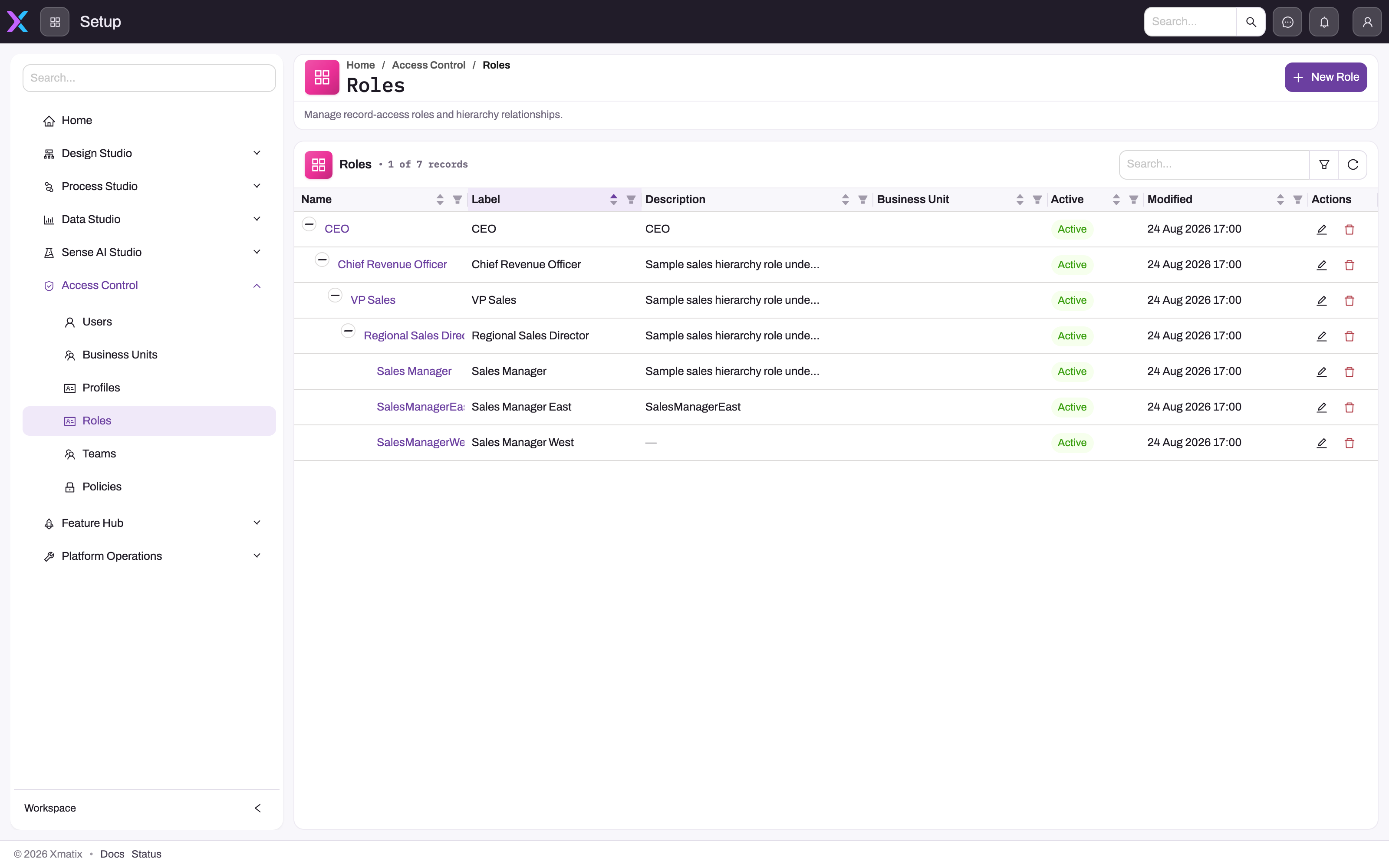
Where an entity's policy has Grant access using hierarchy on, a person can read and change records owned by anyone who holds a role below one of their own roles, at any depth. Access flows downward only: people in the same role do not see each other's records through the hierarchy, and nobody sees their manager's records this way. The walk down the tree uses active roles only, so a role with Active off — and every role beneath it — drops out of the roll-up for everyone above it.
A person can hold several roles. Each role assignment has a Primary Role switch, but xMatix stores it for your reference only: it does not change access, and nothing stops two assignments from both being marked primary.
Teams
A team is a named group of people. The Teams list shows Name, Label, Description, Business unit, Active and Modified. You add people on the team's Assignments tab.
Team membership is used by:
- Record shares aimed at the team, when the entity's policy has both Allow manual share and Allow team access on.
- Sharing rule targets of type Team — these work whatever Allow team access says.
- Owner conditions in rule formulas:
Owner.InTeam("Team name")matches records whose owner is an active member. - Report and dashboard sharing — see sharing reports and dashboards.
- The mobile preview channel — members of the teams chosen on a mobile app's Update Channel tab receive preview over-the-air updates (mobile app configuration).
- Approval steps and submitter restrictions that name a team — with the important difference explained under Business rules.
A team's Business unit is for filing only: it lists the team on the unit's Teams tab, and has no effect on anyone's access.
Business units
Business units form their own tree through Parent business unit. The Business units list shows Name, Label, Description, Active and Modified, as an indented tree.
People are never assigned to a business unit directly — there is no business-unit field on a user account. A person's business units are the units of the roles they hold. A share or rule target aimed at a unit covers exactly the people whose roles point at that unit. The parent tree is for display only: a share or target aimed at a parent unit does not include people in its child units. To cover a unit and its children, add a target for each.
The security business units on this page are not the Business Units list in the Finance Setup app, which groups ledger postings into divisions for statements and budgets. The two share a name only — see Business units (finance divisions).
How quickly changes take effect
xMatix caches each person's resolved roles, teams, business units and hierarchy for up to two minutes. After you change an assignment, a parent role or a unit, allow up to two minutes before testing, and have the person refresh the page.
Prerequisites
- The
setup.security.managecapability on one of your security profiles. It opens the Access control area of Setup and is needed to read or change roles, teams, business units and their assignments, including through the metadata API. The built-in SystemAdmin profile has it and it cannot be removed from that profile. - The user accounts you want to assign already exist (invite a user).
- For hierarchy roll-up or team access to matter, the entity needs an active sharing policy with those switches on (record security).
Procedure
Step 1 — Build the business-unit tree
- Go to Setup → Access control → Business units and select New business unit.
- Enter a Label (for example West region). xMatix fills Name from the label without spaces; change it if needed. Add a Description if useful.
- Choose a Parent business unit, or leave it empty for a top-level unit. Do not choose the unit itself.
- Leave Active on and select Create.
The unit appears in the tree under its parent. Open it to see the Child Units, Roles and Teams tabs, which list what is filed under it. These tabs are read-only lists: to move a role or team to a unit, edit the role or team.
Step 2 — Build the role tree
- Go to Setup → Access control → Roles and select New role.
- Enter Label, Name and Description as above.
- Choose the Business unit the role's holders belong to, if any.
- Choose the Parent role — the role directly above this one in the management line. Leave it empty for the top of the tree.
- Select Create.
Build from the top down, so each parent exists before its children. The role appears indented under its parent.
Step 3 — Put people in roles
- Open the role from the Roles list (select its name).
- On the Assignments tab select Add Assignment. The New Role Assignment dialog opens with the role already filled in.
- Pick the User. Turn Primary Role on if you want to record this as their main role. Leave Active on.
- Select Create.
The person appears in the tab with their Primary and Active state. You can do the same from the other side: Setup → Access control → Users → the user → Role Assignments.
Step 4 — Create a team and add members
- Go to Setup → Access control → Teams and select New team.
- Enter Label, Name, Description and, optionally, the Business unit it is filed under. Select Create.
- Open the team, go to Assignments and select Add Assignment. Pick the User, leave Active on and select Create.
Repeat step 3 for each member, or add teams per person on Users → the user → Team Assignments. Teams can also be filled automatically from people's resource attributes with Setup → Access control → Security assignment.
Step 5 — Share reports and dashboards with a role or team
- Open the role or team.
- Go to the Reports or Dashboards tab and select Add.
- Pick one or more reports or dashboards and select Save.
Everyone holding the role, or in the team, can now see them. Use Remove in a row to take one away. The full rules are in sharing reports and dashboards.
Step 6 — Change or reorganize
- Rename or re-parent: open the role, team or unit and select Edit in the page header (or use the Edit icon in the list). You can change everything except Name, which is fixed once created.
- Move someone to another role: add the new role assignment first, then turn Active off on the old one (or delete it). A person with no role is in no business unit and reaches nobody through the hierarchy.
- Take someone out of a role or team for a while: edit their assignment and turn Active off. This is the reliable switch — see the table in Business rules for what the role's or team's own Active switch does and does not do.
Step 7 — Delete a role, team or unit
The Delete icon in the list deletes the row at once, without asking for confirmation. Before you select it:
- For a role: re-point its child roles to a new Parent role, remove or move its assignments, and remove it from any sharing rule target, approval step and report or dashboard it is shared with.
- For a team: remove it from rule targets, approval steps, report and dashboard sharing, and from the mobile Update Channel.
- For a business unit: move its child units and the roles and teams filed under it to another unit, and remove it from rule targets.
If you skip step 1 for a role, its child roles are cut off from the tree above it, so managers above lose sight of their records.
Fields
Role
| Field | What it means | Notes |
|---|---|---|
| Label | The name people see in lists, pickers and rule targets | Required, up to 100 characters |
| Name | The stable internal name | Required, up to 100 characters; starts with a letter, then letters, numbers or _. Filled from the label. Fixed after creation. xMatix adds _c to the end when you save (for example SalesManagerWest_c), so your names never collide with ones xMatix ships |
| Description | What the role is for | Optional, up to 255 characters |
| Business unit | The unit this role's holders belong to | Optional. This is the only way people become members of a unit |
| Parent role | The role directly above in the management tree | Optional; empty means top of the tree. The list does not offer the role itself, but xMatix does not stop longer loops — avoid making a role an ancestor of itself |
| Active | Whether the role takes part in the hierarchy roll-up | Default on. See the table in Business rules |
Team
| Field | What it means | Notes |
|---|---|---|
| Label | The name people see | Required, up to 100 characters |
| Name | The stable internal name — the name to use in Owner.InTeam("…") | Same rules as for a role, including the _c ending |
| Description | What the team is for | Optional |
| Business unit | The unit the team is filed under | Optional; display only, no effect on access |
| Active | Shown in lists | Default on. Turning it off does not remove members' access — see Business rules |
Business unit
| Field | What it means | Notes |
|---|---|---|
| Label | The name people see | Required, up to 100 characters |
| Name | The stable internal name | Same rules as for a role, including the _c ending |
| Description | What the unit covers | Optional |
| Parent business unit | The unit above it in the tree | Optional; display only — access never rolls up or down the unit tree |
| Active | Shown in lists | Default on. Not checked anywhere in access decisions |
Role or team assignment
| Field | What it means | Notes |
|---|---|---|
| User | The person being assigned | Required. Fixed once saved — to move the assignment to someone else, delete it and add a new one |
| Role / Team | The role or team | Required; filled in and locked when you add from the role or team page. Fixed once saved |
| Primary Role | Marks the person's main role | Roles only. Recorded for reference; it changes no access |
| Active | Whether the assignment counts | Default on. Off removes the person from the role or team everywhere |
A role or team page also shows a summary in the header: Name, Label, Status, Business Unit and (roles) Parent Role; a business unit shows Parent Unit.
Business rules
- One assignment per person per role or team. Adding the same person twice is refused with "This assignment already exists for the selected user and target." and a Duplicate assignment message.
- Business units come from roles. A person's units are the units of every role they hold through an active assignment.
- The hierarchy reaches down, never across or up, and follows record ownership: it widens access to records owned by holders of lower roles.
- What the Active switches do. They are not all equal:
| You turn off… | What changes | What does not change |
|---|---|---|
| A person's role or team assignment | The person stops counting as a holder or member: hierarchy, shares, rule targets, owner conditions, business units and role approval steps | — |
| A role's Active | The role and every role beneath it drop out of the hierarchy roll-up for roles above; Owner.InRole and Owner.InRoleAndSubordinates treat it as having no members | Its holders still count for shares, rule targets, approval steps that name the role and business-unit membership |
| A team's Active | Owner.InTeam treats it as having no members | Its members still count for shares, rule targets and the mobile preview channel |
| A business unit's Active | Nothing in access decisions | Shares and rule targets aimed at the unit still apply |
- Teams in approvals use a separate member list. When an approval step's approver is a team, xMatix builds the list of approvers from a team-member list that the Teams screen does not show or edit. People added on the team's Assignments tab are not put on that list, so the step is not routed to them. The same list decides who may submit when an approval process allows only members of a team to submit. See Configuration for how to maintain it. Role steps have no such split: every person with an active assignment to the role is an approver.
- Primary Role is informational. Formulas that ask for "the user's role" in the singular take the first role found, not the primary one.
- Deleting does not clean up. Child roles, assignments, rule targets, shares and report grants that point at a deleted role, team or unit are left in place.
Example
A distributor has two sales regions and wants managers to see their reps' opportunities, a key-accounts group to share some customer records, and reports per region.
- Under Business units the administrator creates India sales with two children, North region and West region.
- Under Roles they create Head of sales (unit India sales, no parent), then West sales manager (unit West region, parent Head of sales) and West sales rep (unit West region, parent West sales manager), and the same pair for the North.
- On each role's Assignments tab they add the people, marking each person's main role as Primary Role.
- They check the Opportunity policy under Setup → Access control → Policies: Internal default access is Private and Grant access using hierarchy is on. The West sales manager now sees every West rep's opportunities; the Head of sales sees both regions; the reps see only their own.
- They create the team Key accounts and add four people from both regions. On the Account policy, Allow manual share and Allow team access are on, so accounts shared with the team are visible to all four.
- On the West sales manager role's Reports tab they add the West pipeline report.
- Two weeks later a rep moves from West to North. The administrator adds the North sales rep assignment, then turns off the West sales rep assignment. Within two minutes the rep's records roll up to the North manager instead.
Training
Practice exercise
In a sandbox:
- Create two business units, Practice East and Practice West, under a new unit Practice.
- Create the role Practice manager (unit Practice) and the role Practice rep (unit Practice East, parent Practice manager).
- Assign two test users: user A to Practice manager, user B to Practice rep.
- Pick a custom entity whose policy has Internal default access = Private and Grant access using hierarchy on. Have user B create a record.
- Wait two minutes and sign in as user A.
Expected result: user A sees user B's record; user B does not see user A's records. Now turn Active off on the Practice rep role and wait two minutes: user A no longer sees user B's record, but user B is still a member of Practice East (check user B's Access Diagnostics tab). Turn the role back on, then turn off user B's assignment instead and check again: user B is now in no business unit.
Quick reference
- Profiles decide what a person may do; roles, teams and units decide whose records — and only where a policy, rule, share or approval points at them.
- Hierarchy: managers reach records owned by holders of roles below theirs, at any depth, downward only.
- Business units come only from roles; a person with no role is in no unit.
- A unit's parent tree is display only — target each unit you mean.
- To take someone out of a role or team, turn off their assignment, not the role or team.
- Team approval steps use a separate member list, not the Assignments tab.
- Delete in the list is immediate — re-point children and assignments first.
- Primary Role is a label only.
- Allow two minutes for any change to take effect.
Permissions
| To… | You need |
|---|---|
| See the Access control area and the Roles, Teams and Business units screens | setup.security.manage |
| Create, edit or delete roles, teams, units and their assignments (screen or metadata API) | setup.security.manage |
| Add or remove reports and dashboards on a role's or team's tabs | setup.security.manage |
| See a user's Access Diagnostics tab | setup.licensing.admin, or be that user |
A user without setup.security.manage does not see the Access control area in Setup at all, even if they hold other user-administration capabilities.
Configuration
| Setting | Where | What it affects |
|---|---|---|
| Business-unit tree | Setup → Access control → Business units | Filing of roles and teams; which units exist for targets and shares |
| Role tree and role units | Setup → Access control → Roles | Hierarchy roll-up; each person's business units |
| Role and team members | The role or team → Assignments, or Users → the user → Role Assignments / Team Assignments | Everything on this page |
| Automatic team membership | Setup → Access control → Security assignment | Adds team (and profile) assignments from resource attributes; it does not assign roles |
| Hierarchy, manual share and team access switches | Setup → Access control → Policies → the entity's policy | Whether roles and teams widen access for that entity |
| Rule targets and owner conditions | The policy's rules | Role, Team and Business Unit targets; Owner.InRole, Owner.InRoleAndSubordinates, Owner.InTeam (restriction rules) |
| Approval steps by role or team | Setup → Process Studio → Approvals | Who approves and who may submit (approvals) |
| Team approval member list | Metadata API, collection SecurityTeamMember (needs setup.security.manage) | The people a team approval step is routed to and team-restricted submitters. Each row names a user account, a team and Active |
| Report and dashboard sharing | The role or team → Reports / Dashboards, or Edit on the report or dashboard | Who sees analytics content |
| Mobile preview channel | The mobile app → Update Channel | Which teams' members get preview updates |
Common problems
A manager cannot see their team's records
Check, in order: the entity's policy is active and has Grant access using hierarchy on; the manager's role is a parent (directly or higher up) of the reps' roles; every role between them is Active; both people's role assignments are active; the records are owned by the reps (the hierarchy follows ownership). Then allow two minutes. If the policy's internal default is already Read Only, the manager can read everything but may still be unable to edit — the hierarchy gives edit only where the profile also grants Update.
I deactivated a team but its members still see shared records
A team's Active switch does not remove its members from shares, rule targets or the mobile preview channel. Turn off each member's assignment on the Assignments tab, or remove the team from the share or rule.
A person added to a team is not getting its approvals
Team approval steps take their approvers from the separate team-member list, not from the Assignments tab. Add the person to that list (see Configuration), or change the step to a role.
"This assignment already exists for the selected user and target."
The person already has an assignment to this role or team — possibly an inactive one. Find it on the Assignments tab (clear the Active filter) and turn it back on instead of adding a new one.
A rule aimed at a business unit misses people
Membership comes only from roles. Check that the people hold an active assignment to a role whose Business unit is that exact unit — a role filed under a child unit is not covered by a target on the parent.
The Name I typed has "_c" on the end
xMatix adds _c to the names of roles, teams and units you create, so they never clash with ones the platform ships. Use the stored name, with _c, in formulas such as Owner.InRole("…").
"Start with a letter, then letters, numbers or _ only"
Name cannot contain spaces, hyphens, brackets or other symbols, and cannot start with a number. Shorten the automatically filled name to letters, numbers and _.
Something disappeared from the tree after a deletion
Deleting a role leaves its child roles pointing at it, so they show at the top level and are cut off from the managers above. Edit each child and choose a new Parent role.
Common questions
Do roles or teams grant permissions?
No. Entity, field, app, action and setup permissions come only from security profiles. Roles and teams only change which records a person reaches — through the hierarchy, shares and rule targets — and only where the entity's policy or a rule uses them. If a person cannot open an entity at all, no role or team fixes it; check their profile. Roles and teams also decide who approves and who sees shared reports, but again only where an approval step or a report's sharing names them.
How does a person end up in a business unit?
Only through roles: a person's business units are the units of the roles they hold through active assignments. To place someone in West, give them a role whose Business unit is West. Removing the assignment, or clearing the role's Business unit, removes the membership and any access aimed at the unit, so check role units before reorganizing the role tree. Turning a role's own Active switch off does not remove the membership.
When should I use a team instead of a business unit?
Use a team for a working group — often cross-functional or temporary — that needs the same records, approvals or reports: a project crew, a key-account group, an approval pool. Use a business unit for a lasting organizational boundary such as a region or division, which people join through their roles and which rules and shares can aim at. Teams hold people directly; units are reached only through roles, and they are the better fit when membership should follow someone's job.
Where do I see who is in a role or team?
Open the role or team from its list and read the Assignments tab. The same memberships appear per person on Setup → Access control → Users → the user → Role Assignments and Team Assignments. The user's Access Diagnostics tab shows the resolved roles, teams and business units together, which is the quickest way to confirm what xMatix actually uses for that person.
Does marking a role as primary do anything?
No. Primary Role is stored with the assignment so you can record someone's main job, but no access, approval or report decision reads it, and xMatix does not stop a person having several primary roles. Formulas that ask for a person's single role take the first role found.