
To stop someone using your xMatix organization, clear Active on their user account. This blocks them on their next request, and you can undo it with Activate. Delete the account only when you want it gone from the Users list. Neither action moves the person's work or frees their license seats, so offboarding also means handing over open work and revoking seats.
Overview
A user account belongs to one organization. Deactivating it or deleting it affects only that organization. The person's sign-in identity is not removed, so if they also belong to another organization, they can still sign in to it.
| You want to… | Do this | Can you undo it? |
|---|---|---|
| Suspend someone for a while (leave, investigation, contract gap) | Clear Active | Yes, with Activate |
| Offboard a leaver | Hand over work and seats, then clear Active | Yes, with Activate |
| Take the account off the Users list | Hand over work and seats, then Delete | No. Deleting cannot be undone from the Users screen |
When to use it
- Suspend when the person may come back, or when you need to keep the account (for example, for its history) but block access now.
- Offboard when the person leaves. Deactivating is usually enough, and it keeps the account available if they are rehired.
- Delete only when your policy says leaver accounts must be removed, or when the account was created by mistake.
How xMatix handles it
- An inactive account is refused. Once Active is cleared, xMatix refuses every request the person makes to this organization, across the web app and the field app. In the web app they see Your user account is inactive in this workspace. Contact your administrator. This applies to both Internal and External (portal) users.
- It takes effect immediately. Saving the account clears its cached sign-in details, so the block applies from the person's next request. You don't need to wait for their session to expire.
- The person can still see their other organizations. The list of organizations they belong to still loads, so they can switch to one where they are active. Public pages that need no sign-in, such as a public storefront catalog, stay open to everyone.
- Nothing else changes. Clearing Active or deleting the account leaves the person's assignments, owned records, approval routing and license seats as they are. Handle each of these yourself, as described in the procedure below.
- Delete hides the account; it doesn't erase it. The account disappears from the Users list. Records the person created or owned keep their attribution.
Prerequisites
- The
setup.security.users.managecapability on one of your security profiles. You need it to edit, activate or delete user accounts. - The
setup.licensing.admincapability to see and revoke the person's seats on the License Allocations tab. - A list of what the person is responsible for: open records they own, approvals that route to them, teams that supply an approver, and their license seats.
- Someone to take over each item that must continue after the person leaves.
Procedure
Step 1 — Find the exact account
Go to Setup → Access Control → Users and search by the person's work email. Open the account by selecting its display name. Check Name, Email, Audience, Status and Sign-in in the page header before you change anything.
System Process, System Agent and System Anonymous are built-in system accounts, not people. Their detail page says Built-in system identity, and they have no Edit or Delete, so you can't deactivate or delete them.
Step 2 — Hand over open work and approvals
Open work does not move on its own when you deactivate or delete its owner. Reassign records that still need action, such as leads, opportunities, orders, cases, visits and service jobs. Check approvals too:
- If another user names this person as their Delegated approver (under Approvals in the Edit dialog), choose someone else.
- Remove the person from any team that supplies approvers. You can do this on the Team Assignments tab.
Leave closed, historical records with their original owner when you need that attribution.
Step 3 — Revoke license seats
Open the License Allocations tab. Each seat appears on the Products, Features or Packages card. Select the revoke action on each seat that should go back to your organization, then confirm Revoke this seat?. The toast Seat revoked. confirms it, and the row now shows (revoked).
A seat stays in use until it is revoked, even after the account is deactivated or deleted. If a license has a fixed number of seats, you can't give a replacement person a seat until you revoke this one. For more about seats, see Licensing.
Step 4 — Review security assignments
Check the Role Assignments, Profile Assignments and Team Assignments tabs, as well as the person's company access. Remove what your policy says a leaver must not keep. Deactivating the account already blocks access, so this step is about tidying up and keeping records, not about security. If you might reactivate the account later, note which assignments you removed.
Step 5 — Deactivate the account
On the account's page, select Edit. Clear Active, then save. The Status in the page header changes to Inactive. In the Users list, the Active column shows Inactive.
While an account is inactive, its page has no Resend invite, Set password, Check sign-in account or Log in as user actions. Instead it shows Activate and the note This user is inactive.
Don't clear Active on your own account: your next request would be refused too.
Step 6 — Delete the account (only if your policy requires it)
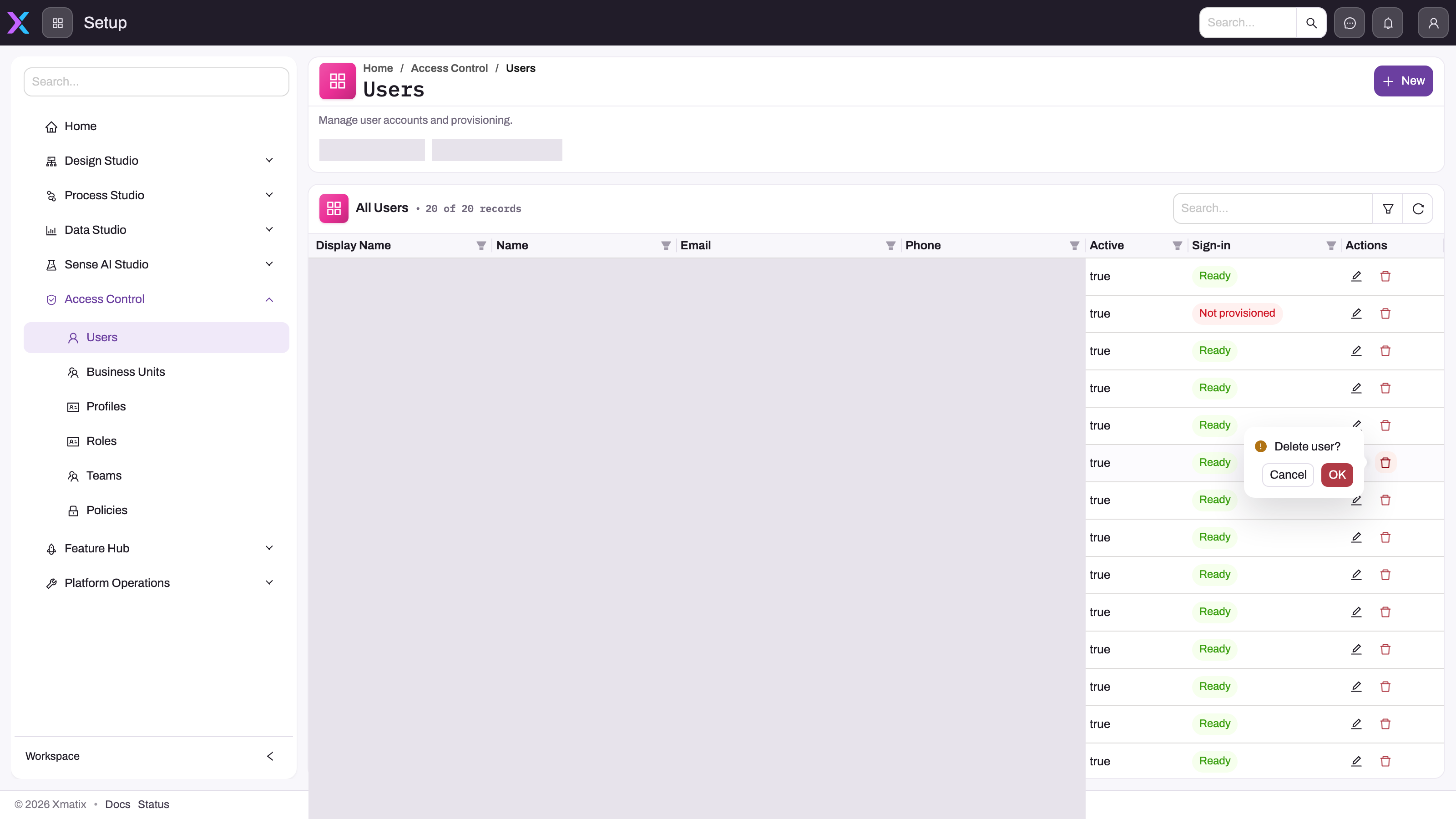
Go to Setup → Access Control → Users and find the row. In the Actions column, select Delete and confirm Delete user?. The toast Deleted confirms it, and the account leaves the list. The person's sign-in identity is not deleted.
Step 7 — Check the result
Refresh the Users list. Check that the account shows Inactive, or no longer appears if you deleted it. Make sure the people taking over can open the work you passed to them, that approval queues no longer point to the leaver, and that the revoked seats are free.
Reactivate a suspended user
Open the account and select Activate. To reactivate several accounts at once, select their rows in the Users list and choose Activate (n) in the page header. The dialog tells you whether a sign-in invite will be emailed. It can also give the users a security profile (only users who have none) and teams (only the ones they are missing). When you confirm, Status changes back to Active. If you removed seats or assignments while offboarding, add them back.
Business rules
- The inactive block applies to every request. Any request from an inactive account to the organization is refused. The only exceptions are the person's list of organizations and pages that need no sign-in.
- Saving the account applies the change right away. Saving a user account clears its cached details, so a change to Active applies from the next request.
- Sign-in actions are hidden for inactive accounts. You can't resend the invite, set a password, check the sign-in account or log in as an inactive user.
- Placeholders can't be activated. A placeholder user stands in for a user of an integrated system. To give it a sign-in, use Turn into login in the Users list instead.
- One account per email. You can't create a new user with the email of an existing account. The error is A user with the email … already exists: …. If that account is inactive, the message ends That user is inactive — activate it instead of creating another. To rehire someone, reactivate their old account.
- System accounts are protected. The Users screen offers no Edit or Delete for System Process, System Agent or System Anonymous.
- Seats are revoked only by hand. Deactivating or deleting an account doesn't revoke its seats.
Example
A field sales rep is going on six months' leave. Their manager is covering the territory.
- The administrator finds the rep in Setup → Access Control → Users and opens the account.
- They reassign the rep's 14 open leads and 3 open orders to the manager. A colleague named the rep as their Delegated approver, so they choose the manager there instead.
- On License Allocations, they revoke the rep's field sales product seat so a temporary hire can use it.
- They select Edit, clear Active and save. The header shows Status Inactive. From the next sync, the organization refuses every request from the rep's field app.
- Six months later, they open the account, select Activate, confirm, and give the rep the product seat again.
Training
Practice exercise
In a sandbox, create a test user with an email address you control and sign in as that user in a private browser window. Then, as an administrator, open the test user and clear Active. Go back to the private window and refresh.
Expected result: the test user sees Your user account is inactive in this workspace. Contact your administrator. and can no longer use the workspace. The test user's page shows Status Inactive and an Activate action. Select Activate, confirm, and refresh the private window. The test user gets back in.
Quick reference
- Clearing Active suspends access immediately, and Activate undoes it.
- Deactivating and deleting affect only this organization. Other organizations are not affected.
- Hand over open work and approvals first. Nothing moves automatically.
- Revoke seats on License Allocations. Deactivating or deleting doesn't revoke them.
- To rehire someone, reactivate their old account. Creating a new one with the same email is refused.
- Delete only when your policy requires it.
- System accounts can't be edited, deactivated or deleted.
Permissions
| Action | What you need |
|---|---|
| Edit an account, clear Active, Activate, Delete | setup.security.users.manage |
| See and revoke seats on License Allocations | setup.licensing.admin (you can always view your own seats) |
| Log in as user (active users only) | The log-in-as capability, with the feature switched on for your organization |
Common problems
"Your user account is inactive in this workspace"
The person's account is inactive in this organization. If they should have access, an administrator opens the account and selects Activate.
The person can still sign in after being deactivated
They can still sign in to the identity provider and see the organizations they belong to, but any organization where they are inactive refuses them. Make sure you deactivated the right account. Search the Users list by email: an older account may have a different username.
Seats are still counted against the license
Deactivating or deleting an account doesn't revoke its seats. Revoke them on the License Allocations tab (Step 3).
"A user with the email … already exists"
You tried to create a user for someone who already has an account. If the message says the user is inactive, open that account and select Activate. Otherwise, edit the existing account.
There is no Activate on the user's page
Activate appears only on an inactive account, for an administrator who holds setup.security.users.manage. Placeholders never show it; use Turn into login in the Users list instead.
Common questions
Should I deactivate or delete a leaver?
Deactivate, in most cases. Clearing Active blocks access as soon as you save, and you can undo it. The account stays on the Users list as Inactive, so the person can be rehired by reactivating it. Delete takes the account off the Users list, and you can't undo that from the Users screen. Either way, hand over the person's work and revoke their seats first, because neither action does that for you.
Does deactivating affect the person's other organizations?
No. Active is set separately for each organization. When the person signs in, they still see the organizations they belong to, and they can work in any organization where their account is active. Only this organization refuses them.
What happens to the records the person owns?
Nothing, automatically. Their records keep them as owner and creator. Hand over anything that still needs action before you deactivate the account, so that queues, follow-ups and record visibility based on the reporting hierarchy keep working.