
An incentive plan is the record that defines a sales-incentive programme: who takes part, over what timeframe, measured on what, and earning what. It is the starting point of the Rewards process. You create the plan, xMatix generates its periods and enrols its members, and you add the targets and reward slabs. Once the plan is Approved, sales documents accrue performance against it, and the incentive engine turns each member's performance into a compensation line for each period.
Overview
A plan answers four questions:
- Who. The plan's Member Type decides what kind of member it rewards: your own people (Resource), partner accounts (Partner), branches (Branch) or customer contacts (Customer). Each member is an Incentive Resource row on the plan.
- When. Period Start Date, Period End Date and Period Type set the plan's window and how it is sliced. Each slice is an Incentive Period, and targets, performance and pay are all kept per period.
- Measured on what. An Incentive Target names the measure, such as sale amount or number of sale orders, or a KPI configuration. Each member's quota for a target and a period is an Incentive Resource Target.
- Earning what. An Incentive Line groups targets under a qualification rule and carries the compensation slabs that state the reward.
When to use it
Use an incentive plan whenever pay or rewards depend on measured performance over a period. Examples are a monthly sales-value incentive for field reps, a quarterly volume target for partner accounts, or a branch contest. If a discount or free goods depend on what a customer buys, use a trade scheme instead. Schemes reward the buyer on a document, while incentive plans reward the seller over a period.
How xMatix handles it
- Periods are generated when you first save the plan, and never again. Changing the dates later creates no new periods.
- Members are enrolled automatically for Resource, Partner and Branch plans. Customer plans are filled by hand.
- Quotas can be generated from a target's Value, or typed per member.
- Nothing is measured until the plan is Approved. Performance accrual and the incentive engine both ignore plans in any other status.
- The plan's scope fields lock once the plan has members or targets.
Prerequisites
- Access to the Rewards app, and a security profile that can create Incentive Plan records (see Permissions).
- For a Resource plan: active Resources for your people. To enrol only one kind of resource, set the Type or Resource Type on those resources to match the plan's Member Resource Type.
- For a Partner plan: active accounts flagged as partner accounts. For a Branch plan: active branches.
- At least one KPI configuration if you want to measure something the built-in target types do not cover.
Procedure
Step 1 — Create the plan
- Open the Rewards app and open the Incentive Plan list from the app menu. The list opens on the All Incentive Plans view. It shows Name, Period Type, Member Type, Member Resource Type, Period Start Date, Period End Date, Status and Created By.
- Click New. The form has four sections:
- Details: Member Resource Type, Member Type and Status.
- Compensation Eligibility: Compensation Eligibility and Compensation Eligibility Formula.
- Period Definition: Period Start Date, Period End Date and Period Type, all required.
- Resource Member Filters: Member Resource Type. This is the same field as in Details.
- Choose the Member Type. Choose Resource, Partner or Branch. Member Type is optional on the form, but a plan without one enrols nobody and scores nothing. The picklist also offers Dealer and Role, but the engine does not recognise these values. A plan with either of them enrols no members, and its members never accrue achievement.
- For a Resource plan, you can choose a Member Resource Type to enrol only resources of that type. Leave it empty for any other member type, because saving fails if it is set when Member Type is not Resource.
- Enter the period dates and choose a Period Type.
- Leave Status empty or set it to Draft while you build the plan.
- Click Save.
The plan gets its number (Name) from the incentive plan document name setting, and the record page opens. The page header shows Name, Member Type, Period Type and the period dates. Below the header are the status bar and four tabs: Related, Targets by Resources, Targets by KPI and Compensations. The seeded record page has no Edit button, so check the period dates and Member Type before you save.
Step 2 — Check the periods
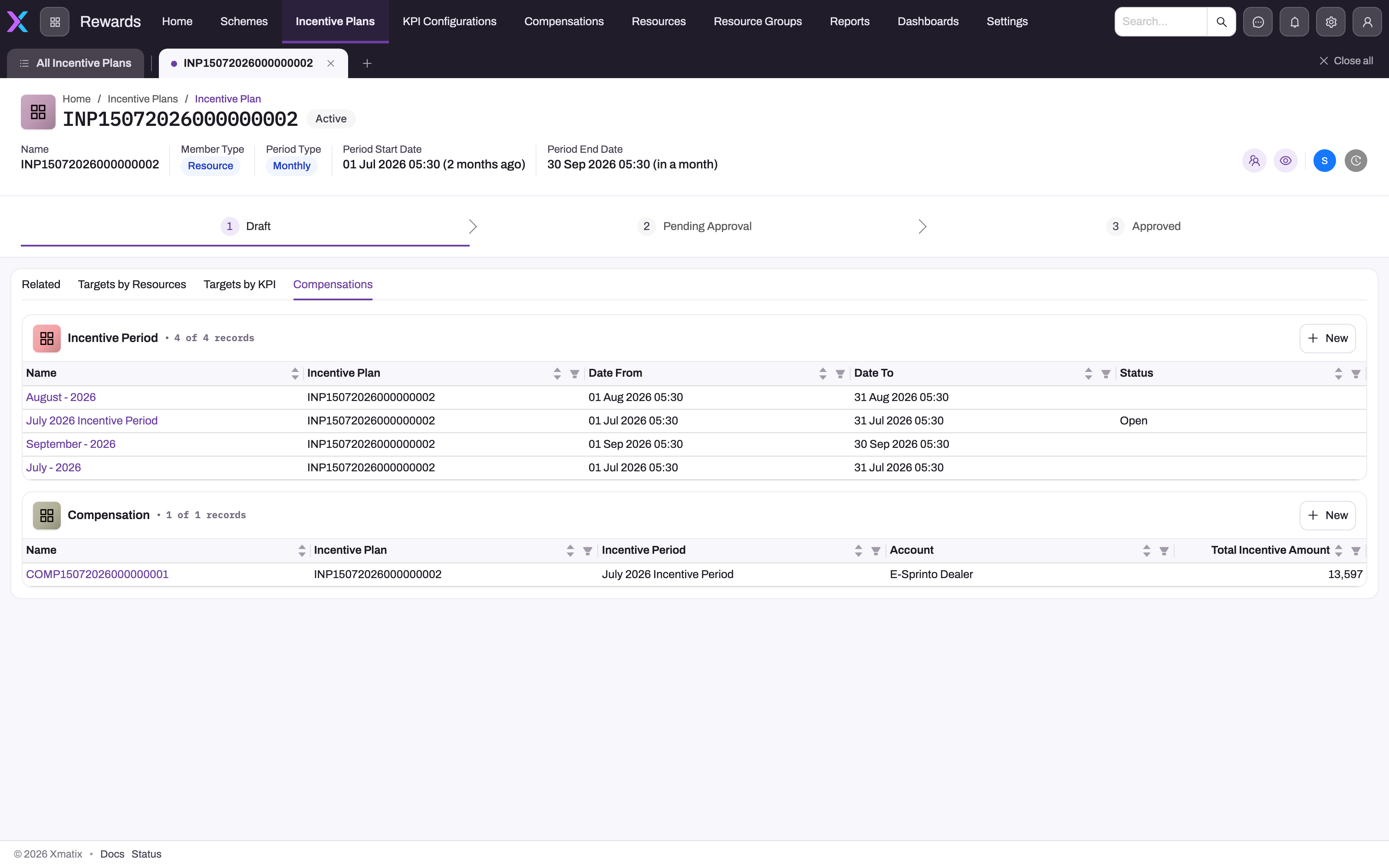
Open the Compensations tab. The Incentive Period list shows one row per generated period, with Date From, Date To and Status. How the window is cut depends on the period type:
| Period Type | Periods generated |
|---|---|
| Yearly | One period from the start date to the end date, however long that is |
| Quarterly | Three-month blocks starting on the first day of the start month, not calendar quarters |
| Monthly | One per calendar month, from the first of the start month to the end of the end month |
| Weekly | Monday-to-Sunday weeks, starting with the week that contains the start date |
| Bi Weekly | Two-week blocks aligned to Monday in the same way |
| Daily | One per calendar day, including weekends and holidays |
Monthly periods are named after the month (for example May - 2026). Yearly and Quarterly periods are named after their first and last months, Weekly and Bi Weekly periods after their first and last dates, and Daily periods after the day. The seeded Period Type picklist offers Weekly, Monthly and Yearly. Quarterly, Bi Weekly and Daily are generated only if an administrator adds them to the picklist.
Nothing regenerates periods when the window changes later. The seeded New on that list cannot create a usable period, because its form has no Name or dates. Import the missing periods instead, as described in Incentive periods. Click a period's name to open its record page, where its compensation is processed.
Step 3 — Confirm the members
Saving a new Resource, Partner or Branch plan queues a background job, Enrol incentive plan members. Within a short time the Incentive Resource list on the Related tab fills with members:
- Resource plans enrol every active resource. If Member Resource Type is set, only resources whose Type or Resource Type matches it are enrolled. Each member also records the resource's default partner account and branch.
- Partner plans enrol every active account flagged as a partner account.
- Branch plans enrol every active branch, and each member records the branch's partner account.
Customer plans are never enrolled automatically, because their members are contacts. To add a member by hand, click New on the Incentive Resource list. Fill Resource, Partner Account, Branch or Contact to match the plan's member type, then save.
Enrolment only ever adds members, and it never adds anyone twice. Resources, partners or branches created later are not picked up on their own (see Configuration). Each member is named with a generated INRE number, and the new-member form's Resource Name box is not saved. Plan members covers the member record, adding and removing members, and how each member is matched to performance.
Step 4 — Add incentive lines, targets and slabs
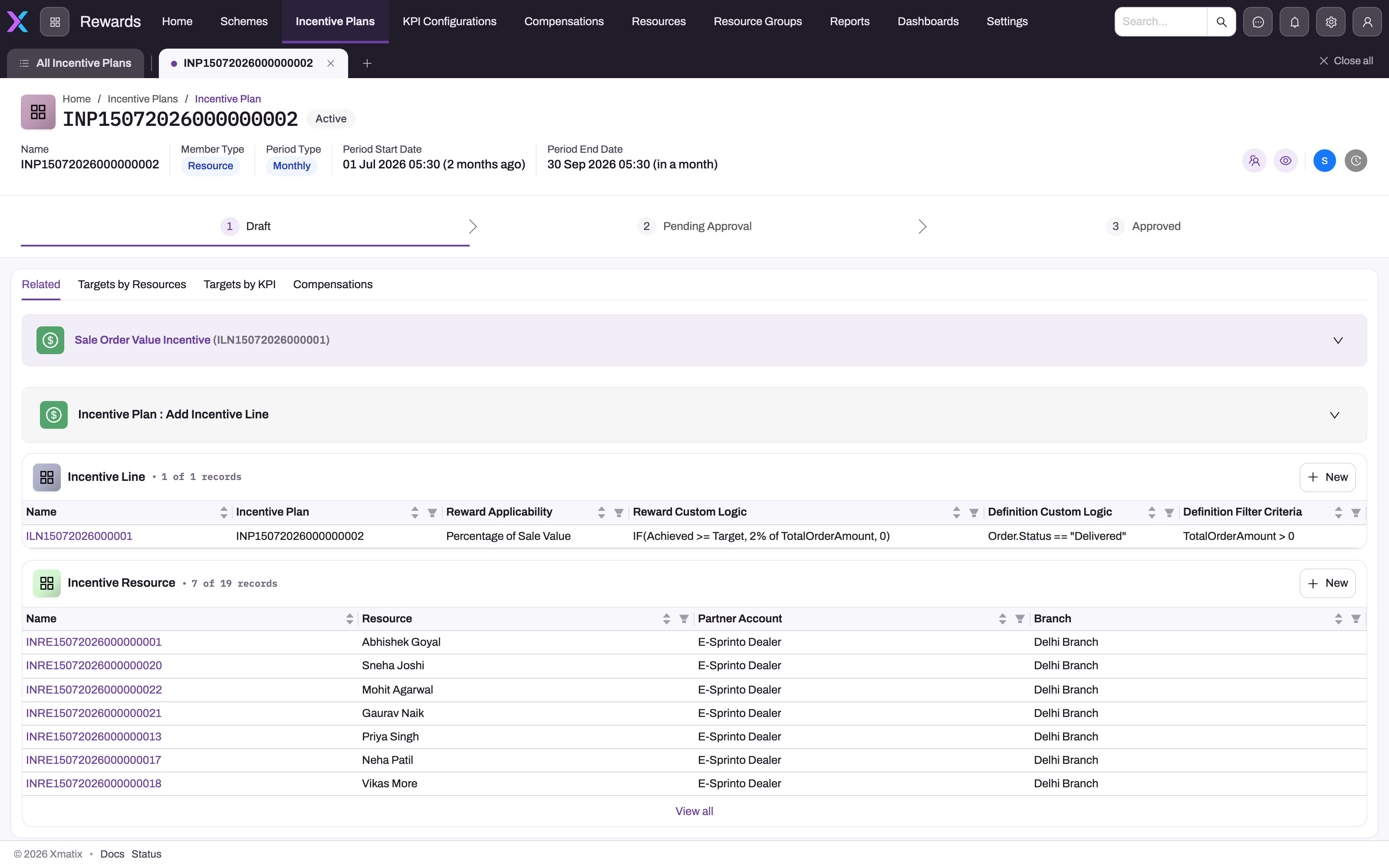
The top of the Related tab is the plan's line builder. It has one collapsible panel per incentive line, plus a panel for adding a new line.
- In the add-line panel, enter a Sequence Number and an optional Title.
- Choose the Definition Filter Criteria (how the line's targets combine) and the Reward Applicability (how its qualifying slabs combine). Both are required. See Business rules for what each value does.
- Click Save. The new line appears as a panel.
- In the line's panel, click Condition (the button with a plus sign) to add a target. Fill in the following, then save the row with its save icon:
- Incentive Target Type: required.
- KPI Configuration: optional.
- Operation: optional.
- Target Value Type: optional.
- Value: the row shows this box only for Fixed Value, Value Across Periods or an empty Target Value Type. For Value Across Resources, enter the Value on the target's record page afterwards.
Item, item group and account filters, Value Percentage and Custom KPI Field Name are not in the row. Set them on the target's record page, as described in Incentive targets.
- Click Reward (also with a plus sign) to add a slab: an achievement band and the reward it pays. The slab fields are described on the Compensation page.
The Incentive Line list below the panels lists the plan's lines, and New there opens the Incentive Line form. Incentive lines covers editing and deleting lines, the Incentive Line form, and every line field.
Step 5 — Set each member's quotas
Every member needs a quota (an Incentive Resource Target) for each target and period, or they cannot qualify. There are two ways to get them. Member quotas covers both in full, with imports, regeneration and the grid's limits.
- Generated quotas. Set the target's Target Value Type to one of the following, and enter a Value greater than zero:
- Fixed Value: every member gets the Value in every period.
- Value Across Periods: each member gets the Value divided by the number of periods.
- Value Across Resources: each member gets the Value divided by the number of members.
Divided quotas are rounded to two decimals.
Saving the target queues the Generate incentive target quotas job, which writes one quota per member per open period. The quotas regenerate on their own when the target's Value, Target Value Type or KPI Configuration changes, and when members are added or removed.
- Hand-entered quotas. With Resource Target, Resource Target Last Period or Resource Target Percentage, or with no Target Value Type, nothing is generated. Quotas then come from a data import of Incentive Resource Target rows (target, member, period and Value).
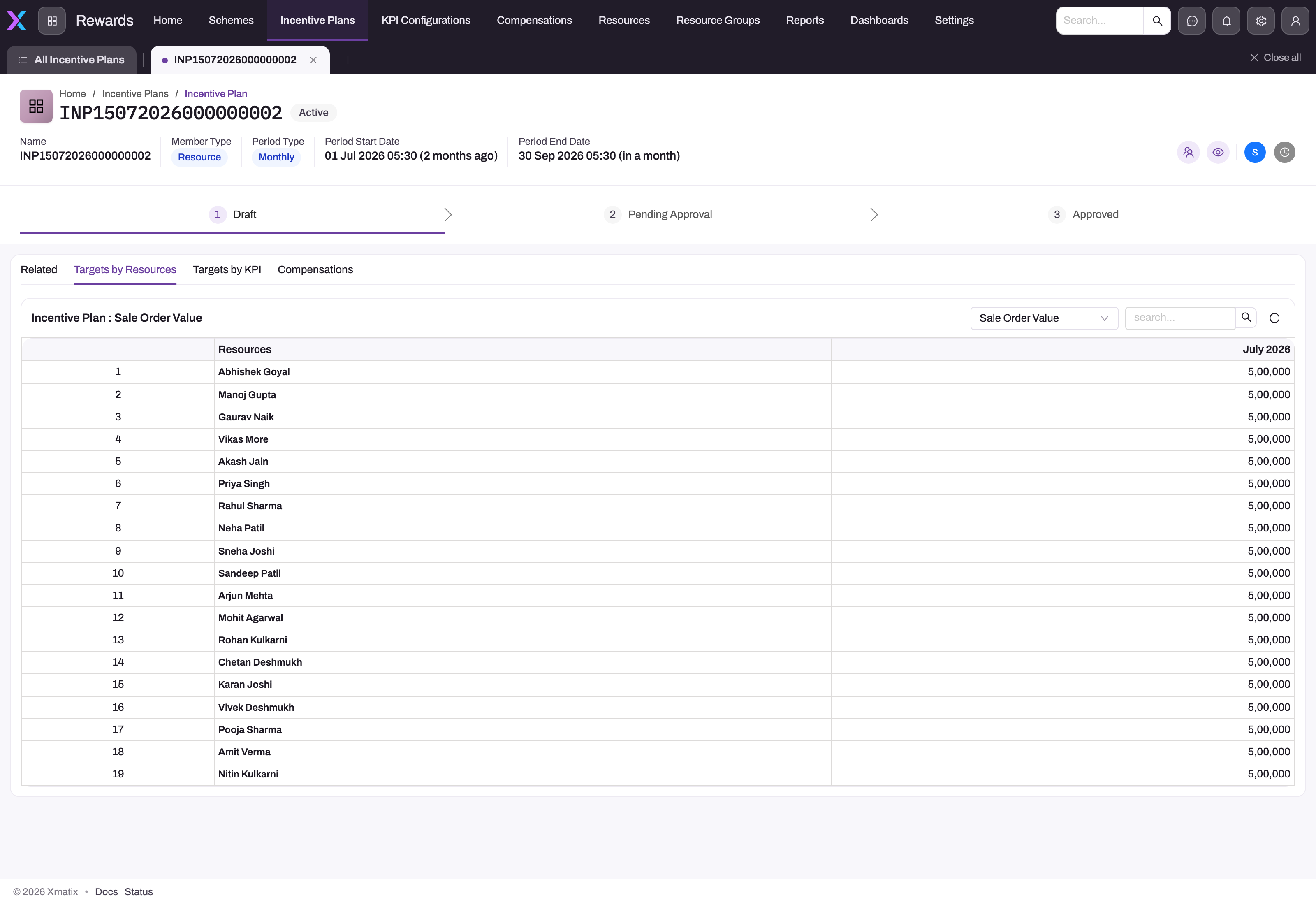
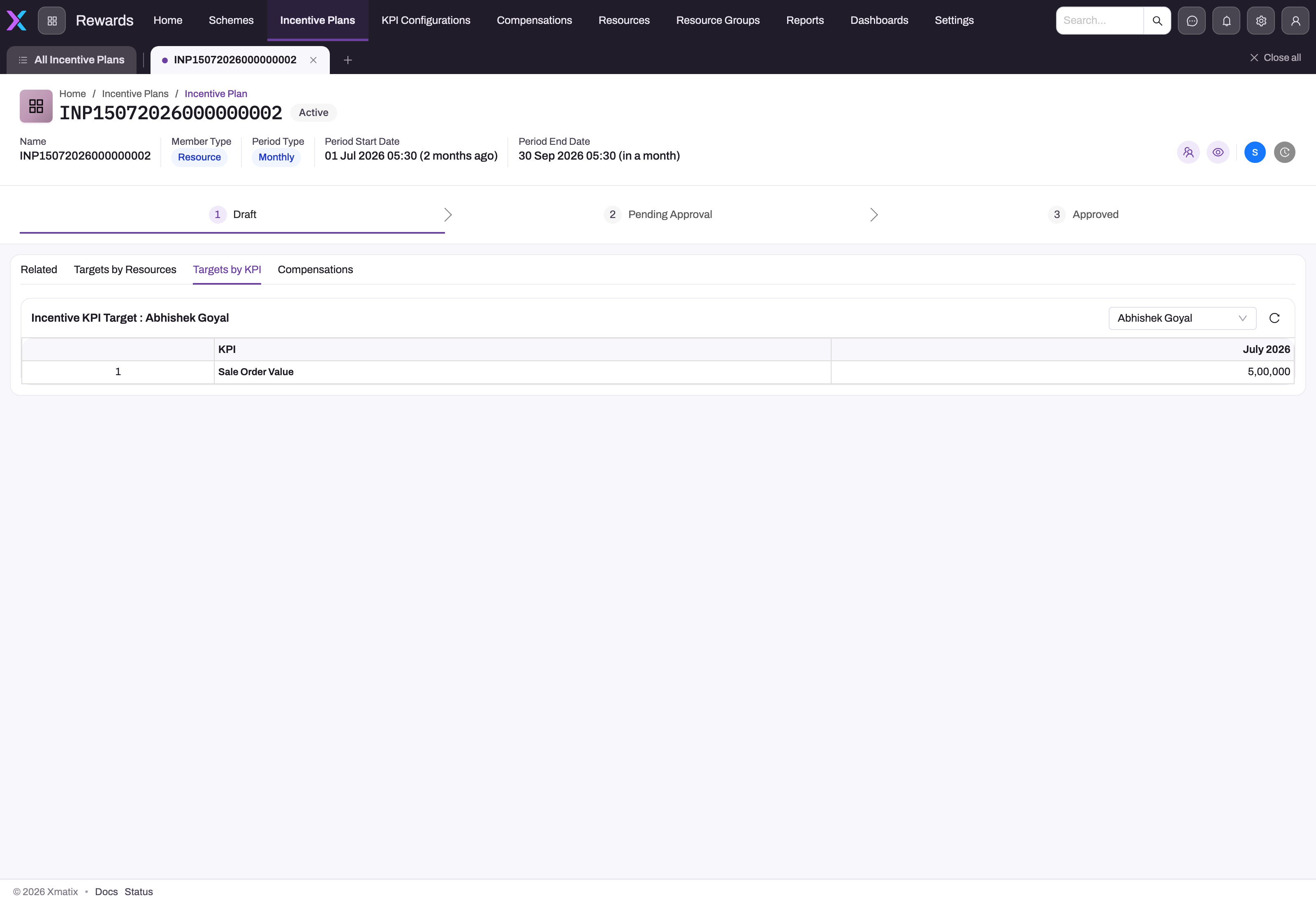
To review or adjust quotas, open Targets by Resources and pick a KPI configuration in the drop-down. The grid lists members down the side and periods across the top. Click a cell, type the new value, then click Save (n). The button counts your pending changes, and nothing is written until you click it. A cell showing — has no quota row and cannot be typed into. The grid edits existing quotas only. Targets by KPI shows the same quotas for one member at a time. Pick the member in the drop-down, and each KPI configuration becomes a row.
Step 6 — Approve the plan
When the members, lines, targets, slabs and quotas are complete, move the plan to Approved. Click the next stage in the status bar under the page header. You can move one stage forward at a time, and you can always move back. If a change is refused, the bar returns to the previous stage and shows Could not update status.
From the moment the plan is Approved:
- sales documents accrue performance against it, through KPI configurations or Performance KPI records;
- the incentive engine scores its compensation lines;
- for a Partner plan, the partner portal's targets are refreshed from the plan (see Business rules).
Moving a plan back out of Approved stops all three.
Step 7 — Process each period's compensation
At the end of a period, produce the members' compensation. Process Compensation on the Incentive Period does this in one step. It creates or refreshes the period's Compensation record and one Compensation Line per member, scores every line, totals the header and sets the period's Status to Calculated. In the seeded layouts this button is not on the period page (see Configuration). Without it, create the Compensation and its lines by hand from the Compensations tab. Saving each line scores it. The full routine is in Running an incentive cycle.
Fields
Incentive plan
| Field | What it means | Notes |
|---|---|---|
| Name | The plan number | Generated on save from the Incentive Plan document name setting (series INP). Read-only |
| Member Type | What kind of member the plan rewards | Picklist: Branch, Dealer, Partner, Resource, Role. The engine recognises Resource, Partner, Branch and Customer. Customer is not in the seeded picklist, and a Customer plan scores only targets linked to a KPI configuration, matched on the member contact's account. Locks once the plan has members or targets |
| Member Resource Type | Enrols only resources of this type | Picklist: Service Advisor (add your own values). Matched against the resource's Type or Resource Type. Only allowed when Member Type is Resource. Locks once the plan has members or targets |
| Status | Where the plan is in its life | Picklist: Draft, Pending Approval, Approved. No default. Only Approved plans accrue performance or are scored. No approval process is seeded, so anyone who can edit the plan can approve it |
| Compensation Eligibility | How the amounts of several qualifying incentive lines combine | Picklist: Any One Max (pay the largest line amount), Any One Min (pay the smallest), Formulae. Empty and Formulae add the line amounts together |
| Compensation Eligibility Formula | A formula to go with the Formulae option | Stored but not evaluated. Formulae behaves like empty |
| Period Start Date | First day of the plan's window | Required. Sets where the first period starts |
| Period End Date | Last day of the plan's window, inclusive | Required. xMatix does not check that it is after the start date. If it is earlier, no periods are generated (a Yearly plan gets one period with inverted dates) |
| Period Type | How the window is cut into periods | Required. Picklist: Weekly, Monthly, Yearly (the engine also generates Quarterly, Bi Weekly and Daily). Weekly, Bi Weekly and Daily plans may span at most one year. Locks once the plan has members or targets |
The plan also has fields that are on no seeded form:
- three Account lookups: a customer account, a partner account and a supplier account;
- two Account Group lookups: a customer group and a partner group;
- Branch, Resource Group, Business Hours, Copy Source Targets and Incentive Plan (the source plan).
They can be set only by import, or by an administrator who adds them to the layouts. Their effects are listed under Business rules and on the entity reference.
Incentive target (a condition on a line)
The fields in the line builder row are listed below. Incentive targets covers every field on the target's record page, including the item and account filters.
| Field | What it means | Notes |
|---|---|---|
| Incentive Target Type | The measure | Required. Without a KPI configuration, only some picklist values count anything. Sale Invoice Quantity and Custom KPI, for example, count nothing on their own. See What each target type counts |
| KPI Configuration | Scores the target from a KPI configuration's data instead | When set, the target type is not used for measuring. Also groups the target's quotas in the Targets grids |
| Operation | A pass/fail gate on the achieved value | Applies only to targets with a KPI configuration. Picklist: Equals, Not Equals, Greater Than, Greater or Equal, Less Than, Less or Equal |
| Target Value Type | Where the members' quotas come from | Picklist: Fixed Value, Value Across Periods, Value Across Resources, Resource Target, Resource Target Last Period, Resource Target Percentage. Only the first three generate quotas |
| Value | The amount used to generate quotas | For a target with a KPI configuration, it is also the quota for any member who has none |
| Value Percentage | Scales the target | Applies only to targets with a KPI configuration |
Business rules
- Approved only. Performance accrual and the incentive engine read only plans whose Status is Approved. A Draft or Pending Approval plan, however complete, pays nothing.
- Period generation. Periods are generated once, when the plan is first saved. A plan saved with a Period Type that has no generator gets no periods. Weekly, Bi Weekly and Daily plans longer than one year are refused.
- Locked fields. Once the plan has members or targets, these fields can no longer be changed: Member Type, Member Resource Type, Period Type, Branch, the partner Account and the partner Account Group.
- Partner Account Group is exclusive. A plan cannot have both a partner Account Group and a partner Account, or a partner Account Group and a Branch.
- Enrolment. Enrolment runs after a new plan is saved, and again whenever Member Type, Member Resource Type, Resource Group, the partner Account or the partner Account Group changes. Resource Group limits a Resource plan to that group's members. The partner Account and partner Account Group limit a Partner plan to those partners, and a Branch plan to their branches. Enrolment only adds members that are not on the plan yet. If you delete a member who still matches the plan, the next enrolment run adds them back. To keep someone out, change the filters or make the resource inactive.
- Quota generation. Quotas are written only for open periods. Periods with Status Approved or Posted are never changed. A quota you edit by hand on a generated target is overwritten at the next regeneration. Duplicate quotas for the same member, target and period are removed, because the engine would add them together.
- Scope during accrual. When the plan's customer, partner or supplier Account, either Account Group, or Branch is set, only documents that match it accrue performance against the plan. The incentive engine itself does not read these fields.
- Scoring a target. Achievement is the reached value divided by the member's quota, times 100, rounded down to a whole percent. A member with no quota, or a quota of zero, scores nothing. A target with a KPI configuration is the exception: it falls back to the target's Value. The line's slabs are checked in sequence order, and the first slab whose band contains the percentage qualifies.
- Definition Filter Criteria decides when a line qualifies:
- All Conditions Are Met: every target must qualify.
- Any Condition Is Met: one qualifying target is enough.
- Custom Logic Is Met: uses Definition Custom Logic, such as
{1} AND {2} OR {3}, where{N}is the Nth target in sequence order.ORsplits first, so this reads as (1 and 2) or 3. Spaces around AND and OR are required, and brackets are not supported. - Always (No Criteria): qualifies the line without checking its targets. No slab qualifies that way, so such a line pays nothing.
The seeded picklist has the first two values.
- Reward Applicability combines a line's qualifying slabs. Any One With Highest Value pays the largest and Any One With Lowest Value the smallest. All Rewards, Custom Logic and empty add them together (Reward Custom Logic is not evaluated).
- Compensation Eligibility then combines the amounts of the plan's qualifying lines in the same way: Any One Max, Any One Min, or otherwise the sum.
- Partner portal targets. Every save of an Approved Partner plan refreshes the partner portal's targets from the plan. Only targets whose type is an ordered or invoiced amount or quantity are carried across. When the plan leaves Approved, those targets are deactivated. Edits to lines or targets alone do not refresh the portal until the plan itself is saved again. See Partner portals.
- Unused fields. Copy Source Targets copies nothing. Saving with it ticked only clears it. Business Hours does not skip non-working days.
Example
Your company pays its field reps a monthly incentive on invoiced sales for the financial year.
- An administrator creates an Incentive Plan with these settings, and saves it as Draft:
- Member Type Resource
- Member Resource Type empty
- Period Start Date 1 April 2026 and Period End Date 31 March 2027
- Period Type Monthly
The Compensations tab shows twelve periods, from April - 2026 to March - 2027. A few moments later, the Incentive Resource list shows all forty active reps.
- On the Related tab, they add line 1, "Monthly sales", with All Conditions Are Met and All Rewards. They then add a condition: Incentive Target Type Sale Amount, Target Value Type Value Across Periods, Value 1,200,000.
- They add two rewards: 80% to 99% pays a Fixed Amount of 5,000, and 100% and above pays a Fixed Amount of 10,000.
- Targets by Resources now shows 100,000 for each rep in each month (1,200,000 ÷ 12). One senior rep should carry 150,000, so the administrator types 150,000 in that rep's cells for each month and clicks Save (12). A later regeneration of the target, for example when a new rep joins, would reset those cells to 100,000.
- They move the plan to Pending Approval, and the sales head moves it to Approved.
- In May, a rep with a 100,000 quota invoices 92,500. When May is processed, achievement is 92%. The first slab qualifies, and the rep's compensation line shows 5,000.
Training
Practice exercise
In a sandbox, create a Monthly Resource plan for the current quarter and save it as Draft.
- Check that the Compensations tab lists three periods, and that the Incentive Resource list fills with your active resources.
- Add one line with Any Condition Is Met and All Rewards.
- Add one condition: No Of Invoices, Target Value Type Fixed Value, Value 10.
- Add one reward band from 100% with a Fixed Amount.
Expected result: Targets by Resources shows 10 for every member in every period. Changing one member's cell and saving persists the new value after a refresh. The plan pays nothing until you move it to Approved.
Quick reference
- Only Approved plans accrue or pay.
- Periods are generated once, at the first save. Add later periods by hand.
- Resource, Partner and Branch members are enrolled automatically. Customer members are added by hand.
- Member Type, Period Type, Member Resource Type and the scope fields lock once the plan has members or targets.
- Fixed Value, Value Across Periods and Value Across Resources generate quotas. Other target value types need quotas imported.
- Dealer and Role member types score nothing.
- A quota of zero, or no quota, never qualifies.
- Custom logic numbers targets from
{1}in sequence order.
Permissions
Incentive Plan, Incentive Line, Incentive Target, Incentive Resource, Incentive Resource Target and Incentive Period records follow the entity permissions on each security profile. In the seeded profiles, Sales Executive, Sales Manager, Standard User and System Admin have full access (read, create, edit and delete) to all six.
- Approval. No seeded approval process or permission restricts who can set a plan to Approved. Anyone who can edit the plan can approve it. If only managers should approve plans, or if reps should not be able to edit their own quotas, reduce the Sales Executive and Standard User profiles to read-only on these entities.
- Process Compensation. This server action on Incentive Period is granted only to System Admin in the seeded profiles. Grant it on the Actions tab of any other profile that needs it.
- Without access. A user with no read access to Incentive Plan does not see the plans in the Rewards app.
Configuration
- Picklists. Several useful values are missing from the seeded picklists:
- Period Type: Quarterly, Bi Weekly and Daily.
- Member Type: Customer.
- Incentive Line's Definition Filter Criteria: Custom Logic Is Met and Always (No Criteria).
Add any you need on each field's picklist in the entity's field settings, spelled exactly as shown. Remove or deactivate Dealer and Role on Member Type if you don't want users to pick values that score nothing.
- Plan numbering. The plan number comes from the Incentive Plan Document Name Setting (series INP).
- Header buttons. The seeded Incentive Plan record page lists no header actions, so Edit, Clone and the other actions do not appear. To let users change a plan's header after saving, add the actions you want to the page header of the Incentive Plan View layout, as described in Design a form layout. The Create Incentive Line, Create Incentive Target and Create Compensation Slab actions have no server behaviour, so leave them out. Clone copies only the plan header and keeps its Status.
- Process Compensation button. Add ProcessCompensation to the page header of the Incentive Period View layout, and grant the action to the profiles that run incentives.
- Enrol members on demand. Enrolment runs only on a new plan or a filter change. To pick up resources, partners or branches created later, you have two options:
- Add an entity action named EnrolMembers (server action EnrolMembers) to Incentive Plan, and place it on the plan's page header. See Entity behaviour. It reports how many members it enrolled and how many were already there.
- Run the Enrol incentive plan members job from Setup → Platform → Monitoring → Jobs.
- Regenerate quotas on demand. After adding a period by hand, regenerate each generated target. Add an entity action named GenerateResourceTargets to Incentive Target, or run the Generate incentive target quotas job from the Jobs screen.
- Background jobs. Enrol incentive plan members and Generate incentive target quotas both appear under Setup → Platform → Monitoring → Jobs. Each run's summary says how many members or quotas it added, updated or skipped, and why.
- Measures. To score a target on any field of any record, set up a KPI configuration and link it to the target.
Common problems
"Resource type can only be selected when member type is Resource."
You set Member Resource Type on a plan whose Member Type is Partner, Branch or another value. Clear Member Resource Type, or change Member Type to Resource.
"Period should not be more than 1 year for daily, weekly and bi-weekly period types."
A Weekly, Bi Weekly or Daily plan may span at most one year. Shorten the window, or use Monthly or Yearly and run a second plan for the next year.
"Key fields are not editable once the related objects are added."
The plan already has members or targets, so Member Type, Member Resource Type, Period Type, Branch and the partner Account and Account Group are locked. Create a new plan with the right settings.
"Either Partner Account Group or Partner Account can be selected."
An imported or customised plan has a partner Account Group together with a partner Account or a Branch. Keep only one of them.
The plan has no periods
The Period Type had no generator when the plan was first saved, or the end date was before the start date. Periods are never regenerated, so import the Incentive Period rows (see Incentive periods), or create the plan again.
The Incentive Resource list stays empty
Check the following:
- The Member Type is Customer, Dealer, Role or empty. Customer members are added by hand, and Dealer and Role have no enrolment.
- No active record matches. For example, Member Resource Type is set and no active resource has that Type or Resource Type.
- The enrolment job failed. Look for Enrol incentive plan members on the Jobs screen.
Targets by Resources shows dashes or misses a member
A dash means there is no quota row for that member and period, and the grid cannot create one. Check the following:
- The target's Target Value Type is Fixed Value, Value Across Periods or Value Across Resources, and its Value is greater than zero.
- Otherwise, import the quotas.
- The drop-down lists only KPI configurations that have quotas. Give each target its own KPI configuration so the grid can separate them.
The plan is complete but pays nothing
Check these in order:
- The Status is Approved.
- The member has a non-zero quota for that target and period.
- The target type is one the engine measures, or the target has a KPI configuration.
- Performance has accrued for the plan and period.
- The achievement falls inside a slab band.
- The line is not set to Always (No Criteria).
The troubleshooting page has the full checklist.
Common questions
Can different members have different targets in the same plan?
Yes. The target defines the measure once, and each member has their own quota per period. Achievement is always a percentage of that personal quota, so two reps with quotas of 100 and 200 both reach 100% by hitting their own number. Generate equal quotas first, then type the exceptions into Targets by Resources. Remember that a later regeneration resets edited cells on a generated target. If many members have individual quotas, use Resource Target and import the values.
What happens when someone joins the team mid-year?
A new resource is not added to an existing plan on its own. Add them with New on the Incentive Resource list, or run the enrolment again (see Configuration). On a target that generates quotas, the new member gets quotas for every open period. With Value Across Resources, everyone's quota is recalculated, because the Value is now divided among more members.
Can I change the period type after the plan is live?
No. Periods are generated when the plan is first saved, and once the plan has members or targets, its Period Type is locked. Member Type and the scope fields lock at the same point. To move from monthly to quarterly, create a new plan.
Does Copy Source Targets copy the quotas from another plan?
No. Saving with the box ticked clears it and copies nothing. Generate quotas from the target's Target Value Type, or import Incentive Resource Target rows with Data import.
Does the Insurance Scheme field on a target filter what is counted?
No. The incentive target form has an optional Insurance Scheme lookup, and compensation lines carry the same field, but the engine does not read it. A target tagged with a scheme sums exactly the same records as one without, and the engine never fills the field on the compensation lines it writes. Treat it as a label for your own reporting. An insurance scheme record holds only a Name and the Insurer's Scheme Name, with no rates or cover terms. No seeded app lists insurance schemes, so an administrator who wants to maintain them adds the entity to an app first (see Create an entity). To measure insurance business separately, use the target's type and filters.