
A layout is the form an entity renders — which fields appear, in what sections, with which widgets and buttons. Each entity can carry several: one for creating a record, one for viewing it, variants per record type, and a separate body for the phone. This page shows how to create and design a layout, and how xMatix decides which layout actually opens. Most "wrong form" reports are selection problems, not design problems.
Overview
Layouts belong to an entity and are managed on the entity's Layouts tab in Setup. Every layout row has a Layout Type, a Platform, an optional Record Type, and Active and Default Layout switches. Its body is designed in the visual designer: Web Design for the browser, Mobile Design for the field app. The same list also shows the entity's print templates, which are a separate kind of row (see Business rules).
There are four layout types:
| Layout Type | Where it is used |
|---|---|
| Create | The New dialog, and the Edit dialog that opens a record as a form. |
| View | The record page, including editing in place on that page. |
| Preview | The compact preview panel. |
| Action | A form opened by an entity action that names the layout. It is never picked automatically. |
When to use it
- An entity has no form yet, or its New dialog says No form is set up.
- Users need fewer, more or differently arranged fields than the shipped form.
- One entity needs a different form per record type, per app, or on the phone.
- A shipped (Standard) layout needs changes. Clone it and edit the copy.
How xMatix handles it
When a user opens a form, xMatix picks one layout. The rules on the web are:
- A binding on the entity's Defaults tab wins. If Experience → Defaults names a layout for the slot being opened (New, Edit, Detail or Preview) and that layout is active and usable on the web, it opens. The binding counts even if the bound layout has a different Layout Type.
- Otherwise the layouts are filtered. Only active layouts whose Platform is Web or Both take part, and only those of the requested Layout Type. If no View layout exists, any active layout is used for the record page. A Create form never borrows another type. With no Create layout, the New and Edit dialogs say No form is set up for … and tell users that an admin must create a Create layout.
- The record type narrows the choice. If layouts exist for the record's own record type, only those take part. If none do, layouts with no record type take part. If neither exists, every layout of the type stays in the running.
- Default Layout breaks the tie, and a layout with a designed body beats an empty one. A Default layout with an empty body still beats a non-default layout with content.
The field app follows the same idea with its own pool. It uses layouts whose Platform is Mobile or Both and that have a mobile body, and hidden layouts are skipped. A Defaults binding for the Mobile or All platforms comes first. After that, an exact record-type match wins, then the Default layout, then the first one found. On the phone, a missing Create layout falls back to the View layout, unlike the web. If an entity has no mobile layout at all, the app builds a read-only record page from the entity's fields.
Two other rules apply wherever a form opens:
- The layout proposes; security decides. Field-level security and required flags from the data model apply whatever the layout shows.
- Default values on a Create layout fill empty fields when the New form opens. They are not applied when an existing record is edited.
Prerequisites
- The Manage model setup capability (
setup.metadata.model.manage) is required for layouts, record types and Defaults. Print templates also need the Manage document templates capability (setup.metadata.documenttemplates.manage). - The entity and its fields exist. The designer places fields; it does not create them. See create a custom entity.
- Record types exist before you create a variant (entity → Record Types). A layout's record type cannot be changed later.
- If a button on the form should run behaviour, the entity action exists first (entity → Logic → Actions).
Procedure
Step 1 — Open the entity's layouts
Go to Setup → Design Studio → Entities, open the entity, and choose Experience → Layouts. The All Layouts table lists every layout, with these columns: Name, Label, Source (Standard for shipped rows, Custom for your own), Record Type, Type, Platform, Description, Default, Active, Hidden, Created and Modified. Use search, the column filters and refresh to find the row you need. Filtering Type and Active together shows quickly what can be selected for a form.
Step 2 — Create the layout row
Click New in the page header. If you can also manage print templates, New is a menu; choose Layout. In the New Layout dialog, fill in:
- Label (required) and the internal Name, which is generated from the label and can be edited before you save.
- Layout Type: View, Create, Preview or Action. It defaults to View.
- Platform: Web, Mobile or Both. It defaults to Web.
- Record Type, only if this layout is a variant for one record type. Leave it empty for the general layout.
- Description, Active (on by default) and Default Layout (off by default).
For a Create layout, the dialog also has a Default values section (see Step 6). Click Create. A confirmation shows the layout's name, and the row appears in the table.
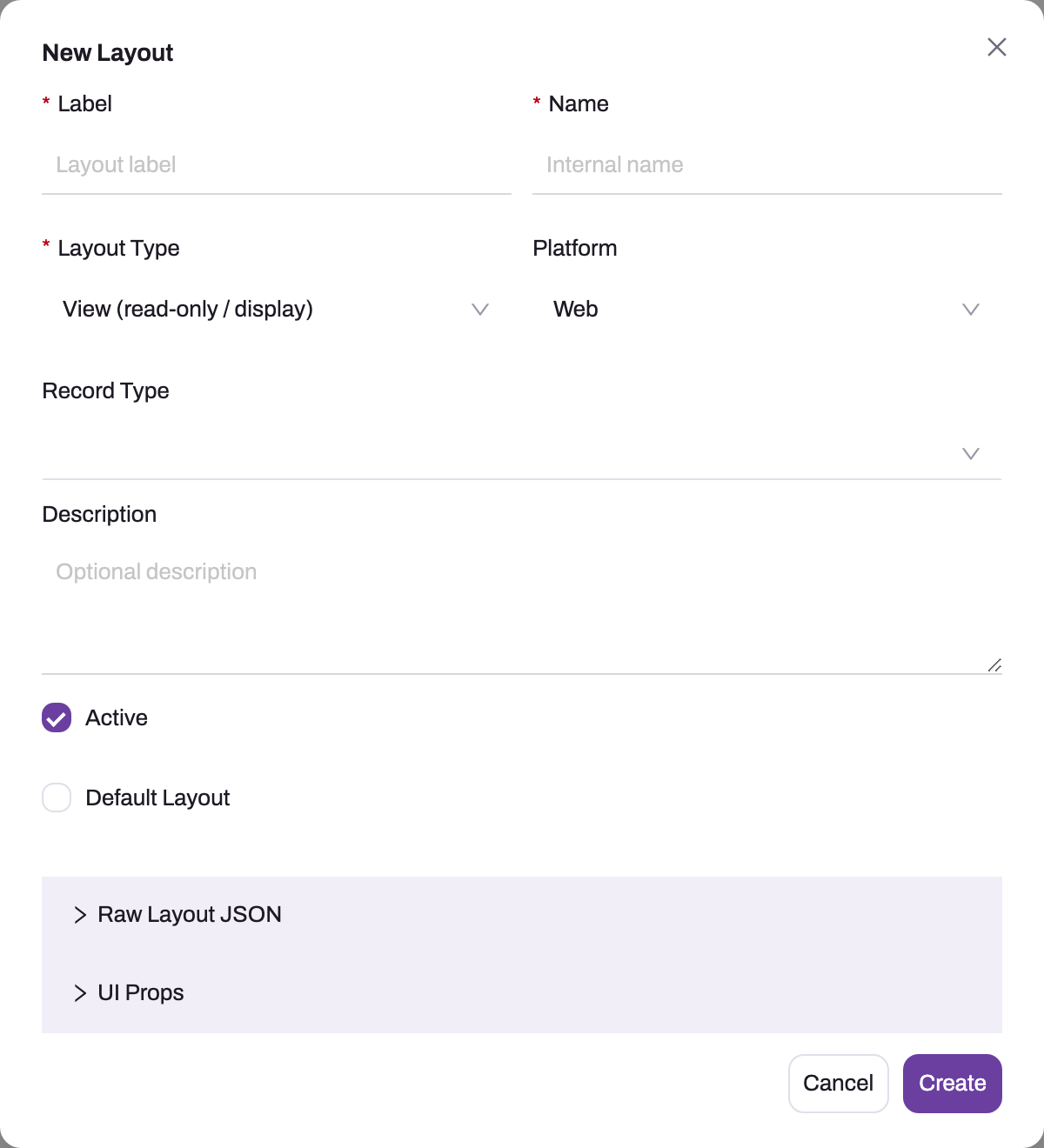
- 1
Label and Name identify the layout; the internal name becomes immutable after creation.
- 2
Layout Type selects Create, View, Preview or Action behavior.
- 3
Platform determines whether web, mobile or both can select the layout.
- 4
Record Type optionally scopes the layout to one record variant.
- 5
Default Layout makes this row the preferred match for its type and scope.
Design the row in the same sitting. A new row is active, so it can be selected as soon as it exists, and an empty layout that wins selection renders an empty form.
Step 3 — Design the web form
On the row, choose Web Design from the actions column, or click the layout's Name. The designer has three areas:
- The left panel has four tabs:
- Insert lists the components in the groups Layout (Card, Grid, Tabs, Collapse, Space, Divider), Record (Page Header, Steps, Entity List, Document Lines, Amounts, Approval Panel, Audit Trail and more), Sense AI, Widgets, Domain widgets, Analytics and Custom components.
- Fields lists the entity's fields and marks those already placed On layout.
- Outline shows the tree of the form.
- History lists this session's changes.
Drag an item onto the canvas, or select a container and click the item to add it there.
- The canvas renders the real components. Use Preview with to fill it with Sample data or one of the entity's ten most recently updated records. The Desktop, Tablet and Mobile toggles change the canvas width.
- The settings panel on the right has Properties, Reactions and Style tabs for the selected item:
- On a field, Properties sets Required, Read only, Width and Help button.
- To show, hide, require or set a field based on other fields or the current user, use Reactions → New reaction.
Arrange the form:
- Put the identity fields first, keep status and owner visible, and move rarely used fields lower or onto a later tab.
- On a View layout, put the Page Header first, then the Steps status timeline if there is one, then the content. Put the main tabs straight into the page, not inside a card, and keep summary panels on the first tab only.
A field's label always comes from the field's definition; the designer does not override it. Click Save layout. The button reads No changes to save when nothing has changed, and the header shows how many changes are unsaved. Undo and Redo are in the header, and Ctrl+S (Cmd+S) also saves. If you leave with unsaved changes, the browser asks you to confirm. After saving, the header Preview button opens the preview record in a new tab with the saved layout.
Step 4 — Add action buttons
Action buttons are not separate components. They belong to the Page Header and to related lists:
- Select the Page Header and pick the entity actions it shows, in order, under Actions. If you leave the list untouched, every action hosted on the entity is shown. If you clear it, none are shown.
- On an Entity List, pick its Actions and Row actions. On a record page, a related list with no actions chosen shows none, so always set them.
The pickers list the entity's own actions, so create the action first. Save, then try the button on a test record that is in a state the action accepts. Whether the action is allowed (the record's state and the user's permissions) is checked when the button is clicked, not when the form is drawn. A button that works for you can still be refused for another user.
Step 5 — Create record-type variants
When one entity needs a different form per record type, create a layout row for each record type and choose the Record Type in the New Layout dialog. You cannot change it afterwards: Edit Layout shows the field disabled with Record type cannot be changed after a layout is created.
To start a variant from an existing design, use Clone Layout. The Clone Layout dialog asks for a Label and Name and suggests "(Copy)" and "Copy" versions of the source's. The clone keeps the source's layout type, platform, record type and both bodies. It is never the default, and it is always a Custom row. To build a variant for a different record type, create a new row instead of cloning.
Variants work per layout type: a variant Create layout does nothing for the record page. Keep one layout with no record type for each layout type you use. Record types without their own variant then fall back to it.
Step 6 — Pre-fill fields on the New form
On a Create layout, choose Edit Layout and open Default values. Use Add default value to pick a field and its value. A value can be fixed (Is Active = True) or come from the signed-in user's resource, for example the rep's own Channel Type. The New form opens with these values in empty fields, on the web and on the phone, and the user can still change them. The same values can be edited per field in the mobile designer as Default value. For a value that every new record must get, however it is created, use the field's default formula instead.
Step 7 — Design the mobile form
Mobile Design appears only on rows whose Platform is Mobile or Both. To give an existing web layout a phone body:
- Choose Edit Layout, set Platform to Both, and click Save.
- Choose Mobile Design. The mobile designer opens with the mobile widget family. A new mobile body starts empty: a Create layout starts as a form, any other type as a record detail page.
- Design and save. The mobile body is stored next to the web body on the same row, and saving it never changes the web body.
A row set to Web is never shown on the phone, even if it once had a mobile body. A row set to Mobile is never shown on the web, and its Web Design action is hidden.
Step 8 — Choose which layout opens by default
You have two tools:
- Default Layout on a row (in Edit Layout, or with Set as default Layout in the row's actions) makes it the preferred layout among rows of the same type and record type. Setting a new default does not clear the old one, so switch the old default off yourself. Keep one default per layout type and record type on each platform.
- Experience → Defaults binds a slot to a specific layout, and these bindings win over the Default switch. Click New and choose App (All apps or one app), Platform (All platforms, Web or Mobile), Record Type (All record types or one type), the Slot (New, Edit, Detail, Preview or List view) and the Layout (or View for List view) it opens. One layout can fill several slots, for example the same form for New and Edit. You can also open one entity with a different layout in each app without cloning anything.
When several bindings match, a binding for the current app outranks everything. Next comes one for the record's own record type, then one for the exact platform. With Mobile chosen, the Preview slot is not offered, and only layouts the phone can use are listed.
Step 9 — Verify on every surface it affects
Open the New dialog and confirm the Create layout renders. Open a record and confirm the View layout. If you built record-type variants, open one record of each type. If you used app-scoped Defaults, open the record from each app. If you designed a mobile body, open the record on the phone. Check as a normal user as well as an administrator, because field-level security can hide fields the designer shows you.
Expected result: each platform, app, layout type and record type opens the layout you intended, and a normal user's field visibility still follows their security profile.
Fields
The New Layout / Edit Layout dialog:
| Field | What it means | Notes |
|---|---|---|
| Label | The name admins see in the layout lists, the Defaults picker and the designer. | Required. |
| Name | The internal name. | Shown only when creating. Generated from the label. |
| Layout Type | View, Create, Preview or Action. | Required. Defaults to View. Decides which form requests the row can answer. |
| Platform | Web, Mobile or Both. | Defaults to Web. Web rows are web-only; Mobile rows are phone-only; Both serves each platform from its own body. |
| Record Type | Limits the layout to one record type. | Optional. Cannot be changed after creation. |
| Description | Free text for other admins. | Optional. |
| Active | Whether the row can be selected at all. | On by default. An inactive row is never selected, even if it is the default or is bound on Defaults. |
| Default Layout | Preferred row among layouts of the same type and record type. | Off by default. Does not switch off other defaults. |
| Raw layout JSON | The stored web body, for copy, format and paste. | Expert use. A body pasted here replaces the design when you save. |
| Default values | Fields the New form opens with. | Create layouts only. A fixed value or the signed-in user's resource. |
| UI Props | Extra name/value settings stored with the layout. | Expert use. |
The New Default / Edit Default dialog on Experience → Defaults:
| Field | What it means | Notes |
|---|---|---|
| App | All apps, or the one app the binding applies in. | An app binding outranks every other kind of match. |
| Platform | All platforms, Web or Mobile. | A platform-specific binding outranks All platforms. |
| Record Type | All record types, or one type. | |
| Slot | New, Edit, Detail, Preview or List view. | Preview is not offered for Mobile. |
| Layout / View | What the slot opens. | Only layouts the chosen platform can use are listed. Changing the slot or platform clears it. |
Business rules
- Selection order (web): Defaults binding → active Web/Both rows of the requested type → record-type match (else rows with no record type) → Default Layout → rows with a designed body. Create never falls back to another type on the web; the phone falls back from Create to View.
- Inactive rows are never selected. Hidden rows are skipped by the phone.
- Defaults bindings that point at something deleted show a red Deleted tag on the Defaults list and are ignored. The slot falls back to the automatic choice.
- Standard layouts. Rows shipped by the platform show Source = Standard. When your tenant locks standard metadata, these rows accept only Active and Default changes. Edit Layout, Web Design, Mobile Design and Delete Layout are hidden on them, and Clone Layout, Activate/Deactivate Layout and Set as default Layout remain. Clone a standard layout to customise it.
- Saving replaces the body. The designers save the whole body, so the last save wins. Two admins editing the same layout at once do not merge.
- Print templates for the entity appear at the top of the same list as Print rows, with their own actions (Design Print Template or View Print Template, Duplicate Print Template, Offer when printing or Stop offering when printing). A shipped print template opens read-only; duplicate it to change it. Deleting a print template makes Print and Preview actions that named it use the default template.
Example
A distributor wants a shorter New Lead form for field reps, and a different record page for service leads.
- On Lead → Experience → Layouts, the admin creates Lead – Quick create with Layout Type Create, Platform Both and no record type. They design it with Name, Phone, Source and Owner, and add a fixed default value for the lead's source.
- They choose Mobile Design on the same row and lay out the same four fields for the phone.
- They create a View layout Lead – Service view scoped to the Service record type. They design it with the service fields on the first tab and the related service requests list, with Actions set to New.
- On Experience → Defaults, they bind New and Edit for All apps and All platforms to Lead – Quick create.
- They check the result as a sales rep: New Lead on the web and on the phone shows the four fields with the source already chosen, a service lead opens the service view, and every other lead opens the standard page.
Training
Practice exercise
In a sandbox, on an entity with at least two record types:
- Create a Create layout with no record type, design three fields, and add one fixed default value.
- Create a second Create layout scoped to one record type, with a different field order.
- Open New for each record type, and for the type without its own variant.
Expected result: the scoped record type opens its variant. Every other type opens the general layout with the default value already filled. Switching the general layout to inactive makes the New dialog for those types say No form is set up.
Quick reference
- Layouts live on Setup → Design Studio → Entities → (entity) → Experience → Layouts.
- Create = New/Edit dialog; View = record page; Preview = preview panel; Action = opened by an action.
- No Create layout on the web means No form is set up. Nothing is borrowed.
- Record type is fixed at creation. Keep one layout without a record type per type you use.
- Mobile Design needs Platform Mobile or Both.
- Default Layout never switches off the previous default.
- Experience → Defaults bindings beat the Default switch, and app bindings beat everything.
- Standard layouts: clone, then edit the copy.
- Inactive rows are never selected, even when bound.
Permissions
| Task | What you need |
|---|---|
| See, create, edit, clone, activate, set default or delete layouts | Manage model (setup.metadata.model.manage) |
| Manage Defaults bindings and record types | Manage model (setup.metadata.model.manage) |
| Create, duplicate, offer or delete print templates in the same list | Manage document templates (setup.metadata.documenttemplates.manage) |
Without the document-templates capability, New creates a layout directly and print rows show no management actions. Users who only use the forms need no layout permission. What they can see and change on a form follows their security profile and field-level security.
Configuration
| Setting | Where | What changing it affects |
|---|---|---|
| Layout rows | Entity → Experience → Layouts | Which forms exist for each type, platform and record type. |
| Web body | Web Design on the row | The browser form. |
| Mobile body | Mobile Design on a Mobile or Both row | The field app form. |
| Default Layout / Active | Edit Layout, or the Set as default and Activate/Deactivate row actions | Which row wins the automatic choice. |
| Default values | Edit Layout → Default values (Create layouts), or a field's Default value in the mobile designer | What the New form opens with. |
| Slot bindings | Entity → Experience → Defaults | Which layout opens for New, Edit, Detail and Preview (and which list view opens) per app, platform and record type. |
| Record types | Entity → Record Types | The variants layouts and bindings can be scoped to. |
| Entity actions | Entity → Logic → Actions | What the form's buttons can run. An action can also name an Action layout to open. |
Common problems
"New" says No form is set up
The entity has no active Create layout that the web can use, and no Defaults binding for New. Create a Create layout (or re-activate one), or check that its Platform is Web or Both.
The New dialog shows the wrong form
Check Experience → Defaults first: a binding for New, especially one for the current app, wins over the Default switch. Then check that two Create rows are not both marked Default for the same record type.
A record type lost its form
The only layout of that type is scoped to another record type, so there is nothing unscoped to fall back to, and an unrelated row is used. Keep an unscoped layout per type in use and add variants on top of it.
The form renders blank
An empty layout row is winning the choice, often because it is the Default, or a phone-only body was pasted into a web layout's raw JSON. Check the winning row's body and Platform before touching the design.
I can't find Mobile Design on my layout
The row's Platform is Web. Change it to Both in Edit Layout, save, and the action appears.
Edit Layout and Web Design are missing
The row is a Standard layout and your tenant locks standard metadata. Use Clone Layout and edit the copy, then make the copy the default or bind it on Experience → Defaults.
Two people edited the same layout and one change vanished
Saves replace the whole body and the last save wins. Coordinate edits, and reload any open designer tab before saving over someone else's work.
Common questions
What is the difference between the Create and View layouts?
Create renders the New dialog and the Edit dialog. View renders the record page, including editing in place on that page. They are chosen separately, so design both. On the web a missing Create layout is not replaced by the View layout: users see No form is set up instead. A good Create form is usually much shorter than the record page. It holds the fields needed to start the record, not everything ever known about it. To use one form for both New and Edit and a different one for the page, bind the slots on Experience → Defaults.
Should I use Default Layout or Experience → Defaults?
Use Default Layout for a simple entity with one obvious form per type. Use Experience → Defaults when the same entity should open differently per app or platform, or when one layout should fill several slots. Bindings are checked first, and the Default switch is the fallback when no binding matches. Bindings are also clearer to audit, because the list shows each slot and what it opens. Whichever you use, keep only one Default per type and record type, because xMatix does not switch older defaults off for you.
Do I need a separate layout row for mobile?
No. One row can carry both a web and a mobile body, and that is the recommended shape. Design the web form, set the row's Platform to Both, then use Mobile Design on the same row. The two bodies are stored side by side, and saving one never changes the other. A separate Mobile-only row also works and is only ever used on the phone. What decides whether the phone uses a row is its Platform setting, not whether a mobile body exists.
Why does a user not see a field that is on the layout?
Field-level security on the user's profile can hide or lock fields whatever the design shows. The user may also be seeing a different layout from the one you edited, because of a record-type variant, an app-scoped binding, or the phone using its own body. Check which layout that user's record actually opens, then the profile's field permissions. See why a user can't see something.