
The inventory ledger is the record of every stock movement in xMatix: each receipt, sale, delivery, transfer and adjustment that reaches stock is written as one read-only entry, and your stock balances are the sum of those entries. Nobody types an on-hand figure. Documents post entries when their stock action runs, and corrections are new reversing entries rather than edits. That means an item's stock reads like a bank statement: you can trace today's balance back through every movement that produced it.
Overview
You meet the ledger in three places:
- Inventory → Inventory Ledger opens the item ledger. You choose one item, and it lists that item's movements for a period, with opening stock, closing stock and a running in-hand balance.
- Inventory → Inventory Stock shows the Stock Balance statement. Click any figure and choose View ledger to open the item ledger behind it.
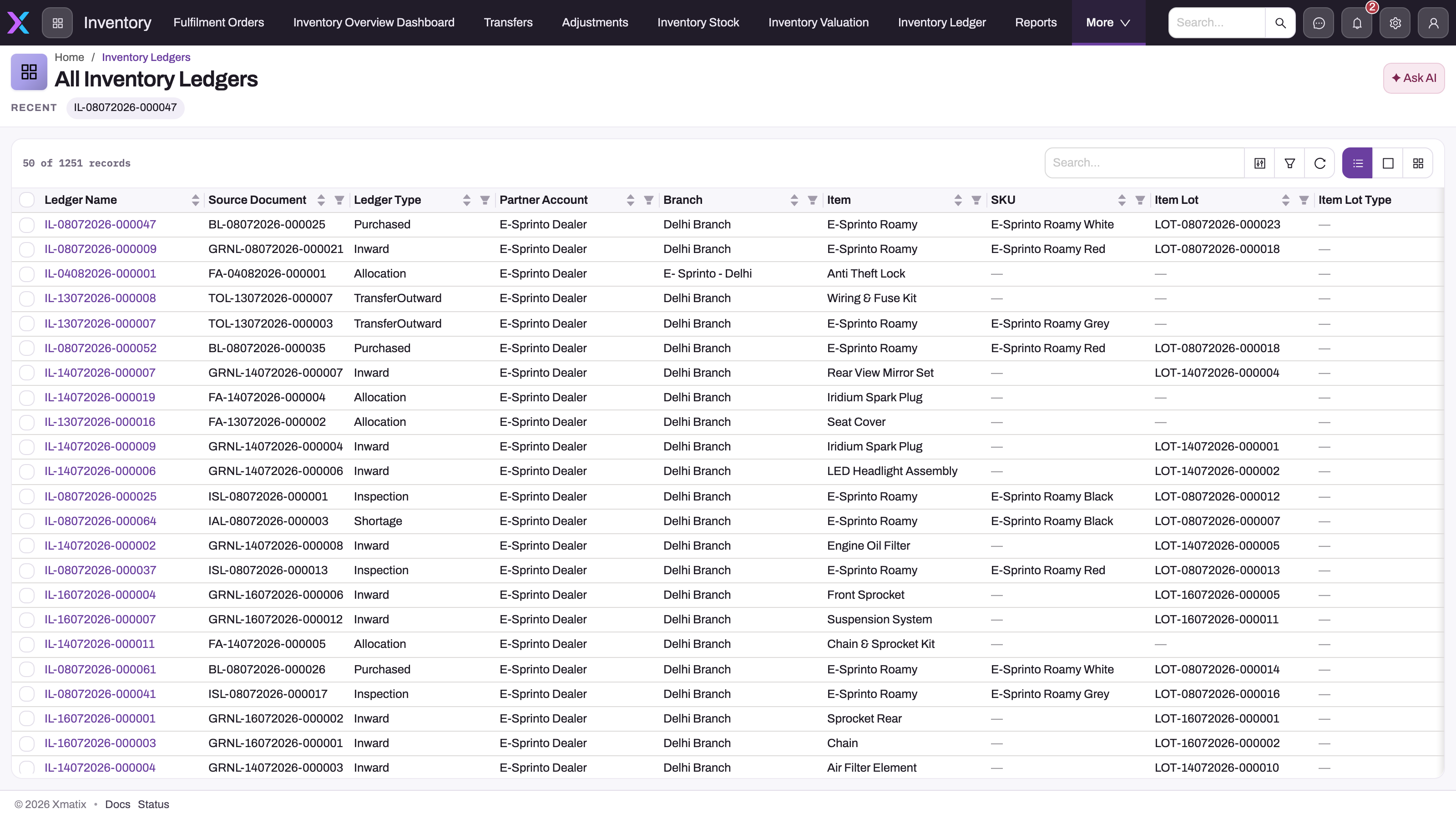
- A ledger entry's record page shows one movement in full: where it came from, which lot and location it touched, and whether it reverses an earlier entry.
The ledger sits at the end of every stock-moving process. Goods receipts, bills, invoices, delivery orders, fulfilments, transfers, adjustments, shipments and service orders all post into it. Inventory valuation and period balances are built from it.
When to use it
- A stock figure surprises you. Open the item ledger for that item and period. Every movement behind the figure is listed.
- You need to show where stock went for an audit, a stock count difference or a customer query. Every entry names the document line that caused it.
- You want to confirm a document has posted. If its movement is in the ledger, it has.
- Administrators use it to check why a document posted, or did not post, a particular movement.
How xMatix handles it
Every movement is a posted entry
Platform-managed inventory ledger settings decide which document lines post which movements. Each setting names a source line, a ledger type, the quantity field to post, a condition, and the stock counters it moves. The seeded settings cover these source lines:
| Source line | Ledger types posted | When it posts |
|---|---|---|
| Goods receipt line | Inward, Shortage, Damaged, Excess | When the receipt's stock action runs |
| Inspection line | Inspection | When the line is saved |
| Bill line | Purchased | When the bill's stock action runs |
| Shipment line | Pipeline (inbound stock on its way) | When the shipment's stock action runs |
| Invoice line | Sold | When the invoice's stock action runs |
| Delivery order line | Outward | When the delivery order's stock action runs |
| Fulfilment allocation line (fulfilments, orders, service orders) | Allocation | When the line is saved |
| Fulfilment picking line | Picked | When the line is saved |
| Service order line | SoftCommit | When the service order's stock action runs |
| Adjustment line | Adjustment, Assemble, Disassemble, Damaged, Excess, Expired, Shortage, OnHold, OnLoan | When the adjustment is posted |
| Transfer outward line | TransferOutward | When the outward leg is released |
| Transfer inward line, single-step transfer line | TransferInward, plus Shortage, Damaged, Excess for receiving differences (single-step lines also post TransferOutward) | When the transfer is received or posted |
These source lines post nothing out of the box:
- Credit note lines. No seeded setting covers them, so a credit note does not return stock to the ledger.
- Sales order lines. The order-line
SoftCommitsetting ships inactive. - Goods in transit. The
InTransitsetting ships inactive. A two-step transfer's outward leg posts aTransferOutwardentry at the sending branch. The transit quantity is kept on the destination branch's stock balance, not as a ledger entry.
Read the full rule set under Setup → Feature Hub → Inventory → Inventory Ledger Settings. Inventory ledger settings lists every rule and the stock buckets it moves.
What posting checks and writes
When a stock action runs, xMatix checks each line against the settings for that line type:
- Lines with no item are skipped. So are lines whose item does not have Track Inventory set.
- Lot-tracked items need a lot. If the item has Track Lots set and the line names no lot, the whole posting is refused with Product Lot was not selected for the transaction. This is required for Inventory posting.
- Each setting whose condition is met writes one entry. The quantity is the setting's quantity field less the line's Cancelled Quantity, where the line type has one. One line can therefore write several entries. For example, a goods receipt line writes its received, shortage, damaged and excess quantities as separate entries.
- Each entry moves a stock balance. The entry updates the buckets the setting names on the Inventory Stock record for its company, branch, item, SKU and storage location, plus the lot's counters. The record is created the first time it is needed. See Stock balances for which buckets each document moves.
- The line is stamped. The line's Inventory Ledger reference is set. This reference, not a status field, is the reliable sign that a line reached the ledger.
Running the same posting again does nothing if the line's quantity, cost, lot and location have not changed.
Corrections post reversals, not edits
Entries cannot be edited or deleted. Any attempt is refused with Inventory ledger entries are immutable and cannot be edited. Reverse the source document's posting to correct it. or Inventory ledger entries are immutable and cannot be deleted. Reverse the source document's posting instead.
Instead, you correct the source document:
- A posted line's quantity, cost, lot or location changes. xMatix writes a reversal entry for each original entry, with the quantity negated and the original lot, location and unit cost. It then writes fresh entries for the new values.
- A posted line is deleted, or its document is cancelled. xMatix writes one reversal per original entry, and the originals stay. Cancelling an invoice, for example, reverses its posted lines and gives the stock back.
- Stock really was lost, found or damaged. Post an adjustment.
Each reversal names the entry it reverses in Reverse Inventory Ledger, so correction pairs can be traced both ways.
The negative-stock guard
A movement that would take a stock or lot counter below zero is refused, and nothing is written for that document. The message reads Insufficient stock: … cannot go negative (result: …)., naming the counter and the value it would reach. The usual cause is a line drawing from a different lot or storage location than the one holding the stock. Two seeded checks on the stock balance can also refuse the save, with Stock Available Quantity cannot be negative!! or Stock In Hand Quantity can't be negative. There is no setting that allows negative stock.
Prerequisites
- Access to the Inventory app, to see the Inventory Ledger and Inventory Stock pages.
- Permission to run Get Inventory Ledger Data (see Permissions). The item ledger cannot load without it.
- Track Inventory set on the item. Items without it have no ledger history.
Procedure
Step 1 — Open an item's stock ledger
- Go to Inventory → Inventory Ledger.
- Pick the Company at the top right. The picker is hidden when your organisation runs a single company.
- Pick the Item. Optionally narrow to one SKU. Leave All SKUs for every variant.
- Optionally pick a Branch. Leave All branches to consolidate the company's branches. In that view, transfers between your own branches cancel out.
- Choose the Period: Today, Week to Date, Month to Date, Quarter to Date, Year to Date (the default) or Custom range…. For a custom range, fill From – To.
- Select Submit.
You see the item's name as the heading, with a summary strip of Opening, Received, Issued and Closing. Below it is the movement table, between an Opening stock row and a Closing stock row. Until you submit, the page says Pick a company, item and period, then Submit. The page remembers your last filters. Refresh reruns the query, and the search icon filters the rows on screen.
Step 2 — Read the movement table
| Column | What it shows |
|---|---|
| Date | The entry's posting date. |
| Entry · source | The entry's reference (in the IL series) above the name of the source document line. Select the reference to open the entry. |
| Type | An Inward or Outward pill. Hover over it to see the ledger type. |
| Quantity | The quantity stored on the entry. |
| Available | The running available quantity. This column appears only when available differs from in hand somewhere in the period. Otherwise a footnote says so. |
| In hand | The running in-hand quantity after this entry. |
| Value | The running stock value of the available quantity. A stock-out that the costing engine has costed is valued at what it consumed. Every other entry is valued at its own unit cost. |
Use the In hand column to follow the balance. Stock-outs (Sold, Outward, Damaged, Shortage, Expired, Purchase Return, Transfer Outward and similar entries) are shown with a negative quantity, an Outward pill, and count under Issued. Receipts show a positive quantity, an Inward pill, and count under Received. A reversal entry is also shown negative, as Outward, even when it brings stock back, as a cancelled sale does. The ledger type in the pill's tooltip and the change in In hand tell you the real direction. Opening and Closing are always right.
For the Value column, a costed stock-out is valued at the total cost of its consumptions, FIFO or average as the costing method says. It isn't valued at the entry's unit cost, which on an invoice line is the selling price. An issue the engine hasn't costed, a reversal, and any other entry keep the old valuation of quantity × the entry's unit cost. Stock-outs that don't reduce available stock (Outward, Damaged, Shortage, Expired) don't change the value.
Step 3 — Drill in from a stock balance
- Go to Inventory → Inventory Stock and set the company, comparison and period you want (see The Inventory Stock page).
- Click a quantity. A small menu offers View ledger and, for lot-tracked items, Item lot details.
- Choose View ledger. The item ledger opens in a side panel with the item, branch and period of the figure you clicked already filled in, and runs straight away.
Step 4 — Open a single entry
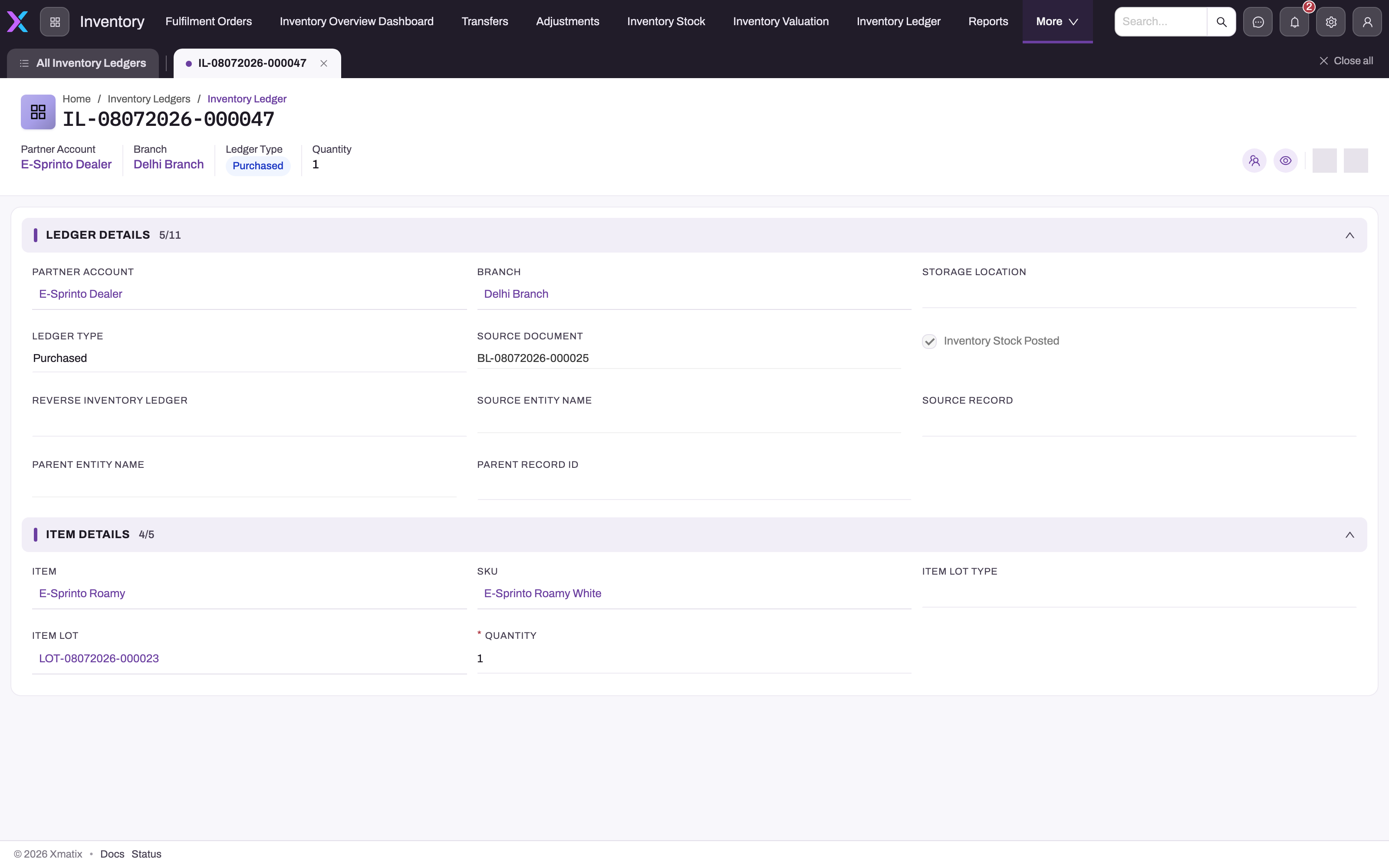
Select an entry's reference in the item ledger. The record page shows Partner Account, Branch, Ledger Type and Quantity in its header, and two sections:
- Ledger Details: partner account, branch, storage location, ledger type, source document, Inventory Stock Posted, Reverse Inventory Ledger, and the source and parent references.
- Item Details: item, SKU, lot type, lot and quantity.
The page has no action buttons, because entries are read-only. To see every entry across items, use the Inventory Ledgers link in the breadcrumb. It opens the All Inventory Ledgers list, which you can search and filter by source document, ledger type, branch, item or lot.
Step 5 — Correct a wrong movement
- From the entry, note the Source Document and open that document.
- Correct the line (quantity, lot, location or cost) or delete it, where the document still allows changes. Otherwise cancel the document with its own action, such as Cancel on an invoice.
- Rerun the item ledger. You see the original entry, its negated reversal and, if you changed the line, a fresh entry.
If the physical stock itself is wrong, post an adjustment instead.
Fields
| Field | What it means | Notes |
|---|---|---|
| Ledger Name | The entry's reference. | Numbered automatically in the IL series. |
| Partner Account | The company whose stock moved. | Taken from the source document's header. Transfers resolve it per leg, so the two legs can name different companies. |
| Branch | Where the stock moved. | From the source document's header, or the transfer leg. |
| Storage Location | The location whose balance moved. | For a transfer's inward leg this is the destination location. |
| Ledger Type | The kind of movement. | Stored without spaces, for example TransferOutward, SoftCommit. |
| Source Document | The name of the line that posted the entry. | Stamped at posting. |
| Inventory Stock Posted | Whether the quantity was applied to a stock balance. | Ticked only when the setting added to at least one stock counter. Settings that only take from a counter leave it unchecked even though the counter moved. See Inventory ledger settings. |
| Reverse Inventory Ledger | On a reversal, the entry it reverses. | Empty on ordinary entries. |
| Source Entity Name, Source Record | The type and record of the source line. | Navigable reference. |
| Parent Entity Name, Parent Record Id | The source line's document. | Some transfer lines name the line itself. |
| Item, SKU | What moved. | Copied from the line. |
| Item Lot Type | The stock grade carried from the line. | Recorded for reporting only. It is not part of the stock-balance key. |
| Item Lot | The batch consumed or produced. | Required at posting for lot-tracked items. |
| Related Partner Account, Related Branch, Related Item Lot | The other side of a transfer. | Filled on transfer entries only. |
| Quantity | How much moved. | A positive magnitude. The ledger type gives the direction. Reversals are negative. |
| Unit Cost | The cost on the movement. | The line's unit price, or its unit cost when there is no price. |
| Posting Date | When the entry was posted. | The posting time, not the document's own date. |
Business rules
- Entries are immutable. Edits and deletes are refused. Corrections are reversal entries, written automatically when the source line changes, is deleted or is cancelled.
- Posting is per line and per setting. One line can write several entries, and each entry stays linked to that line.
- Only stock items post. Lines without an item, or whose item lacks Track Inventory, are skipped.
- Cancelled quantity never posts. Each entry posts the quantity field less Cancelled Quantity.
- Posting date is the posting time. Period filters, opening stock and the costing engine all work from it.
- How each ledger type counts in the item ledger's running totals:
| Ledger type | Available | In hand |
|---|---|---|
Inward, Excess, Adjustment, Assemble, TransferInward | adds | adds |
SaleReturn | adds (none while a pending-deliveries quantity is held) | adds (same) |
Sold, PurchaseReturn, Disassemble, TransferOutward | subtracts | subtracts |
Allocation | subtracts | no effect |
Outward, Shortage, Damaged, Expired, OnLoan | no effect | subtracts |
Purchased, Pipeline, Picked, SoftCommit, Inspection, InTransit, OnHold | no effect | no effect |
- Company and branch scope. With All branches, only entries owned by the selected company count, and transfers between its branches net to zero. With one branch picked, a transfer entry counts only when its own branch is the one picked.
- Opening stock is the sum of every entry posted before the period starts.
The Inventory Stock page
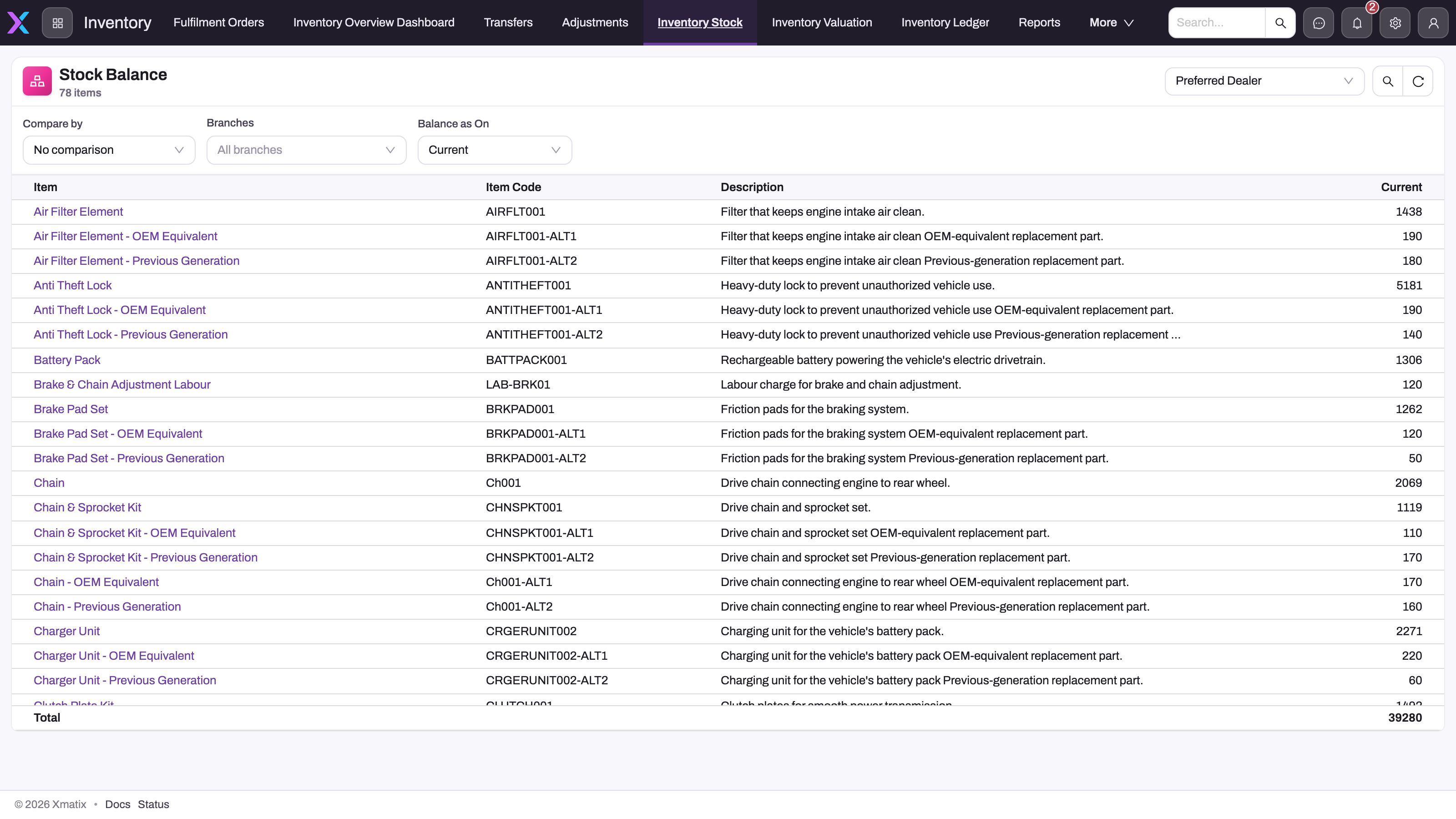
Inventory → Inventory Stock shows the Stock Balance statement: one row per item with the available quantity for the selected company, plus a total. Its controls follow the finance statements:
- Compare by: No comparison (one Current column), By branch, By period or By years. Each has a (movement) variant that shows opening, change and closing per column.
- Branches: for By branch, the branches that become columns. For every other comparison, a scope filter. Leave it empty for all branches, consolidated.
- Balance as On: Current, week, month, quarter or year to date, previous month, a fiscal-year end, or a custom period.
Clicking a figure offers View ledger (Step 3) and, for lot-tracked items, Item lot details. The statement is worked out from ledger entries as of each column's date, with the same ledger-type rules as the item ledger's Available column, so the two agree. It does not read the stock records that allocation, invoicing and the line Stock Available figures use. Those count purchased quantity and subtract damaged, expired, short, on-hold, on-loan, in-inspection, picked and dispatched quantities, so a record's Available can differ from the statement.
Example
A distributor receives 100 units of a lot-tracked engine oil at its main branch, sells some, and then finds that one invoice was raised for 12 units instead of 10.
- The goods receipt for lot
LOT-Ais received with Receive. The ledger gains anInwardentry of 100, so in hand is 100. - Two invoices, for 18 and 12 units, have Post Inventory run on them. Two
Soldentries are written, and in hand is 70. - The salesperson cancels the 12-unit invoice with Cancel. xMatix writes a reversal of −12 against its
Soldentry, so in hand is 82. A new invoice for 10 units is posted, and in hand is 72. - The warehouse lead opens Inventory → Inventory Ledger, picks the company, the item and Month to Date, and selects Submit. The table shows Opening stock 0, then 100, 18, 12, −12 and 10, then Closing stock 72. The −12 row's Reverse Inventory Ledger points to the original 12.
Training
Practice exercise
In a sandbox company, use a stock item with Track Inventory set:
- Receive 20 units on a goods receipt with Receive.
- Create an invoice for 5 units and run Post Inventory. Then cancel it with Cancel.
- Create a second invoice for 4 units and run Post Inventory.
- Open Inventory → Inventory Ledger for the item, Today, and select Submit.
Expected result: four entries, Inward 20, Sold 5, a Sold reversal of −5 and a Sold entry of 4, with Closing in hand of 16. Open the −5 entry and confirm its Reverse Inventory Ledger names the original Sold entry.
Quick reference
- Inventory → Inventory Ledger: pick item and period, then select Submit.
- Inventory → Inventory Stock: click a figure, then View ledger.
- Entries are read-only. Correct the source document instead.
- A negated pair is a correction, not an error.
- The posting date is when the entry posted, not the document date.
- Follow In hand. Stock-outs and reversals show as Outward with a negative quantity.
- A lot-tracked item needs a lot on every line, or posting is refused.
- Credit notes do not post stock movements out of the box.
Permissions
| To do this | You need |
|---|---|
| See the Inventory Ledger and Inventory Stock pages | Access to the Inventory app in your security profile |
| Load the item ledger (Step 1, Step 3) | The Get Inventory Ledger Data action granted on the profile's Actions tab. The seeded System Admin, Standard User and Sales Manager profiles have it. |
| Open entries and the All Inventory Ledgers list | Read access to the Inventory Ledger entity |
| Edit or delete an entry | Not possible for anyone. The ledger refuses it. |
Without the action grant, the page shows Could not load ledger with the server's reason. See Security profiles for how grants work.
Configuration
- Inventory ledger settings: Setup → Feature Hub → Inventory → Inventory Ledger Settings. The screen is view-only unless an administrator turns on Allow editing inventory ledger settings under Setup → Feature Hub → Inventory → Settings (see Inventory ledger settings). Use it to find which setting, condition and quantity field explain a movement. See Inventory configuration.
- Item flags: Track Inventory decides whether an item posts at all. Track Lots makes a lot mandatory at posting. Both are on the item (see Items).
- Document naming: entry references come from the Inventory Ledger Name Setting (series
IL) under the document name settings. - Inventory period balances: the period comparisons on the Stock and Valuation statements are read live from the ledger and need no rebuild. Rebuild on Inventory → Inventory Valuation writes a stored per-period summary that no standard screen reads (see Inventory period balances). No action rebuilds the stock balances themselves.
- The View ledger drill: in the page designer, an administrator can point the Stock Balance statement's ledger drill at a page. Without one, the drill opens the item ledger in a side panel.
- Single-company or single-branch organisations: the Company and Branch pickers are hidden automatically.
- Mobile: the field app's Stock on hand component opens an item ledger for a branch from each stock row, but no shipped mobile page includes the component (see Stock balances). Otherwise, use the web for stock history.
Common problems
"Product Lot was not selected for the transaction"
The item has Track Lots set and a line has no lot. Open the source document, pick the lot on the line, and run the stock action again.
"Insufficient stock: … cannot go negative"
The movement would take a stock or lot counter below zero at that company, branch, SKU, storage location or lot. Check that the line names the lot and location that actually hold the stock. Use the item ledger with that branch to see what is there. If stock genuinely is missing, post an adjustment first.
"Inventory ledger entries are immutable…"
You, an import or an integration tried to change or delete an entry. Correct the source document instead (Step 5).
My document is saved but nothing appears in the ledger
- The stock action has not run. Most documents post when their stock action runs, not when they are saved.
- The item does not track inventory.
- No active setting covers the line type, for example a credit note line or a sales order line.
- The line does not meet a setting's condition, for example a zero quantity.
Check the line's Inventory Ledger reference, then the settings screen.
Could not load ledger
Either your profile lacks the Get Inventory Ledger Data grant, or the query was missing a company, item or period. In the second case the reason reads ItemId, PartnerAccountId, FromDate and ToDate are required.
"This stock is valued at ₹0.00"
Stock is in hand but its running value is zero, because receipts were posted without a cost. The warning names up to three source documents. Correct the rate on those documents. For carrying value, see Inventory valuation.
Common questions
Can I edit or delete a ledger entry?
No. The ledger refuses every edit and delete, for every user, with a message telling you to correct the source document. Change or remove the line on that document, cancel the document, or post an adjustment. xMatix then writes reversal entries, plus fresh entries where values changed. The net quantities end up where an edit would have put them, and the original posting stays visible for audit.
Why do I see pairs of opposite entries for the same line?
A correction happened. When a posted line changes, is deleted or is cancelled, xMatix writes a negated reversal for each original entry and links it through Reverse Inventory Ledger. If the line changed rather than disappeared, a fresh entry with the new values follows. Read the original, the reversal and the replacement together. Counting rows does not count documents.
Why does the posting date differ from my document's date?
The posting date is stamped when the entry is written, not copied from the document. An invoice dated Monday whose stock action runs on Wednesday shows Wednesday. Reversals carry the date they were written, too. The item ledger's period filter and opening stock both use this date.
Why does a cancelled sale show as Outward in the item ledger?
Entries store a positive quantity, and the ledger type gives the direction. The item ledger shows stock-outs such as sales with a negative quantity and an Outward pill. A reversal is stored with a negative quantity, and it is shown negative and Outward too. That applies even when it brings stock back, as the reversal of a cancelled sale does, and it counts under Issued. Hover over the pill to see the ledger type. Follow the In hand column, which applies each type correctly.
Does the ledger show value as well as quantity?
Yes, a running value. Each entry carries the unit cost of its movement. In the item ledger's Value column, a stock-out the costing engine has costed is valued at what it consumed, and every other entry at quantity × its unit cost. It is a guide rather than the carrying value. Reversals are still valued at their own unit cost, and after a method change, stock-outs costed under both methods count twice. For the carrying value, use the Valuation Statement in Inventory valuation and costing.