
Dealer ordering is how a dealer's demand becomes a sales order in xMatix: either a user builds the order from the store's Product Catalogue, or the dealer's own purchase order is handed over with the Dealer Order action. Either way the result is an ordinary sales order, so pricing, schemes, credit checks, allocation, fulfilment and invoicing all run through the standard order pipeline. This page covers both capture paths, their setup and the problems you may run into.
Overview
| Path | Where you start | What it creates |
|---|---|---|
| Catalogue capture | An open sales order (or purchase order, requisition line grid or service order) | Lines on the document you are in |
| Dealer handoff | The dealer's purchase order, raised in xMatix against a supplier on the platform | A new sales order at the supplier's branch, for the purchase order's outstanding quantity |
When to use it
- Use Product Catalogue when someone is entering an order for an account and wants to browse the store's range, its focused and frequently ordered items, and its schemes, instead of typing item codes into Quick Add.
- Use Dealer Order when the dealer has raised a purchase order in xMatix against your company, so that nobody has to re-key their requirement.
How xMatix handles it
Catalogue capture writes ordinary lines. The catalogue is a full-screen browser over one store's curated range. You build a cart in it, and Add to document writes every cart line to the open document in one step. The document's own line handlers then resolve price, discounts and taxes. The offer text in the catalogue is a prompt; the document engines decide the final figures. Public storefront carts and checkout sessions are a separate flow, described in Direct-to-consumer selling.
The dealer handoff copies outstanding quantity. Each purchase order line keeps an Order Quantity, which is the quantity already turned into dealer sales orders, and a Pending Order Quantity, which is the remainder. Dealer Order creates one sales order and copies only lines with a pending order quantity:
| On the purchase order | Becomes, on the new sales order |
|---|---|
| Supplier Branch | The order's Branch, and that branch's partner company becomes the order's Partner Account |
| Partner Account (the dealer company raising the purchase order) | The order's Account (the customer) |
| Each line with pending order quantity | An order line with the same item, SKU and package structure, for the full pending quantity, linked back to its purchase order line |
The new order is also linked to the purchase order and flagged Dealer Sale Order Created. The purchase order's read-only Document State becomes Dealer Order Created.
Quantities roll back. Whenever a linked order line is added, changed or deleted, its quantity is summed back into the purchase order line's Order Quantity. The pending figure therefore falls as supply is arranged, and goes back up if a linked order line is deleted. This is why running Dealer Order a second time only picks up what is still outstanding.
Prerequisites
- For catalogue capture: the Product Catalogue action's layout must name a store that exists in your organization and has categories and items. See Configuration.
- For the dealer handoff:
- The purchase order must have a Supplier Branch. The shipped purchase order form does not show this field, so an administrator has to add it first (see Configuration).
- At least one line must have a pending order quantity.
- You need permission to run Dealer Order (see Permissions).
Procedure
Step 1 — Open the catalogue from the order
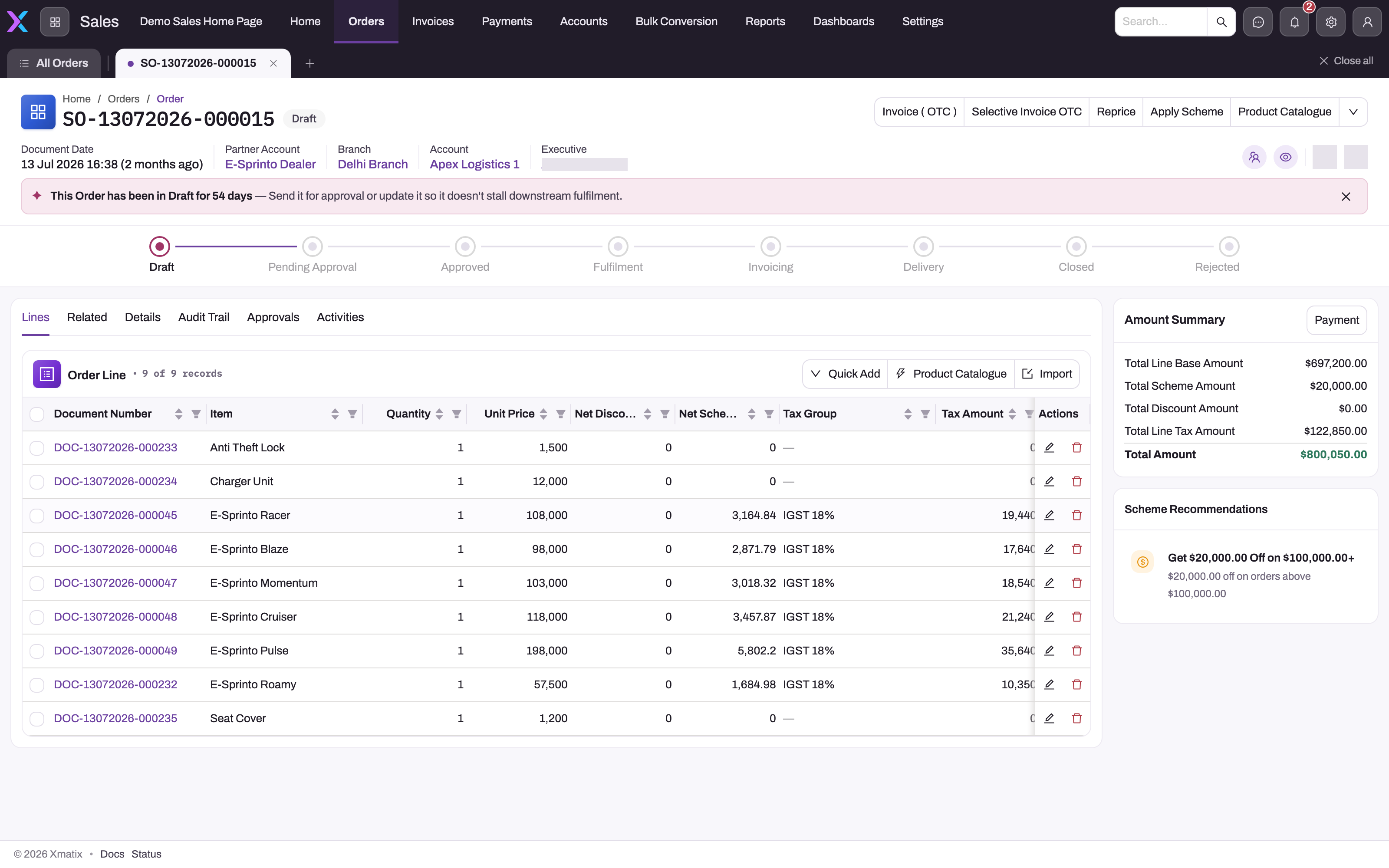
Open the sales order from Sales → Orders. On the Lines tab, the Order Line grid toolbar has Quick Add, Product Catalogue, Import and Barcode Scanner. Select Product Catalogue. On a sales order the catalogue is offered on the line toolbar only, not in the record header.
On a purchase order, Product Catalogue is in both the header actions and the line toolbar.
Step 2 — Browse and set quantities
The catalogue opens full screen. Its collection views are:
- Focused
- Frequently ordered (the account's own order history)
- New items
- Schemes
- All
Search by name or code, scan a barcode, or narrow the range with the filter rail and grouping pills. On each product card, enter a quantity. Items that define units of measure show one stepper per unit, depending on the layout's Quantity Selector setting. For a kit whose store item carries components, open the components drawer and choose Add components to stage the picks.
Step 3 — Add the lines to the document
Select Add to document. The cart lines are written to the order in one step. If every line is accepted, the catalogue closes and the order's line grid and totals refresh. If some lines fail, the catalogue stays open with the cart intact so that you can correct and retry the items it names. Cancel closes the catalogue without writing anything.
Step 4 — Re-run pricing and schemes if needed
Lines are priced as they are saved. To evaluate everything again after a batch of lines arrives, use Reprice or Apply Scheme in the order header. See Schemes and credit.
Step 5 — Hand a dealer's purchase order over as a sales order
- Open the dealer's purchase order. Check that its Supplier Branch names your branch and that its lines show a Pending Order Quantity.
- Select Dealer Order in the header. On the shipped record page this button shows only while the purchase order's Status is Draft.
- A new sales order is created at the supplier branch for every line's full pending quantity. The purchase order lines' Order Quantity rises by the same amount, and its Document State becomes Dealer Order Created.
- Open the new order from Sales → Orders and continue as for any sales order: check prices and schemes, then send it for approval.
Step 6 — Supply only part of the requirement
The shipped purchase order page has no button for a partial handoff. To supply part now and the rest later:
- Run Dealer Order as in Step 5.
- On the new sales order, reduce or delete the lines you are not supplying yet.
The purchase order's Pending Order Quantity goes back up by the quantity you removed, so a later Dealer Order run picks it up. A selective variant of the action (Selective Create Dealer Order) exists in metadata and is granted to some profiles, but no shipped layout offers it.
Fields
| Field | What it means | Notes |
|---|---|---|
| Supplier Branch (purchase order) | The supplier's branch the purchase order is placed against | Required for Dealer Order. It sets the new order's Branch and Partner Account. It is not on the shipped purchase order forms. |
| Partner Account (purchase order) | The dealer company raising the purchase order | Becomes the sales order's Account. Locked after the purchase order is created. |
| Order Quantity (purchase order line) | How much of the line has already been turned into dealer sales orders | Rolled up from the linked order lines. Not related to receiving or billing. |
| Pending Order Quantity (purchase order line, and total on the header) | Quantity minus Order Quantity | What the next Dealer Order run takes. The line value shows on the purchase order line view. |
| Document State (purchase order) | The last release that succeeded | Dealer Order Created after the handoff. Read-only. |
| Dealer Sale Order Created (sales order) | Set on an order that the handoff created | Set by the system. |
| Purchase Order (sales order) | The purchase order the order was created from | Set by the handoff. Not on the shipped order forms. |
Business rules
- Dealer Order refuses a purchase order with no Supplier Branch: "Supplier Branch is required to create a dealer order."
- It refuses when no line has pending order quantity: "No pending quantities found in order lines to create dealer order."
- Only lines with a pending order quantity above zero are copied, each at its full pending quantity. A line without an item takes the purchase order's unit cost as its price. Lines with an item are priced on the sales order.
- Package components keep their parent–component link on the new order, so kits are not exploded twice.
- The new sales order goes through the normal order lifecycle on save, including numbering, credit-limit checks and scheme evaluation.
- Catalogue lines go through the same line handlers as Quick Add and Import. Using the catalogue does not bypass pricing, schemes or credit.
Example
A dealer, Riverside Motors, raises purchase order PO-0412 against your Pune branch for 20 helmets and 10 chargers. Your order desk opens PO-0412 and checks:
- Supplier Branch is Pune.
- Pending Order Quantity is 20 and 10.
They select Dealer Order. A sales order appears at the Pune branch for account Riverside Motors with lines for 20 helmets and 10 chargers, priced from your price list. Only 12 helmets are in stock, so they change the helmet line to 12. PO-0412 now shows a pending order quantity of 8 on helmets and 0 on chargers. Next week they run Dealer Order again, and a second order is created for the remaining 8 helmets.
Training
Practice exercise
In a sandbox:
- Make sure the Supplier Branch field has been added to the purchase order form.
- Create a purchase order for a test dealer with two lines (5 and 3 units), and set Supplier Branch to one of your branches.
- Run Dealer Order, then delete one line from the new sales order.
Expected result: the purchase order shows Order Quantity 5 and Pending Order Quantity 0 on the kept line, and Order Quantity 0 and Pending Order Quantity 3 on the deleted line. Running Dealer Order again creates a second order with only the 3-unit line.
Quick reference
- On a sales order, Product Catalogue is on the Order Line toolbar, not in the header.
- Add to document writes the whole cart at once. A partial failure keeps the cart open.
- Dealer Order needs a Supplier Branch, which you add to the purchase order form first.
- The handoff copies full pending quantities. Trim the sales order to supply only part.
- Deleting a linked order line returns its quantity to pending.
- The purchase order's Document State becomes Dealer Order Created.
Permissions
- Product Catalogue writes lines, so the user needs create access to the line entity (for example Order Line) as well as access to the order.
- Dealer Order is a server action. In the shipped security profiles it is granted to System Admin, Standard User and Sales Executive. A user whose profile lacks it cannot run it.
- The user running Dealer Order must be able to create sales orders, because the action creates one.
- The new order belongs to the supplier's branch and partner account. Record security decides who on the dealer side can see it.
Configuration
- Catalogue store. Each document's Product Catalogue action opens a layout named ProductCatalogue that holds a Product Catalogue widget. The shipped layouts name a fixed Store Id. If that store does not exist in your organization, or has no categories and items, the catalogue opens empty.
- Fix: in the layout designer, open the ProductCatalogue layout of the entity (for example Order or Order Line) and set Store Id to your store.
- If the widget has no Store Id, it uses the store resolved from the document's partner account and branch.
- Stores, categories and curated items are described in Stores and Catalogue and pricing.
- Catalogue display. The widget also sets:
- Title
- Quantity Selector: Auto (per item), Single quantity or Per unit of measure
- Product Groupings: which groupings appear on the banner, the header strip and the filter panel
- Filter Facets
- Line Entity and the line field names
Groupings switched off for the store stay off. See Catalogue filter settings.
- Supplier Branch on the purchase order. Add the Supplier Branch field to the purchase order's create and view layouts in the layout designer, so that buyers can fill it in. Without it, Dealer Order always fails.
- Showing the dealer link. To see the handoff from the order side, add Purchase Order and Dealer Sale Order Created to an order list view or layout. To see it from the purchase order side, add Document State.
- Action buttons. The buttons on a record page are the ones listed in its layout's page header, so adding or removing Dealer Order or Product Catalogue is a layout change.
- Credit and approval. The credit-limit gate and approval routing that apply to the new order are set in the Sales settings. See Credit limits.
Common problems
"Supplier Branch is required to create a dealer order."
The purchase order has no Supplier Branch. Add the field to the purchase order form (see Configuration), set it to the supplier's branch, save, and run Dealer Order again.
"No pending quantities found in order lines to create dealer order."
Every line has already been fully turned into dealer orders. To supply more, raise a new purchase order. If you deleted lines from a dealer order and expected them back, check that the deletion was saved.
The Product Catalogue opens with no products
The catalogue's layout names a store that does not exist in your organization or has no curated items. Ask an administrator to set the widget's Store Id (see Configuration).
I can't find Product Catalogue at the top of the order
On a sales order it is on the Order Line grid toolbar on the Lines tab, next to Quick Add and Import.
The catalogue stayed open after Add to document
Some lines were refused. The catalogue keeps the cart so you can fix the named items and select Add to document again. Lines that were accepted are already on the order.
Common questions
The dealer sent a second purchase order for the same items. What happens?
A second purchase order is a new requirement and hands off independently. Running Dealer Order again on the same purchase order only takes what is still pending: the quantity already on dealer orders has rolled up into each line's Order Quantity. A fully handed-over purchase order has nothing left, and the action refuses with "No pending quantities found in order lines to create dealer order." If you delete a line from a dealer order, its quantity becomes pending again and the next run picks it up.
Can the supplier accept only part of what the dealer asked for?
Yes. Run Dealer Order and then reduce or delete lines on the new sales order. The quantity you remove returns to the purchase order's Pending Order Quantity, ready for a later run. The shipped page has no partial-handoff button, so trimming the created order is how you supply in stages. The rest of the requirement stays visible on the purchase order, line by line, until it is supplied.
Does an order from the catalogue skip pricing, schemes or credit?
No. Product Catalogue adds lines to the same document that manual entry uses. The line and document handlers apply pricing, discounts, scheme evaluation and the credit checks through the normal lifecycle; using the catalogue does not create an alternate pricing path. Prices and offers shown in the catalogue are a guide. The figures on the saved order lines are the ones that count, and Reprice or Apply Scheme re-evaluates them whenever you need to.
What is the Item Cart record in the entity reference?
It is a retired basket record and plays no part in ordering today. Item Cart ties an item, SKU, lot type, account and quantity to a sales order that already exists, but nothing in xMatix reads or writes it. The record type is hidden, new Item Cart records cannot be created, and it appears in no app or menu. Catalogue capture writes lines straight onto the open order, and storefront shoppers fill the Cart described in Direct-to-consumer selling. The field list is in the Item Cart reference.
The standard pipeline takes over
However it was captured, the order is now a sales order:
| Stage | Documented at |
|---|---|
| Pricing, contract discounts, taxes fill in | Pricing, discounts and taxes |
| Trade schemes evaluate on save | Schemes and credit |
| Credit limit gates creation | Credit limits |
| Stock is allocated | Allocating stock to orders |
| Picking and fulfilment | Picking and fulfilment |
| Delivery and invoicing | The sales order lifecycle |
| Payment and receivables | Invoicing and payments |
The same order document is also created by hand, captured on field visits (including van sales), and processed in bulk. See creating a sales order, van sales and bulk order processing.