
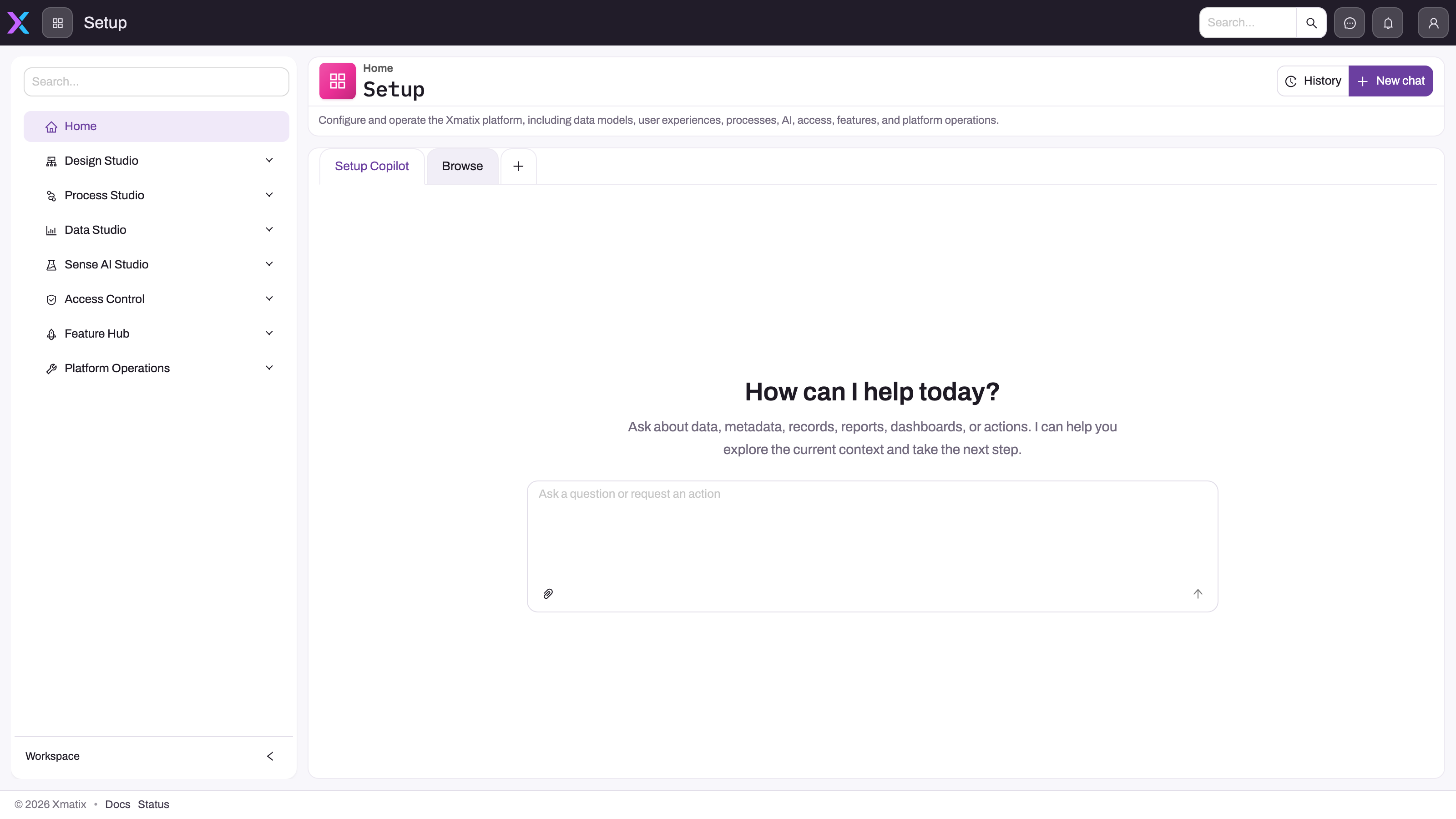
The Setup Copilot is an assistant for administrators. You describe a configuration outcome in plain words, such as "add a delivery-instructions field to Order and show it on the record page", and it inspects and changes your organization's setup for you. It sits on the Setup home page, beside the ordinary Setup screens rather than replacing them. Everything it creates is ordinary configuration: entities, fields, layouts, views, rules, workflows, security and integrations. You can check each of them afterwards in its own Setup screen.
Overview
The copilot works through a fixed set of platform tools. They are the same setup and data interfaces the Setup screens use, and they run as you: every call carries your own sign-in and permissions. It cannot see or change anything your account could not reach by hand. The copilot can:
- Read and explain configuration: who can edit invoices, why a workflow failed, what a business rule does, what changed recently (from the audit trail).
- Author configuration: entities and fields, picklists, web and mobile layouts, views, business rules and validations, approval processes, assignment rules, record security, security profiles, entity actions, automation scripts, custom components, workflows, integrations, document templates and AI Studio agents.
- Work with records: query business data and saved views, create and update records, run record actions, and import or export files.
- Preview before it writes: it can dry-run a business rule, plan what a save will trigger, preview assignment rules, and show a layout or custom component it has just built directly in the chat.
It is built for platform administration, not business analysis. For questions about your business figures, the Sense assistant is the purpose-built surface.
When to use it
- You know the outcome you want but not every screen involved, for example a new field, its layout placement and a validation on it.
- You need a quick, read-only answer about your configuration: "Who can delete accounts?", "Which rules run when an order is saved?"
- You are loading data from a spreadsheet and want the columns mapped for you.
- A Sense conversation tells you a request is configuration work and offers Open Setup Copilot.
Use the ordinary Setup screens when you want to see and set every option yourself, or when a change is so small that typing it is slower than clicking it.
How xMatix handles it
Tool steps
The copilot breaks your request into tool steps and streams them into the conversation as it works, so you can see each read, preview and write. Read the steps as well as the final reply. A reply that only describes how to do something is guidance; a change has happened only when the tool steps show it completed.
Approval before risky changes
Reads, previews and inert drafts run without stopping. The copilot pauses and opens Setup Copilot needs your approval before any of these:
- Deletes: metadata, records, and every integration delete (app, connection, binding, flow, trigger).
- Go-live actions: activating a script or custom component version, publishing or retracting a workflow, activating an integration flow version, firing an integration trigger or replaying a run.
- Writes that take effect for everyone at once: creating an active rule, or editing an active one. This covers business rules, validations, archive rules, script and component bindings, record security policies and rules, security profiles and their grants, security assignment rules, entity actions, approval processes and their steps, assignment definitions and rules, lookup filters and email template variables.
- Layouts: making a layout the default form for its entity, or editing a layout that is already in use.
- Field mappings, licences and secrets: every write to a field mapping or a tenant licence, and every secret write.
- Protected and high-volume writes: editing a stock (system) entity or field, any batch that contains deletes, data batches of more than 200 records, metadata batches of more than 50 rows, file imports, and creating or changing an AI Studio agent.
Creating something new and inactive, such as a draft rule or a new non-default layout, needs no approval. Nothing uses it until it is switched on, and switching it on is itself gated.
The approval dialog shows a summary of what will happen and the exact request. Select Approve to run it or Reject to stop it. There is no "approve all": every gated step asks on its own.
Question cards
When a request has a genuine decision in it, such as which entity, which placement or which threshold, the copilot opens Setup Copilot needs your input. Each question offers options, either one choice or several. You can also type your own answer in Or type your own answer…. Several questions appear as tabs, and a tick marks the ones you have answered. Submit answers becomes available when every question has an answer. Let Setup Copilot decide tells it to go ahead with its own recommended option.
When you don't respond
Silence is never consent:
- An approval waits 10 minutes. If nobody answers, the step is not run, and the conversation says nothing was changed.
- A question waits 15 minutes. If nobody answers, the copilot carries on with read-only work and inert drafts only, and returns the live changes as a numbered plan for you to confirm.
- After a lapse, the copilot asks nothing more and makes no live change for the rest of that turn. Your next message starts afresh.
The dialogs follow you around the app, so you can move to another screen while a turn runs and still answer in time.
Staying on topic
A quick check runs before each message. It declines requests that are clearly not about your organization, such as general knowledge or creative writing, with a short reply listing what the copilot can help with. It leans towards letting messages through. Questions about your business data are not refused: the reply first points you to the Sense assistant, then answers with the copilot's own read tools. Requests for analysis (for example, measuring shelf share from a photo) are sent to Sense, which has the purpose-built agents. Questions about the copilot's own usage or cost are answered with a pointer to your History; the copilot cannot see its own usage figures.
Prerequisites
- You hold the Use Setup Copilot capability (
setup.copilot.use) through a security profile. The SystemAdmin profile holds the Setup Copilot product. - Your organization has the Setup Copilot enabled. It is included for every organization.
- For any change you ask for, you need the same permissions you would need to make it by hand.
Procedure
Step 1 — Ask from the Setup home
Open Setup from the app launcher. The home page shows the Setup Copilot card ("Asks before it changes anything") above Needs attention, Recently opened and All setup areas. Type your request in the box and select Ask, or press Enter. You can also select one of the suggestions: Add a field to Order, Who can edit invoices?, Why did a workflow fail? or Create a role for branch managers.
The page switches to the full chat, titled Setup Copilot, and your message is sent as the first turn. Setup home in the page header takes you back to the cards. A turn keeps running while you are on the home cards or on another screen.
Step 2 — Describe one outcome clearly
Name the entity, the field or screen, and any constraint: "Add a required Delivery Window picklist (Morning, Afternoon, Evening) to Order and place it under Delivery on the record page." One outcome per message gives shorter, easier-to-check turns.
Step 3 — Attach a file (optional)
Use the attach button in the message composer to add a file:
- Images (PNG, JPG, GIF, WebP) up to 4 MB.
- PDF files up to 15 MB.
- Spreadsheets (.xlsx, .csv, .json) up to 25 MB and 50,000 rows. Only the first worksheet of an .xlsx file is read. Legacy .xls files are refused; save them as .xlsx or .csv first.
A conversation can hold up to 16 files and 100 MB in total. Attached files are kept only briefly, for about an hour after they were last used, so attach the file again if you come back to the task later. For a spreadsheet, the copilot reads the column names and a few sample rows, proposes a mapping, and imports only after you approve.
Step 4 — Follow the steps and answer the dialogs
Watch the tool steps as they stream. When Setup Copilot needs your input opens, pick or type an answer and select Submit answers. When Setup Copilot needs your approval opens, read the summary and select Approve or Reject. See Approval before risky changes.
Step 5 — Check the result in its own screen
When the turn finishes, open the configuration in its own Setup screen: the entity's fields, the layout in the designer, the rule, the profile. For a layout or custom component, the copilot can also show a live preview in the chat. The created records behave exactly as if you had made them by hand.
Step 6 — Work in several chats
Select New chat in the page header to start a fresh conversation, or use the plus tab to open another conversation beside the current one. You can keep up to six copilot chats open at once. Close a tab with its close mark.
Step 7 — Return to an earlier conversation
Select History, either in the page header or on the home card. The Chat history panel lists your own earlier conversations, newest first and grouped by date, with a one-line preview of each. Select one to reopen it in the current tab and continue where you left off. Only your own conversations are listed.
Step 8 — Hand over from Sense
When you ask the Sense assistant for a configuration change, it replies that the request belongs to setup. If you can use the copilot, the reply carries a Continue in Setup Copilot card. Open Setup Copilot opens the Setup page and sends your original request as the copilot's first message.
Business rules
- Your identity, your permissions. Every copilot call runs with your own sign-in. A change your account cannot make fails in the copilot too.
- Approval is per step. A single request can raise no approval, one, or several. A rejected or unanswered approval is never run.
- Time limits on a turn. A turn stops if it makes no progress for 5 minutes, or after 45 minutes of active work. Time spent waiting for your approvals and answers does not count.
- A late answer is refused. Answering a question after it has timed out gives "That question has already been settled". Send your answer as a new message instead.
- Secrets are not stored in the transcript. Credentials pasted into a conversation are redacted before the conversation is saved.
- Usage. Each user has a free daily allowance for the copilot, counted separately from the Sense assistant's. Beyond it, turns draw on Setup Copilot Credits. See Configuration.
Example
An administrator at a distributor wants delivery slots on orders.
- On the Setup home, they type: "Add a Delivery Window picklist to Order with Morning, Afternoon and Evening, required, and show it on the order record page under the delivery details." They select Ask.
- The copilot reads the Order entity and its layouts. It asks one question: put the field on the default record layout or on the create form as well? The administrator picks both and selects Submit answers.
- It creates the picklist field (no approval needed; a new field is not a go-live change).
- The order record layout is in use, so it opens Setup Copilot needs your approval with a summary of the layout edit. The administrator selects Approve.
- The copilot shows a preview of the changed layout in the chat and reports what it did. The administrator opens an order to confirm the new field, then opens the field under Design Studio to check its values.
Training
Practice exercise
In a sandbox organization:
- Ask: "Which security profiles can delete Account records?" Expected result: a read-only answer listing profiles, with no approval dialog.
- Ask: "Create an inactive business rule on Lead that sets Lead Rating to the highest rating when Potential Revenue is above 10,000,000." Expected result: the copilot may ask which rating value to use. The rule is then created inactive, without an approval.
- Ask: "Activate that rule." Expected result: Setup Copilot needs your approval opens. Select Reject and check that the rule is still inactive.
- Open History and find the conversation.
Quick reference
- Setup home → Setup Copilot card → type → Ask.
- One outcome per message; name the entity and placement.
- Approval: deletes, go-live, active rules and live layouts, licences, secrets, batches over 200 records or 50 metadata rows, imports.
- Approval times out after 10 minutes (not run); questions after 15 minutes (inert work only).
- Let Setup Copilot decide = go with its recommendation.
- Up to six chats open; History lists your own conversations.
- Attach images, PDF, .xlsx, .csv or .json; attachments last about an hour.
- Always check the result in its own Setup screen.
Permissions
| What | What decides it | Without it |
|---|---|---|
| See and use the copilot | The Use Setup Copilot capability on one of your security profiles, plus the Setup Copilot product on that profile (SystemAdmin holds it) | The Setup home shows no Setup Copilot card |
| Each change it makes | Your own entity, field, action and Setup capabilities, the same as by hand | The step fails with the permission error the API returns |
| Assign Setup Copilot credits | The Licensing administration capability (see AI Studio) | The AI Credits screen is not available |
Grant the capability on a profile's Entitlements tab. See Security profiles.
Configuration
- Who may use it. Grant Use Setup Copilot on the security profiles of the administrators who should have it, under Setup → Access Control → Security Profiles → Entitlements. Users pick up the change when they reload.
- Free daily allowance. Each user gets a free daily token allowance for the copilot (by default 1,000,000 tokens of input plus output per UTC day). It is counted separately from the Sense assistant's allowance. The platform operator can set a different allowance for your organization, or turn the free tier off.
- Credits beyond the allowance. Under Setup → Sense AI Studio → AI Credits, select Set allocation and choose the feature Setup Copilot Credits. Set the Tenant pool, which everyone shares once they pass their free allowance, or assign credits to One user. The copilot's pool is separate from AI Token Credits, so running out of one does not affect the other. See Step 5 — Set credits.
- Model and effort selectors. When the platform operator enables them, Model and Effort selectors appear in the chat's page header for choosing a model and reasoning effort per turn. Organizations cannot switch them on themselves.
Common problems
There is no Setup Copilot card on the Setup home
Your security profiles do not grant Use Setup Copilot, or none of them holds the Setup Copilot product. Ask an administrator to add both to your profile, then reload the page.
"You have used today's free Setup Copilot allowance"
You have used up today's free allowance and no credits are assigned to you or left in the pool. The allowance resets at 00:00 UTC. To keep going sooner, an administrator assigns Setup Copilot Credits under Setup → Sense AI Studio → AI Credits.
"Setup Copilot credits allowance for the current period … has been used up"
Your own assignment, or the organization's pool, is spent for this month. An administrator raises the Setup Copilot Credits allocation. The pool itself is capped by the grant your platform operator makes.
"No response on the approval prompt within the window — nothing was changed"
The approval dialog stayed open for 10 minutes without a decision. Closing the dialog with its close mark only hides it, so the approval still lapses. Reply in the conversation (for example, "go ahead"), and the copilot asks again.
"No answer within the window — continuing with read-only/inert work only"
A question timed out. The copilot finished the safe groundwork and returned the remaining live steps as a plan. Answer in a new message to have them carried out.
"You can keep up to 6 copilot chats open at once."
You already have six chat tabs open. Close one, or use New chat in an existing tab.
"Legacy .xls workbooks are not supported"
Save the workbook as .xlsx or .csv and attach it again. Other unsupported types are refused with a list of the supported ones.
The copilot answered a data question but suggested Sense
That is by design. The copilot answers best-effort with its read tools, but the Sense assistant has the purpose-built analysis agents.
Common questions
Is the Setup Copilot the same thing as the Sense assistant?
No. Sense is the assistant for everyone's day-to-day business questions and record work, opened from the chat button in the app header. The Setup Copilot is for administrators and configures the platform itself, from the Setup home page. They are switched on separately, and each has its own free daily allowance and its own credit pool. When Sense receives a configuration request, it offers to hand the request over to the copilot. When the copilot receives a business-data question, it points you to Sense first and then answers what it can with its read tools.
Can it change something without asking me?
Yes, for low-risk work. Reads, previews, new inactive drafts, new fields and new non-default layouts proceed without a dialog, under your own permissions. It always asks before deletes, before anything goes live or changes an active rule, profile or layout, before licence, field-mapping and secret writes, and before large batches and imports. A rejected or timed-out approval is never run. Use narrow requests, read the streamed tool steps, and check the result in its own Setup screen.
Can it do more than I can?
No. Each call carries your own sign-in, so the copilot can only reach what your account can reach by hand. Record security, field permissions and Setup capabilities all apply. If you lack a permission, the step fails and the copilot reports the error instead of finding another route. That also means two administrators asking the same thing can get different results. Each result reflects what that administrator is allowed to change.
Where do my conversations go?
Each conversation is saved with its transcript, so you can reopen it from History and carry on. History shows only your own conversations, not those of other administrators. Any credentials you paste are redacted before saving. There is no option to delete a conversation from the chat. Attached files are not kept with the conversation; they last about an hour after their last use.
What happens when it can't do what I asked?
It says so, and points you to the Setup screen where the task is done by hand when it has no tool for it. Requests that are clearly unrelated to your organization are declined with a short note on what it can help with. Always tell a guidance-only answer apart from a change the tool steps show as completed.