
The Sense Agent is the chat assistant built into xMatix: you ask about your business in your own words ("which invoices are overdue?", "compare this month's orders with last month's") and it answers from the records you are allowed to see, with tables, charts and links back to the records.
It sits beside your normal work rather than replacing it. You open it from any screen, it can see which list or record you are looking at, and it can hand a question about configuration over to the Setup Copilot. Anything that would change data waits for your approval first.
Overview
The chat is available in three places, all using the same agents, the same identity and the same approval rules:
- The drawer. The chat button in the top header opens a panel on the right of the screen. On a desktop it docks beside the page, so you can keep working while you ask.
- The Sense Agent page. A full page for longer investigations, with the same conversation.
- The mobile app. The assistant icon in the app bar, next to notifications.
Behind the chat your organization can run several agents, each with its own instructions, knowledge and tools. A router picks the agent best suited to each question. You don't choose an agent; you just ask.
When to use it
- You want an answer that would otherwise take several list filters or a new report: totals, comparisons, top-N lists, trends.
- You are on a record and want a summary of it, or of the customer, item or employee behind it.
- A nudge has caught your eye and you want the evidence behind it (Ask Sense AI on the nudge).
- You want a chart you can pin to a dashboard without building it by hand.
- You want help with a task on the screen in front of you, such as filling a form, while you stay in control.
Use the Setup Copilot, not the Sense Agent, to change configuration such as entities, layouts, security or automation. See Setup Copilot.
How xMatix handles it
Every turn runs as you. A chat turn always runs as the signed-in user. Whichever agent answers, it reads and changes only the entities, fields and records your security profiles allow, exactly as the list and record screens do. An agent's Execution Account applies only to background runs, such as scheduled workflows, never to a chat. What an agent can do is further limited by the tools your administrator has granted it.
Page context is a hint you control. When the chat is open over a list or a record, the composer shows a chip such as Viewing: Invoice record or Viewing: Customer list. Sense receives only which record or list you are on. It reads the record itself through its data tools, with your permissions, and only when your question refers to it. Select the ✕ on the chip (Send without page context) to leave it out. The chip comes back when you move to a different record or list.
Saved reports come first. When your organization already answers a question with a saved report or dashboard, an agent that has the report and dashboard tools finds and runs it, so you get the official number. Without those tools it queries the records directly.
Charts are drawn with the dashboard chart component. Answers about a population, such as totals by customer or orders by month, come with a chart. Large groupings show the top groups plus an Others bar, and the card says how many groups were folded into it. Selecting a bar opens the records behind it. Others has no records behind it, so selecting it does nothing. Charts are kept when you reopen the conversation from history.
Changes always wait for you. Creating or changing a record, or running an action on one, opens an approval dialog first. Nothing changes until you approve. Other tools, such as drafting a report, ask for approval when your administrator has put them on an approval list.
Configuration questions go to the Setup Copilot. Sense answers questions about your data, not about how the system is set up. If you ask it to change configuration, it explains that this belongs in Setup. If you also have the Setup Copilot, the answer carries a Continue in Setup Copilot card with an Open Setup Copilot button that starts the Setup Copilot with your question.
Sense remembers you, if allowed. After each conversation Sense notes lasting things about how you work, such as your role, preferences and usual topics, plus a short summary of the conversation. It uses them to tailor later answers. These memories are private to you within your organization, and you can review or forget them at any time.
Prerequisites
- The Sense AI module is switched on for your organization (Enable Sense AI in Sense AI settings).
- One of your security profiles includes the Sense AI product. Sense AI's chat licence (User License) is free for every user whose profile holds Sense AI, so no paid seat is needed.
- Your organization has at least one active agent with a working chat model. See AI Studio.
- A connection. Answers are generated live, so the chat does not work offline, even in the mobile app.
Procedure
Step 1 — Open the chat
Select the chat button in the top header (tooltip Open assistant). The Sense Agent drawer opens on the right. On a desktop you can drag its left edge to make it wider or narrower. On a phone-sized screen it fills the width.
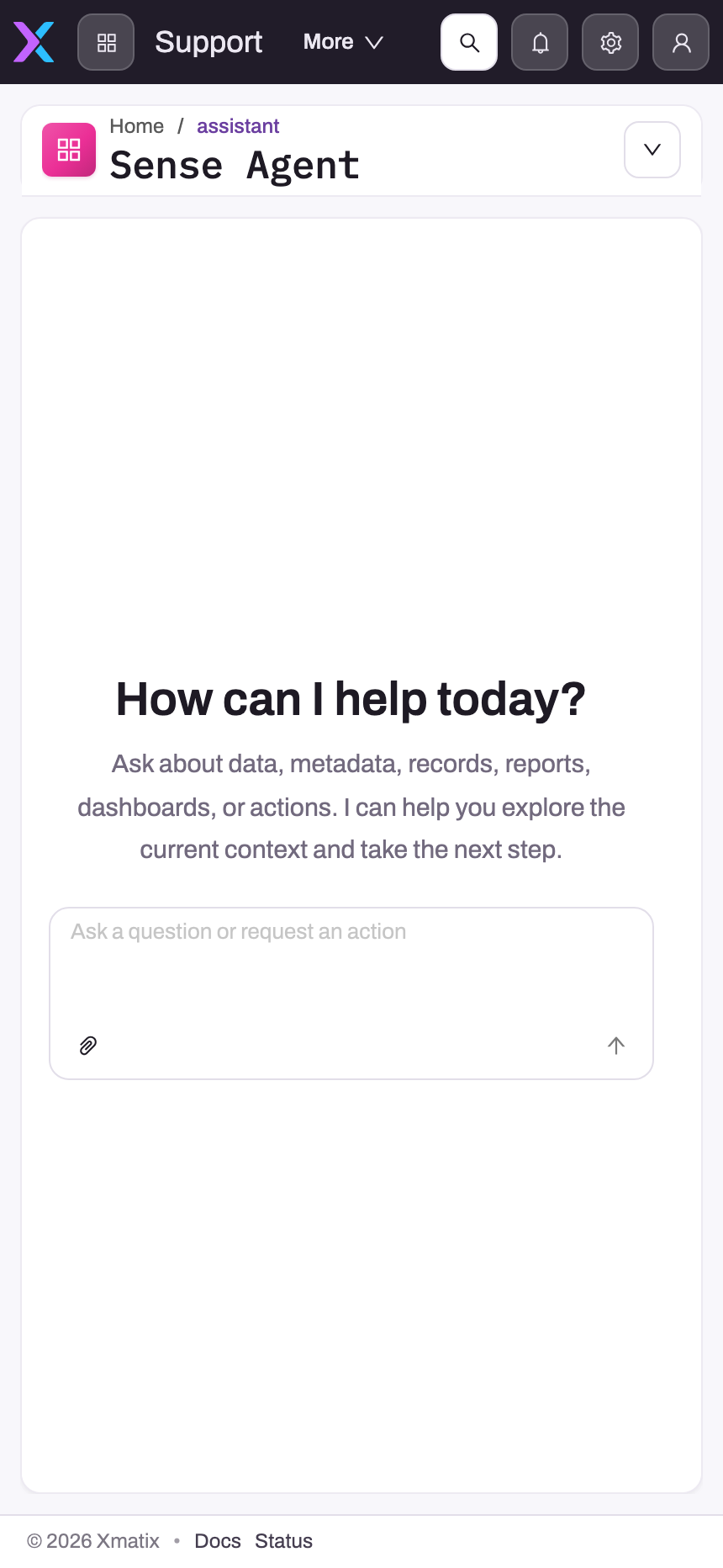
- 1
The app switcher and active-app label preserve the business workspace around the assistant on mobile.
- 2
More contains app navigation that does not fit the narrow top bar.
- 3
Sense Agent confirms the assistant context; the adjacent menu provides page-level session actions.
- 4
The empty conversation canvas avoids exposing earlier prompts, responses or attachments.
- 5
The composer submits the prompt; any later approval card depends on the deployment's runtime policy.
To work on a full page instead, select Open Sense Agent page in the drawer header. The conversation carries over, including anything you had typed but not sent. The header button does not appear on the Sense Agent page itself, because the conversation is already open there.
In the mobile app, tap the assistant icon in the app bar. The More menu at the top right holds New chat, History and What Sense remembers.
A new conversation shows a welcome (by default How can I help today?) and up to three suggested prompts. Selecting a suggestion sends its text as your question.
Step 2 — Ask your question
Type in the box (Ask a question or request an action) and select the arrow (Send message). For the best answer, name the subject, the time range and what you want back, for example "Overdue invoices over 50,000 for the North region, oldest first".
While the answer runs, the send button becomes Stop request. Select it to stop the turn.
To speak instead of typing, select the microphone (Speak your message, in English or Hindi). Select it again to stop, and the words appear in the box for you to check and send. A recording stops by itself after one minute. While recording you can also choose Stop and send or Cancel (Esc).
If your administrator has turned on voice conversations, an empty box shows Start a voice conversation instead of the arrow. In voice mode Sense listens, sends when you pause, and reads the answer aloud. Tables and longer details stay on screen.
Step 3 — Attach a file (optional)
Select Attach a file (the paper clip) and pick an image (PNG, JPEG, GIF or WebP), a PDF, a spreadsheet (.xlsx or .csv) or a JSON file. The file uploads straight away and appears as a chip in the composer with its size or row count. Select the chip to preview it, or its ✕ to remove it. If the upload fails, the chip turns red: select Retry. The send button waits until every upload has finished.
Step 4 — Read and use the answer
Answers can contain text, tables, record cards, charts and Next steps chips. Selecting a Next steps chip sends that follow-up as your next question. Under each finished answer:
- Copy copies the answer as plain text. More → Copy as Markdown keeps its formatting.
- Run details appears when your administrator has turned on Show AI model in assistant chat. It shows which model answered.
To keep a chart, select Pin to dashboard on the chart card. In Pin chart to a dashboard, choose Add to an existing dashboard and pick one, or Create a new dashboard and give it a name. You see Chart added to the dashboard. or Dashboard created. when it is saved.
Step 5 — Answer a question from Sense
Sometimes Sense needs a choice from you before it goes on. A dialog titled Sense Agent needs your input lists its questions with options. Pick an option or type in Or type your own answer…, then select Submit answers. If you have no preference, select Let the agent decide and it carries on with its recommended option.
Step 6 — Approve or decline a change
When Sense wants to change data, a dialog names the change, for example Create this record?, Change this record?, Run this action on the record?, Create this report draft? or Read this web page?. It lists what will happen in business terms (Record type, Record, Action, Values). The raw request is folded under Technical details.
- Select Approve to let it run. It runs with your own permissions, exactly as if you had done it in the app.
- Select Decline to refuse. Sense is told and continues without the change.
If you do neither, the request times out after about ten minutes and counts as declined.
Step 7 — Let Sense act on the screen (optional)
In the web app and the mobile app, Sense can open a screen, read what is on it, select a control and fill a field, as you and in your session. Before it selects or fills anything, it asks Let Sense do this? and names the control and the value:
- Allow does this one action.
- Allow & don't ask again (on mobile, Always allow) lets later non-destructive actions run without asking.
- Not now refuses this action.
An action that cannot be undone shows a Cannot be undone tag and a Yes, do it button, and always asks, even after Allow & don't ask again. Filling a field never saves the record: check the values and save it yourself. While Sense is acting, a banner at the bottom of the screen shows what it is doing, with a Stop button. Sense performs at most 12 screen actions per question. A confirmation left unanswered for two minutes counts as a refusal.
Step 8 — Start over, reopen or hide a conversation
- New chat starts a clean conversation.
- Show history opens History, with earlier conversations grouped by date. Select one to reopen it, including its charts.
- To remove a conversation from the list, select its delete icon (Hide chat) and confirm Hide. This only hides it from your history. The conversation stays stored.
Step 9 — Review what Sense remembers
Select What Sense remembers about you (the light-bulb icon) in the drawer header, or What Sense remembers in the mobile More menu. Each memory is tagged Profile, Fact or Conversation summary, with the date it was last updated.
- To remove one, select its delete icon and confirm Forget.
- To remove all, select Forget everything and confirm Forget all. Sense no longer recalls anything about you in new conversations. Your chat history is not affected.
Step 10 — Ask about a nudge
On a nudge card, select Ask Sense AI. The chat opens with a new conversation that already has the nudge's context, sent to the agent that produced the nudge. The drawer header shows which agent published it and when. Selecting Ask Sense AI again on the same nudge returns you to that conversation instead of starting another. See The nudge library.
Business rules
- Identity. Every chat turn runs as the signed-in user, on the web, in the mobile app and from external assistants. No agent setting changes this.
- Approval of changes. Record-changing tools are offered only to agents that have a record-changing capability and support approvals. Where approvals are not available, those tools are removed rather than run without asking.
- Approval timeout. An approval left unanswered for about ten minutes (600 seconds by default) counts as declined.
- Screen actions. At most 12 screen actions per question. A confirmation times out after two minutes and counts as a refusal. An action that cannot be undone always asks.
- Page context. Only the record or list identity is sent. Removing the chip applies to the current page only.
- Daily allowance. Every user has a free daily allowance of chat tokens: 1,000,000 by default, though your organization's plan can set a different amount. The allowance resets at midnight UTC, and the refusal message shows that time in your own time zone. Past the allowance, a turn uses your own AI credit assignment if you have one, otherwise the organization's pool. It is refused when neither has credits left.
- Hidden conversations leave your history list but are not deleted.
- Memory is kept per organization and per user and is never shared between users.
Example
A regional sales manager opens the Sense Agent from the Invoices list on a Monday morning.
- The composer shows Viewing: Invoice list. They ask: "Which customers in the West region have invoices more than 30 days overdue? Total by customer."
- The organization has a saved "Receivables ageing" report, so the agent runs it and answers with a table and a bar chart of the twelve customers with overdue invoices, each bar linking to that customer's invoices.
- They select Pin to dashboard, choose Add to an existing dashboard, pick "Weekly collections" and see Chart added to the dashboard.
- They ask: "Create a follow-up task for each of the top three, due Wednesday." A dialog Create this record? shows Record type Task and the subject and due date. They select Approve three times, and the tasks are created under their own name.
- Later they reopen the conversation from Show history and the chart is still there.
Training
Practice exercise
In a sandbox, sign in as a user whose security profile includes Sense AI.
- Open any customer record and open the chat. Confirm the chip reads Viewing: Customer record.
- Ask "Summarise this customer's last five orders." Check that the answer matches the Orders on the record.
- Remove the context chip and ask the same question. Expected result: the answer is no longer about the open record, because Sense was not told which record you are on.
- Ask "Show order totals by month for this year as a chart" and pin the chart to a new dashboard called "Practice".
- Ask Sense to create a task for the customer, then select Decline in the approval dialog. Expected result: no task is created, and Sense says the change was not made.
- Open What Sense remembers about you and forget one memory.
Quick reference
- Header chat button: open the drawer. Open Sense Agent page: the full page.
- Name the subject, time range and output in one question.
- The Viewing: chip shares your current page. ✕ leaves it out.
- Stop request stops a running answer.
- Attachments: images, PDF, .xlsx, .csv, JSON.
- Nothing changes without Approve. Unanswered approvals expire after about ten minutes.
- Pin to dashboard keeps a chart.
- Hide chat hides a conversation but does not delete it.
- Forget everything clears memories, not history.
Permissions
| What | Who can do it |
|---|---|
| See the chat button and use the chat | Users whose security profile includes Sense AI, while Enable Sense AI is on. Others don't see the button. Opening the Sense Agent page directly shows Sense AI not available. |
| Read records in an answer | Exactly what your security profiles allow on the screens: entities, fields and record access. |
| Change records through chat | Only agents granted a record-changing capability, and only after you approve. The change also needs your own permission to make it in the app. |
| Change Sense AI settings | Users with the Manage module settings capability. |
| Assign AI credits | Users with the Licensing administration capability. |
| Configure agents, see Traces, show the turn trace in chat | Users with the Manage AI agents capability. The in-chat turn trace also needs Show the Sense AI turn trace switched on in their profile. |
Configuration
All chat settings are in Setup → Sense AI Studio → Configuration → Sense AI settings (also reachable from Setup → Feature Hub → Sense AI → Settings). Changes reach users when the app next loads their session, so ask them to reload.
| Setting | Default | What it changes |
|---|---|---|
| Enable Sense AI | On | Master switch. Off hides the chat for everyone, even users with licences. |
| Show AI model in assistant chat | Off | Shows which model answers each turn (a chip while it runs, and Run details after), and says when a question was escalated to a stronger model. |
| Remember users across conversations | On | Off stops Sense keeping memories, so nothing is kept beyond the conversation. Users can still review and forget existing memories. |
| Enable Sense AI nudges | On | Nudges only. The chat stays available when this is off. |
| Use page context in welcome | On | Uses the current list or record in the welcome and default prompts. It does not change what the context chip sends. |
| Welcome title | Blank (How can I help today?) | Up to 160 characters. Accepts the placeholders {greeting}, {firstName}, {entityLabel} and {recordTitle}. |
| Morning greeting, Afternoon greeting, Evening greeting | Blank (Good morning / afternoon / evening) | What {greeting} says before 12:00, from 12:00 to 17:00, and from 17:00, in the user's local time. |
| Welcome description | Blank (contextual help) | Up to 500 characters of display text. It does not instruct the agents. |
| Suggested prompt 1–3 | Blank (contextual defaults) | Up to 200 characters each. If any is filled, only the filled ones appear. A suggestion grants no extra permission. |
| Voice conversations | Off | Shows Start a voice conversation on the web and in the mobile app. Dictation with the microphone works either way. |
| Assistant voice | Female | Female or Male. |
| Speech language | Multilingual | Multilingual (Hindi and English, even mixed), English or Hindi. Applies to the microphone and voice conversations. |
| Pause before sending (seconds) | 1.3 | 0.3 to 3. How long a user can pause in a voice conversation before what they said is sent. |
| Speech recognition | Standard | Standard sends the recording when the user stops. Real time shows words while they talk, and falls back to Standard if unavailable. The mobile app always uses Standard. |
| Voice agent | Empty | The agent that answers voice conversations. Empty answers voice like typed chat, with short spoken replies. Only active agents that support chat are listed. |
Other screens that shape the chat:
- Setup → Sense AI Studio → Agents: which agents exist, their instructions, models, knowledge, routing and tools, plus per-agent Denied tools and Approval-required tools. See Create an agent.
- Setup → Sense AI Studio → Configuration → Capabilities: the tool groups, including record-changing ones, that agents can be granted.
- Setup → Sense AI Studio → Configuration → AI Credits: assign credits from the organization's pool to users who need more than the daily allowance.
- Setup → Sense AI Studio → Traces: each chat turn with its user, agent, tools and model, for working out why an answer came out as it did.
- Setup → Sense AI Studio → Configuration → External assistants: whether users may connect outside AI assistants. See Using Sense from external assistants.
Common problems
There is no chat button
Check, in order: Enable Sense AI is on; one of the user's security profiles includes Sense AI; the user reloaded after the change. The button is also hidden on the Sense Agent page itself. Opening that page without access shows Sense AI not available with "You don't have a Sense AI user license. Contact an administrator to request access."
"You have used today's free Sense AI allowance…"
You have used today's free tokens and there are no credits to fall back on. The message says when the allowance resets in your own time zone. To keep going now, an administrator assigns you credits under Setup → Sense AI Studio → Configuration → AI Credits.
"Your AI token credits allowance for the current period … has been used up"
Your personal credit assignment for this month is spent. If the message starts "This tenant's", the organization's pool is spent. Ask an administrator to raise the assignment or the pool.
The answer is incomplete or misses records
Sense sees only what you can see. Check that you can open the missing records yourself. Then check that the question named the right period and filters, and that the page-context chip pointed at the right record. An administrator can open the turn in Traces to see which agent and tools it used. An agent without the report tools cannot run saved reports.
Sense says it can't change configuration
This is by design: the Sense Agent works on data. Use Open Setup Copilot on the answer card if you have the Setup Copilot, or ask your administrator.
I chose "Allow & don't ask again" and want Sense to ask again
The confirmation message points to "Assistant actions in your profile menu", but the profile menu has no such entry, so there is no on-screen way to switch back. Actions that cannot be undone still ask every time.
An attachment shows in red
The upload failed. Select Retry on the chip, or remove it with ✕. Only the listed file types can be attached.
The microphone does nothing
Allow microphone access for the site in your browser. If the browser cannot record, the chat says "This browser can't record here. Type your message instead."
Common questions
Why did a colleague get a different answer to the same question?
Each turn runs as the person asking, so the most common reason is that your security profiles give you different records. The router can also choose a different agent for each of you, with different instructions, knowledge and tools. The conversation so far shapes the answer too, and Sense's memories of each of you may differ. To compare the two answers, an administrator can open both turns under Setup → Sense AI Studio → Traces, which shows the user, agent, tools and model for each.
Can Sense change my data without me knowing?
No. In a conversation, creating or changing a record or running an action on it always opens an approval dialog, and nothing happens until you select Approve. On the screen, Sense asks before each click or fill unless you chose Allow & don't ask again, and even then it asks before anything that cannot be undone. Filling a field never saves the record. Background agent runs are different: they use the agent's execution account, which your administrator controls. See How Sense AI is governed.
Does Sense keep what I tell it?
Your conversations are stored so you can reopen them from history, and hiding one only removes it from your list. If your administrator has left Remember users across conversations on, Sense also keeps short notes about how you work and a summary of each conversation, private to you. Open What Sense remembers about you to read them, forget any of them, or forget everything. Forgetting memories does not delete your chat history.
Can I rate an answer?
Not at the moment. The answer actions are Copy and More → Copy as Markdown. If an answer is wrong, say so in the chat and Sense will correct it within the conversation. For a recurring problem, tell your administrator, who can inspect the turn in Traces and adjust the agent.
Does the chat work offline on mobile?
No. Answers are generated live, so the assistant needs a connection. Record and list screens around it can still work offline, so a stalled answer and a record waiting to sync are separate things. See Working offline.