
A requisition is an internal request for items — what your branch needs, how much and by when — raised before anyone commits to a supplier. It is the first document in the procurement chain: you release it into a purchase order to buy the items, or into a stock transfer when another of your branches can supply them. Each line tracks how much of it is still pending, so one requisition can be released several times, in parts, until nothing is left.
Overview
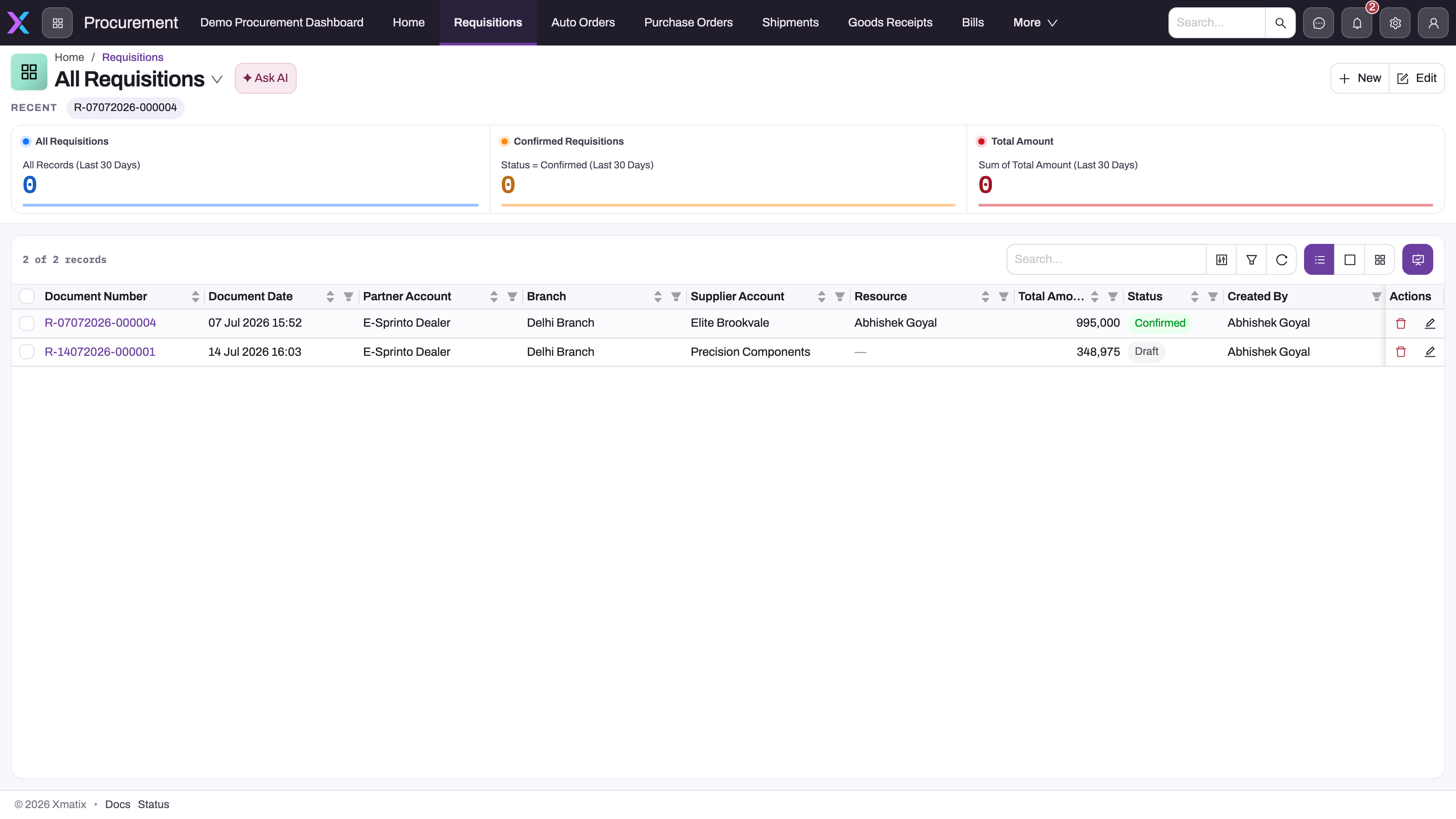
Requisitions live in the Procurement app, under Requisitions, on the web and in the mobile app. The list is titled All Requisitions. A saved requisition has a record header with its key figures and release buttons, three tabs — Lines, Related and Details — and an Amounts panel beside them.
- 1
Open the requisition by its document number to reach the Lines tab and the release actions.
- 2
Partner Account and Branch are copied to every purchase order released from the request and cannot be changed after save; Supplier Account is copied too, so set it before releasing.
- 3
Total Amount is the sum of the lines' quantity x unit cost - an estimate with no discount or tax term.
- 4
Status (Draft / Confirmed) is set by people; releasing to an order or a transfer never changes it.
- 5
The Confirmed Requisitions counter reads that same manual Status, not release progress.
- 6
New opens the create form with Document Date stamped and the branch's default supplier filled in.
When to use it
Raise a requisition when someone needs stock and the decision about where it comes from is made later, or by someone else. Use it when:
- a branch, workshop or store wants items and a buyer will place the order;
- you want to collect demand from several lines or people and release it to suppliers in batches;
- the items might come from your own stock at another branch rather than from a supplier;
- you want open requests to count as demand in auto-order suggestions so the same need is not ordered twice.
If you already know the supplier and are ready to commit, you can create the purchase order directly instead.
How xMatix handles it
Two ways to fulfil a request
| Route | Actions | What is created |
|---|---|---|
| Buy it | Release Order, Selective Release Order | A purchase order for the requisition's supplier, partner account and branch, linked back to the requisition. |
| Move it from your own stock | Release Transfer, Selective Release Transfer | An outward stock transfer from the requisition's From Branch to its Branch, linked back to the requisition. |
A buyer working on a purchase order can also pull requisition lines in from the other side, with Add Requisition or Selective Requisition Lines on the order.
Line quantities drive the lifecycle
Every line carries three counters:
| Counter | Meaning |
|---|---|
| Purchase Order Quantity | The quantity on purchase-order lines that were released from this line. |
| Stock Transfer Quantity | The quantity on transfer lines that were released from this line. |
| Pending Quantity | Quantity − Purchase Order Quantity − Stock Transfer Quantity. Every release draws on it. |
The counters are recalculated from the downstream documents, so changing or deleting a purchase-order line or transfer line updates the requisition line too. The header adds the lines up as Total Pending Quantity (on Details → Tax & Price Details).
Status
Status starts at Draft. A shipped business rule runs whenever the requisition is saved: when it has lines and no pending quantity is left on any of them, Status becomes Confirmed. On the shipped record page Status is read-only, and the list's summary cards count Draft Requisitions and Confirmed Requisitions. The picklist also holds an Approved value that nothing in the shipped product sets.
The four release buttons show only while Status is Draft and Total Pending Quantity is greater than zero. Product Configurator shows only while Status is Draft.
Pricing and taxes
New requisitions get a purchase price list automatically, chosen from the active Purchase Price lists that apply to your partner account and branch. When you add a line, Unit Cost is taken from that price list unless you type one, and the line's tax group comes from your tax group rules. Line taxes are recalculated whenever the item, SKU, quantity, amount or tax group changes. A line's Amount is quantity × unit cost plus the line's tax, and the requisition's Total Amount is the sum of the line amounts. The Amounts panel shows the base amount, the tax and the total, with the tax split by component.
Changing the header Price List later does not reprice lines that already exist; it applies to lines you add afterwards.
Prerequisites
- Your organization (the Partner Account) and the requesting Branch are active and belong together.
- For a purchase: the supplier is an active account marked as a supplier. For a transfer: the supplying branch belongs to the same partner account.
- Items are active and not discontinued. An item that requires a SKU needs one on every line.
- A purchase-type price list exists if you want Unit Cost filled in automatically; otherwise you type it.
- Your security profile grants access to Requisition and Requisition Line and to the release actions you will run (see Permissions). Releasing also creates a purchase order or a transfer, so you need create access to those too.
Procedure
Step 1 — Find a requisition
Open Procurement → Requisitions. The cards across the top count All Requisitions, Draft Requisitions and Confirmed Requisitions, and total their Total Amount. Switch to the Purchase view to see only requisitions that name a supplier. Use search, filters and column sorting to narrow the list, and open a requisition by its Document Number.
Step 2 — Create the requisition
- 1
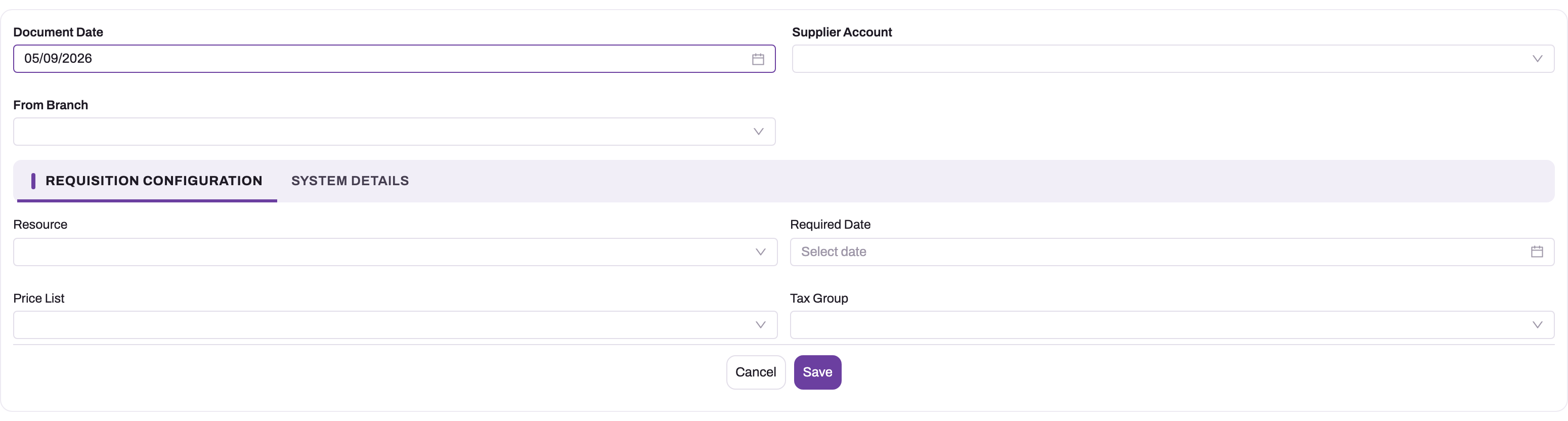
Document Date is stamped with today when the form opens; change it before saving if the request was raised earlier.
- 2
Supplier Account is optional and defaults to the branch's default supplier; whatever is here is copied to every purchase order released from the request and is locked after save.
- 3
From Branch is the supplying branch for Release Transfer - stock moves from here to the requesting branch. Leave it empty for a purchase.
- 4
System Details holds Partner Account and Branch (the requesting branch); they must belong together and cannot be changed after save.
- 5
Required Date cannot be earlier than today; Resource is validated as an active resource.
- 6
Price List and Tax Group are defaulted to the purchase price list and header taxes; lines take their unit cost and tax from them.
Choose New. The Requisition Configuration dialog opens:
- The top row: Document Date (today if you leave it empty), Supplier Account and From Branch. Fill Supplier Account when the request will be bought, or From Branch when another of your branches will supply it.
- The Requisition Configuration tab: Resource (the person the request is for), Required Date, Price List and Tax Group.
- The System Details tab: Partner Account and Branch — the organization and branch raising the request.
Save. The requisition gets a number such as R-10102026-000001 and opens at Status Draft. If the branch has a default supplier and you left Supplier Account empty, it is filled in. Partner Account, Branch and Supplier Account cannot be changed once saved, so check them before you save.
Step 3 — Add the lines
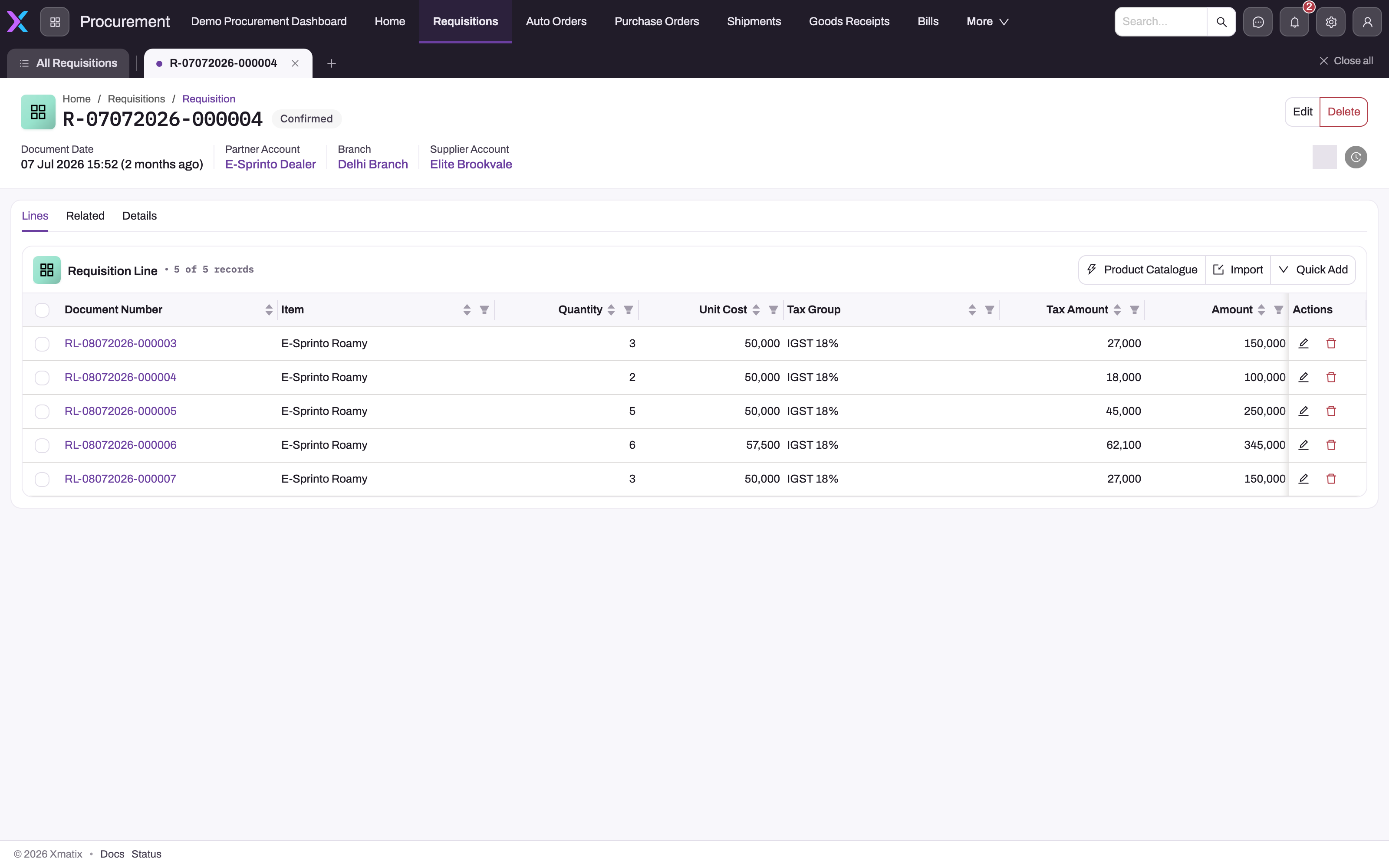
On the Lines tab use Quick Add, Product Catalogue (pick several items at once) or Import (load lines from a file). The quick-add form asks for Item, SKU, Quantity, Unit Cost, Tax Group and Description, and shows the item's details beside them. Quantity must be greater than zero.
On save the line is priced and taxed, and the Amounts panel updates. Adding a package item adds its component lines too; to choose optional components and their quantities, use Product Configurator in the header — see the product configurator.
- 1
The Status badge (Confirmed) is a value someone set; it does not change when lines are released.
- 2
Quick Add inserts one line, Product Catalogue picks several items at once, Import loads a file - every line needs an item and a quantity above zero.
- 3
Quantity is what was requested; it cannot be lowered below what purchase orders or transfers already carry for the line.
- 4
Unit Cost is looked up from the requisition's price list and can be overridden; Amount is quantity x unit cost with no discount.
- 5
Tax Group and Tax Amount are resolved from the item and the header taxes; they roll into Total Line Tax Amount.
- 6
Tick lines here, then run Selective Release Order or Selective Release Transfer with a Requested Quantity per ticked line.
Step 4 — Open a line and check what is pending
Select a line's number on the Lines tab to open its own record page, titled Requisition Line. The page has two tabs:
- Details, in four panels: Item Details (Item, SKU, Item Lot Type, Unit Cost), Quantity Details (Quantity, Requested Quantity, Stock Transfer Quantity, Purchase Order Quantity, Pending Quantity), Amount Details (Amount, Tax Amount) and System Information (who created and last changed the line, and when).
- Related, with two lists: the transfer lines and the purchase-order lines released from this line. Use them to see where each released quantity went.
Requested Quantity is only used inside the selective release dialogs and is not stored, so it always reads 0 here. The default Lines grid on the requisition shows item, quantity, unit cost, tax and amount; the release dialogs in the next steps show each line's pending quantity. Total Pending Quantity on Details is the sum for the whole requisition.
To change a line, choose Edit in the line's header or in its row on the Lines tab. Edit opens the same form as Quick Add: Item, SKU, Quantity, Unit Cost, Tax Group and Description. You can also change values in place on the line's record page. Leave the three quantity counters alone. xMatix maintains them from the purchase orders and transfers. Delete in the line's header or row removes the line, unless it already has purchase-order quantity.
Step 5 — Release to a purchase order
- Release Order creates one purchase order for every line that still has pending quantity, each at its full pending quantity.
- Selective Release Order opens a list of the requisition's lines. Tick the lines to release and enter a Requested Quantity on each — greater than zero and no more than the line's Pending Quantity — then confirm.
The new purchase order copies the requisition's Supplier Account, Partner Account and Branch and shows the requisition in its Requisition field. Each order line copies the item, SKU and Unit Cost, and links back to the requisition line. A package component stays linked to its package. The line's Item Lot Type, Description and Tax Group are not copied. The order line works out its own taxes. Lines with nothing pending are skipped. The order opens at Status Draft; carry on with it as described in purchase orders. The requisition's pending quantities go down by what you released.
Step 6 — Or release to a stock transfer
When the items should come from another of your branches, make sure From Branch is set, then use Release Transfer or Selective Release Transfer. They work the same way as the order releases, but create an outward stock transfer from From Branch to the requisition's Branch, at Status Draft, with one line per released requisition line. Each transfer line copies the item, SKU and Unit Cost. Carry on with the transfer in the Inventory app — see stock transfers.
Step 7 — Release the rest later
A partly released requisition stays at Draft with its release buttons available. Return to it at any time and release the remaining quantity — to the same supplier, as a transfer, or by pulling the lines into another purchase order with Add Requisition or Selective Requisition Lines there. When nothing is left pending, the release buttons disappear and, on the next save, Status becomes Confirmed.
Step 8 — Change, clone or delete a requisition
Choose Edit to change the header; Partner Account, Branch and Supplier Account stay locked. To reduce a line, lower its Quantity — not below what is already on purchase orders. Clone asks "This will create a copy of the current record (including its line items)." and starts a new requisition from this one. Delete removes the requisition after a confirmation; a line that already has purchase-order quantity cannot be deleted.
Step 9 — Work on mobile
Requisitions are part of the Procurement app in the mobile app, with the same create form, record page, quick-add line form and release dialogs, so a requester can raise a requisition from the floor and a buyer can release it from the web.
Fields
Header
| Field | What it means | Notes |
|---|---|---|
| Document Number | The requisition number. | Generated on save, for example R-10102026-000001. |
| Document Date | The request's business date. | Today if left empty. |
| Supplier Account | The vendor to buy from. | Only active supplier accounts. Defaulted from the branch's default supplier when empty. Copied to every purchase order released from it. Locked once saved. |
| From Branch | The branch that will supply the items for a transfer. | Limited to the partner account's branches. Leave empty for a purchase. |
| Resource | The person the request is raised for. | Must be authorized for the partner account and branch. |
| Required Date | When the items are needed. | Cannot be earlier than today. |
| Price List | The purchase price list lines are priced from. | Defaulted on create. Changing it later does not reprice existing lines. |
| Tax Group | Header-level taxes. | Applied when the requisition is created. |
| Partner Account | Your organization raising the request. | Only active partner accounts. Locked once saved. |
| Branch | The requesting branch, which receives the goods. | Must be active and belong to the partner account; required when the partner account has branches. Locked once saved. |
| Status | Where the request stands. | Draft (default), Confirmed, Approved. Set to Confirmed automatically; read-only on the record page. |
| Tax Supply Type | The tax lane. | Within State, Outside State, Exempt, Exports, SEZ. For businesses in India it is set from the supplier's tax registration and the place and source of supply. |
| Price As On Date | The date prices are taken from for new lines. | Optional; Document Date is used when empty. |
| Total Amount | The estimated value of the request. | Sum of line amounts, including line tax. Read-only. |
| Total Pending Quantity | What is still left to release. | Sum of the lines' pending quantity. |
| Requested By, Purchase Order | Optional references. | On Details → Request Summary. The release actions do not fill Purchase Order; the purchase order points back at the requisition instead. |
Lines
| Field | What it means | Notes |
|---|---|---|
| Document Number | The line's number. | Generated on save, for example RL-10102026-000001. |
| Item | What is requested. | Required. Inactive, discontinued and Discounted Item items are refused when the line is added. |
| SKU | The item variant. | Required when the item requires a SKU; limited to the item's SKUs. |
| Item Lot Type | The lot type of the item. | Optional, on the line's record page only. Not copied on release. |
| Quantity | How much is requested. | Required, greater than zero. Cannot go below what is already on purchase orders. Package component lines have extra limits (see Business rules). |
| Unit Cost | The expected price per unit. | On a new line, filled from the price list unless you type one. Picking a different item on the form prices the line again. If the new item has no price, the cost is cleared to 0. Copied to the purchase-order or transfer line on release. |
| Tax Group | The line's taxes. | From your tax group rules when the line is added. Not copied on release. |
| Description | Text for the line. | Optional. Not copied on release. |
| Tax Amount, Amount | The line's tax and value. | Tax is worked out on quantity × unit cost. Amount = quantity × unit cost + tax amount. |
| Purchase Order Quantity | Quantity already on purchase-order lines released from this line. | Maintained by the system: the total Quantity of those order lines. A Cancelled Quantity on the order line is not subtracted. |
| Stock Transfer Quantity | Quantity already on transfer lines released from this line. | Maintained by the system: the total Quantity of those transfer lines. |
| Pending Quantity | What a release can still take. | Quantity − Purchase Order Quantity − Stock Transfer Quantity, recalculated on every save. |
| Requested Quantity | The quantity to release in a selective release. | Entered in the release dialog. Not stored, so it reads 0 on the line's record page. |
| Exclude In Auto Order | Leaves the line out of auto-order calculations. | Not on the shipped line forms; add it in Design Studio if you use it. No effect on the release actions. |
The full list of stored fields is in the Requisition and Requisition Line entity references.
Business rules
- Numbering. Requisitions are numbered
R-+ the document date as DDMMYYYY + a six-digit counter; lines useRL-. - Locked fields. Partner Account, Branch and Supplier Account cannot change once saved.
- Partner and branch. Both must be active and belong together; when the partner account has branches, a branch is required.
- Active accounts. Partner Account and Supplier Account must be active accounts; Branch must be an active branch.
- Resource. A resource on the requisition must be authorized for its partner account and branch.
- Required Date cannot be in the past.
- Line quantity must be greater than zero, and cannot drop below the line's purchase-order quantity.
- Line deletion. A line with purchase-order quantity cannot be deleted. The quantity-reduction and deletion checks look at purchase orders only, not at transfers — check Stock Transfer Quantity before you reduce or delete a line that was released to a transfer.
- Item checks. When a line is added, the item must be active, not discontinued and not a Discounted Item. If the item requires a SKU, the line needs one, and the SKU must belong to the item. Switching an existing line to a Discounted Item is refused too.
- Releases draw only on pending quantity. A selective release refuses a requested quantity of zero or above the line's pending quantity, and nothing is created when nothing is pending. When a buyer pulls lines into a purchase order with Selective Requisition Lines, only a negative quantity is refused. A blank or zero quantity, or one larger than what is pending, takes the full pending quantity instead.
- What a release copies. Item, SKU, Unit Cost and the package component link. Item Lot Type, Description and Tax Group stay on the requisition line.
- Counters follow the downstream lines. Adding, changing the Quantity of, or deleting a purchase-order line or an outward transfer line released from a requisition line updates that line's counters. Cancelling quantity on a purchase-order line (Cancelled Quantity) does not, so the quantity does not become pending again.
- Status becomes Confirmed when the requisition is saved with lines and no pending quantity.
- Packages. Adding a package item adds its purchase components as separate lines. Changing the package line's quantity recalculates its component lines. Changing its item replaces them, and deleting it deletes them. A component line's quantity must stay within the component's minimum and maximum. It cannot change at all when the component's quantity is not editable. A mandatory component needs a quantity above zero and cannot be removed on its own.
Example
A tractor dealer's service workshop needs 20 brake pads and 6 hydraulic filters for next week's jobs. The workshop supervisor opens Procurement → Requisitions, chooses New, sets Required Date to next Monday, leaves Supplier Account empty and saves. The branch's default supplier is filled in, and the requisition is numbered R-10102026-000031 at Status Draft. They add two lines with Quick Add; the unit costs come from the purchase price list.
The buyer sees that the main branch has 10 brake pads in stock. They set From Branch to the main branch and run Selective Release Transfer with 10 brake pads. A transfer is created, and the brake-pad line now shows 10 pending. Then they run Release Order: a purchase order is created for the remaining 10 brake pads and all 6 filters. Total Pending Quantity is now 0, the release buttons disappear, and on the next save Status becomes Confirmed.
Training
Practice exercise
In a sandbox, as a user with the System Admin or Standard User profile:
- Create a requisition for a test partner account and branch, with a supplier and a Required Date next week. Expected: an
R-number and Status Draft. - Try to set Required Date to yesterday and save. Expected: "Required By Date Should not be Backdated".
- Add a line for a stock item, quantity 10. Expected: Unit Cost filled from the purchase price list and the Amounts panel updated.
- Run Selective Release Order for 4 of the 10. Expected: a purchase order linked to the requisition, and 6 pending on the line.
- Open the line and go to its Related tab. Expected: one purchase-order line for 4. Purchase Order Quantity reads 4 and Pending Quantity reads 6.
- Try to change the line's quantity to 3. Expected: "Quantity cannot be less than the already transacted quantity."
- Run Release Order. Expected: a second purchase order for 6.
- Check the header. Expected: Total Pending Quantity 0, no release buttons, and Status Confirmed after the next save.
Quick reference
- Partner Account, Branch and Supplier Account lock on save — check them first.
- Supplier Account for a purchase; From Branch for a transfer.
- Pending Quantity = Quantity − Purchase Order Quantity − Stock Transfer Quantity.
- Selective releases take only the quantities you enter, never more than pending.
- Release buttons show only at Draft with something pending.
- Status turns Confirmed by itself when nothing is left pending.
- A purchase order can pull lines in with Add Requisition.
- Exclude In Auto Order keeps a line out of auto-order suggestions.
- A line's Related tab shows the order and transfer lines it was released to.
- Cancelled Quantity on an order line does not give quantity back. Lower the order line's Quantity instead.
Permissions
Access is set on security profiles:
- Entity access. The shipped System Admin, Standard User, Sales Manager and Sales Executive profiles have full access to Requisition and Requisition Line. Give other profiles entity access before assigning them to requesters or buyers.
- Record sharing. Requisitions are owned by a user; see record security.
- Actions. Each button is a separately granted action:
- New and the four release actions: System Admin, Standard User and Sales Manager. Sales Executive cannot create or release requisitions.
- Clone: System Admin, Standard User and Sales Executive.
- Product Configurator: System Admin and Standard User.
- On lines: Quick Add, Edit and Delete follow the profile's access to Requisition Line. The shipped grants for Product Catalogue and Import on the Lines tab are on System Admin and Standard User only.
A user without an action does not see its button. Grant missing ones on the profile's Actions tab.
- Downstream documents. A release creates a purchase order or a transfer, so the user also needs access to those entities.
Configuration
- Document numbering. Setup → Feature Hub → Platform → Document Settings: Requisition Name Setting (series
R, separator-, date DDMMYYYY, six digits) and Requisition Line Name Setting (seriesRL). See Email templates and document numbering. - Status automation. The shipped business rule Set Requisition Status To Confirmed lives in Setup → Process Studio → Business Rules; change or deactivate it there. Because the release buttons are hidden once Status is not Draft, any rule or process you add that changes Status also hides them. See Business rules.
- Approval. No approval process is shipped for requisitions. To require sign-off before release, create one in Setup → Process Studio → Approvals — see Approval processes.
- Validations. The shipped validations — active partner account, active branch, active supplier account, Required By Date Should not be Backdated, and on lines Discontinued Item Cannot be added and Quantity should be greater than 0 — are metadata you can review in the entity's settings.
- Lookup filters. The shipped filters limit Supplier Account to active suppliers, Partner Account to active partner accounts, Branch and From Branch to the partner account's branches, and the line SKU to the item's SKUs.
- Default supplier. A branch's default supplier is filled in on new requisitions without one — see the procurement configuration reference.
- Pricing and taxes come from purchase price lists and tax group rules.
- Auto-order. Pending requisition quantities feed the auto-order engine when the auto order includes purchase requisitions; the line's Exclude In Auto Order flag opts a line out. See auto-order.
- Layouts and views. The create dialog, record page, header buttons and their visibility conditions, release dialogs and list views are metadata you change in Design Studio. Add the line counters to the Lines grid there if your users want them on the record page.
- Reports. A Requisition Statement report and a Requisitions dashboard are shipped.
Common problems
"At least one Requisition Line with quantity greater than zero is required to create Purchase Order."
Every line is already fully released, or the requisition has no lines. Check Pending Quantity on each line. The transfer actions show the same message with Transfer in place of Purchase Order.
"Requested quantity (…) cannot exceed the pending quantity (…)."
A line in a selective release asks for more than is pending. Reduce it to at most the pending quantity shown in the dialog.
"Requested quantity must be greater than zero."
A ticked line has a blank or zero Requested Quantity. Enter the quantity to release on every ticked line, or untick it.
"RequisitionLines argument is required for SelectiveReleaseOrder action."
No line was ticked in the selective release dialog. Tick at least one line. The transfer version names SelectiveReleaseTransfer.
"Quantity cannot be less than the already transacted quantity."
You tried to lower a line below what its purchase orders already carry. Reduce the purchase-order line first, or leave the requisition line as it is.
"There are downstream transactions. The record cannot be deleted."
The requisition line already has purchase-order quantity. Delete the purchase-order lines that were released from it first.
"Key fields are not editable once the related objects are added. Field Name : …"
You tried to change Partner Account, Branch or Supplier Account on a saved requisition. Create a new requisition with the correct values.
"Required By Date Should not be Backdated"
Required Date is earlier than today. Choose today or a later date.
"Resource is not authorized for Partner Account '…'." or "… for branch '…'."
The chosen Resource is not set up for this partner account or branch. Pick another resource, or ask your administrator to authorize the resource.
"SKU is required for this item."
The item is set up to require a SKU. Pick one of the item's SKUs on the line.
"Discontinued Item Cannot be added"
The item is marked discontinued. Choose its replacement.
"Item is Inactive." or "Invalid SKU selected for this item."
The item has been deactivated, or the SKU belongs to a different item. Pick an active item, and a SKU from that item's own list.
"'…' is a Discounted Item, which can't be used on a requisition."
A Discounted Item takes value off a document's total; it is not something you can request. Remove the line.
"Quantity cannot be changed for this component." or "Quantity cannot exceed … for this component."
The line is a component of a package, and the package's setup limits it. A component whose quantity is not editable follows the package line. Change the package line's Quantity instead and the components are recalculated. Otherwise keep the quantity between the component's minimum and maximum. The same applies to "Quantity cannot be less than … for this component."
"Mandatory package component cannot be removed."
You tried to delete a mandatory component line on its own. Delete the package line to remove the whole package, or keep the component.
I cancelled the purchase order line, but the requisition line still shows nothing pending
Purchase Order Quantity is the total Quantity of the order lines released from the requisition line. Cancelled Quantity on an order line does not reduce it. To make the quantity pending again, lower the order line's Quantity or delete the order line while that is still allowed. The requisition line's counters update when you save.
The release buttons are missing
They show only while Status is Draft and Total Pending Quantity is greater than zero. A Confirmed requisition has nothing left to release. If Status is Draft and something is pending, your profile may lack the release actions — see Permissions.
The purchase order has no supplier
The requisition had no Supplier Account when it was released. Set the supplier on the purchase order.
Common questions
Can one requisition produce several purchase orders?
Yes. Every release creates a new purchase order for whatever you release, so you can run Selective Release Order several times, each time for different lines or part quantities, until nothing is pending. Each order takes the requisition's Supplier Account, which is locked on the requisition. To buy part of the request from a different supplier, release those lines with Selective Release Order and change the supplier on the new purchase order before you continue with it. Add Requisition and Selective Requisition Lines on a purchase order only offer requisitions for the order's own supplier and branch.
Does the Status change when I release?
Indirectly. Releasing does not set Status itself, but a shipped business rule sets it to Confirmed when the requisition is saved with lines and nothing left pending. A partly released requisition stays at Draft. To see exactly where a request stands, read Total Pending Quantity and each line's counters rather than Status alone.
Can I mix a purchase and a transfer on one requisition?
Yes. Both routes draw on the same Pending Quantity, so you can transfer part of a line from another branch and buy the rest. Set From Branch before releasing the transfer; the supplier stays on the requisition for the purchase.
Do open requisitions affect auto-ordering?
Yes. When an auto order includes purchase requisitions, the pending quantity of open requisition lines for the same partner account and branch is taken into account, so quantities people have already asked for are not suggested twice. Tick Exclude In Auto Order on a line to leave it out. See auto-order.
How do I see which orders and transfers a line went to?
Open the line from the requisition's Lines tab and go to its Related tab. It lists the transfer lines and the purchase-order lines released from that requisition line, so you can follow each released quantity to its document. The line's Purchase Order Quantity and Stock Transfer Quantity are the totals of those two lists. From a purchase order you can go the other way: its Requisition field names the requisition it came from.
What is the Purchase Order Requisition record?
It is a link record that was meant to tie a requisition line to the purchase-order line covering it, with a requested and an ordered quantity. Nothing uses it. It is in no app or menu, has no form, and no release, auto order or mobile flow creates or reads it. When you release a requisition, the link is kept on the purchase-order line itself, and the requisition line's Purchase Order Quantity and Pending Quantity track what has been ordered. A record you add there by hand changes nothing on the requisition or the order, so use the line's Related tab instead. See the Purchase Order Requisition reference.