
A goods receipt records what actually arrived from a supplier and posts it into stock. It sits between the purchase order (or an inbound shipment) and the supplier bill: you release the receipt from the order, record the real quantities, run Receive to post the lines to inventory, inspect any items that need a quality check, then release the bill and post the goods-received accrual.
Overview
Open the Procurement app and choose Goods Receipts. The list opens on the All Goods Receipts view, which shows Document Number, Document Date, Partner Account, Branch, Supplier Account, Status, Total Amount and the audit columns. Two more views are seeded: Pending Inspections (Status is Start Inspection) and Received Goods Receipt.
A saved receipt opens on a record page with a status stepper under the header and four tabs:
- Lines — the receipt lines, with Quick Add and Scan Reciepts buttons.
- Details — the header fields in five sections: Key Information, Supplier Details, Transporter Details, Related Sources and System Information.
- PDI — a checklist you tick through by hand.
- Related — the Inspection Lines and Bills created from this receipt.
The header carries the receipt's actions: Receive, Inspection, Inspection Complete, Release Bill, Post General Ledger, Edit, Delete and Scan Reciepts. You see only the actions your security profile grants (see Permissions).
The goods receipt is also available in the xMatix mobile app. The mobile app runs the same actions under the same rules, and its receive panel sends only the lines you tick, with your edits.
When to use it
- Goods ordered on a purchase order have arrived at a branch and need to be counted into stock.
- A tracked inbound shipment has arrived and its contents need to be booked in.
- Items arrive that need a quality inspection before they become available stock.
- You need the receipt as the basis for the supplier bill and the goods-received accrual.
How xMatix handles it
Every receipt line carries three quantities that are deliberately different numbers:
| Quantity | Meaning | Set by |
|---|---|---|
| Ordered Quantity | What the purchase-order line released onto this receipt. It rolls back up into the order line's Receipt Quantity. It cannot be edited on the receipt line. | The release from the order (the requested quantity, or the line's pending quantity). |
| Supplier Quantity | What the supplier's papers say was sent. It is mandatory before receiving, and it is the quantity the over-receipt check adds up. | The release from a shipment, or you. |
| Received Quantity | What was physically counted in. | You, before or while running Receive. |
From these the line derives Shortage Quantity (supplier minus received, when positive), Excess Quantity (received minus supplier, when positive), Pending Inspection Quantity (received minus the quantity already sent to inspection) and Pending Invoice Quantity (received minus the quantity already billed). Damaged Quantity is typed separately and posts to its own damaged-stock bucket. Unit Cost is copied from the order line (or from the shipment line's unit price). It becomes the cost of the stock the receipt creates and the basis of the accrual journal, so check it before receiving.
The receipt has two state fields:
- Document State is the platform's own record of the last lifecycle action that did some work: Draft, Received, Inspection Started, Inspection Completed, Billed, Journal Posted. Only the actions set it, and nobody can edit it. It is not on the seeded form or list, but an administrator can add it.
- Status is your organization's marker, shown by the stepper (Draft, Receive, Start Inspection, Complete Inspection, Bill). Seeded business rules update it when the receipt is saved, based on its lines. See Business rules.
Prerequisites
- A purchase order (or inbound shipment) with lines that still have pending quantity.
- The receiving branch's company set up for stock: items with Track Inventory set post to the inventory ledger.
- For items that should be quality-checked on arrival, Inspection On Receipt enabled on the item record (Details → Inventory Settings). See the procurement configuration reference.
- For the accrual, GL posting enabled on the company and GL accounts of type Inventory and Unbilled Receipt (or posting definitions). See Configuration.
- A security profile that grants the receipt actions you need.
Procedure
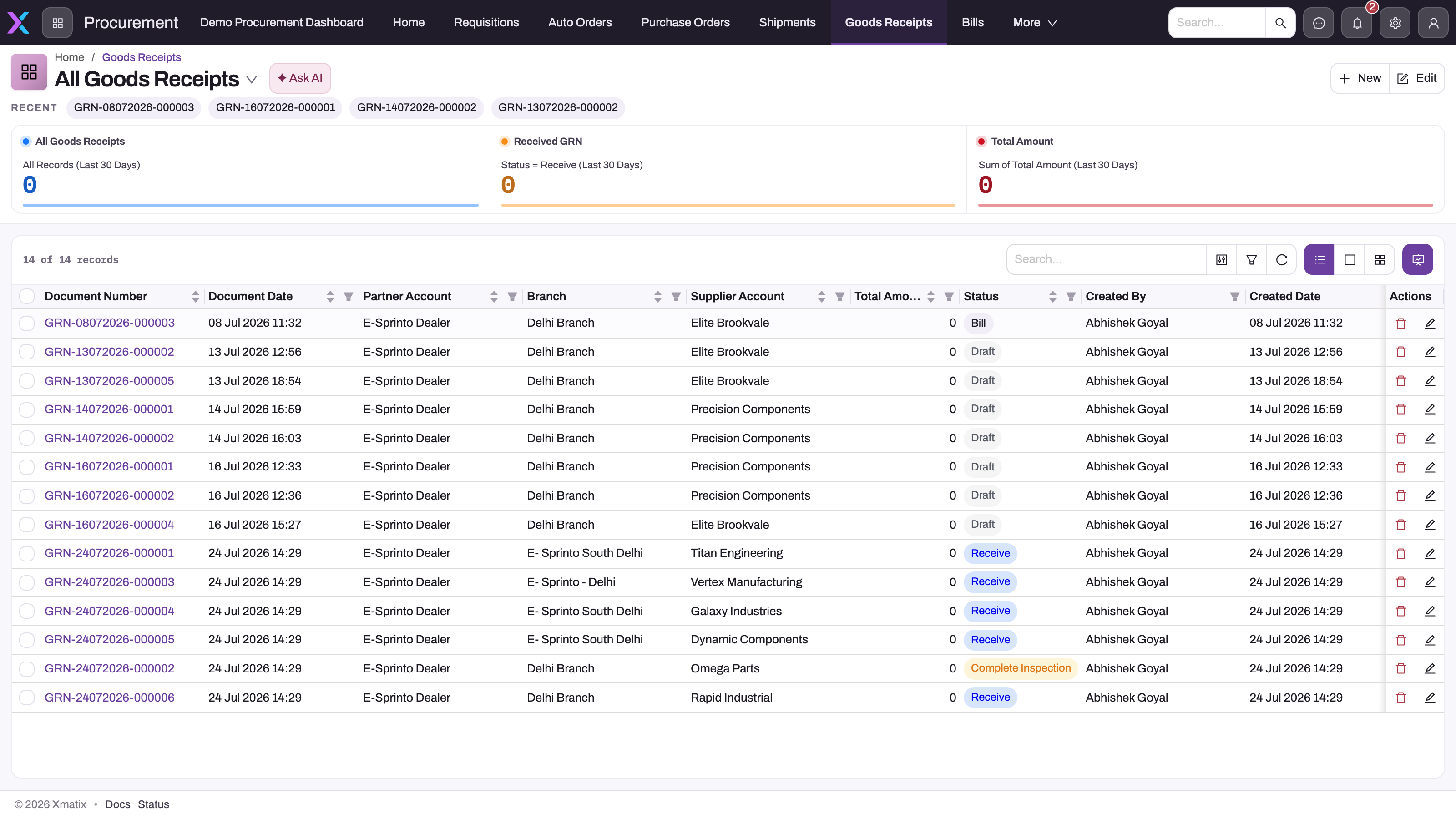
Start from All Goods Receipts to find a delivery by supplier, branch and date. Open a receipt by its document number.
Step 1 — Create the receipt from the order
On the purchase order, run Release Receipt to create a goods receipt for every line with pending quantity. To choose lines, run Selective Release Receipt, tick the lines and enter a Requested Quantity for each. The requested quantity must be greater than zero and at most the line's pending quantity.
The receipt copies the order's branch, partner account and supplier, and links back to the order. Each line gets the order line's item, SKU and unit cost, and an Ordered Quantity equal to the released quantity. Supplier Quantity is left empty for you to fill in. Lines with no item or nothing pending are skipped. The purchase order's Document State moves to Receipt Released.
When the goods travel as a tracked consignment, release the receipt from the inbound shipment instead (Release Receipt or Selective Release Receipt there). The receipt then copies the shipment's supplier invoice number and date and transporter name. Its lines carry the item, SKU, Supplier Quantity from the shipment, the shipment line's unit price as unit cost, and the purchase-order-line link. Ordered Quantity stays empty. The shipment line's serial number and component number are copied onto the receipt line, so asset-tracked units shipped under a serial can be received without retyping it. The description is not copied. A receipt released from a shipment does not link to the purchase order on its header.
Neither release fills a line's Tax Group, Item Lot Type or Storage Location. Set them on the line where you need them.
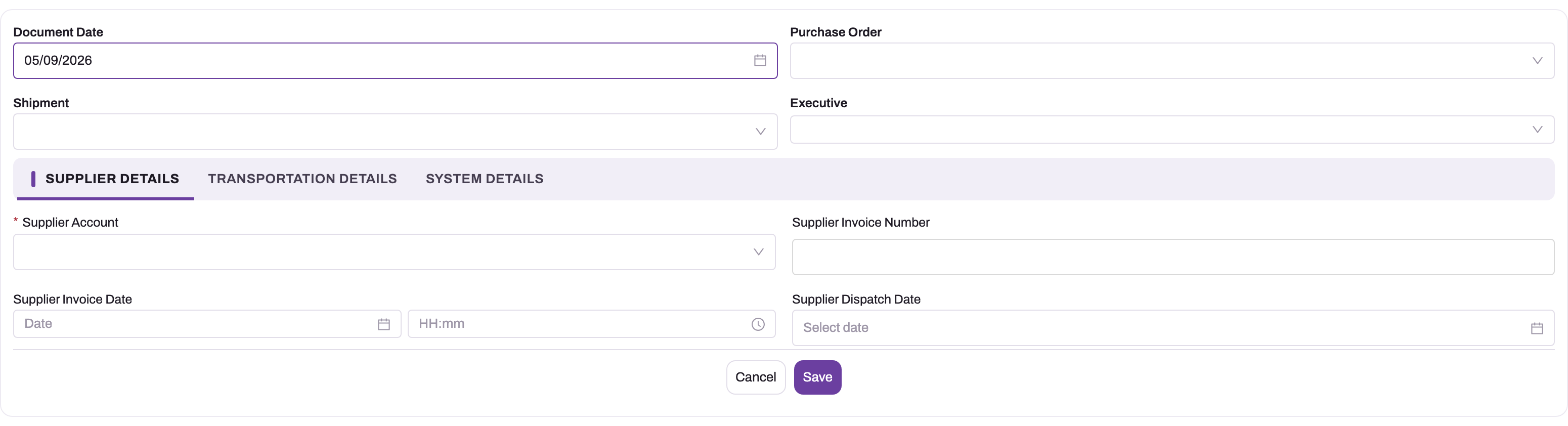
You can also select New to create a receipt by hand. The form asks for Document Date, Purchase Order, Shipment and Executive, then Supplier Details, Transportation Details and System Details (Partner Account, Branch). A stand-alone receipt has no order-line links, so nothing rolls back into an order and its bill lines cannot be matched to an order.
When lines are created, by a release or by hand, a line whose quantity (Supplier Quantity, or else Ordered Quantity) exceeds the SKU's Maximum Lot Quantity is split into several lines of at most that quantity. When the SKU has no value, the item's Maximum Lot Quantity is used. The extra lines copy the item, SKU, order and shipment links, storage location, lot, lot type, units of measure, unit cost and MRP. They do not copy the tax group, serial number, component number, description or received and damaged quantities.
The new receipt gets a document number from the GRN series, for example GRN-11102026-000042.
Step 2 — Record what actually arrived
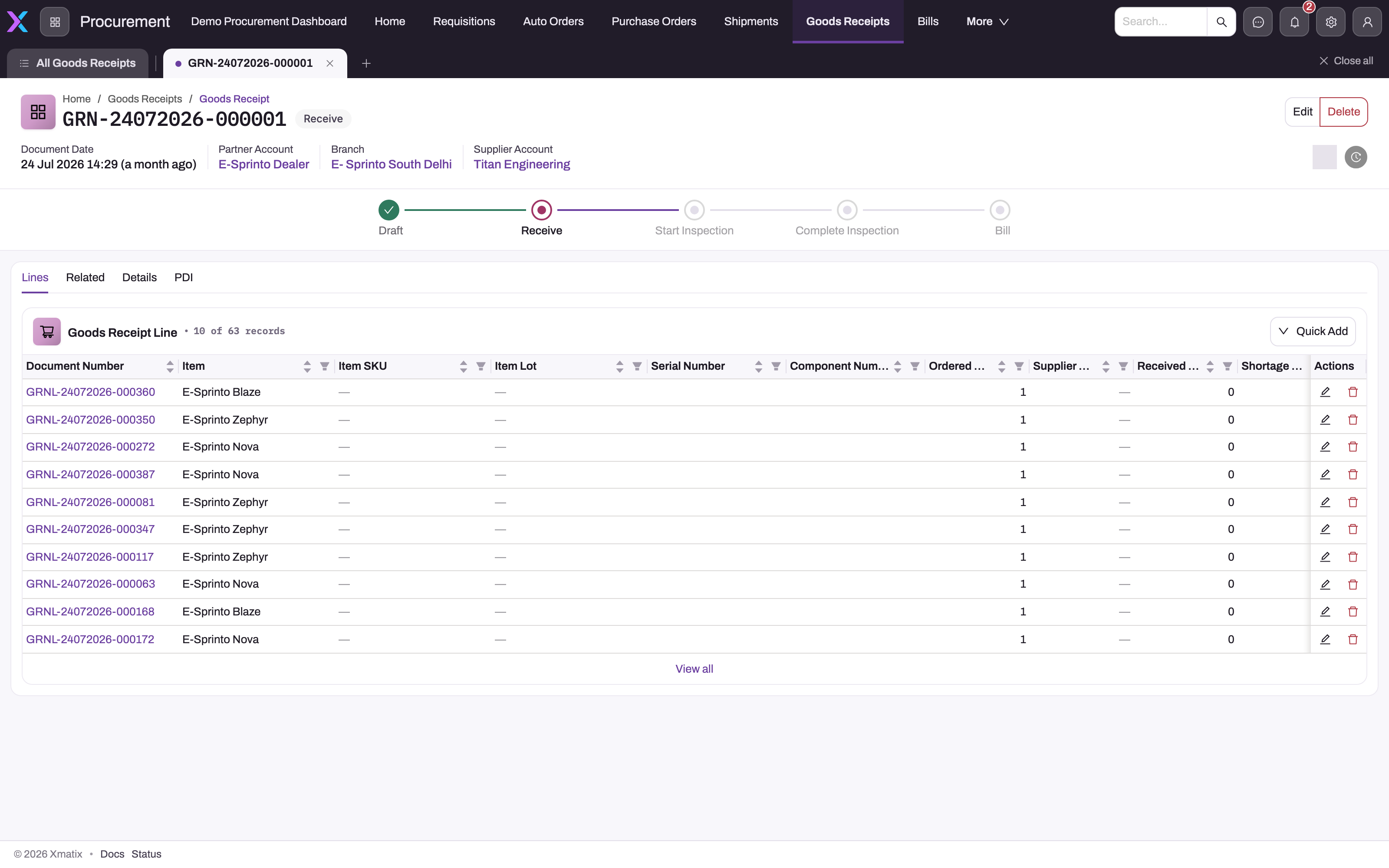
On the Lines tab, enter each line's Supplier Quantity, Received Quantity and any Damaged Quantity, either with the row's Edit or on the line's own record page (see Open, edit or delete a receipt line). Where your items track them, also enter the lot, serial number and MRP. Fill Received Quantity on every receipt, including those released from a shipment: the receipt's Total Amount, the accrual, Release Bill and the three-way match all use it.
To add a line by hand, select Quick Add on the Lines tab. The short form asks for Item, Supplier Quantity, Ordered Quantity, Unit Cost, Tax Group and Description, and shows an Item 360 panel for the chosen item. A line added this way has no purchase-order or shipment link, so it posts its Supplier Quantity to stock and nothing rolls back into an order. Where your profile grants it, Scan Reciepts opens a barcode panel: each scan adds the item, and scanning an item already on the receipt adds to its received quantity. Scanned lines still need a Supplier Quantity before Receive.
On save, the lines refuse a negative quantity, an MRP of zero or less, a manufacturing date in the future, an expiry date earlier than the manufacturing date, a unit of measure that is not defined for the item, and an inactive item or a missing or wrong SKU. For lines linked to a purchase-order line, the supplier quantities on all receipt lines for that order line must not add up to more than the order line's quantity minus its cancelled quantity.
Step 3 — Receive into stock
Select Receive. The receive panel lists the lines with checkboxes and the columns Item, Serial Number, Component Number, Batch Number, Date Of Expiry, Date Of MFG, Ordered Quantity, Received Quantity, Supplier Quantity, Damaged Quantity, Shortage Quantity and Excess Quantity. Tick the lines that arrived, then adjust their quantities, serial numbers and batch details in place. The list loads more lines as you scroll. Ticking a line copies its Ordered Quantity into Received Quantity and Supplier Quantity, replacing what the line held, so tick first and correct the figures afterwards. Lines with no ordered quantity (released from a shipment or added by hand) keep their own figures. The values you enter are saved to the lines before posting. Ordered Quantity cannot be changed here. Lines you leave unticked stay pending, so a delivery can be received in several passes. If you tick nothing, every line is received.
Receive all as ordered (in the panel's footer, beside Cancel and Save) receives the whole receipt without ticking anything. Every line not yet posted takes Supplier Quantity and Received Quantity from its Ordered Quantity (or keeps the shipped quantity of a shipment receipt) where they are empty. Lines of untracked items are received straight away. Lines that still lack their identity stay pending: an asset-tracked line with no serial number, more than one unit, or a serial already used; and, when batch numbers are Required, a lot-tracked line with no batch number. The message then reads, for example, 12 lines received. 3 lines need a serial or batch number (or a fix) and stay pending. Enter what is missing and run it again. A receipt of more than 100 lines is received in the background; the processing window shows the same summary and lists each pending line.
#### Scan or paste serial numbers
Scan serials in the receipt's header captures serial numbers without typing them into the grid. Choose the item, then scan each unit's label with a barcode scanner: each scan fills the next line of that item that has no serial yet. A label that carries two values separated by | fills the serial and the component number. To capture many at once, paste a list (or Load CSV file) with the columns Item, Serial, Component, Batch, Expiry and MFG. A header row may name them in any order; a single column is read as serial numbers of the chosen item. Select Fill lines. Rows that cannot be placed are listed with the reason, for example a serial already on another line or an item that is not on the receipt. When more serials arrive than there are one-unit lines, a line of several units is split into one-unit lines first. Scanning and pasting post nothing: run Receive afterwards.
Receive then:
- Checks that the receipt has lines, that some selected line is not yet posted, and that every selected line has a Supplier Quantity. Each asset-tracked line needs a Serial Number, exactly one unit, and a serial that is not repeated on the receipt or already in stock for the item. When batch numbers are Required, each lot-tracked line needs a Batch Number; when they are Automatic, a line without one gets one from the configured format.
- Creates an item lot for each selected line whose item tracks inventory and has no lot yet. The lot takes the line's serial number, component number, batch number (as Batch No), date of expiry, date of manufacture, MRP, unit cost, lot type and storage location, and the receipt's supplier invoice details and document date.
- Approves the selected lines for inventory posting. The inventory-ledger rules post them, and each line gets its Inventory Ledger reference. A line that matches no rule gets no reference and stays pending. This happens, for example, to a line linked to an order line whose Ordered Quantity is zero.
- For items with Track Asset, creates one asset per posted line (it needs the line's lot).
Document State becomes Received, and so does the linked purchase order's. Receive does not post anything to the general ledger.
Which quantity posts to inward stock depends on how the receipt was created:
| Receipt created from | Inward stock posts | Notes |
|---|---|---|
| A purchase order | Received Quantity | |
| A shipment whose stock was already posted in transit | Supplier Quantity | The stock moves out of the in-transit (pipeline) bucket into inward stock. |
| A shipment not yet posted | Supplier Quantity | |
| Nothing (stand-alone) | Supplier Quantity |
Shortage, damaged and excess quantities post to their own stock buckets. See the inventory ledger.
Step 4 — Start the inspection
Select Inspection. It creates one inspection line for every receipt line whose item has Inspection On Receipt enabled and whose pending inspection quantity is positive. Each inspection line copies the item, lot, SKU, storage location and unit cost. Its inspection quantity is the pending inspection quantity minus the damaged quantity. Saving the inspection lines moves the quantity into the inspection stock bucket and writes the started-inspection quantity back onto the receipt line. Document State becomes Inspection Started.
Record your findings on the inspection lines (see Related → Inspection Lines). For an item with Repair Order On Receipt, an inspection line can raise a PDI service order with Create Service Order. The full inspection procedure, its fields and its error messages are in Inspect received goods.
Step 5 — Complete the inspection
Select Inspection Complete. It closes every open inspection line: the inspection and adjustment quantities go to zero, and Inspection Done and Approved are set. The lines are approved for posting, which releases the inspected quantity from the inspection bucket. Until this step, the flagged quantities are not available stock. Document State becomes Inspection Completed.
Step 6 — Release the bill
Select Release Bill. It creates one supplier bill for the receipt, copying the branch, partner account, supplier and document date, and linking the bill to the receipt. Every receipt line becomes a bill line linked to its receipt line, with that line's pending invoice quantity, tax group, lot and lot type. A line that was already fully billed comes across with quantity zero, so review the new bill's lines. Document State becomes Billed, and so does the linked purchase order's.
The bill lines do not carry the purchase-order-line link, so a bill released here does not reduce the order line's Pending Invoice Quantity, and a later Release Invoice on the order would bill the same goods again (see match orders, receipts and bills). When you need both links, release the bill from the purchase order after the receipt exists. The bill's item lines are priced when they are created; see supplier bills.
Step 7 — Post the accrual
Select Post General Ledger. It posts the receipt's journal for the header Total Amount (received quantity × unit cost over the lines): inventory debited, the Unbilled Receipt account credited, dated on the document date, with the supplier as party. GL Posting Status becomes Posted, and Document State becomes Journal Posted. When a bill line linked to a receipt line posts later, it debits the Unbilled Receipt account and clears the accrual.
Run it once the received quantities and unit costs are final. Running it again reverses the earlier journal and posts a fresh one at the current total.
Use the PDI checklist
The PDI tab hosts a checklist bound to a checklist template chosen on the layout. You tick it through by hand as delivery evidence. It is separate from the inspection lines that Inspection creates.
Open, edit or delete a receipt line
Receipt lines have no menu entry of their own. You reach them from the receipt's Lines tab.
- Edit on a row opens the line form. It shows Item, Item SKU, Item Lot Type, Item Lot, Unit Cost and Tax Group, then a Quantities section (Received Quantity, Ordered Quantity, Supplier Quantity, Damaged Quantity, Returned Quantity, UOM Quantity) and an Additional Information section (Goods Receipt, Storage Location, Purchase Order Line, Shipment Line). Serial Number and Component Number are not on this form. Set them on the line's record page or in the receive panel.
- Opening a line shows its record page with Edit and Delete in the header. Selecting Edit lets you change the fields in place. The page groups the fields into Item Details (item, SKU, lot type, description, lot, serial and component numbers), Quantity Details, Inspection Details, Variance Quantities, Pricing And Tax Details, Unit of Measure & Conversion, Additional Information (storage location, goods receipt, inventory ledger) and System Information.
- Delete on a row, or in the record header, removes the line. A line with a received quantity above zero cannot be deleted. Deleting a line gives its quantity back to the purchase-order line or shipment line it came from.
Once a line has its Inventory Ledger reference, it is in stock, and the posting is final. Changing its quantities, unit cost, lot or storage location afterwards does not re-post or revalue the stock. Deleting a posted line does not reverse it either. Correct a received line's stock with an inventory adjustment. Item, Item SKU and Ordered Quantity cannot be changed on a saved line at all.
The mobile app lists the same lines on the receipt. Its line form has the same fields as the web Edit form, except Item SKU.
Fields
The header fields, in the order the Details tab shows them:
| Field | What it means | Notes |
|---|---|---|
| Partner Account | Your organization (company) receiving the goods. | Copied by the release. Must be an active partner account. Locked after save. |
| Branch | The receiving branch. | Must belong to the partner account and be active. Locked after save. |
| Supplier Account | The supplier who sent the goods. | Required on create; must be an active supplier. Defaults to the branch's default supplier when left empty. Locked after save. |
| Status | Your organization's progress marker: Draft, Receive, Start Inspection, Complete Inspection, Bill. | Defaults to Draft. Set by the seeded business rules or by clicking the stepper. |
| Total Amount | Received quantity × unit cost, summed over the lines. | Calculated. This is the amount the accrual journal posts. |
| Supplier Dispatch Date | When the supplier dispatched the consignment. | Informational; no calculation uses it. |
| Supplier Invoice Date | The date on the supplier's invoice or delivery note. | Copied from a shipment; carried onto assets created from the receipt. |
| Supplier Invoice Number | The supplier's invoice or delivery-note reference. | Free text, not checked for uniqueness. Copied from a shipment. |
| Transporter Name | The carrier. | Copied from a shipment. |
| Transporter Contact Number | The carrier's phone number. | Numeric. |
| Transporter Reference Number | The carrier's consignment or docket number. | |
| Purchase Order | The order the receipt was released from. | Set by the release. Empty on receipts released from a shipment. |
| Shipment | The inbound shipment the receipt was released from. | Set by the release. |
| Inspection Line | An inspection line this receipt was raised from. | Used for receipts that return inspected goods to stock. |
| Document Date | The receiving date. | On the create form only. Defaults to today; locked after save. |
| Executive | The person responsible for the receipt. | On the create form only. |
| Document Number | The receipt's number. | Generated on create from the GRN series. |
The line fields, in the order the line's record page shows them:
| Field | What it means | Notes |
|---|---|---|
| Item | What was received. | Copied by the release. Must be active. Locked once the line is saved. Only items with Track Inventory post to stock. |
| Item SKU | The variant received. | Required when the item requires a SKU, and must belong to the item. Locked once the line is saved. |
| Item Lot Type | The lot type the goods are booked under. | Not filled by the releases. Copied onto the lot. |
| Description | Free text about the line. | Not copied from shipment lines. |
| Item Lot | The stock lot. | Empty until Receive creates one, unless you pick an existing lot. Lot-tracked items cannot post without it. While the item tracks lots, saving the line later rewrites the lot's serial number, MRP, cost and location from the line. |
| Serial Number | The unit's serial or chassis number. | Required on Receive for items with Track Asset only, one unit per line, unique within the receipt and not already in stock for the item. Copied onto the lot and the asset, and from a shipment line. |
| Batch Number | The supplier's batch or lot number. | Optional by default; see the Batch number on lot-tracked receipts setting. Copied onto the lot's Batch No. |
| Component Number | A second identifier, such as an engine number. | Optional. Copied onto the lot and the asset. |
| Ordered Quantity | Quantity released from the order line. | Set by the release; empty on shipment receipts. Cannot be changed on a saved line. A line linked to an order line posts inward stock only when this is above zero. |
| Supplier Quantity | Quantity on the supplier's papers. | Required before Receive. Checked against the order line. Posts to stock on shipment and hand-made receipts. |
| Received Quantity | Quantity physically counted. | Posts to stock on order-based receipts. Drives Total Amount, the accrual, Release Bill and the three-way match. A line with a received quantity cannot be deleted. |
| Invoice Quantity | Quantity already billed. | Totalled from linked bill lines. |
| Inspection Quantity | Inspection marker. | Filled by the system for Inspection On Receipt items. Inspection uses Pending Inspection Quantity instead. |
| Started Inspection Quantity | Quantity sent to inspection. | Totalled from the line's inspection lines. |
| Pending Inspection Quantity | Received minus started inspection quantity. | Calculated. |
| Pending Invoice Quantity | Received minus invoice quantity. | Calculated. What Release Bill puts on the bill. |
| Damaged Quantity | Quantity that arrived damaged. | Posts to the damaged bucket; excluded from inspection. Replaced by the inspection lines' total damaged quantity when inspection completes. |
| Shortage Quantity | Supplier minus received quantity, when positive. | Calculated. Posts to the shortage bucket. |
| Excess Quantity | Received minus supplier quantity, when positive. | Calculated. Posts to the excess bucket. |
| Claimable Quantity | Shortage plus excess quantity. | Calculated, for information. |
| Pipeline Quantity | Quantity moving out of in-transit stock. | Calculated: the supplier quantity when the shipment's stock was posted in transit, otherwise 0. |
| Unit Cost | Cost per unit. | Copied from the order line or shipment line. Becomes the stock and lot cost. Changing it after Receive does not revalue the stock. |
| MRP | Maximum retail price on the goods. | Above zero when entered. Copied onto the lot; not used for valuation. |
| Tax Group | Tax group for the bill. | Not filled by the releases. Copied onto the bill line by Release Bill. |
| UOM, UOM Quantity, UOM1, UOM Quantity1, Conversion Ratio, Conversion Ratio 1 | Alternative units for the received quantity. | The unit must be defined on the item. Received Quantity and the unit quantities are kept in step through the item's conversion. |
| Storage Location | Where the goods are put away. | The stock is posted against it. Copied onto the lot. |
| Goods Receipt | The receipt the line belongs to. | |
| Inventory Ledger | The first stock posting the line created. | Filled by Receive. The reliable proof that a line is in stock. |
The line form also carries Returned Quantity (returned to the supplier, totalled from bill-return credit note lines), Purchase Order Line and Shipment Line (the source links that roll quantities back). Date Of MFG and Date Of Expiry exist on the line but are on no shipped form. An administrator can add them. The manufacturing date is then copied onto assets created from the line, and the expiry date is not used by any other step. For every field, including system fields, see the Goods Receipt Line reference and the Goods Receipt reference.
Business rules
- Defaults on create. Document Date defaults to today. Supplier Account defaults to the branch's default supplier. The document number is generated from the GRN series.
- Locked after save. Document Date, Partner Account, Branch and Supplier Account cannot be changed once the receipt is saved. On a line, Ordered Quantity, Item and SKU cannot be changed.
- Line splitting. A new line above the SKU's (or else the item's) Maximum Lot Quantity is split into lines of at most that quantity. Zero or empty means no split.
- Over-receipt check. On a line linked to a purchase-order line, the supplier quantities of all receipt lines for that order line cannot exceed the order quantity minus the cancelled quantity. The order line's Receipt Quantity adds up the ordered quantities, not the counted ones.
- Line deletion. A line with a received quantity cannot be deleted. Deleting another line recalculates the order line's or shipment line's receipt quantity, but never reverses stock already posted.
- Line numbering. Each line gets a document number from the GRNL series.
- Line roll-ups. Bill lines linked to a receipt line add up into its Invoice Quantity, bill-return credit note lines into Returned Quantity, and inspection lines into Started Inspection Quantity. Completing an inspection line replaces the receipt line's Damaged Quantity with the total damaged quantity of its inspection lines.
- Posting is once per line. A line posts to stock only while it has no Inventory Ledger reference, and only after Receive approved it. Later edits do not re-post or revalue. The quantity that posts follows the line's links: Received Quantity for a line linked to an order line (and only when its Ordered Quantity is above zero), Supplier Quantity for shipment and unlinked lines.
- Lot upkeep. For lot-tracked items, every save of a line that has a lot rewrites that lot's serial number, component number, MRP, unit cost, lot type and storage location from the line.
- Assets. When a line of a Track Asset item gets its Inventory Ledger reference and has a lot, one asset is created for it, carrying the line's received quantity and unit cost. See assets.
- Damage claims. A claim generation setup can raise supplier claims from receipt lines with a damaged quantity and a unit cost above zero. The line is marked Claimed so it is not claimed twice. See claim generation setups.
- Document State. Each action sets it only when it did some work: Receive → Received, Inspection → Inspection Started, Inspection Complete → Inspection Completed, Release Bill → Billed, Post General Ledger → Journal Posted. Receive and Release Bill also move the linked purchase order's Document State.
- Status rules. Seeded business rules run when the receipt is saved. They set Status to Start Inspection when some line has a started inspection quantity and no inspection line is done, to Complete Inspection when Status is Start Inspection and every inspection line is done, and to Bill when some line has been billed and no line has pending invoice quantity. They read the lines as they stand when the receipt itself is saved, so Status can lag behind the lines. Document State does not lag.
- Inventory posting. Only items with Track Inventory post. An item with Track Lots must have a lot on the line. Receive creates one when it is missing.
- GL posting. The accrual posts only when GL posting is enabled on the company and the total is not zero.
Example
A distributor's branch ordered 40 cartons of hand sanitiser and 10 infrared thermometers from a supplier. The thermometers have Inspection On Receipt and Track Lots enabled.
- The buyer opens the purchase order and runs Release Receipt. Receipt GRN-11102026-000042 is created with two lines: 40 cartons and 10 thermometers, both with their ordered quantities and unit costs.
- The truck arrives. The delivery note says 40 cartons and 10 thermometers. The storekeeper counts 38 cartons and 10 thermometers.
- They select Receive and tick both lines. Ticking fills Supplier Quantity and Received Quantity with the ordered 40 and 10. For the cartons they change Received Quantity to 38, and the panel shows Shortage Quantity 2. They save. The cartons post 38 to inward stock and 2 to shortage. The thermometers get a new lot and post 10. Document State becomes Received.
- The quality lead runs Inspection. One inspection line is created, for the 10 thermometers. After testing, they run Inspection Complete, and the 10 thermometers become available stock.
- Accounts runs Post General Ledger for the total of the received quantities at unit cost, then Release Bill, which creates the supplier bill for 38 cartons and 10 thermometers.
Training
Practice exercise
In a sandbox, create a purchase order for 5 units of an item with Track Inventory set and 3 units of an item with Inspection On Receipt set. Release a receipt with Selective Release Receipt, requesting 4 of the first item and all 3 of the second. On the receipt, select Receive and tick both lines. Check that ticking filled both quantities with the ordered figures, then change the first line's Received Quantity to 3 and save. Run Inspection and Inspection Complete. Finally, open the first line and change its Received Quantity to 4.
Expected result: the first line showed Shortage Quantity 1 and an Inventory Ledger reference after Receive. The last edit is saved on the line, but the stock does not change: the inventory ledger still shows 3 units in for that line. Related → Inspection Lines shows one closed inspection line for 3 units. The purchase order line for the first item still has 1 unit pending. Try Receive again: it refuses with All Goods Receipt Lines have already been posted to Inventory.
Quick reference
- Release receipts from the purchase order or the shipment, not with New.
- Supplier Quantity is mandatory before Receive; Received Quantity is the count.
- Order-based receipts post Received Quantity; shipment and stand-alone receipts post Supplier Quantity.
- Tick lines in the receive panel to receive in several passes.
- Only items with Inspection On Receipt get inspection lines.
- Flagged quantities stay out of available stock until Inspection Complete.
- A line's Inventory Ledger reference proves it is in stock.
- Check Document State for the last action that did some work. Status is your organization's marker.
- Post General Ledger needs GL posting on the company and Inventory and Unbilled Receipt accounts.
- A bill released from the receipt is not linked to the order lines, so the order keeps showing the quantity as unbilled.
- Ticking a line in the receive panel copies Ordered Quantity into Received and Supplier Quantity: tick first, then correct.
- A received line's stock is final; fix differences with an inventory adjustment.
- Shipment receipts bring serial numbers but not Received Quantity: enter it, or use Receive all as ordered.
- Serialised items receive one unit per line: keep the item's Maximum Lot Quantity at 1 (it is filled in when you save an item with Track Asset).
Permissions
Access is set on security profiles:
- Entity access. The shipped System Admin, Standard User, Sales Manager and Sales Executive profiles have full access to Goods Receipt and Goods Receipt Line. The shipped Procurement profile has no goods-receipt access: give it entity access before assigning it to receivers.
- Record sharing. Goods receipts are owned by a user. The organization-wide default is Read Only; see record security.
- Actions. Each button is a separately granted action:
- System Admin and Standard User have New, Edit, Delete, Clone, Receive, Inspection, Inspection Complete, Release Bill and Post General Ledger.
- Sales Manager has the same, except Clone and Post General Ledger.
- Sales Executive can edit, clone and delete receipts, but has no New and none of the receiving, inspection, bill or posting actions.
- No shipped profile has the header's Scan Reciepts, Release Back Orders or Release Back Orders (Selected).
- Line actions. The buttons on the Lines tab and on a line's record page are granted on Goods Receipt Line:
- System Admin has Quick Add, New, Edit, Delete, Clone and Scan Reciepts on the Lines tab.
- Standard User has the same, except Scan Reciepts.
- Sales Manager has the same as Standard User, except Clone.
- Sales Executive can edit, clone and delete lines, but has no Quick Add or New.
A user without an action does not see its button. If they run it another way, it is refused with The current user is not allowed to execute server action …. Grant missing ones on the profile's Actions tab.
Configuration
| What | Where | Effect |
|---|---|---|
| Document numbering | Setup → Feature Hub → Platform → Document Settings, Goods Receipt Name Setting | Default series GRN, date format day-month-year, six-digit number, separator -. Receipt lines use the GRNL series. See document numbering. |
| Default supplier | Branch, default supplier account | Fills Supplier Account on new receipts. See the procurement configuration reference. |
| Inspection On Receipt | Item record, Details → Inventory Settings | Decides which lines Inspection picks up. |
| Track Inventory, Track Lots, Track Asset | Item record, Details → Inventory Settings | Whether lines post to stock, get a lot, and create assets. Track Asset needs Track Lots. |
| Maximum Lot Quantity | SKU, then item (Specification) | Splits large receipt lines. An item saved with Track Asset and no value takes 1, so serialised items are received one unit per line. |
| Batch number on lot-tracked receipts | Setup → Feature Hub → Procurement → Settings, group Receiving | Optional (default): lot-tracked lines are received without a batch number. Required: Receive refuses them and Receive all as ordered leaves them pending. Automatic: a batch number is built from Automatic batch number format (tokens {SupplierInvoiceNumber}, {SupplierInvoiceDate:yyyyMMdd}, {ReceiptDate:yyyyMMdd}, {ReceiptNumber}, {ItemCode}). Serial numbers are never generated. |
| GL Posting Enabled | The company's account record | Without it, Post General Ledger writes no journal (see Common problems). See GL accounts. |
| Inventory and Unbilled Receipt accounts | Finance app → GL Accounts, or a posting definition for goods receipts in the Finance app's Settings | Where the accrual posts. A posting definition wins; otherwise the company's account of that type is used, preferring the receipt's branch. See chart of accounts. |
| Status rules | Setup → Process Studio → Business Rules, the Set GRN Status rules on Goods Receipt | Change or deactivate them to fit your own Status vocabulary. To follow Document State, trigger a rule on a phase transition. See business rules. |
| Layout and list | Layout designer | Add Document State or GL Posting Status to the form or list, add Release Back Orders to the header, or change the PDI checklist template. See design a form layout. |
| Line forms | Layout designer, Goods Receipt Line layouts | The row Edit form, the Quick Add form, the line record page and the receive panel's columns are separate layouts. Add Serial Number to the Edit form, or Date Of MFG and Date Of Expiry to any of them, if your receivers need them. |
| Damage claims | Claims settings, claim generation setups | A setup with Goods Receipt Line as its source raises supplier claims from damaged quantities. See claim generation setups. |
| Back orders | Goods Receipt actions Release Back Orders, Release Back Orders (Selected) | Not on the seeded header and granted to no profile. When added and granted, they allocate received stock (received minus returned minus damaged) to the fulfilment lines it was bought for, up to what each line still needs. Running them again does nothing more once all is allocated. |
Common problems
"No Goods Receipt Lines found to Receive Goods Receipt Lines."
The receipt has no lines. Release it from the order again, or add lines on the Lines tab.
"Supplier Quantity is required for Goods Receipt Lines before receiving."
A ticked line has no supplier quantity. Enter it on the line or in the receive panel, then run Receive again.
"Enter the Serial Number for … on line …"
An item with Track Asset has no Serial Number on that line. Enter it in the receive panel or with Scan serials, then receive.
"… is serialised: each receipt line receives one unit under its own serial number …"
The line carries more than one unit, usually because the item had no Maximum Lot Quantity when the receipt was released. Paste or scan the serials with Scan serials (the line is split into one-unit lines), or set the item's Maximum Lot Quantity to 1 and release a new receipt.
"Serial Number … is already in stock (lot …)" or "… is entered on more than one line of this receipt"
The serial was received before for this item, or is typed twice on the receipt. Correct the serial on the line named.
"Enter the Batch Number for … on line …"
Batch numbers are Required and a lot-tracked line has none. Enter it, or switch the setting to Automatic.
"All Goods Receipt Lines have already been posted to Inventory."
Everything you selected is already received. Check the order for remaining pending quantity and release a new receipt if more is coming.
"Received quantity (N) cannot exceed the ordered quantity (M) for the purchase order line."
The supplier quantities across this order line's receipts add up to more than was ordered, net of cancellation. Correct the supplier quantity, or increase the order quantity first.
"Product Lot was not selected for the transaction. This is required for Inventory posting."
A lot-tracked item reached posting without a lot. Select the lot on the line, then receive again.
"No Goods Receipt Line requires inspection."
None of the receipt's items has Inspection On Receipt, or nothing is pending inspection because it has not been received yet or was already inspected.
"No Inspection Line found with pending completion."
Every inspection line is already done.
"No Goods Receipt Lines found to Release Bill."
No line has pending invoice quantity: everything received has been billed, or nothing has been received yet.
"There are downstream transactions. The record cannot be deleted."
You tried to delete a line that has a received quantity. Received lines stay on the receipt.
"The system field … is not editable."
You changed Document Date, Partner Account, Branch or Supplier Account on a saved receipt, or Ordered Quantity on a saved line (The system field OrderedQuantity is not editable.). Create a new receipt instead, or correct the quantity on the purchase order and release again. In the receive panel the same change is refused with Ordered Quantity is not editable on a Goods Receipt Line.
"Key fields are not editable once the related objects are added. Field Name : ItemId."
You changed the Item (or, with SKUId, the Item SKU) of a saved line. Delete the line, if it has no received quantity, and add a new one with the right item.
"A positive decimal number is expected for the field: …"
A line quantity is negative. The message names the field, for example ReceivedQuantity. Enter zero or more. It also appears on a line whose Pending Invoice Quantity or Pending Inspection Quantity went below zero because Received Quantity was reduced below what had already been billed or sent to inspection. Do not reduce Received Quantity below those figures.
"Date Of Expiry should be less than Date Of MFG" or "Date Of MFG should be less than or equal to today's date"
The expiry date is earlier than the manufacturing date, or the manufacturing date is in the future. Despite its wording, the first message means the expiry date must be on or after the manufacturing date.
"MRP can't be negative"
The MRP is zero or less. Leave it empty or enter a price above zero.
"UOM is not defined for this Item"
The unit picked in UOM or UOM1 is not one of the item's units of measure. Pick one of the item's units, or add the unit to the item first.
"Item is Inactive.", "SKU is required for this item." or "Invalid SKU selected for this item."
The line's item is inactive, needs a SKU, or the SKU belongs to another item. Correct the item or SKU before saving the new line.
I changed a line after Receive, but the stock did not change
A line posts once. After it has its Inventory Ledger reference, edits to its quantities, cost, lot or location are saved on the line but not posted. Record the difference with an inventory adjustment.
Receive ran, but a line still has no Inventory Ledger reference
The line matched no inventory-ledger rule. The usual cause is a line linked to a purchase-order line with an Ordered Quantity of zero, such as a line added by hand and then linked to an order line. Other causes are an item without Track Inventory, or a Supplier Quantity of zero. Fix the line and run Receive again.
Release Bill finds no lines on a receipt released from a shipment
Release Bill bills the Pending Invoice Quantity, which is Received Quantity minus what was billed. Shipment receipts carry their figure in Supplier Quantity, so Received Quantity stays at zero unless you enter it. Enter Received Quantity on the lines before you run Receive. The receipt's Total Amount and accrual use it too. If the lines were received with Received Quantity at zero, their whole supplier quantity also shows as Shortage Quantity and was posted to the shortage bucket as well as to inward stock. Correct that stock with an inventory adjustment.
The serial numbers entered on the shipment are missing on the receipt
Release Receipt does not copy serial or component numbers from shipment lines. Enter them on the receipt lines, on the record page or in the receive panel, before you run Receive.
"No GL account resolved for document header (Inventory)" or "for counterpart (Unbilled Receipt)"
The company has no active account of that type and no posting definition for goods receipts. Create the account or a posting definition, then run Post General Ledger again.
Post General Ledger ran but no journal appeared
GL posting is not enabled on the receipt's company, or the total is zero. GL Posting Status stays empty or Draft, although Document State can show Journal Posted. Enable GL posting on the company, check the unit costs, and post again.
The line posted a different quantity than I counted
The receipt came from a shipment or was created by hand, so Supplier Quantity posted instead of Received Quantity. On such receipts, correct the supplier quantity before receiving.
The Received Goods Receipt view is always empty
The seeded view filters on a Status value spelt Recieve, which no receipt carries. Edit the view's filter to Receive, or filter All Goods Receipts yourself.
Common questions
Are all items inspected?
No. Only items with Inspection On Receipt enabled get inspection lines. Everything else goes straight to available stock when received. The flag lives on the item record, so one receipt can mix flagged and unflagged items: only the flagged lines get inspection lines. Inspection refuses to run on a receipt that has none, with No Goods Receipt Line requires inspection.
Can I receive a delivery in several passes?
Yes. In the receive panel, tick only the lines that arrived; the rest stay pending on the receipt, and you run Receive again when they come. At the order level, Selective Release Receipt lets you create a separate receipt per delivery, with a requested quantity per line.
What if the delivered quantity differs from what was ordered?
Record the supplier's papers in Supplier Quantity and the physical count in Received Quantity. The shortage or excess is derived and posted to its own stock bucket. The over-receipt check compares the cumulative supplier quantity with the order quantity, so an order cannot be over-received on paper. Damaged goods go in Damaged Quantity and post to the damaged bucket.
Does the status stepper change when I run Receive or Inspection?
Not directly. The actions set Document State. The seeded business rules then update Status from the lines when the receipt is saved, so Status can lag. You can also click a step. To see where a receipt really stands, check Document State, each line's Inventory Ledger reference, and the pending inspection and pending invoice quantities.
Can I correct a receipt line after it has been received?
You can edit most of its fields, but the stock does not follow. A line posts to stock once, when Receive gives it an Inventory Ledger reference. Later changes to its quantities, unit cost, lot or storage location are saved on the line and are used by billing and the accrual, but the stock already posted stays as it was. Item, SKU and Ordered Quantity cannot be changed at all, and a line with a received quantity cannot be deleted. Count carefully in the receive panel, and correct any stock difference afterwards with an inventory adjustment.
Where do I record serial, engine or chassis numbers for each unit?
Use the goods receipt line. Its Serial Number and Item Lot fields carry the per-unit identity that receiving and stock work with. The platform also has a separate Shipment Asset Line record. It holds per-unit details for goods on an inbound shipment: serial, engine, component, batch and lot numbers, manufacturing date and plant, the supplier invoice and sale-side details. No shipped app or shipment screen lists these records, and no release, receipt, stock or sales step creates or reads them. They contain only what you enter or import. An administrator can add a Shipment Asset Lines related list to the shipment record page to capture them. See the Shipment Asset Line reference for every field.