
Procurement behavior is shaped less by a settings page and more by data your organization already maintains: a switch in Feature Hub, defaults on branches, flags on items, planning attributes per item and branch, and opt-out flags on document lines. This page lists every knob the module actually reads and where it lives. Anything not listed here — permissions, approval processes, business rules, document layouts, document numbering — is the platform's standard machinery and applies to procurement documents like any others; see the administration section.
Module switch
Setup → Feature Hub → Procurement → Settings carries four settings:
- Enable Procurement (group General), on by default. It is the master switch: when off, the module is unavailable to all users in the organization, including users who hold licenses and seat assignments, and the Procurement app leaves the app launcher and navigation. Existing records still open from a direct link, and Setup stays reachable so you can switch it back on.
- Route credit limit breaches to an approval process (group Credit limit), off by default. Off: a new purchase order is refused when your open payables to the supplier already exceed the credit limit set for your partner account and that supplier. On: the block is skipped, and an approval process you configure is expected to govern the override. Suppliers without a positive limit are never blocked. See Credit limits and purchase orders.
- Batch number on lot-tracked receipts (group Receiving), Optional by default. It decides what Receive does with a goods-receipt line for a lot-tracked item (Track Lots) that has no batch number. Optional: the line is received without one. Required: Receive refuses the line, and Receive all as ordered leaves it pending. Automatic: Receive stamps a batch number built from the format below. Serialised items (Track Asset) always need their serial number typed or scanned; serial numbers are never generated.
- Automatic batch number format (group Receiving), used only when the setting above is Automatic. The default is
{SupplierInvoiceNumber}-{SupplierInvoiceDate:yyyyMMdd}. Available tokens:{SupplierInvoiceNumber},{SupplierInvoiceDate:yyyyMMdd},{ReceiptDate:yyyyMMdd},{ReceiptNumber}and{ItemCode}. When the receipt has no supplier invoice number, the receipt number is used instead. See goods receipts.
Branch defaults
| Setting | Where | Effect |
|---|---|---|
| Default supplier account | Branch (DefaultSupplierAccountId) | When a requisition, purchase order, goods receipt or bill is created for the branch without a supplier, the branch's default supplier is filled in. The column is not part of the standard branch screens, so it is maintained by import or a customized branch layout. |
| Purchase-type price list and discount group | Price Lists / Discount Groups | The default Purchase price list (and, on orders and bills, discount group) is assigned to new documents; lines take their unit cost and discounts from them. |
| Tax groups | Tax Groups | Purchase-order headers need a Document Level tax group (the shipped line-level check on purchase-order lines is inactive); other procurement documents apply header taxes from their tax group. |
Item flags
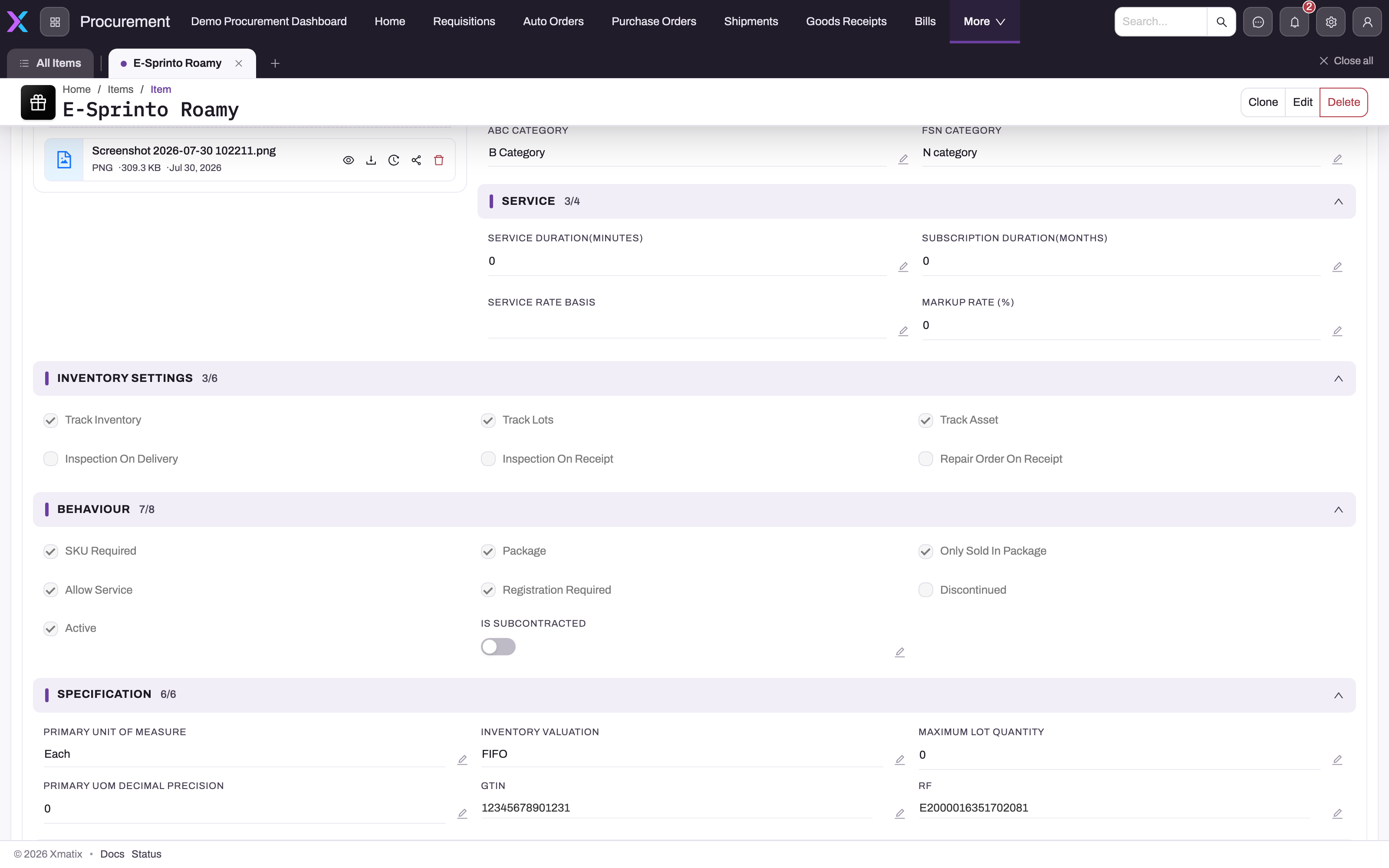
- 1
Inspection On Receipt: when ticked, the goods receipt's Inspection action creates inspection lines for this item and its received quantity stays held until Inspection Complete. Here it is off, so the item goes straight to stock.
- 2
Track Inventory makes receipt lines post to the inventory ledger and create a cost layer at the receipt line's unit cost.
- 3
Track Lots makes receiving create or match an item lot per line; Track Asset creates one serialized asset per unit and forces one unit per receipt line.
- 4
Inspection On Delivery and Repair Order On Receipt belong to the delivery and service flows, not to goods-receipt inspection.
- 5
SKU Required: every requisition, order, receipt and bill line for this item must name a SKU.
- 6
Maximum Lot Quantity (or the SKU's own value) splits a larger receipt line into several lines when the receipt is created; 0 means no split.
Open the item record's Details tab and scroll to Inventory Settings (the Behaviour and Specification sections below it hold two more). These are the item settings procurement reads:
| Flag | Effect on procurement |
|---|---|
| Inspection On Receipt | Received quantity for the item is held under inspection instead of going straight to available stock; Inspection on the goods receipt creates inspection lines only for items with this flag, and Inspection Complete releases them. See goods receipts. |
| Track Inventory | The item's receipt lines post to the inventory ledger and create a cost layer at the receipt line's unit cost. |
| Track Lots | Receiving creates or matches an item lot per receipt line. |
| Track Asset | Receiving needs a Serial Number on the line and creates one asset per posted receipt line, for the line's received quantity (a lot is required, and the item must also track lots). Set Maximum Lot Quantity to 1 to get one line, and one asset, per unit. |
| SKU Required | Every requisition, order, receipt and bill line for the item must name a SKU. |
| Maximum Lot Quantity (Specification; also per SKU) | When a receipt line is created with a larger quantity it is split into several lines of at most this quantity — the SKU's value wins over the item's. Zero means no split. |
Inventory planning attributes
- 1
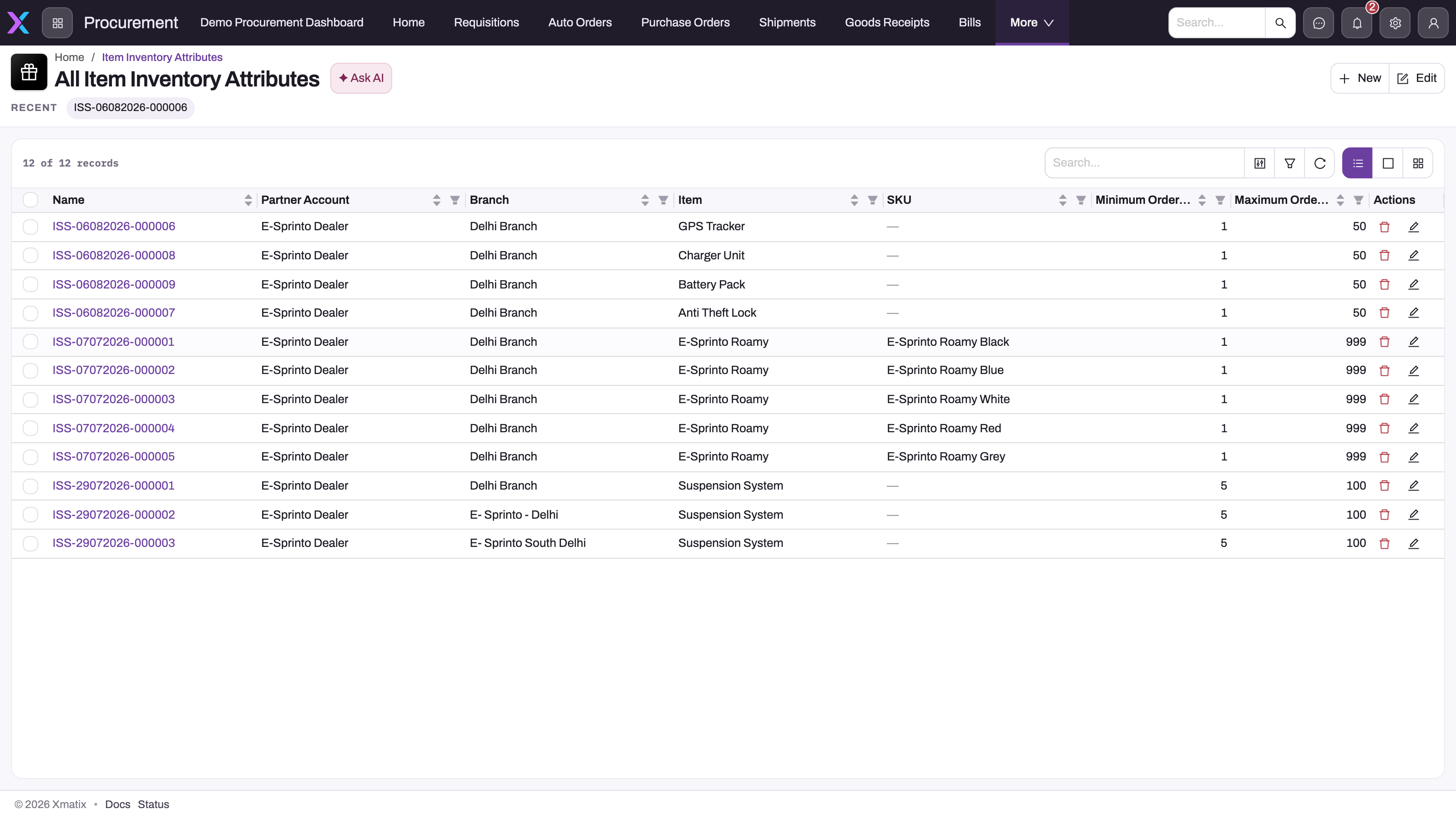
Open a row by its Name to see its minimum stock level, ABC and FSN categories and reorder quantity.
- 2
Partner Account and Branch narrow the row's scope; an empty value means it applies to every partner or branch, and the Minimum Stock Level engine only reads branch-scoped rows.
- 3
Item plus an optional SKU: these rows give each colour variant of one item its own planning parameters.
- 4
The same item can carry one row per branch; Forecasting averages the numeric parameters of every row that matches.
- 5
Minimum and Maximum Order Quantity: a purchase-order line for the item is rejected below or above them, and Forecasting tops stock up to the maximum.
- 6
New creates a row; saving enforces that at least one order quantity is set and that maximum values are not below minimums.
Item Inventory Attributes are the per-item planning rows that drive auto-ordering and the quantity rules on purchase-order lines. Each row belongs to an item and can be narrowed by SKU, Item Lot Type, Branch and Partner Account; an empty scope column means "applies to all", so an unscoped row combines with a branch-specific one. When several rows match one item, the Forecasting engine averages the numeric parameters and the purchase-line rules use the first matching row.
- 1
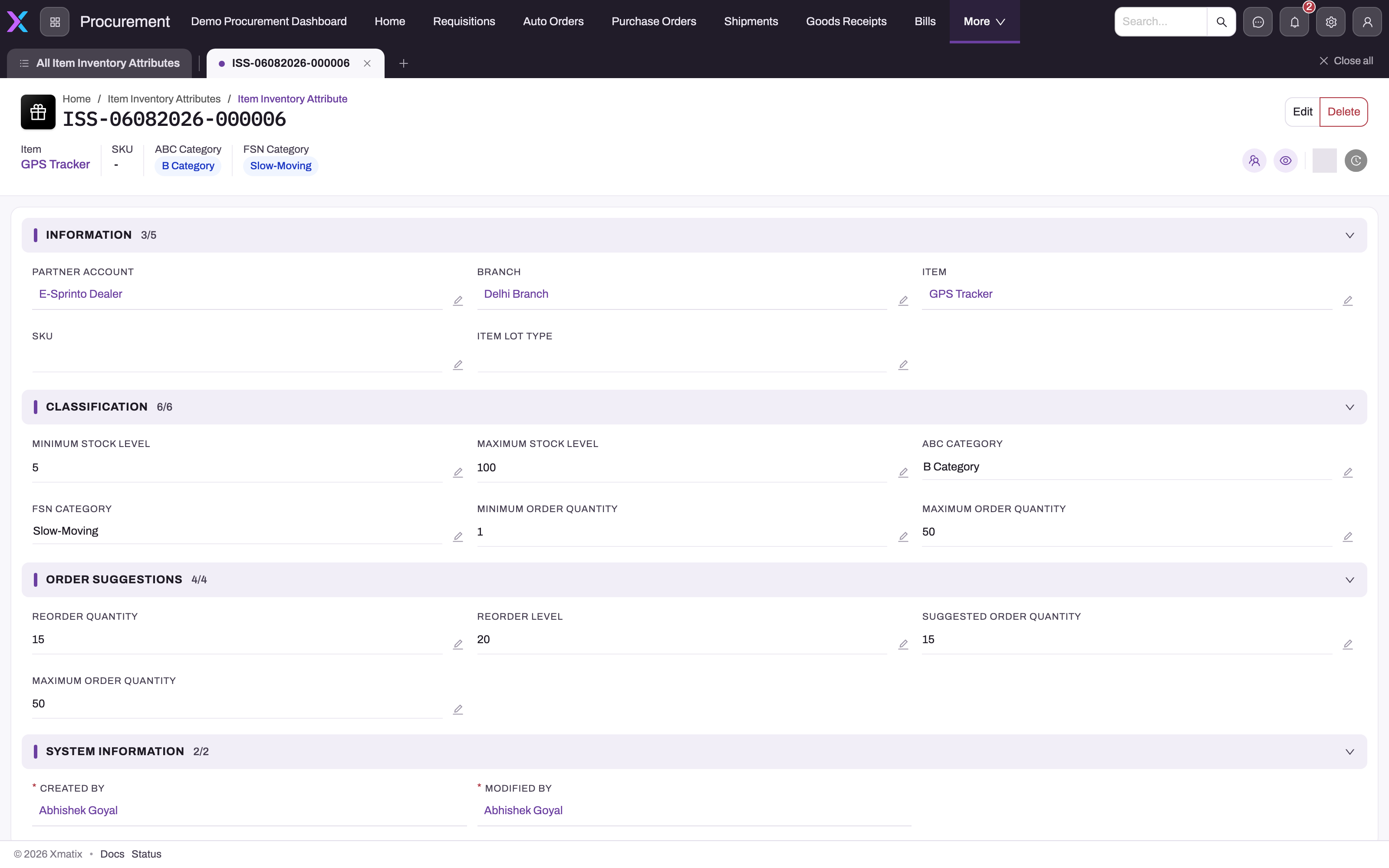
Partner Account, Branch, Item, SKU and Item Lot Type define where the row applies; a blank value means every partner, branch or SKU.
- 2
Minimum Stock Level is the trigger the Minimum Stock Level engine compares available branch stock against.
- 3
Maximum Stock Level is stored and validated but read by no engine; Forecasting tops up to Maximum Order Quantity instead.
- 4
ABC Category and FSN Category are what the auto order's Exclude flags match; only the hyphenated FSN values (Fast-, Slow-, Non-Moving) are recognised.
- 5
Minimum and Maximum Order Quantity bound every purchase-order line for this item and feed the Forecasting reorder point and ceiling.
- 6
Reorder Quantity is what the Minimum Stock Level engine suggests; Reorder Level and Suggested Order Quantity beside it are stored but unused.
The default detail layout shows the row in four sections: Information (partner account, branch, item, SKU, lot type), Classification (minimum and maximum stock level, ABC and FSN category, minimum and maximum order quantity), Order Suggestions (reorder quantity, reorder level, suggested order quantity, maximum order quantity) and System Information. Lead Time and Average Consumption are stored on the row but not displayed by this layout; add them to the layout or maintain them by import if your planners need them on screen.
| Parameter | Read by |
|---|---|
| Minimum Stock Level | Minimum Stock Level engine — an item is suggested when available stock at the branch is below it. Only branch-scoped rows count for this engine. |
| Reorder Quantity | Minimum Stock Level engine — the suggested quantity; when zero, the shortfall up to the minimum is suggested instead. |
| Minimum Order Quantity | Purchase-order lines — a quantity below it is rejected (Order Quantity N can't be less than the Minimum Order Quantity M for Item 'X'). Forecasting — added into the reorder point. |
| Maximum Order Quantity | Purchase-order lines — a quantity above it is rejected. Forecasting — the level suggestions top up to. |
| Lot Quantity | Purchase-order lines — the quantity must be a multiple of it (Order Quantity N needs to be in multiple of the Lot Quantity M for Item 'X'). Zero or empty means no rule. |
| Lead Time (In Days), Average Consumption | Forecasting — reorder point = lead time × average consumption + minimum order quantity. |
| FSN Category | All engines — the auto order's Exclude FSN Items flags skip rows whose category is Fast-Moving, Slow-Moving or Non-Moving. The alternative F/S/N category values seeded on the same picklist are never matched by the exclusion — use the hyphenated values. Cycle counts also filter on it. |
| ABC Category | All engines — Exclude ABC Items skips A Category, B Category or C Category rows. Cycle counts also filter on it. |
| Maximum Stock Level, Reorder Level, Suggested Order Quantity | Stored and validated, but read by no engine or rule. The order-up-to level Forecasting uses is Maximum Order Quantity, and the trigger Minimum Stock Level uses is the minimum stock level. |
Saving a row enforces: at least one of minimum or maximum order quantity; maximum order quantity not below minimum; maximum stock level not below minimum stock level; reorder level greater than reorder quantity; and no negative quantities.
Items with no matching row are invisible to the engines — no parameters, no suggestion — have no category for the header exclusions, and are not checked against order-quantity limits.
Per-line auto-order opt-out
Shipment lines, purchase-order lines, requisition lines and sale-order lines each carry an Exclude In Auto Order flag. A flagged line is left out of the Forecasting pipeline netting and the matching Sense AI nudge math — use it for lines that would otherwise distort the projection, such as a speculative order that may be cancelled. It has no effect on the manual release actions.
Goods-receipt checklist (PDI tab)
The goods receipt's PDI tab hosts a checklist widget bound to a checklist template chosen in the layout designer. It is a manual tick-through separate from the inspection lines; change the template on the layout to change what receivers see.
Scheduled suggestion runs
The job Generate forecast auto-order lines fills empty Forecasting auto orders and spawns dated orders from Template auto orders. It has no setting of its own: the job schedule is the switch and the cadence — create a schedule with a cron expression to turn it on, delete or disable the schedule to stop it, and use Run now for a manual run. Only one run executes at a time per organization, and runs skip anything already generated. Note that the scheduled run does not apply an auto order's Fit to Budget cap; only the on-demand Generate Lines and Order from Template actions do.
Sense AI nudge threshold
The purchase-order quantity nudge ignores divergence smaller than a share of the needed quantity (default 25%). The tolerance is tenant-overridable in AI Studio under Nudges, and the nudge respects the Sense AI module and nudge switches in Feature Hub. See the Sense AI section of the Knowledge Center.