
A lead is interest that has not been qualified yet: who the person or business is, how to reach them, where the enquiry came from and what they seem to want. It is the first record in the CRM funnel. You work a lead with calls, emails and bookings until it is real, then convert it into an opportunity (creating or reusing the account and contact on the way), release it straight to a sales order or service order, or close it as lost. You find leads in the CRM, Service and Partner Onboarding apps, under Leads.
Overview
A lead records the enquirer (first and last name, business name, phone, email), the enquiry (lead source, rating, the interested item or the asset it concerns), the routing context (Partner Account, Branch and Executive) and its Status. Every lead has one of three record types, and each has its own form and its own buttons:
| Record type | Used for | Buttons on the record |
|---|---|---|
| Sales | Interest in buying a product | Product Demo, Opportunity, Lead Lost, Order, Edit, Delete |
| Service | A customer's service need on an asset they own | Appointment, Opportunity, Lead Lost, Service Order, Edit, Delete |
| Partner | A business enquiring about becoming a dealer, distributor or service centre | Convert Lead, Lead Lost, Edit, Delete |
The record page shows a stage bar for Status under the header, a Details tab, a Related tab (sales and service leads), an Activities panel and Sense AI insights. Sales and service lead pages also show a Duplicates panel, and sales lead pages show a Lead Score panel when your organization scores leads.
When to use it
Use a lead for any enquiry you have not yet qualified: a walk-in, a phone call, a web form, a referral or a social-media message. Once the customer has said what they want and you need to price it, convert the lead into an opportunity. When there is nothing to negotiate — the customer simply wants to buy the item or book the service — release the lead straight to an order or service order instead.
Many leads are created for you rather than typed in: a campaign's Leads, Contract Schedule and Maintenance Schedule buttons raise leads for campaign members and for assets falling due for contract or maintenance work, and the Lead button on a support case turns the case into a lead.
How xMatix handles it
Status
Status is the lead's stage: New, Contacted, Nurturing, Lost or Converted. A new lead starts as New. Shipped business rules move it for you:
- When a Call or Email activity is logged against the lead, Status becomes Contacted (unless the lead is already Converted or Lost).
- When the lead is saved with an opportunity linked — because it was converted — Status becomes Converted. If a freshly converted lead still shows its earlier status, refresh it; saving the lead once applies the rule.
- Once a lead is Converted or Lost, its status is final: any change of status is refused with "A Converted or Lost lead is final - its status can no longer be changed."
You can also move status yourself with the status actions Advance Status (one step along New → Contacted → Nurturing; it stops at Nurturing and never sets Lost or Converted), Mark New, Mark Contacted, Mark Nurturing and Mark Lost. Mark Lost refuses a Converted lead. Where these actions appear depends on your organization's layouts.
What happens when a lead is saved
- The postal code is tidied and routed. The Postal Code you enter is matched against your organization's postal code list and replaced with its standard spelling, and City, State and Country are filled from it. If a branch covers that postal code, the lead's Branch and Partner Account are set from the mapping — on every save, not only the first. When two mappings cover the same postal code, the older one wins. If your organization routes leads with an assignment rule instead, the assignment rule decides and the postal-code routing steps aside.
- The customer is recognised. If you pick an Account, the lead takes the account's first and last name, phone, email, city, state and postal code (from the account's billing address, or its default billing address) and its most recently created contact — filling only the fields you left blank. If you pick no account but the Phone Number matches an existing account's phone, the lead links to that account in the same way. If you pick an Asset and no account, the lead links to the asset's owner.
- Names fill in. With an account selected and Business Name empty, Business Name is taken from the account's name. With a contact selected, empty First Name and Last Name are taken from the contact.
- Partner Account and Branch are checked. A partner account is required on every lead and must be active. If the partner account has branches, one of them is required and it must be active.
- The Executive is assigned. On a new lead, the partner-resource assignments for the lead's partner account and branch pick the Executive. When an assignment matches, it replaces any executive you chose. See Automatic owner assignment.
- A document number is assigned on the first save — shipped series
L, the date as day, month and year, and a six-digit counter, joined by hyphens (for exampleL-10102026-000001). Document Date defaults to today. - A score may be set. If your organization has published a lead scoring model, the score fields are recalculated on save.
Converting and releasing
| Button | Record type | Creates | Limits |
|---|---|---|---|
| Opportunity | Sales, Service | Opens the Convert Lead dialog: an account (new or existing), a contact (new or existing) and an opportunity (new or existing) | Refused once the lead has an opportunity |
| Convert Lead | Partner | In one step: a new account if the lead has none (a partner account, inactive, for a partner enquiry), a contact if needed, and a partner opportunity | Refused once the lead has an opportunity |
| Order | Sales | Opens the Release Order dialog: an account and contact (new or existing) and a sales order with one line for the interested item | No limit: each release creates another order |
| Service Order | Service | A service order for the lead's account and asset, with one line for the interested item if there is one | Refused once the lead has a service order |
What the new records carry:
- Account. Named after the lead's Account Name — the Business Name, or else the first and last name. The lead's street, city, state, postal code and country fill the account's billing and shipping address. Accounts created from sales and service leads are active customer accounts.
- Contact. Named after the lead's first and last name, with its email and phone as the contact's email and mobile.
- Opportunity. The account and contact, the lead's partner account, branch, asset and service contract, today's date, and the matching record type (a sales lead gives a sales opportunity, a service lead a service opportunity). For a partner enquiry, the property, email, proprietor name, first and last name and business name carry over. When the lead names an Interested Item, the opportunity starts with one line for it, quantity 1, with the lead's SKU.
- Sales order. The account and contact, partner account, branch, executive and today's date, linked back to the lead, with one line for the interested item and SKU, quantity 1.
- Service order. The account, asset, partner account, branch, service contract and document date; the lead's executive becomes the service advisor and its Remarks become the customer's voice.
Releasing an order or a service order does not change the lead's status.
Prerequisites
- Access to the CRM, Service or Partner Onboarding app and permission on leads (see Permissions).
- Your selling company (partner account) and branch — or a postal code your organization has mapped to a branch.
- For a service lead, the customer's Asset.
- For conversion and release, a partner account and branch on the lead or a postal code (not needed on partner leads).
Procedure
Step 1 — Find a lead
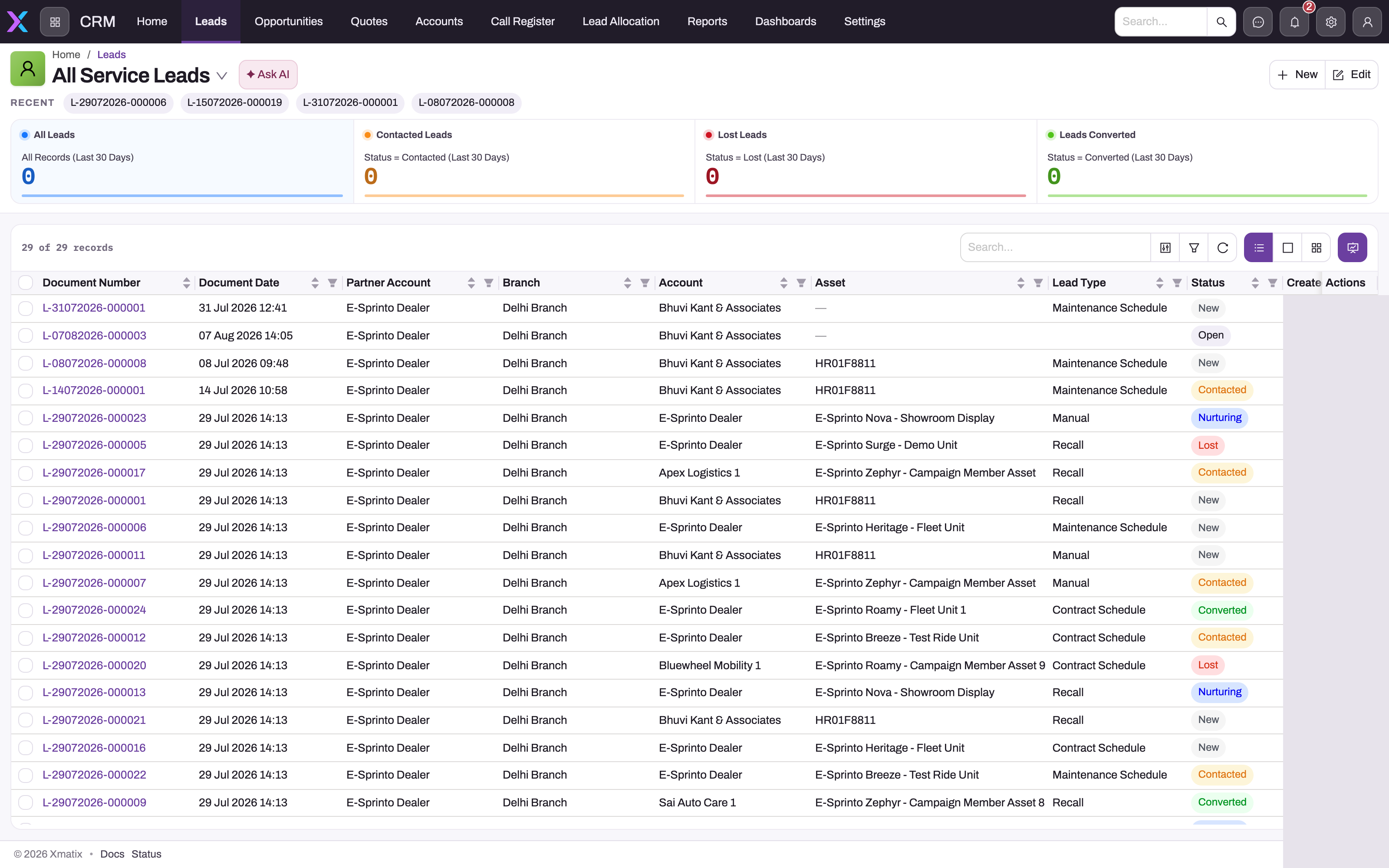
Open Leads in the CRM or Service app. Pick a view: All Leads, Sales Leads, Service Leads, Partner Leads, Open Leads (New, Contacted or Nurturing), Lost Leads, Unassigned Open Leads (open leads with no executive) or Service Due (open service leads whose due date has arrived). Search, filter and sort as on any list, and open a lead to see its record page.
Step 2 — Capture a lead
- Switch to the view for the kind of lead you are capturing, then choose New. The form that opens is the form for that record type.
- Fill the top section: First Name, Last Name, Business Name, Phone Number, Email and Lead Source. On a sales lead add the Interested Item and its SKU; on a service lead pick the Asset and, where relevant, the Item Service Contract and Item Maintenance Schedule; on a partner lead choose the Partner Type.
- On Details, set the Lead Rating, the Account and Contact if the customer is known, the Postal Code, Potential Revenue, Campaign, Lead Due Date and Remarks. Leave Executive empty if your organization assigns executives automatically.
- Fill Qualification and Profile with whatever the enquirer told you — industry, budget, turnover, job title, preferred language and so on.
- On System Details, check Partner Account and Branch. Leave them empty only if the postal code will route the lead.
- Save. The lead gets its document number, Status New, and any account, branch, partner account and executive xMatix resolved. Reopen it and check those values before you start working it.
At least one of First Name, Last Name or Business Name is required, unless you pick an account or contact to take the name from.
Step 3 — Qualify the lead
Work the lead from its Activities panel: log calls and emails, add tasks and schedule meetings (see Activities). Logging a call or an email moves the lead to Contacted. Use Advance Status or Mark Nurturing when the lead needs longer-term follow-up, and keep Lead Rating (Hot, Warm, Cold) current so colleagues can see which leads to chase.
To book a visit, use Product Demo on a sales lead or Appointment on a service lead. Both open the New Booking wizard, where you pick a branch, a time slot and a date; the booking is linked to the lead and takes a seat in that slot. A full or unavailable slot is refused with a message naming the slot and date — pick another. See Product demos.
Check the Duplicates panel: it lists other open leads with the same email, phone or contact. Merging a duplicate into the lead you keep moves its activities, attachments, collaborators, followers and side conversations across, and marks the duplicate Lost with Lost Reason Duplicate.
Step 4 — Convert the lead to an opportunity
- On a sales or service lead, choose Opportunity. The Convert Lead dialog opens with three tabs: Account, Contact and Opportunity.
- On Account, choose New Account or Existing Account. The Matching Accounts card lists customer accounts that look like this lead and says why each matched; choose Link on one to use it. Only customer accounts can be picked.
- On Contact, choose New Contact or Existing Contact. Existing contacts are limited to the chosen account; with a new account, Existing Contact is not available.
- On Opportunity, choose New Opportunity and review the pre-filled values, or Existing Opportunity to link one the account already has.
- Choose Convert. The summary shows each record as Created, Linked or Updated. The lead now links to the opportunity, and the status rule moves it to Converted.
On a partner lead, choose Convert Lead instead. It runs in one step with no dialog: the account, contact and partner opportunity are created from the lead.
The records you create or pick in the dialog always win over the lead's earlier links — converting with a new account points the opportunity at the new account. The lead keeps its link to the opportunity, so the deal's origin stays traceable.
Step 5 — Or release an order or service order
- Sales order. On a sales lead, choose Order. The Release Order dialog asks only which customer this is — Account and Contact, new or existing, as in Step 4. Choose Release Order. The order is created from the lead's values with one line for the interested item. Each release creates another order, so release once and continue from the order (see Creating a sales order).
- Service order. Choose Service Order. The service order is created for the lead's account and asset. A lead can raise only one service order.
Step 6 — Close a lost lead
Choose Lead Lost. Pick the Lost Reason (required) and add Remarks, then confirm. Status becomes Lost and can no longer change. Mark Lost, where your layout offers it, sets Lost without asking for a reason.
Step 7 — Use leads on mobile
The CRM and Service apps are available in the mobile app. There you can open lead lists, create leads (the record type comes from the list you start from), and convert a lead to an account, contact and opportunity. Leads you create offline are saved on the device and sent when you reconnect; a lead must have synced before you can convert it.
Fields
The form order below is the sales lead form. Service and partner forms use the same fields with the differences noted.
| Field | What it means | Notes |
|---|---|---|
| Document Number | The lead's number | Generated on first save from document numbering (shipped series L). Read-only |
| First Name, Last Name | The enquirer's name | Filled from the selected account or contact when empty. Required on the partner form. At least one of these or Business Name is required on every lead |
| Business Name | The enquiring business's trading name | Filled from the account name when an account is selected and the field is empty |
| Phone Number | The enquirer's number | Required on sales and service forms. Matched against account phone numbers to link an existing customer. Must be a valid Indian mobile number (10 digits starting 6–9) when the country code is +91 or blank |
| The enquirer's email | Must contain @ | |
| Lead Source | Where the lead came from | Required. Shipped values: Dealer, Campaign, Visit based, Web, Phone, Email, AMC, Scheduled Maintenance, Employee Referal, Social Media |
| Interested Item | The product or service the enquirer wants | Becomes the line on the opportunity, order or service order (quantity 1). On the service form it is on Qualification |
| SKU | The variant of the interested item | Limited to SKUs of the interested item |
| Asset | The customer's asset the lead concerns | Service form, required. Limited to the account's assets. Sets the account when none is chosen |
| Item Service Contract, Item Maintenance Schedule | The contract or maintenance schedule behind the lead | Service form. Usually set by campaign schedules |
| Partner Type | The kind of partner a partner enquiry wants to become | Partner form, required: Dealer, Distributor, Service Centre |
| Executive | The person handling the lead | Limited to active resources. Assigned automatically on a new lead when a partner-resource assignment matches |
| Lead Rating | How promising the lead is | Hot, Warm, Cold. Descriptive only |
| Account | The existing customer, if known | Limited to active customer accounts. Fills names, phone, email, address and contact |
| Contact | The person at the account | Limited to the account's contacts |
| Postal Code | The enquirer's postal code | Routes the lead to a branch and partner account and fills City, State and Country when it matches your postal code list |
| Potential Revenue | Estimated value of the lead | For reporting; not copied to converted records |
| Campaign | The campaign that produced the lead | Limited to active, current campaigns of the lead's partner account or of no partner account |
| Document Date | The lead's business date | Defaults to today |
| Lead Due Date | When the underlying service falls due | Set on leads raised by contract and maintenance schedules |
| Remarks | Notes, in the customer's own words | Becomes the customer's voice on a service order raised from the lead |
| Industry, Annual Income, Years in Business, Turnover Of Current Business, Tentative Budget | Qualification answers | Turnover bands: <25, 25-50, 50-75, >75. The partner form also asks No. of Branches and Property Available (Owned, Lease, Rented) |
| Salutation, Gender, Birthdate, Age Band, Job Title, Preferred Language | The enquirer's profile | Picklists: Salutation Mr., Mrs., Ms., Mx., Dr., Prof.; Gender Male, Female, Others |
| PAN, GSTIN | The business's tax identifiers | Profile tab |
| Street, City, State, Country | The enquirer's address | City, State and Country are overwritten from the postal code list when the postal code matches. Copied to a new account's address on conversion |
| Partner Account | Your selling company handling the lead | Required on every lead; active partner accounts only. Set from the postal code when it matches |
| Branch | The branch handling the lead | Required when the partner account has branches; limited to its branches. Set from the postal code when it matches |
| Case | The support case the lead came from | Service form |
| Status | The lead's stage | New, Contacted, Nurturing, Lost, Converted. Defaults to New |
| Lost Reason | Why the lead was lost | Asked by Lead Lost: Customer Unresponsive, Timeline Constraints, Service Unavailability, Requirement Withdrawn, Budget Constraint, Competitor Selection, Duplicate, Service Not Aligned with Requirements |
| Opportunity | The opportunity created by conversion | Read on the record. Once set, the lead cannot be converted again |
| Lead Fit Score, Lead Score Tier, Lead Score Status | The lead's score, its band (High, Medium, Low) and whether it is Current or Not Applicable | Written only by a published lead scoring model. Read-only |
The partner form's Profile tab also asks Department, Income Band, No. of Employees, Website, Ownership, Firm Type and Sub Industry.
Business rules
- Name required. "Enter at least one of First Name, Last Name or Business Name — or select an Account or Contact to take the name from."
- Phone and email. A phone number with country code +91 or blank must be 10 digits starting with 6, 7, 8 or 9; an email must contain
@. - Partner account and branch are validated on every save, as described above.
- Routing. Postal-code routing runs on every save unless an assignment rule covers Partner Account or Branch; executive assignment runs on create unless an assignment rule covers Executive.
- Status. Contacted when a call or email is logged; Converted when the lead is saved with an opportunity linked; Converted and Lost are final.
- One conversion per lead. Converting a lead that already has an opportunity is refused.
- One service order per lead. A second Service Order is refused.
- Orders are not limited. Each Order release creates another sales order.
- Partner leads are exempt from the partner-account-and-branch check that conversion and release run.
- Merging marks each merged-away lead Lost with Lost Reason Duplicate; leads that already have an opportunity are not changed.
Example
A visitor to a dealership asks about a scooter. The receptionist opens Leads → Sales Leads, chooses New, and enters First Name Asha, Last Name Rao, Phone Number 9876543210, Lead Source Visit based, Interested Item City Scooter 125 with SKU Pearl White, and Postal Code 411001. On save the postal code routes the lead to the dealership's partner account and its city branch, an executive is assigned, and the lead becomes L-10102026-000014 with Status New.
The executive calls Asha the next day and logs the call; the lead moves to Contacted. They book a test ride with Product Demo. After the ride Asha wants a price, so the executive chooses Opportunity. No matching account appears, so they keep New Account and New Contact, review the opportunity and choose Convert. xMatix creates the account Asha Rao, a contact of the same name and a sales opportunity with one line for the Pearl White City Scooter 125; the lead shows Converted.
Training
Practice exercise
In a sandbox, as a user with the Sales Executive profile:
- Create a sales lead with a first name, a phone number, a lead source, an interested item, a partner account and a branch. Expected: a document number starting
L-, Status New. - Log a Call activity on it. Expected: Status becomes Contacted.
- Choose Opportunity, keep New Account and New Contact, and choose Convert. Expected: an account, a contact and an opportunity with one line for the interested item; Status Converted.
- Choose Opportunity again. Expected: "An opportunity has already been created for this lead."
- Create a second sales lead with no name, business name, account or contact. Expected: the save is refused with the name-required message.
- Give the second lead a name and save, then choose Lead Lost with Lost Reason Budget Constraint. Expected: Status Lost. Try Mark Contacted or Advance Status. Expected: the status does not change.
Quick reference
- Pick the view for the record type before choosing New — the form follows the view.
- A partner account is required on every lead; a mapped postal code fills it and the branch.
- Picking an account, or a phone that matches one, fills the customer details.
- Logging a call or email moves the lead to Contacted.
- Converted and Lost are final.
- Opportunity converts once; Order can release again and again; Service Order once.
- Lead Lost asks for a reason; Mark Lost does not.
- The Unassigned Open Leads view is the queue of leads without an executive.
Permissions
Access is set on security profiles:
- Entity access. The shipped Sales, Service and System Admin profiles have full access to Lead, including View All and Modify All. Sales Executive, Sales Manager and Standard User have Read, Create, Update, Delete, Share and Assign.
- Record sharing. Leads are owned by a user and private by default: a user sees their own leads and those of people below them in the role hierarchy, plus everything if their profile has View All. Manual sharing and team access are off for leads.
- Actions. Every lead button — the conversion and release buttons, Product Demo, Appointment, Lead Lost, the status actions, Find Duplicates, Merge, Clone, New, Edit and Delete — is granted on the shipped Sales Executive, Sales Manager and Standard User profiles. System Admin has every lead action except Lead Lost. A button needs its grant on the profile's Actions tab, and running it also needs update access to the lead.
- Campaign leads. The campaign Leads, Contract Schedule and Maintenance Schedule buttons are granted on Sales Executive, Sales Manager, Standard User and System Admin.
- Lead scoring. Only System Admin has access to lead scoring models in the shipped profiles.
Configuration
Administrators tailor leads in these places:
- Document numbering. Setup → Feature Hub → Platform → Document Settings: Lead Name Setting — series
L, separator-, the date as day, month and year, and a six-digit counter. See Email templates and document numbering. - Postal-code routing. Maintain postal codes (Code, City, State, Region, Country) and branch postal codes (Branch, Partner Account, Postal Code, Coverage Type). A postal code mapped to a branch routes every lead carrying it. Keep one mapping per postal code — with several, the oldest wins. See Postal codes and branch postal codes.
- Assignment rules. Setup → Process Studio → Assignment rules lets you decide Partner Account, Branch or Executive for new leads with your own rules (the screen's help includes a recipe for routing new leads by postal code). A rule that sets one of those fields switches off the built-in postal-code routing or executive assignment for leads.
- Partner-resource assignment. Without an assignment rule, the Executive comes from the Partner Resources on each resource: partner account, branch, assignment sequence and rule criteria. See Automatic owner assignment.
- Status rules. The Set Lead Status To Contacted, Set Lead Status To Converted and Lead Terminal Status Lock business rules set and protect Status by exact value — if you rename status values, update the rules too. Set Business Name from Account and Set First / Last Name From Contact fill names. See Business rules.
- Picklists. Lead Source, Lead Rating, Lost Reason, Partner Type, Industry and the profile picklists can be extended in the entity's field settings. The Lead Lost dialog lists its Lost Reason values in its own layout, so update the dialog too when you add a reason.
- Validations. The name-required, email and Indian mobile number rules are entity validations; add a rule per market if you take numbers from other countries.
- Lookup filters. The shipped filters limit Account to active customer accounts, Partner Account to active partner accounts, Branch to the partner account's branches, Contact and Asset to the account, Executive to active resources, SKU to the interested item and Campaign to the partner account's active campaigns.
- Layouts, views and buttons. The Sales, Service and Partner create forms, record pages, the buttons in each header and the list views are tenant metadata you change in Design Studio. The Convert Lead and Release Order dialogs are layouts too: they name the account, contact and opportunity forms the dialog shows.
- Lead scoring. In the CRM settings app, open Lead Scoring to create a model: choose the score object and record type (one published model per record type), build the criteria, and set High tier at and Medium tier at (a new model starts at a 0–100 range with 70 and 40). Leave out records whose status is one of the values you list — those leads show Lead Score Status Not Applicable. Review and publish rescores every existing lead in scope in the background; Turn off withdraws the model and clears the scores.
- Duplicate detection. Duplicate rules your organization defines decide what the Duplicates panel lists; without them it matches open leads on email, phone or contact.
- Record types and apps. Leads appear in the CRM, Service and Partner Onboarding apps.
- Mobile. Lead create and view forms for mobile are separate layouts (All Lead Create Mobile, Sales Lead Create - Mobile, Service Lead View Mobile).
Common problems
"Enter at least one of First Name, Last Name or Business Name — or select an Account or Contact to take the name from."
The lead has no name at all. Type a name or business name, or pick the account or contact.
"Enter a valid Indian mobile number — 10 digits starting with 6, 7, 8 or 9."
The phone number is not a 10-digit Indian mobile number. Remove spaces and the leading 0 or +91, or set Phone Number Country Code if the number is from another country.
"Invalid Partner Account." or "Partner account is Inactive."
Every lead needs an active partner account. Choose one on System Details, or enter a postal code your organization has mapped to a branch.
"Branch is required for this Partner Account." or "Invalid Branch for Partner Account."
The partner account has branches, so the lead needs one of them. Pick a branch from the list, which shows only that partner account's branches.
"A partner account is required unless the lead carries a postal code for geographic routing."
Conversion, Order and Service Order need a partner account and branch, or a postal code. Fill them in and run the action again. The matching message for branch is "A branch is required unless the lead carries a postal code for geographic routing."
"An opportunity has already been created for this lead."
The lead was converted before. Open the opportunity from the lead's Opportunity field instead of converting again.
"This lead already has a service order. Open the existing service order instead of generating another."
A lead raises one service order. Open the existing one.
"Resource is not authorized for branch '…'."
The executive you chose is not assigned to the lead's partner account or branch. Pick another executive, or ask your administrator to add a partner resource for them.
Status will not change
The lead is Converted or Lost, and those statuses are final. Raise a new lead if the customer comes back.
A new lead shows another customer's name
Its phone number matched an existing account when it was saved. Correct the phone number or the Account before converting — conversion reuses the linked account.
I released two orders from one lead
Order has no repeat check. Cancel the order you do not need from the sales order list.
Common questions
What exactly does conversion create?
With the Convert Lead dialog, exactly what you choose on each tab: a new or existing account, a new or existing contact, and a new or existing opportunity. A new opportunity carries the lead's partner account, branch, asset and service contract, and one line for the interested item. The partner Convert Lead button creates an account only when the lead has none, a contact only when the account has no primary contact, and always a new opportunity. Nothing is created twice: once a lead has an opportunity, it cannot be converted again.
What happens to the lead afterwards?
It stays, with Status Converted and a link to the opportunity in its Opportunity field, so the source of the deal remains traceable. Its status can no longer change. Releasing an order or a service order links the new document to the lead but leaves the lead's status as it was, so you can still convert it or close it.
Why did the branch and partner account change when I saved?
The lead's postal code is mapped to a branch, and postal-code routing runs on every save, not only the first. To keep a different branch, correct the postal code or ask your administrator to fix the postal code mapping, or to route leads with an assignment rule instead.
Why did the Executive change from the one I picked?
On a new lead, a matching partner-resource assignment chooses the executive and replaces your choice. Change the executive after the first save, or ask your administrator to adjust the partner-resource rules or use an assignment rule.
Can I convert a lead to an existing account and opportunity?
Yes. In the Convert Lead dialog, choose Existing Account (or Link a matching account), then Existing Contact and Existing Opportunity. The lead links to what you picked.