
A storage location is the "where" of every stock figure in xMatix: a warehouse, store, rack, bay or van that belongs to one branch and that receipt, picking, transfer, adjustment and count lines name when stock moves. You create locations once, as master data, before the first document that moves stock in that branch. Afterwards every posted movement adds to or draws from a location's stock. Turning on one flag, Mobile, makes a location a vehicle: a van that holds stock like any bin and also declares what it can carry.
Overview
Each storage location record carries four kinds of information:
- Identity: a name and a short code.
- Placement: the branch it belongs to, a descriptive location type, and an optional parent location so that locations can form a tree.
- Operational flags: Active, Inventory and Mobile.
- Vehicle attributes: registration and capacity, which matter only for vans.
Stock in xMatix is held per partner account, branch, item, SKU and storage location together. Lot quantities carry the same five keys. Goods in transit between branches are the one exception: they sit in a stock row with no location until the receiving side posts them.
When to use it
- Setting up a branch. Create at least one stock-holding location per branch before anyone receives, transfers or counts stock there.
- Splitting a warehouse into racks or bays when you want stock figures and counts per rack.
- Adding a van for van sales. The van is a storage location with Mobile on, so its stock moves on and off through posted transfers.
- Retiring a place that is no longer used, without losing the history that names it.
How xMatix handles it
The location record has no workflow, status or numbering of its own. You save it and it is immediately available on document lines. The platform reads a location's flags in only a few places, where it picks a location for you:
| Where | How the location is chosen |
|---|---|
| Partner activation | Activating a partner creates a location named after the partner code with the suffix -MAIN, with Active and Inventory on, on the partner's head-office branch. It is skipped if that branch already has a location. |
| Partner stock takeover | Stock taken over from an outgoing partner lands in an active location with Inventory on in the incoming partner's branch. If there is none, xMatix warns that posting will fall back to the line's own location. |
| Van load building (source depot) | When no source depot is given, xMatix takes the branch's non-mobile locations with Inventory on and picks the lowest Fulfillment Sequence Number, then the first by name. Active is not checked here. |
| Van load building (vans) | Locations with Mobile on that are not inactive, are anchored to the branch or to a selected route seat, and have a capacity declared. |
| Order allocation | Allocation uses the location on the order line first. If that location has no stock, it falls back to any stock of the same item, SKU, branch and partner with quantity available, in any location. |
Everywhere else the location is simply what the user picked on the line. In particular:
- Lookups are not filtered. Location pickers on document lines list every storage location. They don't filter by the document's branch, by Active, or by Inventory.
- Lines are not validated against the flags. A receipt, transfer or adjustment line can name an inactive location, or one with Inventory off, and the ledger posts there.
- Inbound shipment lines are the one exception. They refuse any storage location, with the message "Storage Location and Item Lot is not supported for Shipment Lines."
Keep the list clean, and name locations so that people pick the right one.
Prerequisites
- The branch exists. See Branches.
- You have create and edit access to Storage Location (see Permissions below).
- For a van: the items it will carry have unit weight and volume on the item master if you plan to use the capacity check.
Procedure
Step 1 — Open the storage location list
Storage locations belong to the Warehouse Settings app (group Warehouse Masters) and also appear in the Partner Onboarding Settings app (group Logistics). Neither app has a tab of its own on the web bar. Open the App Launcher, type Storage Locations in the search box and choose the entity, or go to /StorageLocation. The list opens as an extra tab on the current app bar.
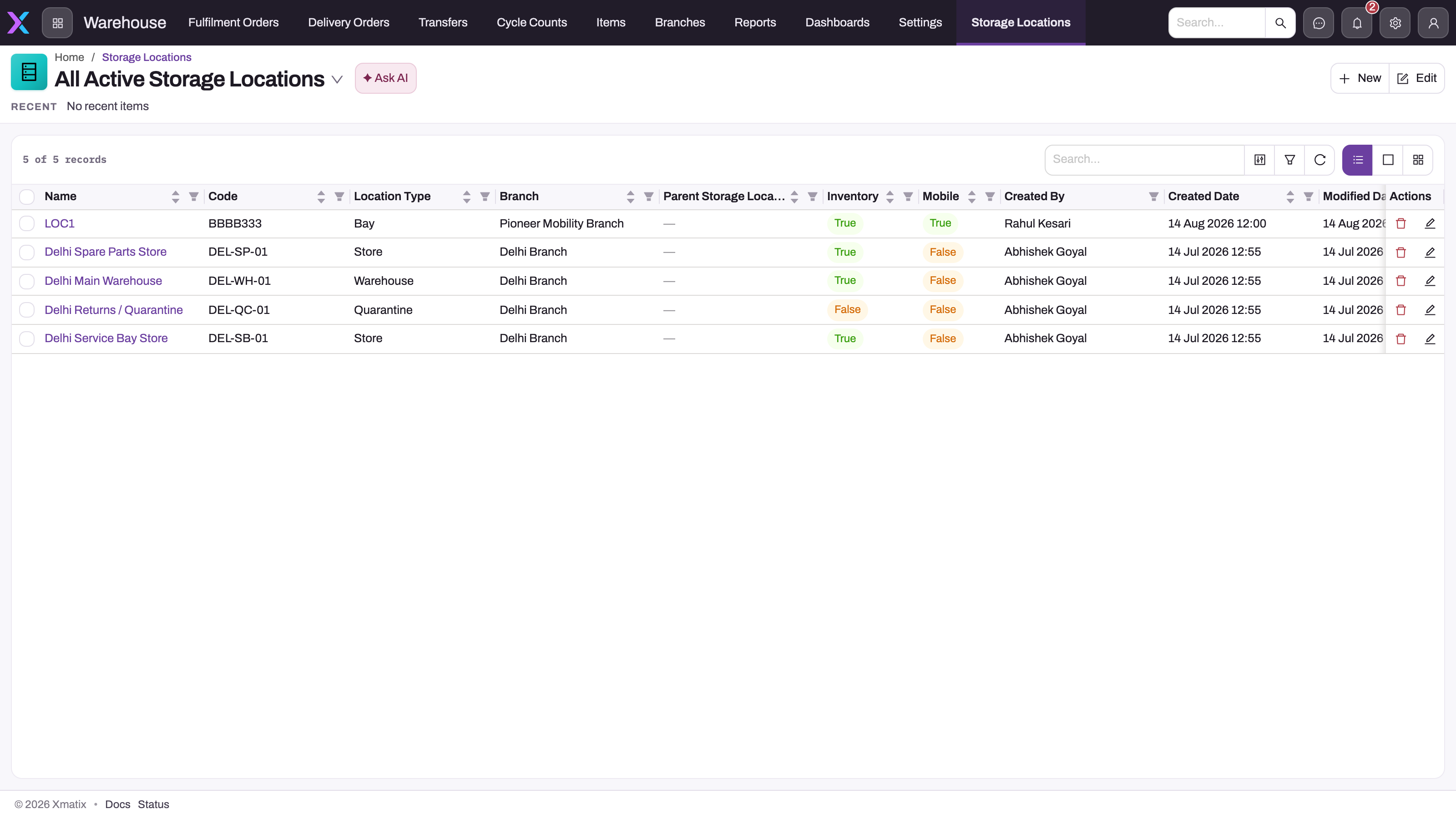
Two views are seeded:
- All Active Storage Locations shows rows with Active on.
- All Storage Locations shows every row, including retired ones.
Check the list before you add anything. A second record for the same physical bin splits its stock across two locations, and nothing reconciles them.
Step 2 — Create a location
Select New. The create form opens.
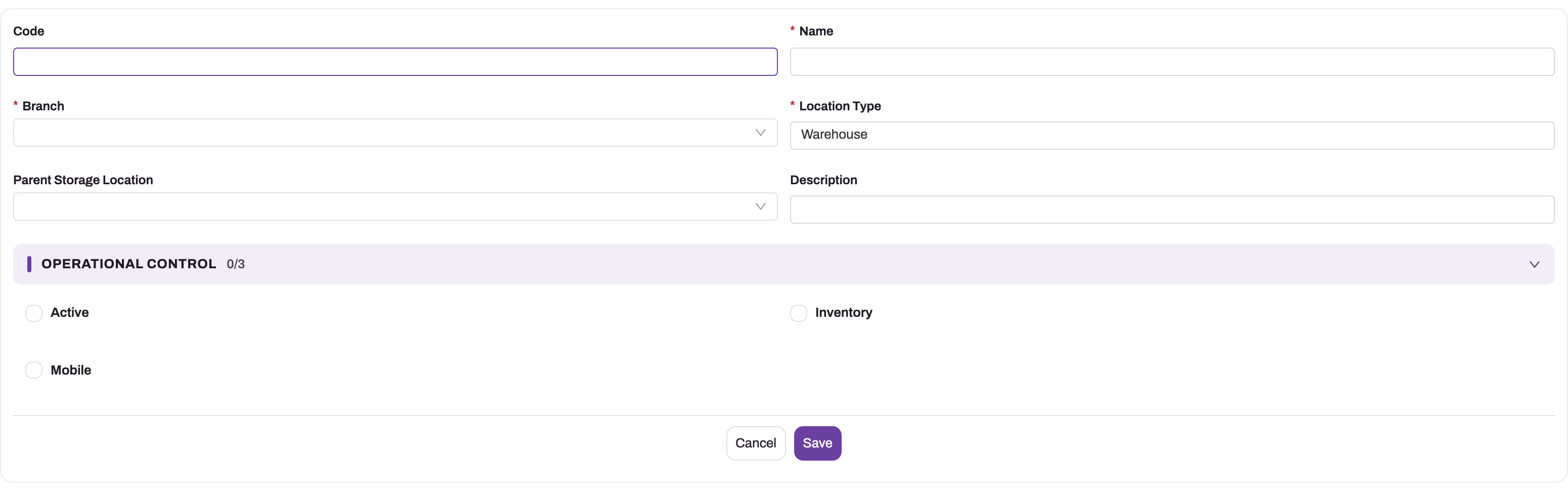
- Enter a Code (optional) and a Name (required).
- Choose the Branch (required).
- Check Location Type. It is pre-filled with Warehouse. On this form it is a plain text box, so type the type you want exactly as it appears in the list: Site, Warehouse, Store, Showroom, Rack, Engine Bay or Virtual.
- If the location sits inside another one, choose it in Parent Storage Location.
- Add a Description if useful.
- Under Operational Control, tick Active and, for any place that holds stock, Inventory. Both start unticked. Tick Mobile only for a van.
- Select Save.
The record is saved and can be chosen on document lines straight away.
Step 3 — Complete the record
Open the saved location from the list by its name. The record page shows the following:
- Key Information: Name, Code, Branch, Location Type, Location Longitude, Parent Storage Location and Location Level.
- Operational Control: Active, Inventory and Mobile, plus Capacity Volume (m3) and Capacity Weight (kg).
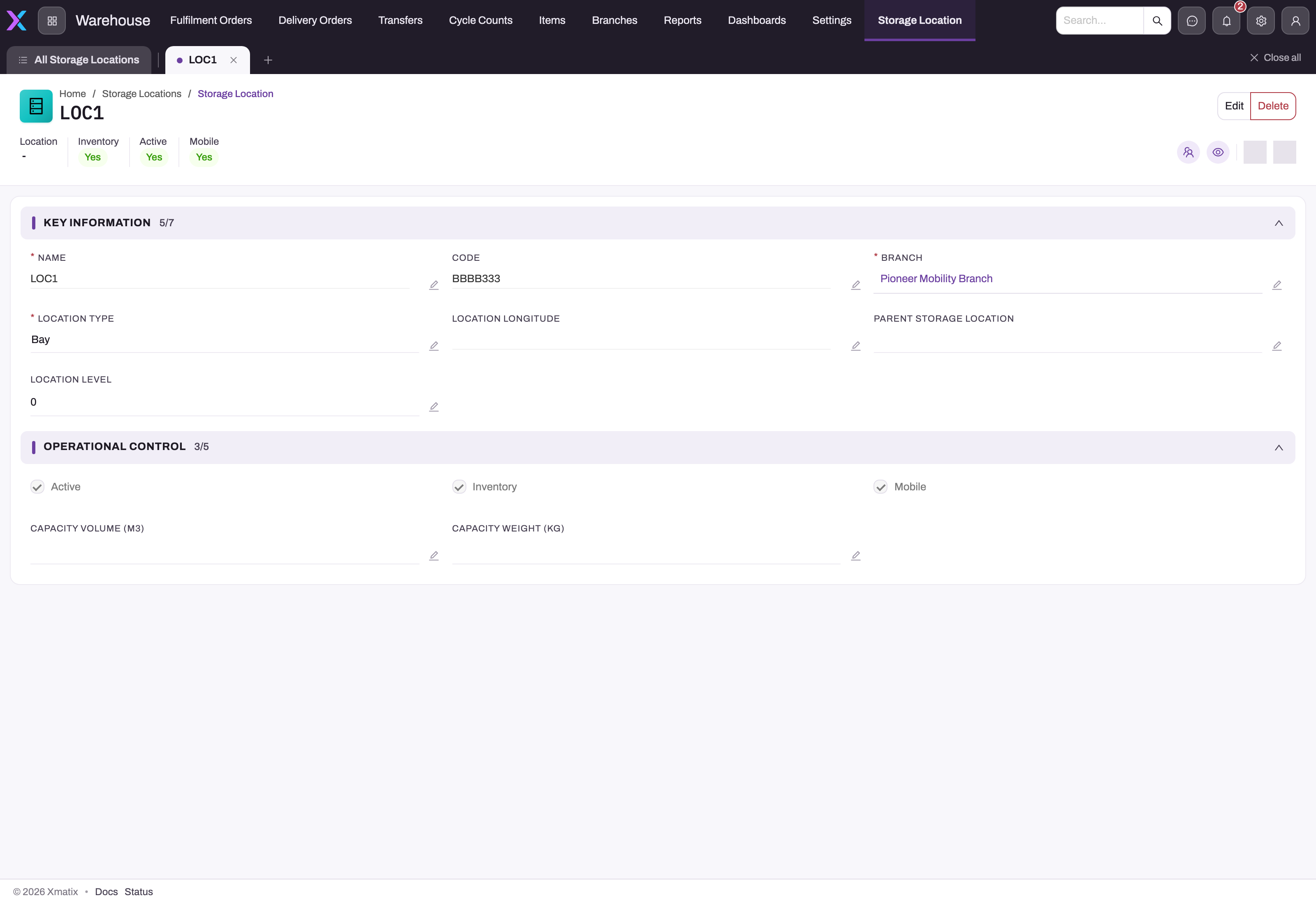
Fields edit in place: select a value's pencil icon, change it and confirm. Edit in the header opens the create form in a dialog instead. For a van, fill in at least one of the capacity fields here, because the create form does not have them.
Step 4 — Set up a van
- Create the location as in Step 2 with Mobile and Inventory ticked, on the branch the van works from.
- On the saved record, enter Capacity Weight (kg), Capacity Volume (m3) or both.
- Load, sell and settle as described in Van sales. Loading posts a transfer from the depot onto the van, and the evening check-in transfers the remainder back.
The other vehicle fields (Vehicle Number, Cargo Length/Width/Height, Default Resource) exist on the record but are on none of the seeded forms. An administrator can add them with the form layout designer.
Step 5 — Retire a location
Untick Active on the record. The location drops out of the All Active Storage Locations view, and partner stock takeover no longer chooses it. Its stock rows, lots and ledger history are untouched.
Retiring does not stop anyone picking the location on a new line, and it does not stop van load building from using it as the source depot. Move remaining stock out with a transfer or adjustment first, and rename the location (for example with a "Retired" prefix) if you want it to stand out in pickers.
Step 6 — Delete a location
Delete is in the record header and in the list row menu. Delete only a location that was created by mistake and never used. For anything that has held stock, retire it instead (Step 5), so that every historical document still shows where stock was.
Step 7 — Import many locations
To load a whole branch structure at once, use the generic data import wizard and choose Storage Location. Its Download Template button gives you the columns. Import parents before children so that the Parent Storage Location values resolve.
Storage locations can also arrive from an accounting system through an integration connector.
Fields
Create form and record page
| Field | What it means | Notes |
|---|---|---|
| Code | A short code for the place, for labels, scanning and imports. | Optional. Not checked for uniqueness. |
| Name | The name people pick on document lines. | Required. Not checked for uniqueness, so two locations can share a name. |
| Branch | The branch whose stock this location holds. | Required. Exactly one branch per location. Hidden, and not required, for a tenant that runs a single branch. |
| Location Type | What kind of place it is. | Required. Seeded values: Site, Warehouse, Store, Showroom, Rack, Engine Bay, Virtual. Pre-filled with Warehouse. Typed as free text on the create form, chosen from the list on the record page. Descriptive only: no stock rule reads it. |
| Parent Storage Location | The location this one sits inside. | Optional lookup to another location. Nothing checks that the parent is in the same branch, and no stock process reads the hierarchy. |
| Description | Free-text notes. | Optional. |
| Active | Whether the location is in use. | Starts unticked on the create form. Read by the active view, partner stock takeover and van selection only (see Step 5). |
| Inventory | Whether stock is meant to be held here. | Starts unticked. Leave it off for structure-only locations such as a site that contains warehouses. Read only when xMatix picks a location for you, never enforced on lines. |
| Mobile | Marks the location as a vehicle. | See Step 4. |
| Location Longitude | A coordinate, as text. | Record page only. Location Latitude exists on the record but is on no seeded form. |
| Location Level | The depth of the location in your tree. | Record page only. Defaults to 0. Typed by you; nothing computes it from the parent. |
| Capacity Volume (m3) | The van's load limit by volume, in cubic metres. | Record page only. Used by van load building and the capacity check. |
| Capacity Weight (kg) | The van's load limit by weight, in kilograms. | Record page only. Used as above. |
Fields not on the seeded forms
An administrator can add these fields to the layouts.
| Field | What it means | Notes |
|---|---|---|
| Fulfillment Sequence Number | The priority of a non-mobile location as the branch's default van-loading depot. | Defaults to 0. The lowest number wins. Order allocation does not use it. |
| Vehicle Number | The van's registration number. | Up to 40 characters. |
| Cargo Length / Width / Height (cm) | Cargo-bay dimensions. | Stored for reference; no calculation reads them. |
| Default Resource | The usual driver or sales executive. | Territory planning uses it to match a van to an executive when no route seat matches. |
| Root Location | The top of this location's tree. | Typed by you; nothing derives it. |
| Location, ParentLocation, RootLocation | Path strings for the hierarchy. | Stored as typed; nothing recalculates them when the tree changes. |
| External | An identifier from an outside system. | For integrations. |
Two other fields need a warning. Service Job Type appears in field lists, but it is not stored, so anything entered there is lost on save. A van's route seat (Default Position) is used by van load building and territory planning, but it is not available on the seeded forms.
Business rules
- Required fields. Name, Branch, Location Type and Inventory are required.
- No uniqueness checks. Neither Code nor Name has to be unique.
- No automatic hierarchy. Location Level, Root Location and the path strings are never derived from the parent.
- One branch per location. Stock is keyed by branch and location together. Nothing checks that a line's location belongs to the document's branch, so check the branch before you pick.
- Flags only steer automatic choices. Active, Inventory and Mobile affect only the automatic choices listed in How xMatix handles it.
- Goods in transit belong to no location. They have no location until the receiving branch posts the inward side.
- Van capacity check. When a dispatcher releases a van load, xMatix multiplies each line's quantity in base units by the item's unit weight and unit volume and compares the totals with the van's Capacity Weight and Capacity Volume. A van with neither capacity filled in is never checked, and items without weight or volume count as zero. The Van capacity check on load release setting decides what an overload does:
- Off (the default): no check.
- Warn: the load is released and the overload is written to the application log only. The load transfer is numbered like any other transfer, so it carries no over-capacity mark.
- Block: the release is refused with a message that begins "The planned load exceeds van", and nothing is posted.
- Clone. Clone copies only the location record itself. It is not on the seeded record header.
Example
A distributor opens a new branch, Riverside, with one warehouse of three racks and one van.
- In Storage Locations, New: Code RIV-WH, Name Riverside Warehouse, Branch Riverside, Location Type Site, Active ticked, Inventory unticked (nothing is stored at the building level). Save.
- New three times: RIV-R1, RIV-R2, RIV-R3, named Riverside Rack 1–3, Location Type Rack, Parent Storage Location Riverside Warehouse, Active and Inventory ticked. Save each, then set Location Level to 1 on each record.
- New: Code RIV-VAN1, Name Riverside Van 1, Location Type Virtual, Active, Inventory and Mobile ticked. Save, then on the record enter Capacity Weight (kg) 1200 and Capacity Volume (m3) 8.
- The first goods receipt for the branch names Riverside Rack 1 on its lines, and the stock appears under that rack.
- With the Sales setting at Block, a planned load of 1,350 kg for the van is refused with "The planned load exceeds van 'Riverside Van 1' capacity: 1350 kg against 1200 kg." The dispatcher splits the load across two runs.
Training
Practice exercise
In a sandbox, create a parent location Training Site (type Site, Inventory off) and a child Training Bin (type Rack, Parent Storage Location Training Site, Active and Inventory on) on the same branch. Then post a stock adjustment on that branch whose line names Training Bin.
Expected result: both locations appear in All Active Storage Locations, Training Bin shows Training Site as its parent, and the item's stock for the branch now includes a row for Training Bin. Untick Active on Training Bin and confirm it disappears from the active view but stays in All Storage Locations.
Quick reference
- Find the list through the App Launcher search: Storage Locations.
- Name, Branch and Location Type are required. Location Type is free text on the create form, so spell the value exactly.
- Tick Active and Inventory yourself; both start off.
- Capacity fields are only on the saved record, not on the create form.
- One location belongs to one branch. Pickers don't filter by branch, so check before you pick.
- Level and root are typed by you; nothing computes them.
- Retire with Active off; don't delete a location that has held stock.
- A van is a location with Mobile on and at least one capacity value.
Permissions
Viewing, creating, editing and deleting storage locations follow the Storage Location entity access in the user's security profile. The seeded standard profiles give full access. Storage locations have no server actions to grant apart from the generic Clone.
Configuration
| What | Where | Effect |
|---|---|---|
| Location Type values | Setup → Design Studio, the Storage Location entity's Location Type field row → Manage PickList Values (see Create an entity) | Adds or removes values from the record-page list. The create form still accepts any typed text. |
| Forms | Form layout designer, layouts StorageLocationCreate and StorageLocationView | Add Vehicle Number, cargo dimensions, Default Resource, Fulfillment Sequence Number or Latitude. Make Location Type a list on the create form. |
| List views | The list's view selector | The two seeded views can be copied and filtered, for example per branch or for vans only. |
| Van capacity check | Setup → Feature Hub → Sales → Settings, Van Sales group, Van capacity check on load release | Off (default), Warn or Block. See Business rules. |
| Partner locations | Partner activation (see Branches) | Creates the -MAIN location automatically. No setting changes its name. |
| Bulk load | Import data | Creates or updates locations from a file. |
| Single-branch tenants | Organisation shape | When the Branch axis is hidden, Branch is not required on the location. |
Common problems
"Storage Location and Item Lot is not supported for Shipment Lines"
Inbound shipment lines can't carry a location or lot. Clear both on the shipment line. The location is chosen on the goods receipt that follows.
Stock shows up in the wrong branch's location
Location pickers don't filter by branch, so a line named a location from another branch. Reverse or adjust the movement and post it again with a location of the document's branch. Copying the seeded views with a branch filter helps people pick correctly.
A retired location is still being picked
Unticking Active hides the location from the active view only. Pickers and van depot selection still offer it. Move its stock out and rename it so that it stands out.
"No usable vans: need active mobile storage locations with CapacityWeightKg or CapacityVolumeM3 …"
Van load building found no van with Mobile on, not inactive, anchored to the branch or to the selected route seats, and with a capacity filled in. Fill in Capacity Weight (kg) or Capacity Volume (m3) on the van's record and check its branch.
"Every candidate van already has a Field Sales run on …"
Each van that qualifies already has a run on that delivery date. Use another date or another van.
"No source depot: pass sourceStorageLocationId or give the branch a non-mobile, inventory-bearing storage location …"
The branch has no location with Mobile off and Inventory on. Tick Inventory on the depot location, or choose the depot explicitly when you build the load.
The capacity check never complains
The setting is Off (the default), the van has no capacity values, or the items have no unit weight or volume. See Business rules.
Common questions
Can one location serve two branches?
No. A location belongs to exactly one branch, and every stock figure is keyed by partner account, branch, item, SKU and location together. Model physically shared space as one location per branch. This is also why branch is fixed on documents such as cycle counts: the stock being counted belongs to one branch by construction.
How deep can the hierarchy go?
As deep as you like. Parent Storage Location is an ordinary lookup to another location. Level, root and the path strings are fields you maintain yourself; nothing computes them, and no stock process rolls stock up the tree. Keep stock-holding locations (Inventory on) at the level you actually pick and count from, and name the structure-only levels so that nobody selects them on a document line.
Is a van's stock counted like warehouse stock?
Yes. A van is a storage location, so its stock appears in the same on-hand figures and can be scoped in a cycle count by choosing the van as the count's storage location. Stock moves on and off the van only through posted transfers. There is no separate van-stock bookkeeping to reconcile.
Why was stock allocated from a different location than the order line said?
Allocation tries the order line's location first. If it has no available stock there, it takes stock of the same item, SKU, branch and partner from any location that has some. The allocation line shows the location actually used.
Can the field app create or change locations?
No. The mobile app has no storage location screen. A rep running a van sees the van's load on the visit and confirms what was received, but the van itself is set on the run, not chosen on the phone.