
A subscription emails you a report or dashboard on a schedule you choose — hourly, daily, weekly or monthly — with a fresh export attached each time. You set it up from the report or dashboard itself, it belongs to you alone, and you can change or stop it at any time from the same place. It sits at the end of the analytics flow: someone builds and shares the content, you open it, and a subscription saves you opening it again every Monday morning.
Finance statements (Profit and Loss, Balance Sheet, ageing and the rest) have their own Subscribe button and always arrive as a PDF — see Financial statements.
Overview
- What you can subscribe to. Any report you can open in the Reports library, and any dashboard you can open in the Dashboards library.
- What arrives. One email per delivery. For a report it carries the report as a PDF, Excel or CSV attachment, or Embedded as a table in the email body. For a dashboard it carries a PDF.
- Who receives it. You, at the email address on your user account, always. For reports you can also add other addresses.
- What it stores. The format, schedule and email settings only. The content is generated fresh from the current report or dashboard at every send, never copied at the moment you subscribe.
- One per item per person. Each user has at most one subscription per report or dashboard. Opening Subscribe again edits that subscription; it does not add a second one.
When to use it
- A report or dashboard that you check on a fixed rhythm — a daily collections list, a weekly sales summary, a month-end stock position.
- Sending the same report to colleagues or a shared mailbox on a schedule (reports only — see Business rules).
- Not for alerts on a change. A subscription sends on the clock whether or not anything changed. Not for live monitoring either: the shortest interval is one hour.
How xMatix handles it
Saving the Subscribe dialog stores your choices with the report or dashboard as your personal preference. The dialog works in your browser's time zone and stores the schedule in UTC. A background scheduler then checks every subscription about once a minute. When a scheduled time has passed since the last successful delivery, it hands the job to a worker, which:
- builds the export as you — with your record access and your company scope, so the file holds what you would see on screen;
- writes the email (your messaging template if one applies, otherwise the standard Scheduled Report or Scheduled Dashboard message);
- sends it to you and any additional recipients, recording the send in the organization's Message Log;
- records the scheduled time it has just delivered, so that delivery is not repeated.
If any step fails, nothing is recorded as delivered and the job is tried again later (see Business rules).
Prerequisites
- You can open the report or dashboard. The library only lists content shared with you, and the bell only appears on what you can see.
- Your user account has a correct email address. Deliveries go there; a user with no email address receives nothing.
- For a dashboard: the dashboard subscription feature is switched on for your deployment (it is on by default; when it is off, dashboards show no bell and no Alerts and subscriptions item).
- Optional: your administrator has created Report Subscription messaging templates or report print templates, if you want a branded email or a styled PDF (see Configuration).
Procedure
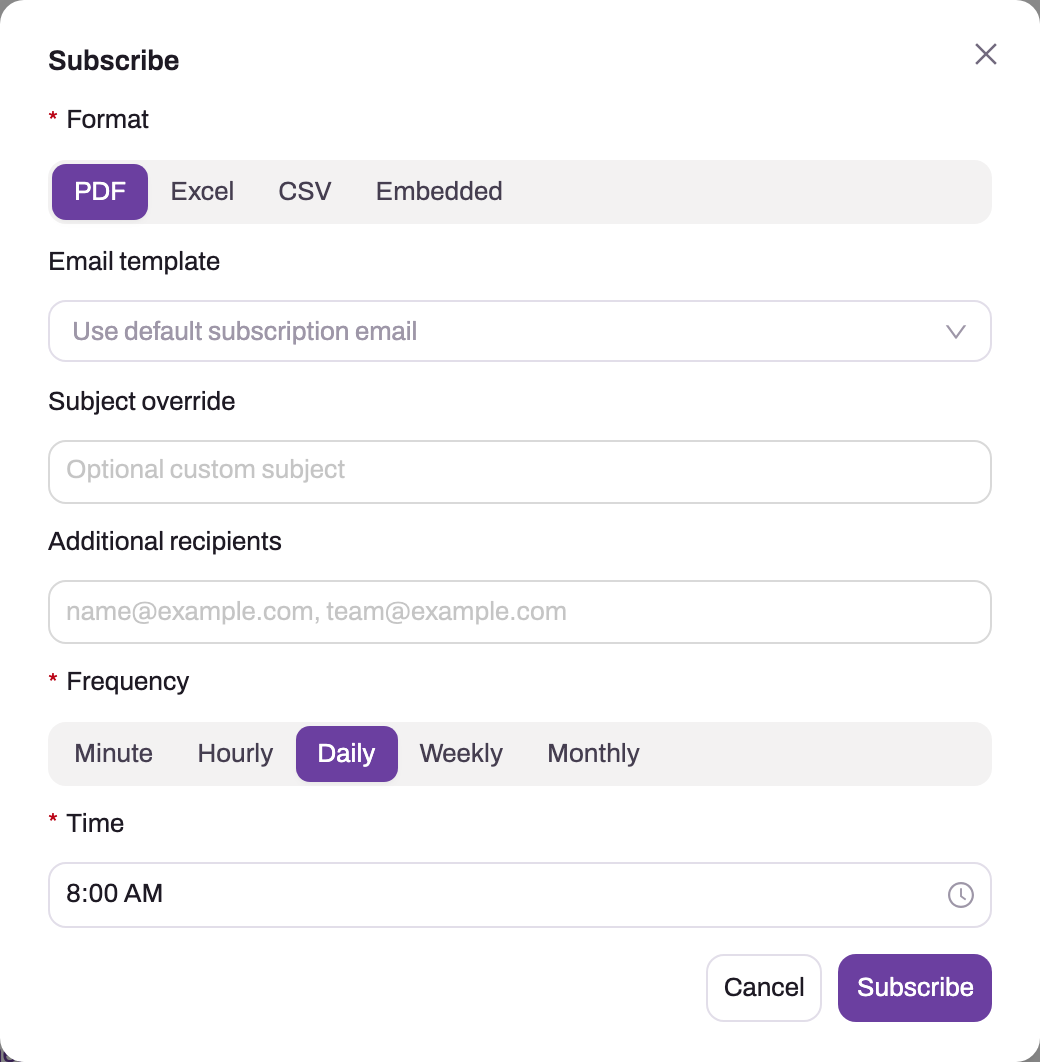
Step 1 — Open the Subscribe dialog
Use whichever route is closest:
- Reports library — choose the bell (Subscribe) on the report's row.
- Report viewer (desktop) — open More and, under Report, choose Alerts and subscriptions.
- Report viewer (phone or narrow window) — open More actions and choose Subscribe (it reads Unsubscribe when you already have one; it opens the same dialog either way).
- Dashboards library — choose the bell on the dashboard's row.
- Dashboard viewer — choose the bell in the toolbar, or Alerts and subscriptions in its overflow menu. This takes you to the Dashboards library with the dialog open.
The Subscribe dialog opens. A new subscription ends with a Subscribe button. If you already subscribe to this item, the dialog opens with your stored values and ends with Save and Unsubscribe. Two reports can share a name in different folders, so check that you opened the right one.
Step 2 — Choose the format
Format shows only what the content supports:
- Report: PDF, Excel, CSV or Embedded. Embedded puts the rows in the email body as a table instead of attaching a file. It suits short lists read on a phone; use Excel or CSV for long lists or for rows the recipient will work with.
- Dashboard: PDF only.
For a report in PDF, a Print template box appears when your organization has report print templates. Leave it on Standard or pick a template to set paper size, orientation, letterhead and notes. The template is read again at every send, so later changes to it reach your next email.
Step 3 — Adjust the email (reports)
- Email template — appears only when your organization has active Report Subscription templates. Leave it on Use default subscription email or pick one.
- Subject override — replaces the default subject Scheduled Report: <report name>.
- Additional recipients — a comma-separated list of email addresses, for example
finance-team@example.com, accounts@example.com. Each address gets the same email you do.
Adding recipients is a sharing decision. They receive your export whether or not they have access in xMatix (see Business rules).
The dashboard dialog shows Subject override and Additional recipients too, but a dashboard subscription does not keep them. Dashboard emails go to you alone, with the subject Scheduled Dashboard: <dashboard name>.
Step 4 — Set the schedule
Choose a Frequency; the fields under it change to match:
| Frequency | Fields | Example |
|---|---|---|
| Hourly | Interval (Every hour, Every 2, 3, 4, 6, 8 or 12 hours) and Minute past the hour (:00 to :55 in five-minute steps) | every 4 hours at :15 |
| Daily | Time | 8:00 AM |
| Weekly | Day of week — one or more of Mon to Sun — and Time | Mon and Thu, 7:30 AM |
| Monthly | Day of month (1 to 31) and Time | the 1st, 6:00 AM |
Time is in your own time zone; the note under the box names it. xMatix converts it to UTC when you save and back again when you reopen the dialog, so you always see your local time. A new subscription starts at Daily, 8:00 AM.
Step 5 — Save
Choose Subscribe (or Save when editing). In the report viewer you see the message Subscribed. The bell fills in, and the item now appears in the library's Subscribed scope.
Nothing is sent straight away. The first email arrives at the first scheduled time after you save. For example, a monthly subscription for day 1 that you create on the 5th sends on the 1st of next month. After the first delivery, check the subject, the attachment and the rows once before you rely on it.
Step 6 — Change or stop it
Open the dialog again by any route from Step 1, change what you need and choose Save. To stop deliveries, choose Unsubscribe. The bell empties, the item leaves your Subscribed scope, and in the report viewer you see Unsubscribed. Emails already sent are not recalled.
Unsubscribing keeps your format, schedule and recipients, so if you subscribe again later the dialog opens with them already filled in.
Fields
| Field | What it means | Notes |
|---|---|---|
| Format | The file type of each delivery | Reports: PDF, Excel, CSV, Embedded. Dashboards: PDF. Required. |
| Print template | The report print template a PDF uses | Reports in PDF only; shown only when your organization has templates. Empty = Standard. |
| Email template | The Report Subscription messaging template for the subject and body | Reports only; shown only when active templates exist. A template's subject replaces your Subject override. |
| Subject override | Your own email subject | Optional. Reports only; a dashboard subscription does not keep it. |
| Additional recipients | Extra email addresses, comma-separated | Optional. Reports only. Your own address is always added and duplicates are dropped. |
| Frequency | How often it sends | Hourly, Daily, Weekly, Monthly. |
| Interval | Hours between sends | Hourly only: every 1, 2, 3, 4, 6, 8 or 12 hours, counted from midnight UTC. |
| Minute past the hour | When in the hour it sends | Hourly only: :00 to :55. |
| Day of week | Which weekdays it sends | Weekly only; at least one day is required. |
| Day of month | Which day of the month it sends | Monthly only; 1 to 31. |
| Time | The time of day it sends, in your time zone | Daily, Weekly and Monthly. |
Business rules
- Shortest interval: one hour. The server rejects any schedule that would send more often than once an hour. The dialog no longer offers a Minute frequency. A subscription saved with a faster schedule before this limit keeps sending on it until it is saved again: reopening it shows Hourly, and Save applies that.
- Every delivery is built as the subscriber. A report's rows and a dashboard's tiles respect your record access and company scope at the moment of sending. Additional recipients get exactly your view, with no filtering for them, so share the recipient list as carefully as the report's visibility.
- Reports use their saved filter; dashboards use their default filters. A report sends with its saved filter and saved view, and relative dates such as This month are worked out on the send date. A dashboard sends with each filter's default value, with date presets worked out on the send date in UTC.
- Which subject and body are used. Reports follow this order. If you chose an email template, it is used. If not, your organization's default Report Subscription template for the report's main entity is used, if one exists. A template's subject wins over your Subject override. Without a template, the subject is your override, or Scheduled Report: <name> if you gave none.
- Missed times are caught up one by one. Each delivery records the scheduled time it covered, and the next check looks for the following scheduled time. If deliveries were held up for a while (a worker outage, a failing mail service), each missed time is sent in turn once things recover, not just the latest.
- Failures are retried. A failed export or send is not recorded as delivered. The scheduler leaves that subscription alone for about 15 minutes, then tries again, and keeps doing so until a delivery succeeds or you unsubscribe.
- Too-large reports. When a report is over your organization's query budget, the email still goes out but has no attachment: it says the report was too large this time and suggests narrowing its saved filter. A PDF delivery of more than 20,000 rows fails; the scheduler keeps retrying it and it never sends. Use Excel or CSV, or narrow the report. Any report over 500,000 rows cannot be exported in any format.
- What stops deliveries. Unsubscribing; deleting the report or dashboard; the subscriber's account losing its email address; or the content reading data from a product your organization is no longer licensed for. In that last case deliveries resume at the next scheduled time once the licence is back. Withdrawing a report's visibility does not stop deliveries.
- Dashboard PDFs are drawn on the server. If the deployment's dashboard renderer is not available, dashboard deliveries fail and are retried, while report deliveries keep working.
- One shared clock. Schedules are stored in UTC. If your region moves its clocks, a daily 8:00 AM subscription saved before the change still sends at the same UTC time, so it arrives an hour off locally. Open it and choose Save to re-anchor it.
Example
A regional sales manager wants the Open orders by branch report every weekday morning, as Excel, for themself and the sales-operations mailbox.
- In Reports, they find Open orders by branch and choose the bell on its row.
- Format: Excel. Additional recipients:
sales-ops@example.com. Subject override:Open orders — morning list. - Frequency: Weekly. Day of week: Mon, Tue, Wed, Thu, Fri. Time: 8:30 AM (the note shows their time zone, Asia/Kolkata).
- They choose Subscribe and see Subscribed. The report now shows in the Subscribed scope.
- The next weekday at 8:30 AM local time, both mailboxes receive Open orders — morning list with the .xlsx attached. It holds the orders the manager can see, for every recipient.
- A month later they only want Mondays. They open the bell, clear Tue to Fri, and choose Save.
Training
Practice exercise
In a sandbox, subscribe to any report you can open: format CSV, frequency Hourly, Every hour at the next five-minute mark, and your own address only. Wait for the email, check the attachment against the report on screen, then reopen the bell and choose Unsubscribe.
Expected result: one email titled Scheduled Report: <report name> with a .csv whose rows match the report as you see it. After unsubscribing, the bell is empty, the report has left Subscribed, and no more emails arrive. Subscribe again and the dialog still shows CSV and Hourly.
Quick reference
- Bell on the row, or More → Alerts and subscriptions in the viewer.
- Reports: PDF, Excel, CSV or Embedded. Dashboards: PDF only.
- Times in the dialog are your local time; xMatix stores them in UTC.
- Hourly is the fastest; nothing is sent straight away after saving.
- Every recipient gets your view of the data.
- Extra recipients and a custom subject work for reports, not dashboards.
- Picking an email template overrides your subject.
- Unsubscribe stops it but keeps your settings for next time.
Permissions
- Subscribing needs no special capability. Anyone who can open a report or dashboard can subscribe to it, for themselves only. No one can create, view or change another user's subscription from the screen.
- What a delivery contains follows the subscriber's own record access and company scope, worked out again at every send. If you lose access to some records, later emails leave them out.
- Email templates (Report Subscription kind) and report print templates are created by administrators who can manage messaging templates and analytics. Users only choose from the active ones.
- A user who cannot open a report does not see it in the library, so they cannot subscribe to it. They can still receive it as someone else's additional recipient.
Configuration
Subscriptions themselves have no setup screen; each user manages their own. Administrators shape them through:
- Messaging templates — Setup → Feature Hub → Platform → Email Templates (the screen is titled Messaging Templates). Create a template with Kind Report Subscription to offer a branded subject and body in the Email template box. Mark one as Default template for an entity, and every report subscription on that entity without a chosen template uses it, including its subject. Only active templates are offered. See Email templates and document numbering.
- Report print templates — Setup → Feature Hub → Platform → Report print templates. Any template here appears as a Print template choice for PDF report subscriptions. See Document prints.
- Report visibility — who can open a report, and so who can subscribe to it. See Sharing & access.
- Licensing — a report or dashboard that reads data from a product your organization is not licensed for is not delivered. See Licensing.
- Delivery records — subscription emails are recorded in Setup → Platform → Monitoring → Message Log, the first place to check when someone says an email never arrived.
- Deployment settings (platform team) — whether dashboards offer subscriptions at all, and the server-side renderer that draws dashboard PDFs. Neither is a tenant setting.
Common problems
Nothing ever arrives
Check, in order: the item is still in your Subscribed scope with a filled bell; the first scheduled time after you saved has actually passed; your user account's email address is correct; your spam or filtering rules. An administrator can then look for your address in the Message Log. If there is no entry, the delivery is failing before the send. Common causes are a PDF over 20,000 rows, an unlicensed product, or (for dashboards) the PDF renderer. See Troubleshooting analytics.
The email arrives at the wrong hour
The dialog uses the time zone of the browser you saved from. If you saved from a device set to another zone, or your region has since moved its clocks, the stored UTC time no longer matches your local hour. Open the subscription from your usual device, check Time, and choose Save.
A colleague I added never gets the dashboard
Dashboard subscriptions are delivered only to the subscriber; Additional recipients is not kept for dashboards. Ask the colleague to subscribe to the dashboard themselves, or subscribe to a report that holds the same figures.
My subject override is ignored
An email template is applied — either the one you picked or your organization's default Report Subscription template — and its subject wins. Reopen the dialog and check Email template, or ask an administrator about the default template.
I cleared Email template but the branded email still comes
Clearing the Email template box does not take effect: the template you chose earlier stays on the subscription. Pick a different template instead, or ask an administrator.
The email says the report was too large to send
The report went over your organization's query budget at send time, so the email explains this instead of attaching the file. Narrow the report's saved filter (or ask its owner to), or ask your administrator about the query budget.
An old subscription still emails me every few minutes
It was saved with a per-minute schedule before the one-hour limit existed, and it keeps that schedule until it is saved again. Open it, check Frequency (it shows Hourly) and choose Save.
Common questions
Does each recipient get the data filtered for them?
No. One export is built per delivery, as the subscriber, and every recipient gets that same file. A report reflects its saved filter and what you can see; a dashboard reflects its default filters and what you can see. Nothing is filtered again for each recipient, so a colleague you add may see rows they cannot open in xMatix. Treat the recipient list with the same care as sharing the report, and when someone needs their own view, have them subscribe themselves.
Can I subscribe someone else instead of myself?
Not directly. Every subscription belongs to the user who saved it and always sends to that user's address. For a report, you can add a colleague as an additional recipient, so they receive each delivery you do — on your schedule, in your format, built with your access, and stopped when you unsubscribe. For a colleague who wants their own cadence or their own view, ask them to open the report and subscribe themselves. Dashboards cannot be sent to other people this way.
What happens if the report changes after I subscribe?
Each delivery uses the report as it is at send time. The subscription holds only your schedule and email settings. If the owner changes columns, filters or the saved view, the next attachment shows the change. A print template you picked is also read fresh each time. If the report is deleted, deliveries stop.
Why can I not send every 15 minutes?
Each delivery runs the whole report or dashboard and renders it, and frequent sends put real load on the system. So the shortest interval is one hour. For a list that must be watched more closely, keep the report open and use Refresh.
Will I get several emails after an outage?
Possibly. Each delivery covers one scheduled time. If a few were missed while deliveries were failing, they are sent one after another once things recover. An hourly subscription held up for an afternoon can therefore send several emails in a row.