
Everything a payroll run computes traces back to three records: the Employee (who is on payroll, for which company, and under what terms), the Salary assignment record (their cost-to-company and which salary structure applies), and the Salary Structure (the component lines that turn that figure into earnings, deductions and contributions). Get these three right and the run is arithmetic; get them wrong and the run tells you — an employee with no usable compensation record or structure is counted as skipped, not silently paid zero.
Where the records live
In the Payroll app (App Launcher → search Payroll), Resources on the top bar lists the people. Employees and Salary assignments are under Run payroll → Inputs in the Payroll app, or type Employee in the App Launcher search. Salary Structures and Payroll Components are under Settings → Pay structure in the Payroll app. Salary component lines are on each structure's Components tab, and Salary assignments are on each resource's Administration tab. All of them are ordinary records: New opens the form, the name opens the detail page, and access follows your security profile.
The employee record
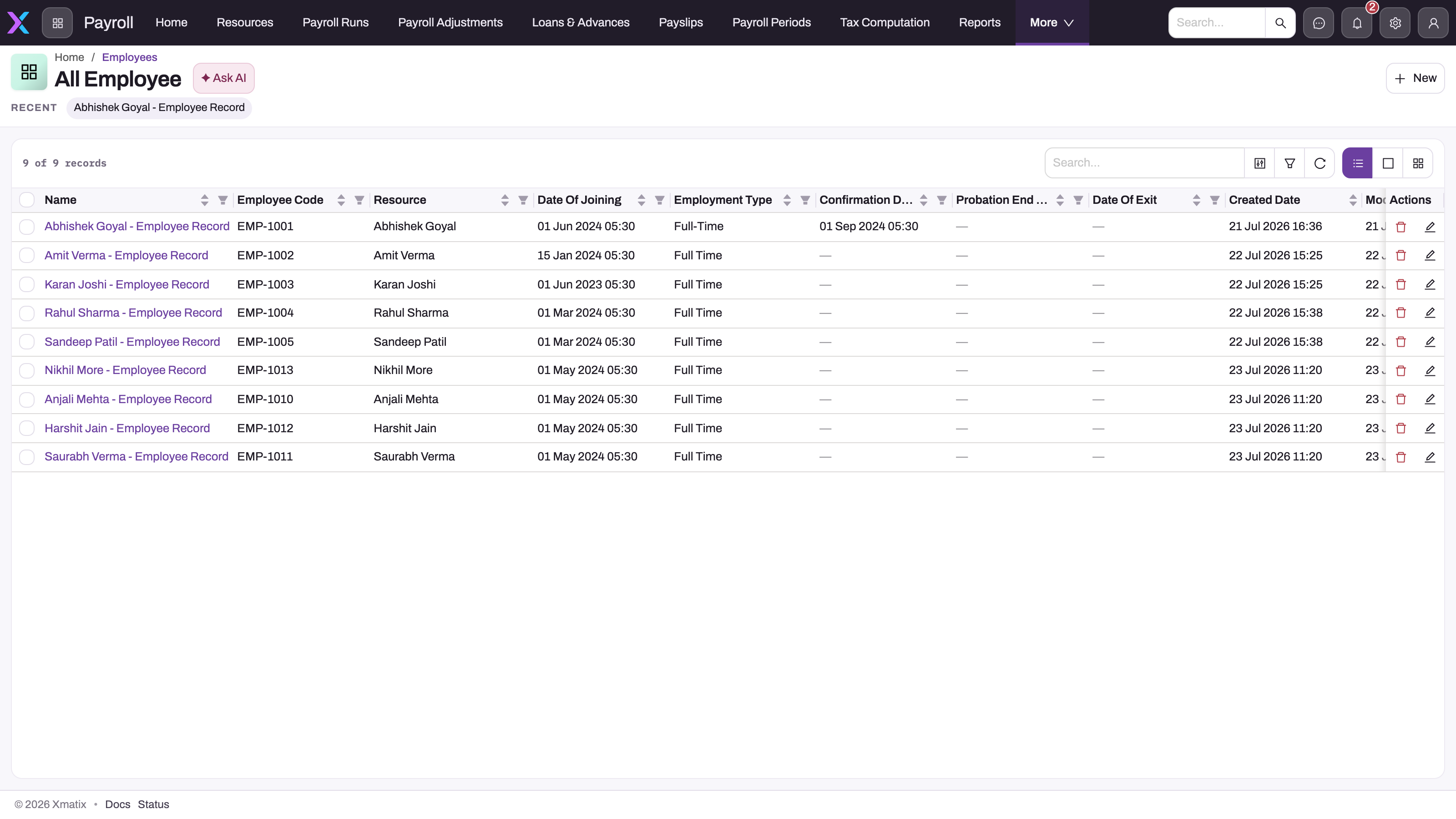
Each Employee record puts one Resource on payroll. It says which company pays them, whether they are still on payroll, and their tax election. Only a few of its fields change pay:
- A run includes an employee whose Payroll Company or Partner Account equals the run's company, who has a Resource, and who joined by the period's end and did not leave before its start. Date Of Joining and Date Of Exit cut the month at both ends: days outside them are not paid. A leaver is paid up to the exit date in their last month, unless their full and final settlement carries that month; an Exited employee with no exit date is left out. Branch and Pay Type do not filter or prorate.
- Tax Regime selects the regime for the salary-TDS projection (New when blank). Explicitly unticking TDS applicable removes the person from the projection.
- Employment Type, Pay Type, Salary Payment Mode, Grade, Department, Designation, Cost Center, the confirmation and probation dates and Settlement Status are recorded only. Department and Designation are HR master records. PF and ESI come from the components on the salary structure; an unticked PF, ESI, PT or LWF box makes that scheme 0 for the person.
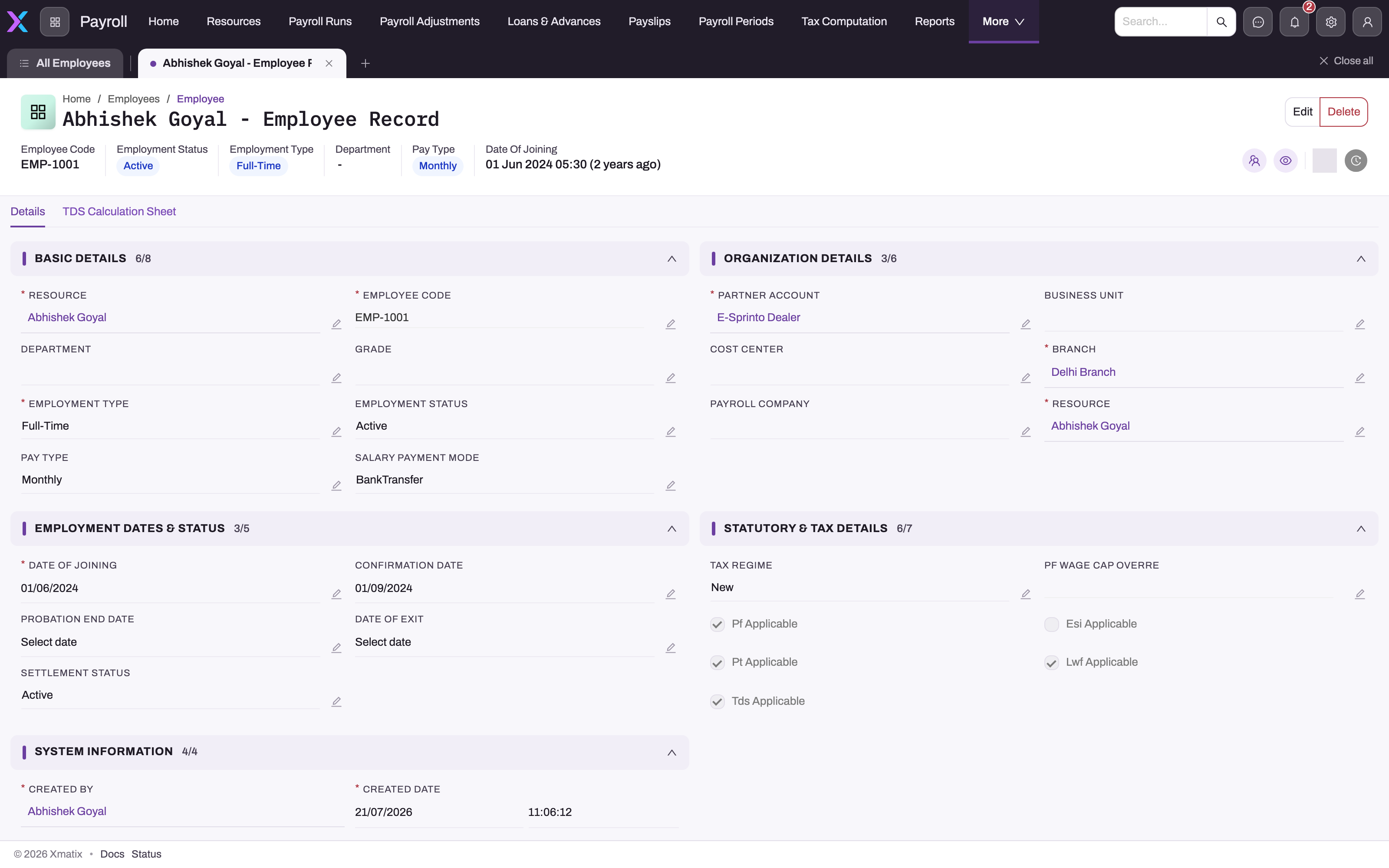
The record page's TDS Calculation Sheet tab is empty in the standard screens. The salary-tax figures are on the person's Monthly TDS Projection (see Income tax on salary).
Employees has the procedure, every field, the exit rules, and the common problems. That includes the Date of exit validation, which refuses an exit date before the joining date.
The payment and filing identity — bank account number, IFSC, PAN, UAN, Aadhaar, designation — lives on the linked Resource, not on the Employee. That is deliberate: payroll postings, loans, expense claims and open items are all keyed on the Resource, so one identity reconciles across modules.
Resource compensation records
A Salary assignment ties a Resource to a Salary Structure with a CTC amount and an Effective From date. You add it on the person's resource record, Administration tab → Salary assignments. When a run calculates, it takes the person's compensation record with the latest Effective From that names a salary structure. A raise is therefore a new record with a later Effective From, and the old record stays as history. The run does not compare Effective From with the payroll period, so a future-dated record applies from the next calculation. Effective To is not read, and Is Active is not on the standard forms, so to stop a record applying, delete it. An employee with no such record is skipped and counted on the run header.
The CTC is a monthly figure. It is the basis for any line that is a percentage of CTC, and the salary-TDS projection uses it as the monthly earning for a new employee who has no calculated months yet.
Salary structures and their lines
A Salary Structure is a reusable template — "Field staff", "Managers", "Contract" — holding an ordered list of Salary Component lines. The run reads only the lines. The structure's Effective From, Pay Frequency and Is Active are descriptive.
Each line names a Payroll Component and has a Calculation Type, a Value, a Component Name and a Sequence. The run works the active lines out in Sequence order: Fixed lines pay their Value, Percentage lines take a percentage of CTC or of an earlier line named in Percentage Of, a PT line with Calculation Type Slab reads the professional tax slabs, and a TDS line takes the month's tax projection. Formula text is not evaluated.
Two details trip up most first structures. The inline card that adds a line has no Component Name or Sequence, so you set both on the line's own record page. And Percentage Of matches the line's Component Name, so the basis line must be named Basic. Salary structures has the full procedure, every field, a worked example and the common problems.
The payroll component catalog
Structure lines do not define ledger behaviour themselves — they reference a Payroll Component master. The line decides how much; the master decides what the amount is:
- Component Type (
Earning,Deduction,EmployerContribution,Reimbursement) decides which total the amount joins and which side of the accrual journal it posts to. - Statutory Type (
PF,ESI,PT,TDS,LWF,Gratuity) switches PT (with a Slab line) and TDS to their computed amounts, and rolls PF, ESI and TDS deductions into the register's totals. - Is Proratable and Taxability replace the line's Pro-rata and Taxable boxes.
- GL Account and Payable GL account are copied onto the calculated lines and are what Post debits and credits.
The master's own Calculation Type, Formula Expression and Is Active are not read by the run. On the standard form the type fields are text boxes, so the values must be typed exactly. Payroll components has the full procedure, every field, and the common mistakes.
Because the catalog is shared, "Basic", "HRA" or "PF employee contribution" is defined once — its accounts included — and every structure that uses it stays consistent.
Common questions
Why was an employee skipped by the run?
Because the run could not price them: they have no Resource Compensation record in force for the period naming a salary structure, or the structure has no active component lines. A leaver whose final month is on their computed full and final settlement is skipped in that month too. The run header shows total, processed and skipped counts, so a skip is visible immediately. Fix the compensation record or the structure and recalculate — recalculation replaces the earlier pass.
How do I give someone a raise mid-year?
Create a new Resource Compensation record for the person with the new CTC and the new Effective From date, leaving the old one in place. The run picks the record in force for the period: started by the period's end and not ended before its start. When two are in force, the one with the latest Effective From applies to the whole month; a mid-month revision is not split. A record dated in the future does not apply until its period, and the old record remains as history. Pay any arrears for past months as a payroll adjustment. If the raise also changes the pay mix, point the new record at a different salary structure.
Where do bank details for salary payment come from?
From the Resource record — bank account number and IFSC — read at the moment the payment batch is generated, and shown masked (last four digits) on the payslip. If they are missing, the batch line is still created without them, so keep the Resource current before pay day.
Can two companies in one tenant have different structures?
Yes. Employees carry a Payroll Company, and runs are per company — each legal entity has its own components, structures, professional-tax slabs and control accounts. Salary tax rule tables can be shipped once as shared rows and overridden per company only where they genuinely differ.
I ticked "PF applicable" — why is no PF deducted?
Ticking the flag does not add PF: PF is deducted only when the employee's salary structure contains a component with statutory type PF — normally a Percentage line based on the basic component. The flags work the other way: unticking Pf Applicable, Esi Applicable, Pt Applicable or Lwf Applicable makes that scheme zero for the person; blank or ticked means applicable. The amount itself comes from the PF, ESI and LWF rules and the work state's PT slabs; see Statutory deductions and challans.