
Every list in xMatix can be arranged to match how you work: pick the view it opens on, choose and order its columns, sort and filter its records, switch between a table, a split view and a board, and save an arrangement as a personal view you can return to in one click. Everything on this page changes only what you see. Your colleagues' lists stay as they were, and nothing here changes which records you are allowed to see.
Overview
A list always shows one view. A view is a saved column set, filter and sort that an administrator publishes for a record type, such as All Active Account or My Open Orders. Shared views are the same for everyone who can see the record type. On top of the view you are on, you can lay your own arrangement: different columns, a different sort, extra filters, a different layout. xMatix remembers most of that for you. Some settings stay in your user profile and follow you to any browser. Others last only while your browser tab is open. The table under What xMatix remembers below shows which is which.
This page describes lists in the web app. For how apps, lists and records fit together, see Navigating xMatix: apps, lists and records.
When to use it
- You open the same list every day and want it to start on the right view.
- The shared view shows columns you never read, or lacks one you need.
- You keep re-typing the same search and sort. Save them as a personal view.
- You want to see work as cards grouped by status or stage instead of rows.
Prerequisites
- A signed-in xMatix session and a list to arrange.
- Read access to the record type. Personalizing changes only how records are shown. If your security profile restricts a field, that field is removed from the list's columns and is never offered in the column picker.
What xMatix remembers
| What you change | Where | How long it is kept |
|---|---|---|
| Favourite view (star) | View selector | In your user profile, for this record type and the app you starred it in |
| The view you last picked | View selector | For this browser session; it is cleared when you close the tab |
| Visible columns and their order | Customize list → Columns, or a column head's Hide column | In your user profile, for this record type and this view |
| Sort order | Column heads | In your user profile, for this record type and this view |
| Filters | Customize list → Filters, or a column head's filter | For this browser session, for this record type and this view; not in your profile and not in personal views |
| Column widths and pinned columns | Dragging a column edge, Pin to left | For this browser session |
| List, split or board layout | List view, Split view, Board view buttons | In your user profile, for this record type across all its views |
| Summary cards shown or hidden | Hide summary cards / Show summary cards | In your user profile, for this record type |
| Board grouping field | Group by in board view | In your user profile, for this record type and this view |
| Personal views | Save current view | In your user profile, up to 20 per record type |
"In your user profile" means the setting is stored on the server with your user preferences, so it follows you to another browser or computer.
Procedure
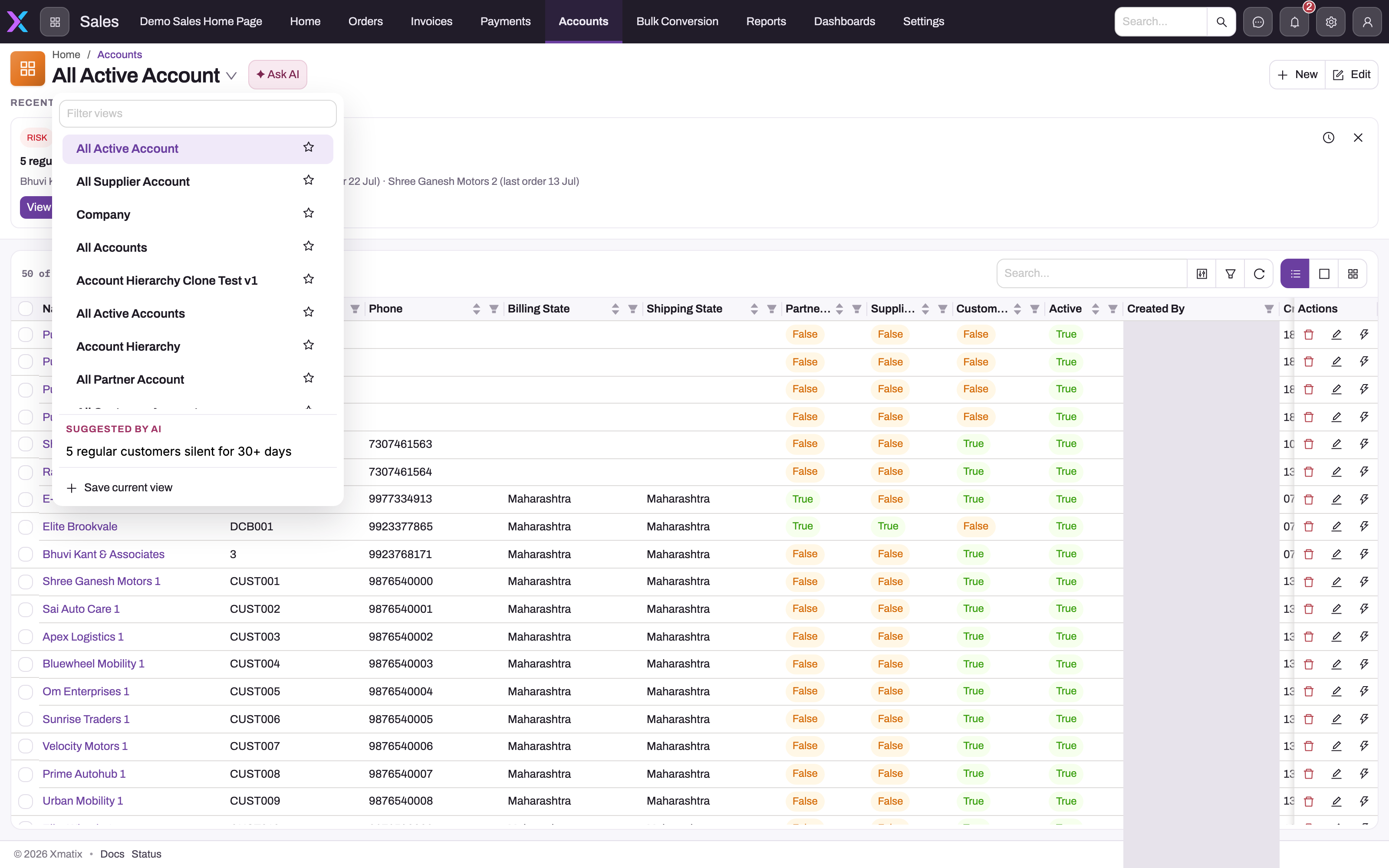
Step 1 — Read the current view
Open the app and the record type. The large title at the top of the list is the name of the view you are on, for example All Active Account. The arrow beside it opens the view selector. Note the record count before you change anything, so an over-restrictive filter is easy to spot later.
If the title has no arrow, the record type has only one view that you can use. You cannot switch, star or save personal views on that list until an administrator adds another view.
Step 2 — Switch views and star a favourite
Select the arrow beside the title. The selector shows:
- a Filter views box that narrows the list of views by name;
- the shared views, each with a star (Set favourite view);
- Suggested by AI, when Sense AI has suggestions for this list (see Step 7);
- My views, your personal views, each with a trash icon (Delete saved view);
- Save current view.
Select a view to switch to it. Select the star beside a view to make it your favourite: the list opens on that view next time. Select the filled star again (Remove favourite view) to clear it. You can star a view only when the selector offers more than one.
A list decides which view to open in this order: a view named by the menu entry or link you followed; the view you picked earlier in the same browser session; your favourite; the view the administrator set as this list's default; and finally the first view. So a favourite does not override a menu entry that points at a specific view. Your favourite is kept per app. A star set while you work in one app does not change which view the same list opens on in another app.
After switching, check the view name, record count and column headings rather than assuming the earlier filter still applies. Switching views never changes any records.
Step 3 — Choose and reorder columns
Select Customize list (the sliders icon) in the list toolbar and open the Columns tab. The panel opens beside the table.
- Shown, in this order lists the visible columns. Drag a row to move it, or use its hide button. The first column, the record's identifier, is pinned: it cannot be hidden or moved.
- Hidden lists the columns you can bring back. Show all brings them all back. Fields the view does not include carry a Not in view tag. You can add them as columns too.
- The search box at the top finds a column or field by name.
The footer counts your pending edits, for example 2 changes not applied. Select Apply to put them in place, or Discard to drop them. After you apply, a notice reads Your list now differs from the … view, with a link that resets the list to the view.
You can also hide a single column from its head menu: select the column heading and choose Hide column. The last visible column cannot be hidden.
In a list embedded in a record page, the Columns icon opens a simpler Columns drawer instead. It has a Search columns box, an All checkbox, an Add field… picker for fields the view does not include, Reset to defaults, Close and Apply. Drag is turned off while the search box has text. At least one column must stay ticked, or the drawer shows Select at least one column. Column choices are not available in split view.
Your column choices are kept per view. Changing the columns on one view leaves your other views as they were.
Step 4 — Sort and filter
Select a column heading to open its menu. The sort entries match the field: Sort A to Z and Sort Z to A for text, Sort smallest first and Sort largest first for numbers, Sort oldest first and Sort newest first for dates. The same menu offers Pin to left (or Unpin) and Fit to content. Your sort is remembered for this view.
To filter, open Customize list → Filters. With no filters the tab shows No filters and an Add condition button. Each condition is a field, an operator and a value. The sentence at the top, Show … that match all / any of these, decides whether every condition must hold or any one of them. Add group adds a set of conditions that is evaluated on its own, for example records from either of two branches. Filters you set from a column heading appear here too. Select Apply. The applied filters show as chips in the toolbar, and the Customize list button shows a count of your filters and hidden columns.
Add one condition at a time and watch the record count change. That catches accidental exclusions. When nothing matches, the list says Nothing matches this search or filter.
Filters last for your browser session: they are still there when you leave the list and come back, but they are gone once you close the tab. They are not saved in your profile or in a personal view. For a filter you need every day, ask your administrator for a shared view.
Step 5 — Search the list
Type in the list's search box. Search looks in the columns the administrator marked as searchable for this view, when those columns are visible. Otherwise it looks in the record's identifier (the first visible text column, plus Name when that column is shown) and in the visible lookup columns, which it matches on the related record's name. Search depends on your columns: if you hide a column, search no longer looks in it.
Step 6 — Change the layout
Use the buttons in the toolbar:
- List view — the table.
- Split view — the list beside the open record. It is offered only where the list supports it, and not on phones.
- Board view — records as cards in columns. If the view has no board set up, a Group cards by dialog asks you to Select a field to group by. Fields with a picklist (such as Status or Stage) work best. For a field without one, the dialog warns that columns are derived from the data values. Select Apply. In board view, the Group by button changes the field later. Records with no value appear in an Unassigned column, or No status-style column for a status or stage field.
- Hide summary cards / Show summary cards — the strip of totals above the list, where the list has one.
The layout you choose applies to every view of the record type until you change it again.
Step 7 — Use a Suggested by AI entry
When Sense AI and Sense nudges are both turned on for your organization, the selector can show up to three Suggested by AI entries for the list. Choosing one is not a view switch. It opens a Sense AI conversation about the records the suggestion concerns, and if the suggestion carries a link, it first opens the screen it points at. See Nudges.
Step 8 — Save the arrangement as a personal view
Open the selector and choose Save current view. Type a name of up to 60 characters. Save stays unavailable until the name has text. A personal view stores:
- the shared view it was saved on;
- the search text;
- the sort order;
- the visible columns and their order.
It does not store filters, the list, split or board layout, the board grouping field, column widths or pins.
Saving with a name you already used (capital letters don't matter) replaces that personal view. A record type holds up to 20 personal views. If you save a 21st, the oldest one is removed without warning.
Step 9 — Return to or delete a personal view
Your personal views appear under My views in the selector. All of them are listed whichever shared view you are on. Choosing one first switches to the shared view it was saved on, then restores its search, sort and columns. Select the trash icon beside a personal view to delete it. Deleting a personal view does not delete or change the shared view.
Step 10 — Go back to the shared view's own layout
In Customize list, select Reset to view. That clears your column choices and your filters for this view, and from then on the view's own columns reach you again when an administrator changes them. In the embedded-list Columns drawer, Reset to defaults does the same for columns.
Expected result
The list opens on your favourite view (or, later in the same session, the one you last picked), with your columns, column order, sort and layout restored. A personal view brings back its search, sort and columns in one click. Colleagues see no change.
Example
A sales coordinator reviews accounts every morning in the Sales app.
- They open Accounts. The title reads All Active Account. They open the selector and star it, so the list opens there each day.
- In Customize list → Columns they drag Industry up to second place, hide two columns they never read, and show Billing City (if the view doesn't include it, it carries the Not in view tag). They select Apply.
- From the Name heading they choose Sort A to Z.
- They type steel in the search box. With the Name column visible, accounts whose name contains it appear.
- They open the selector, choose Save current view and name it Steel accounts A–Z.
- They also add a filter on Billing City for the morning call list. Because filters are not part of a personal view, they apply it again when they need it.
- The next day the list opens on All Active Account with their columns and sort. They choose Steel accounts A–Z under My views, and the search returns.
Training
Practice exercise
In a sandbox, open any list that has at least two views.
- Star the second view in the selector, leave the list and come back. Expected: the list opens on the starred view.
- In Customize list → Columns, hide one column and move another to the end. Select Apply. Expected: the notice Your list now differs from the … view appears.
- Sort by a date column with Sort newest first, then add one filter in Filters and select Apply.
- Save a personal view called Practice view.
- Close the browser tab, sign in again and choose Practice view under My views. Expected: the columns and sort return; the filter does not.
- Select Reset to view in Customize list, then delete Practice view with its trash icon. Expected: the shared view's own columns are back, and My views no longer lists the view.
Quick reference
- The title is the view; the arrow beside it opens the selector.
- The star sets the view a list opens on, per app.
- Customize list has two tabs: Columns and Filters. Nothing changes until Apply.
- Columns and sort are kept per view in your profile; layout is kept per record type.
- Filters last only for the browser session, and personal views never store them.
- Search looks only in visible columns, so hiding a column narrows search.
- Personal views: up to 20 per record type, 60-character names, same name replaces.
- Reset to view clears your columns and filters for that view.
- A list with only one view has no selector, no star and no personal views.
Permissions
Personalizing needs no special permission. Anyone who can read a record type can switch its views, star one, arrange columns, sort, filter, change the layout and save personal views. What a user cannot do is see more: fields their security profile cannot read are removed from columns and from the column picker, and no filter or view shows records outside their access.
Creating or changing shared views is an administrator task in Design Studio and needs the capability that manages the metadata model (see Apps, entities, records and views).
Configuration
Administrators shape what users start from. Users' personal settings sit on top and are never changed by these steps — except that a user who has not changed a view's columns sees the new columns at once.
- Shared views — Setup → Design Studio → Entities → the record type → Experience → Views. A view sets the columns, their order, the default sort, the filter and, on its Kanban tab, a Group Field that turns on the board for that view. Which columns the list search looks in is also set per view column.
- Which view a list opens on — Experience → Defaults, the List view slot, can bind a view per app, platform and record type; otherwise the view marked default is used. A user's star still outranks either.
- Hiding a view — a view that is inactive or hidden no longer appears in the selector. Views can also be limited to a record type, or to certain apps with Show in apps.
- Sense suggestions — the Suggested by AI entries appear only when Sense AI and Sense nudges are turned on; see Nudges administration.
What changing a shared view affects: a user who reset or never changed that view's columns gets your new columns. A user who has personal column choices for that view keeps them until they select Reset to view. A personal view always opens on the shared view it was saved on, so it picks up that view's new filter.
Common problems
My list looks different from a colleague's
You are on different views, or one of you has changed columns, sort, filters or layout. Compare the title, then select Reset to view in Customize list to see the view as published.
My filter disappeared
Filters are kept only for the browser session, for that list and view. Closing the tab, signing in on another device or switching to another view starts without them. A personal view does not store filters either. Ask your administrator for a shared view if you use the filter daily.
Search no longer finds a record it used to
Search looks only in visible columns. If you hid the column that holds the text you are searching for, show it again in Customize list → Columns.
There is no arrow beside the list title, so I can't save a view
The record type has only one view you can use, so the selector shows plain text. Ask your administrator to add a second view.
One of my personal views is missing
A record type holds 20 personal views. Saving a 21st removes the oldest. Saving with an existing name (in any capitalization) also replaces that view.
Board view is greyed out
Board view needs a field to group by. On tree views it is not offered. On other views, select it and pick a field in Group cards by.
A column I expect isn't offered
The field may not exist on this record type, or your security profile may not allow you to read it. Ask your administrator.
Common questions
Do my personal views affect what colleagues see?
No. Favourites, column choices, sort orders, layouts and personal views are stored in your own user preferences. Colleagues keep their own. Shared views are published by administrators in Design Studio and are the same for everyone who can see the record type. Saving a personal view never edits the shared view it was built on. Deleting it doesn't change the shared view either.
Do my settings follow me to another computer?
Most do. Your favourite view, columns, column order, sort, layout, summary-card choice, board grouping and personal views are stored with your user profile on the server, so they appear wherever you sign in. Filters, column widths, pinned columns and the view you last picked are kept only in the current browser tab and are gone once you close it.
Why did my columns change when I switched views?
Column choices are kept per view. Each view starts from its own columns until you change them there, so the arrangement you made on one view does not carry to another. Your layout (list, split or board) does carry across views of the same record type.
Can filtering show me records I normally cannot see?
No. Views, filters and columns arrange the records your access already allows. They are a presentation layer, not a permission layer. If a record never appears however you filter, that is an access question for your administrator; see Where to get help.