
This page helps you find out why a stock figure is wrong, why a stock action was refused, or why a stock value is not what you expected, and sends you to the Inventory page that has the full fix. In xMatix, stock is never a typed number. It is the sum of posted, read-only ledger entries, and each entry names the document line that caused it. So almost every inventory problem is answered by reading the right record before you change anything. That record is the item ledger for quantities, the valuation drills for values, and the fiscal calendar for refused postings.
Overview
Every stock figure in xMatix is built in the same order:
- A document is created: a goods receipt, invoice, delivery order, transfer, adjustment, fulfilment or service order.
- Its stock action runs, for example Receive on a goods receipt, Post Inventory on an invoice or an adjustment, or Release Outward on a transfer. Saving the document is not enough for most documents.
- The inventory ledger settings decide which movements each line posts. Each movement becomes one entry in the inventory ledger and moves the buckets of a stock record and, for lot-tracked items, of the lot.
- The costing engine values the movement under the item's valuation policy, on the primary accounting book. That feeds the Valuation Statement.
- Where the document posts to the general ledger, its journal goes into the fiscal period that covers its date. That period must be Open.
A problem almost always sits at one of those five steps. Work out which one before you correct anything.
When to use it
Use this page when:
- a stock figure is higher or lower than you expect, or two screens show different stock;
- a stock action refuses with a message, or seems to do nothing;
- transferred stock has not arrived, or a branch looks short;
- a valuation figure differs from quantity times price, or from what you expected;
- a posting is refused because of the period.
Procedure
Step 1 — Note exactly what you see
Write down the item, SKU, company, branch and date, the screen you read the figure on, and the exact message if one appeared. The message text is the fastest way to find the problem below. Most messages from stock posting are listed word for word under Common problems.
Step 2 — Read the item ledger
Go to Inventory → Inventory Ledger. Pick the Company, the Item and, if one branch is involved, the Branch. Choose a Period that starts before the figure was last right, then select Submit. You see Opening, Received, Issued and Closing, and every movement with a running In hand. The first row where In hand stops matching what you expect is the movement to investigate. Select its reference to open the entry, then note its Source Document.
You can also start from Inventory → Inventory Stock: click any figure and choose View ledger. The item ledger opens for that item, branch and period. See The inventory ledger for every column.
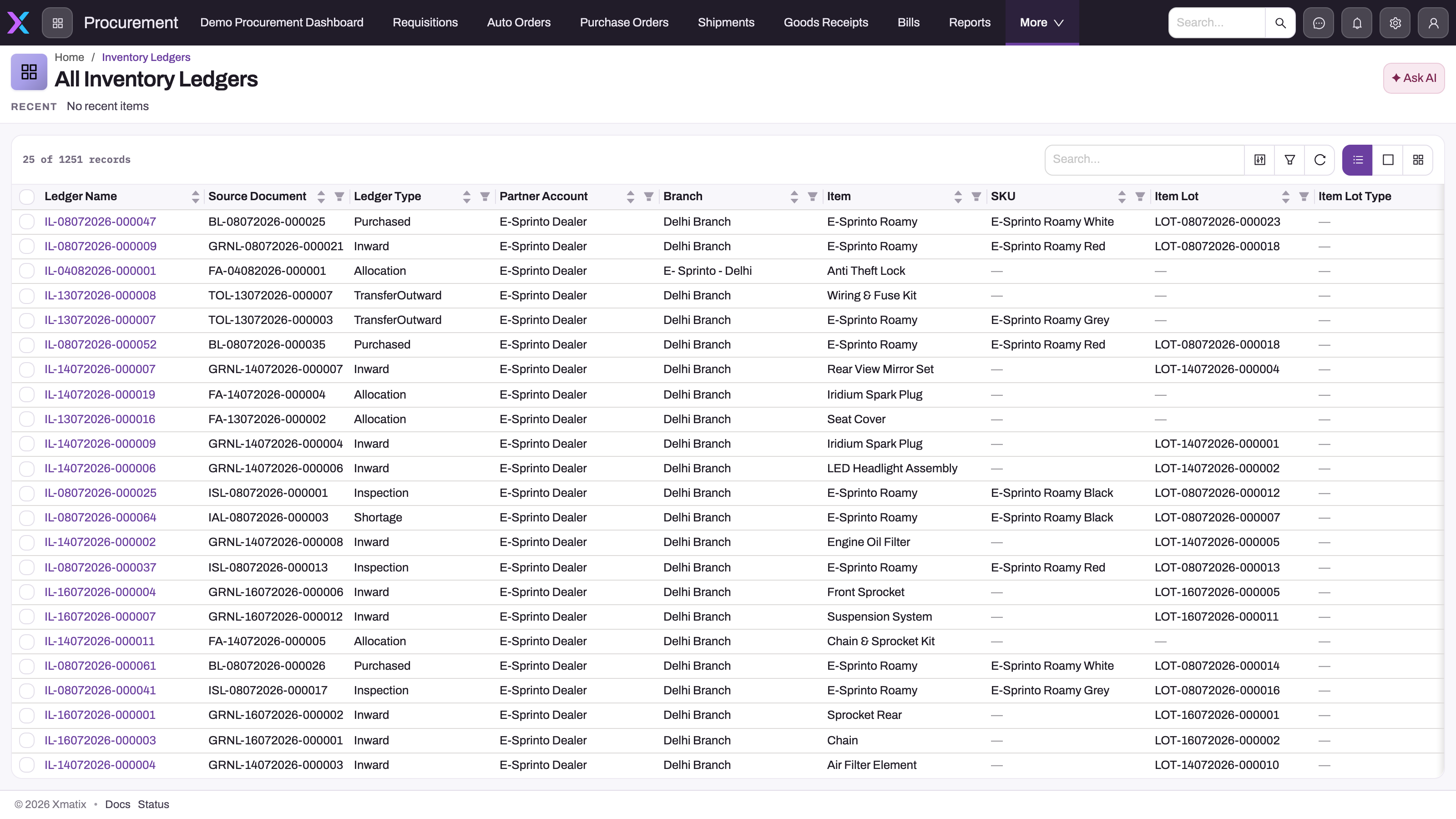
To search across items, use the Inventory Ledgers link in an entry's breadcrumb. It opens All Inventory Ledgers, one row per posted movement, which you can filter by source document, ledger type, branch, item or lot.
Step 3 — Look for what has not posted
A document that exists but has not run its stock action moves nothing. Open the source document you expected to see and check its lines. A line that reached the ledger has its Inventory Ledger reference filled in. That reference, not the document's status, is the reliable sign. If it is empty, the stock action has not run, the item does not have Track Inventory set, or no active ledger setting covers that kind of line. Credit note lines and sales order lines post nothing out of the box. See Inventory ledger settings.
Step 4 — Account for stock in transit and in other buckets
- Transfers. Between Release Outward and Post Inventory on the inward transfer, the released quantity is in neither branch's bins. The source stopped counting it at release, and the destination holds it in a separate in-transit balance with no storage location. A stock check at either end looks short by exactly the travelling quantity. See Transferring stock between branches.
- Lots and buckets. In hand is not the same as available. Allocated, on-hold, on-loan, damaged and in-inspection quantities are counted differently. See Stock balances and Item lots and lot types.
- Corrections. A changed, deleted or cancelled posted line shows as the original entry, a negated reversal, and a fresh entry where values changed. Read each group together, because the pairs cancel.
Step 5 — For values, read the valuation drills
On Inventory → Inventory Valuation, check the Accounting book first. Then use the figure's drills: Valuation lots shows the surviving cost layers, Consumption lots shows how each issue was costed, and View ledger shows the movements. See Inventory valuation and costing.
Step 6 — Correct the cause, not the figure
Ledger entries and stock records cannot be edited into the right number. Correct the source document instead: change or delete the line, or cancel the document with its own action. If the physical stock really differs, because goods were lost, found or damaged, post an adjustment. Then rerun the item ledger and confirm the new entries.
Common problems: stock figures
A document is saved but the stock didn't change
The document's stock action has not run, or its lines were skipped. Open each line and check its Inventory Ledger reference. Run the document's action, such as Post Inventory on an adjustment, an invoice or an inward transfer. Lines without an item, or whose item lacks Track Inventory, are always skipped. See The inventory ledger.
An adjustment still shows Post Inventory and stays Draft
At least one line matches no ledger setting, for example a zero quantity with no type, or a negative quantity on an Excess, Shortage, Damaged or Expired line. Posting skips such lines without an error. See Adjusting stock.
The Inventory Stock statement and the stock record disagree
They are built differently. The statement is worked out from ledger entries for each column's date. The stock record that allocation, invoicing and a line's Stock Available use keeps separate buckets, and subtracts damaged, expired, short, on-hold, on-loan, in-inspection, picked and dispatched quantities. See Stock balances.
A line shows Stock Available 0 but the item has stock
The line isn't linked to the stock record that holds the stock. It may name a different storage location, SKU or Item Lot Type, or the stock is at another branch. The figure is also a snapshot from the line's last save. See Stock balances.
I see pairs of opposite entries for the same line
A posted line was changed, deleted or cancelled, and xMatix wrote a reversal for each original entry. The reversal's Reverse Inventory Ledger names the entry it reverses. This is a correction, not a duplicate. See The inventory ledger.
Transferred stock has not arrived at the destination
Open the inward transfer's Progress Details. Inward Received without IL Posted means the goods are received but still in transit: run Post Inventory. If there is no inward transfer, the outward transfer has not been released. See Transferring stock between branches.
The destination has more than was sent
A transfer line was released more than once. Only the first release took stock out of the source, but each release created inward lines. Correct the difference with an adjustment. See Transferring stock between branches.
A lot with stock is never picked for sale
The lot has a Hold Code, a different Item Lot Type from the sales line, belongs to another company, branch or SKU, has no expiry date or a too-late one when the line has Limit Expiry Days, or has no available quantity. See Item lots and lot types.
Common problems: messages from stock posting
"Insufficient stock: … cannot go negative (result: …)."
The movement would take a stock or lot counter below zero. The message names the counter. The usual cause is a line pointing at a different lot, storage location or SKU from the one holding the stock. There is no setting that allows negative stock. See The inventory ledger.
"Stock Available Quantity cannot be negative!!" or "Stock In Hand Quantity can't be negative."
The posting would leave the stock record's Available or In Hand below zero. Reduce the quantity, move stock in first, or post an adjustment if the stock really is there. See Stock balances.
"Product Lot was not selected for the transaction. This is required for Inventory posting."
The item has Track Lots set and a line has no lot. Pick the Item Lot on the line and run the action again. On transfers, set the lot on the outward line. See Item lots and lot types and Transferring stock between branches.
"Item is locked for transaction! Please contact your Administrator for more details."
A cycle count with inventory locking is counting this stock. Wait until the count's Finish Counting has run. See Stock balances.
"Inventory ledger entries are immutable…"
Someone, an import or an integration tried to change or delete a ledger entry. Correct the source document instead. See The inventory ledger.
"UOM is not defined for this Item" or "Conversion Ratio is not configured for UOM '…' on this Item."
The line names a unit the item has no unit row for. Add the unit to the item, with its conversion ratio. See Item units of measure.
A transfer action refuses
Transfers have their own messages, for example Outward document is already released. or No received lines found for Inventory Posting on Inward Transfer. Each is listed with its fix in Transferring stock between branches.
Common problems: valuation
The value isn't quantity times the latest cost
That is expected. Under FIFO, moving average or specific identification, the value depends on cost history. Use Valuation lots and Consumption lots on the figure to see the arithmetic. See Inventory valuation and costing.
The item is on the wrong costing method
The method comes from the winning valuation policy in the book. The most specific scope wins: an item beats an item group, and a storage location beats a branch, which beats a business unit, which beats the company. Between equally specific policies, the lower Priority wins, then the later Effective From. Stored cost layers change only at the item and branch's next posting. See Inventory valuation policies.
The Valuation lots drill is empty, or an item is missing from the Valuation Statement
A secondary book is selected, everything has been issued, the company has no active primary book, or costing failed because an issue is dated before the receipt that supplied it. See Inventory valuation and costing.
The value is below cost, or a branch value looks too low
An Inventory NRV Assessment writes the item down from its As Of Date, for the book it names. On a branch column the item's whole write-down is subtracted, so compare on the company-wide view. See Inventory NRV assessments.
I rebuilt the period balances but nothing changed
That is expected. The Valuation Statement and the Stock Balance statement calculate every column from the ledger when they load. Rebuild writes stored period rows that no standard screen reads. See Inventory period balances.
A landed cost voucher didn't change the stock value
Saving a voucher does not change stock value. See Landed cost vouchers.
Common problems: closed periods
"Fiscal period '…' is Closed — posting is not allowed."
The document's date falls in a period that is not Open. A posting resolves its fiscal period from the document's date and accepts only an Open period. If the date is wrong, date the document into an open period. If the date is right and the period is Closed, an administrator can select Reopen Period, you post, and they close the period again. A Locked period can never be reopened. See Fiscal years and periods.
"Financial year for period '…' is Closed — posting is not allowed."
The period is Open but its fiscal year is not. A year whose Status is anything other than Open blocks posting into all of its periods. An administrator changes the year's Status on the fiscal year record. See Fiscal years and periods.
Common questions
Why can't I just edit the wrong ledger entry?
Ledger entries are read-only for every user. An edit or delete is refused with a message telling you to correct the source document. Change or remove the line on that document, cancel the document with its own action, or post an adjustment. xMatix then writes the reversal and any fresh entries itself. The net stock ends up where an edit would have put it, and the original posting stays visible for audit.
The goods were miscounted. How do I correct the stock?
Post an adjustment for the difference. Choose the adjustment type that records why, such as Excess, Shortage, Damaged or Expired, and run Post Inventory. The ledger records the correction like any other movement. Before you adjust, prove the difference from the item ledger and the source documents. An adjustment should record a known physical difference, not hide a receipt, transfer or allocation that never posted.
Why does the posting date differ from my document's date?
A ledger entry's Posting Date is the time the entry was written, not the document's own date. An invoice dated Monday whose stock action runs on Wednesday shows Wednesday in the item ledger, and its period filter and opening stock use that date. The general-ledger journal, on the other hand, is placed in the fiscal period that covers the document's date. That is why a closed period can refuse a posting even though the stock action runs today.
Who can reopen a closed period?
A user whose security profile grants the Reopen Period action on fiscal periods. Close Period, Reopen Period and Lock Period each need their own grant on the profile's Actions tab. Reopening a Closed period is reversible. A Locked period is final and can never be reopened. If periods are reopened often, documents are being dated or posted too late, and that is the process to fix. See Fiscal years and periods.
Why does the item ledger say "Could not load ledger"?
Either your security profile lacks the Get Inventory Ledger Data action, or the query was missing a company, item or period. Ask an administrator to grant the action on your profile's Actions tab, or fill in the missing filter and select Submit again. See The inventory ledger.