
A dataset is an analysis-ready table: named dimensions and measures defined over a data model, compiled into SQL and materialized as a physical table in the analytics warehouse, then rebuilt on a refresh schedule. Build a dataset when the question is analytical — aggregation over history, at warehouse scale, feeding many consumers such as dashboard widgets. For a plain operational listing of live records, an ordinary report is the better tool; the dataset earns its keep when one governed definition should serve everything downstream.
Prerequisites
- The Dataset Builder page in reach. It is an application page, not a Setup screen: it ships in the standard Analytics app's navigation (after Reports and Dashboards) and an administrator can add its route,
/analytics/datasets, to any other app as a Feature item. - A built, published, active data model to bind to — the dialog offers only models that are published and active. A dataset can instead name a warehouse table directly as a fallback source, but a bound dataset gets root-source guidance, column pick lists and schema-aware validation, so bind when you can.
- A reachable analytics warehouse. Compile refuses to run when the warehouse connection is unavailable, so an organization without a provisioned warehouse can author datasets but not materialize them.
Procedure
Step 1 — Create the dataset shell
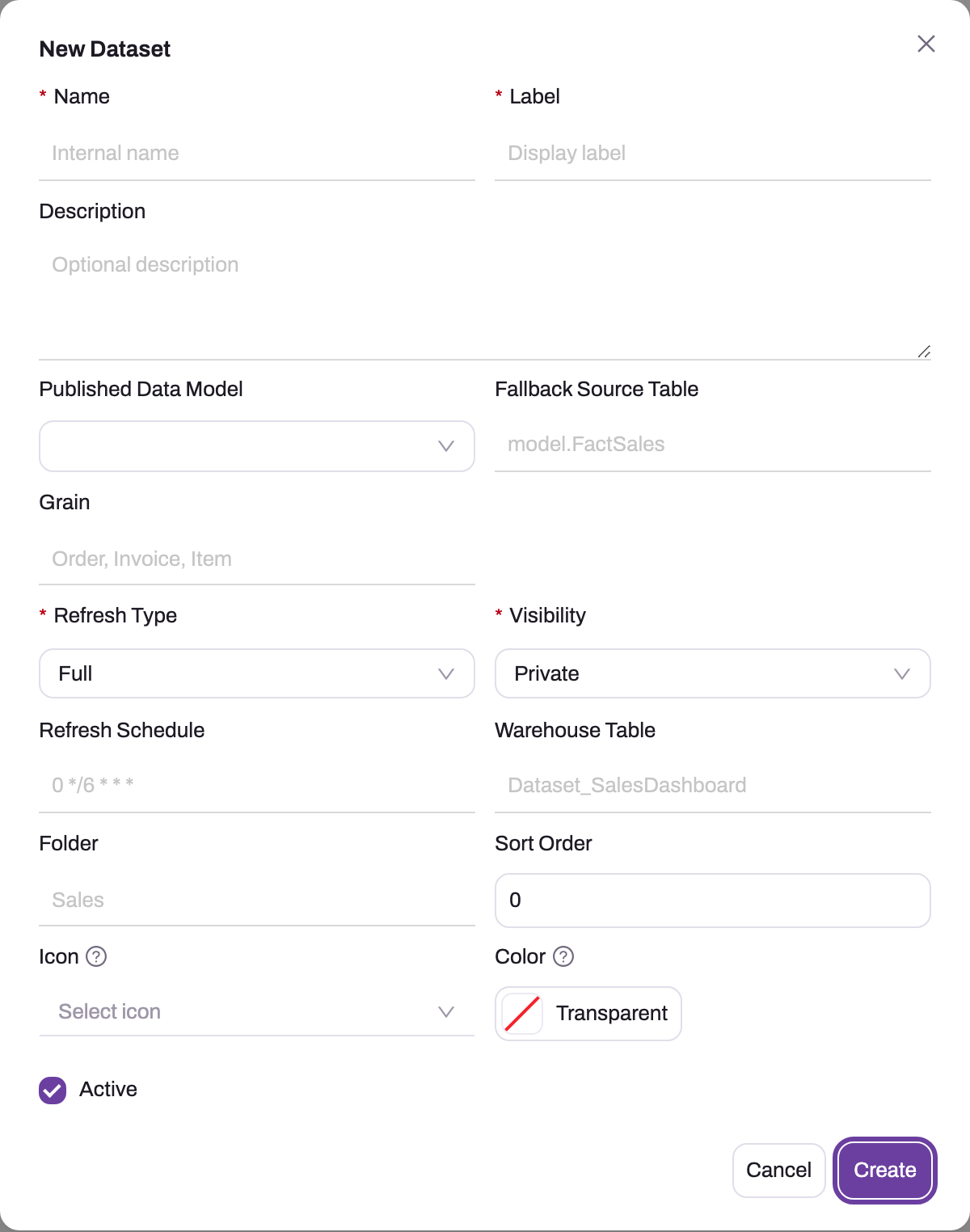
Open Dataset Builder and choose New Dataset in the page header.
- 1
Name is the permanent internal identifier (letters, digits, underscore) and seeds the default warehouse table name; Label is what pickers show.
- 2
Published Data Model lists only published, active models and prefills the fallback table and grain; Fallback Source Table is the escape hatch when no model exists.
- 3
Grain states what one output row represents — every dimension and measure is judged against it.
- 4
Refresh type decides how each compile writes the table (Full, Incremental or Snapshot); Visibility is required but not enforced yet.
- 5
Refresh Schedule is a five-field cron evaluated in UTC; blank means manual-only and a malformed expression is skipped silently.
- 6
Warehouse Table names the materialized output; blank derives Dataset_<Name> in the platinum schema.
| Field | What it does |
|---|---|
| Name (required) | Internal identifier: a letter followed by letters, digits or underscores, up to 100 characters. It becomes part of the default warehouse table name and cannot be changed after creation. |
| Label (required) | Reader-facing title shown in pickers. |
| Description | Free text — record what the dataset answers and who owns it. |
| Published Data Model | The governed source. Only published, active models are listed. Choosing one fills Fallback Source Table and Grain from the model if they are still empty. |
| Fallback Source Table | A warehouse table (for example model.FactSales) used as the root source when no data model is bound. Either this or a data model is required, or validation fails with dataset.source.required. |
| Grain | What one output row represents — "Order", "Invoice line". Write it as a testable sentence; every later dimension and measure is judged against it. |
| Refresh type (required) | Full rebuilds the whole table on every compile. Incremental recomputes only the most recent periods of the time dimension and leaves older rows alone. Snapshot appends a copy stamped with an as-at date on every run and keeps earlier copies, for point-in-time measures. See the common questions. |
| Periods to recompute | Incremental only. How many of the newest periods of the time dimension each refresh rebuilds (default 3). Changes older than this wait for a full reload. |
| Full reload schedule | Incremental only. A second five-field cron, in UTC, for the rebuild of the whole table that catches up on older changes. Blank means full reloads happen only when someone runs one. Checked and previewed the same way as the refresh schedule. |
| As-at column, Keep snapshots for (days) | Snapshot only. The name of the date column each run stamps (default SnapshotDate), and how many days of stamps to keep. Blank keeps every stamp. |
| Visibility (required) | Private (only you and dataset stewards can see it or build dashboards on it) or Shared (every dashboard author can). Only its author or a dataset steward can edit a dataset either way — see the common questions. |
| Refresh Schedule | Five-field cron in UTC, for example 0 */6 * * *. Blank means manual-only. As you type, the field shows the next run in your organization's time zone with UTC alongside (Next: Sun 1 Nov, 08:30 IST (03:00 UTC)); an expression the scheduler could not run is refused with the reason under the field — see Refresh scheduling and monitoring. |
| Data lake table | Name of the materialized table (for example Dataset_SalesDashboard). Blank derives Dataset_<Name>; the table lands in the platinum schema unless you qualify the name. |
| Folder, Sort Order, Icon, Color | Presentation in lists and pickers. |
| Active | Inactive datasets are never refreshed on schedule and are hidden from the dashboard dataset picker. |
Choose Create. The dataset appears in the table with its Binding state (Bound when a model was chosen, otherwise Unmapped) and Last refresh Never run. Clicking the name reopens this dialog for editing; the definition itself is authored in the workspace.
Step 2 — Open the workspace
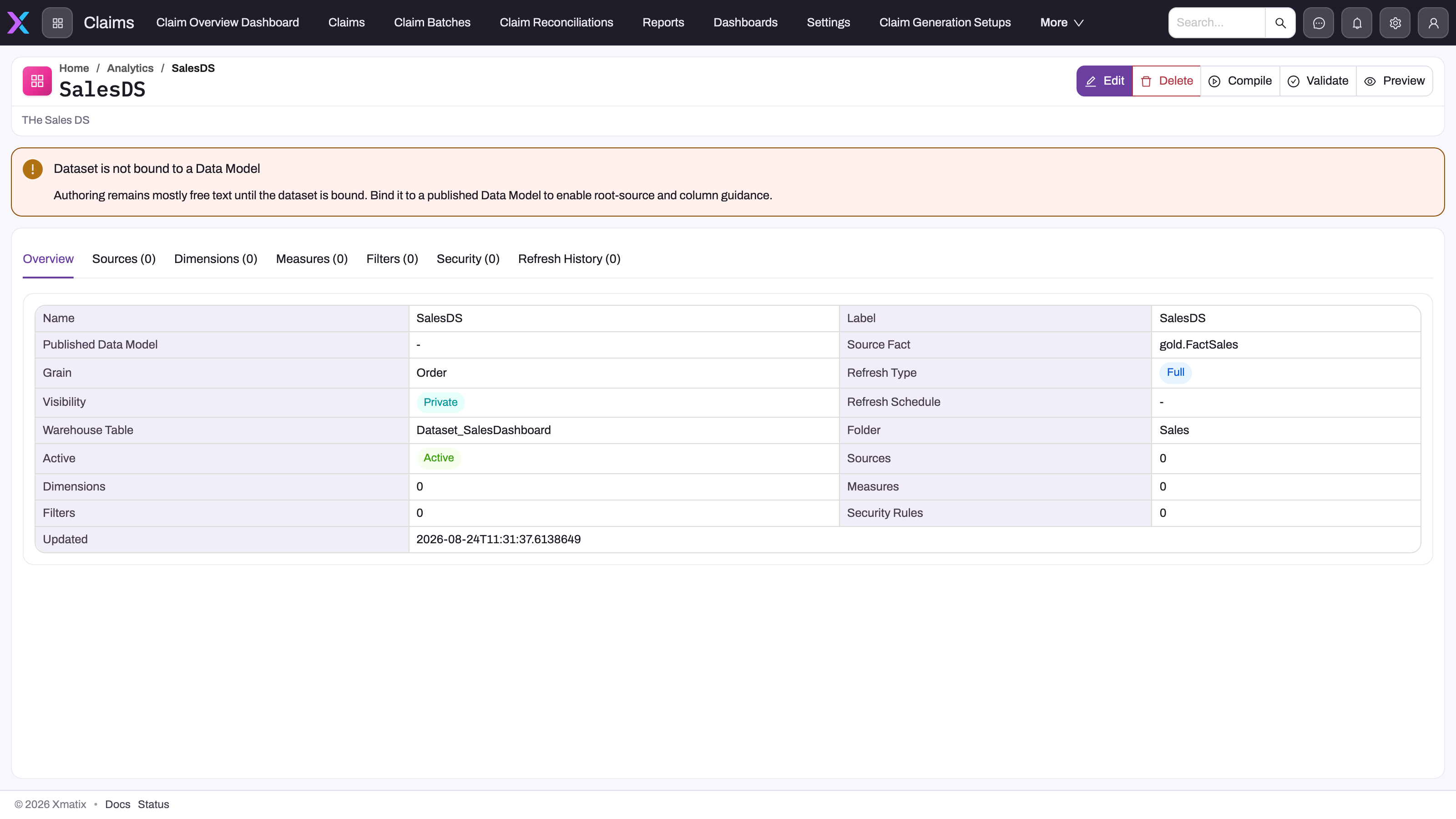
From the row, choose Open Workspace.
- 1
Compile validates, generates SQL and rebuilds the warehouse table; Validate and Preview do the same checks without touching the warehouse.
- 2
Guardrail banner: this dataset uses a fallback table, so authoring is free text — bind a published data model to get root-source and column pick lists.
- 3
Sources, Dimensions, Measures, Filters and Security each hold one collection with its count; Refresh History lists the latest 50 runs.
- 4
Overview echoes the shell: model or Source Fact, Grain, Refresh Type and Schedule, Warehouse Table, Active — the first place to check when a refresh never runs.
- 5
Edit reopens the shell dialog; Delete removes the definition (the warehouse table is not dropped).
The workspace header carries Edit, Delete, Compile, Validate and Preview; the tabs are Overview, Sources, Dimensions, Measures, Filters, Security and Refresh History, each showing its count. A guardrail banner above the tabs tells you what kind of authoring help you have:
- Data Model guidance enabled — the dataset is bound: the model's root object is offered as your root source and its published columns appear as pick lists. A second warning appears if your root source table does not match the model's root.
- Dataset is not bound to a Data Model — "authoring remains mostly free text": no pick lists, no schema-aware validation; compile-time SQL errors become your first line of defence.
- Data Model schema is unavailable — the model is bound but has not been built yet, or its schema could not be loaded. Build the model first.
Step 3 — Define the sources
On Sources, add the tables the dataset reads. The first source is the root — it has no parent alias — and exactly one root is allowed (dataset.sources.root.multiple). For a bound dataset, Use Bound Root Source fills the table name and the alias fact from the model. Each further source declares Table Name, Alias, Join Type (Inner, Left, Right, Full), the Parent Alias it joins to, a Join Condition in warehouse SQL and a Display Order; a non-root source without a join condition fails validation (dataset.sources.join.required).
Step 4 — Define dimensions
On Dimensions, add the columns to group by. Each dimension has a Column Name (or an Expression instead), a Display Name, a Group By Order, a Time Dimension flag and Visible. On a bound dataset, Use Data Model Column prefills the column from the model's published schema — use it: column names are validated against the model's output columns, not the operational entity's field labels (dataset.expression.column.missing). Dimensions become the grain of the output: every distinct combination of dimension values is one row of the compiled table.
Step 5 — Define measures
On Measures, add the numbers. Each measure has a Measure Name, an Aggregation — Sum, Count, Average, Min, Max, Count Distinct, or Expression for a fully calculated measure — an Expression (a column or warehouse SQL over the model's output columns), a display Format, Display Order, and the Calculated and Visible flags. A dataset with no dimensions and no measures compiles to nothing useful and validation warns you (dataset.outputs.empty).
Step 6 — Add filters, and security rules if needed
Filters are SQL predicates ANDed into the build — rows they exclude are genuinely absent from the compiled table, which makes filters the hard scoping tool. Each has a Filter Expression, Display Order and Active flag.
Security rules declare per-role row scoping: a Role Id, a Row Filter Expression such as SalesPersonId = @me (@me is the reader's own user id), order and active flag (dataset.security.role.required if the role is missing). They appear in the Preview's Security tab. They are not injected into the compiled table's SQL — the materialized table contains every row the filters allow — but native dashboard tiles apply them when they read the dataset: a viewer sees only the rows of the rules for their roles, and nothing if no rule covers them. Their intended use and the consequences are covered in Row-level security on datasets.
Step 7 — Validate and preview
Choose Validate. The Dataset Validation dialog reports Validation passed or Validation found blocking issues with an error and warning count and each finding's code and message. Errors block compilation; warnings never do, so read them as review items. The label is required (dataset.label.required); a bound model must still be published and active (dataset.data-model.unpublished / inactive); a missing warehouse target is only a warning (dataset.warehouse-target.missing) because the name is derived.
Then choose Preview. The Dataset Preview dialog has four tabs — Columns, Filters, Security and SQL Preview — showing the projected output, the active predicates, the declared security rules and the exact SQL that compile will run. Preview does not execute anything against the warehouse; reconcile the SQL with the written grain and confirm no join can duplicate rows before compiling.
Step 8 — Compile
Choose Compile. The dataset is validated again — any error stops the compile with the findings and no history row is written — then the SQL is generated and the table is written according to the Refresh type: rebuilt in full, recomputed for its newest periods, or appended to with a new snapshot. An Incremental dataset falls back to a full rebuild on its own when it has no table yet, has no single time dimension, or its columns changed since the last run, and the run records why. Full reload, beside Compile, forces a rebuild of the whole table. The toast Dataset compile triggered confirms the request was accepted; the outcome lands in Refresh History as Success with a row count and duration, or Failed with the error message (an unreachable warehouse fails the run with a connectivity message).
Step 9 — Confirm the refresh cycle
Open Refresh History (columns Started, Completed, Status, Rows, Duration, Error; latest 50 runs) and verify the newest run is Success and its row count matches an independent grain-level expectation. If you set a Refresh Schedule, check the Next refresh on the Overview (shown in your organization's time zone with UTC alongside) is the time you meant, and confirm that the first scheduled rebuild appends a new successful entry. The scheduling rules and statuses are in Refresh scheduling and monitoring.
Expected result
Validation has no errors, the previewed SQL matches the declared grain, and Compile creates the intended warehouse table with plausible dimensions, measures and row count. Refresh History records the manual build and, if scheduled, a later scheduled run. The dataset is offered in the dashboard designer's dataset source picker and in Dashboards → From Dataset.
Common problems
Validation keeps failing on column references. Expressions are checked against the bound data model's output columns — the names the model publishes, not the operational entity's field labels. Open the model's Columns tab and use its output column names verbatim; the pick lists in the dimension and measure dialogs exist precisely to prevent this mismatch.
Compile is refused and no run appears in history. Validation failed — a compile only starts, and only writes a history entry, once validation passes. Run Validate, fix the errors it lists, and compile again.
Compile fails with a connectivity error. The analytics warehouse was unreachable; nothing was built. The failed run stays in history with the message; retry later.
The dataset never refreshes on its own. The three silent causes: the dataset is inactive (Next refresh says Paused (inactive)), the schedule is blank (manual-only is valid), or the cron expression is invalid. A new or edited schedule cannot be saved invalid, but one saved before that check shows Invalid schedule — never runs in the list and on the Overview — fix the expression and the next due occurrence runs. The dataset's creator receives an in-app and email notification on the first failed scheduled refresh, but a refresh that never starts sends nothing.
Binding shows Unmapped or Ambiguous on the list page. The Dataset binding status panel is for datasets created before models existed, or whose model link was lost. Refresh Binding Check re-evaluates every dataset's fallback source table against published, active models; Apply Matched Bindings writes the model link only for rows whose status is matched and that have no model yet. Ambiguous means more than one model claims the same table — bind that dataset by hand through Edit.
Common questions
When should I build a dataset instead of a report?
Build a dataset when the workload is analytical: pre-aggregated numbers over large or archived history, refreshed on a schedule, consumed by several dashboards at once. Use a plain report for operational listing and grouping of live records — it is immediate, needs no modelling, and reflects this minute's data. The dividing question: should this definition be computed once and shared, or asked fresh each time?
What is the difference between Full, Incremental and Snapshot refresh?
Full drops and rebuilds the whole table every run, so the table always matches the definition exactly; duration grows with total data volume. Incremental deletes and recomputes only the newest Periods to recompute of the dataset's single time dimension and keeps the rest, so a change or deletion dated earlier is not picked up until a full reload runs — set a Full reload schedule (weekly is typical) or use Full reload by hand. Snapshot never replaces history: each run appends the current aggregate stamped with the as-at date, re-running on the same date replaces that date's rows rather than double-counting, and stamps older than Keep snapshots for (days) are trimmed. Use it for month-end balances, ageing and stock positions that must be compared over time.
What does Visibility do?
It decides who can see a dataset and build on it.
- Private — only its author and dataset stewards see it: in the Datasets list, the dashboard designer's dataset picker, From Dataset, and every API or Copilot read.
- Shared — every dashboard author sees it and can build dashboards on it.
- Datasets that come with the platform (and any dataset with no recorded author) count as Shared.
Seeing is not editing. An author edits, deletes and adds dimensions or measures only to their own datasets; anyone else's — Shared or not — is read-only for them. A dataset steward (the Manage all datasets capability, setup.metadata.analytics.datasets.manage) sees and edits every dataset whatever its Visibility. When this arrived, every profile that could manage analytics was made a steward, so nothing changed for existing users until an administrator removes Manage all datasets from a profile in Setup → Access & Governance → Profiles.
Visibility governs picking, not viewing:
- A dashboard keeps working for everyone allowed to open it, even if its dataset is Private to someone else. Who sees which rows is still decided by the dataset's row-level security.
- An author editing such a dashboard sees that tile's dataset as Restricted dataset. The tile keeps working and saves unchanged, but they cannot add new tiles on that dataset or switch another tile to it.
App is not offered any more: nothing links a dataset to an app yet, so a dataset already saved as App behaves as Shared. New datasets start as Private — set them to Shared when other authors should build on them.
Can a dataset skip the data model and read a table directly?
Yes — the Fallback Source Table exists for exactly that, and the workspace banner will tell you authoring is "mostly free text" in that mode: no root-source guidance, no column pick lists, no schema-aware validation. Treat it as the escape hatch, not the pattern; the governed path is a published data model, for the reasons in Data models and materialization.